
...
Within the history and work order lists, the months that are set here will be shown at the top left corner. As an example in the work order list: Period: 12 mths --> 31.10.2022

Due Status WO:
Week = light bulb changes from green to yellow on the Monday in the week of From Date, and light bulb changes from yellow to red on the Monday in the week after To Date.
Date = light bulb changes on date.
Due Status Checklist:
Date = light bulb changes on From/To Date.
Checkpoint status = light bulb on checklist head is controlled by the due status light bulbs on the checkpoints. For example, if there are red checkpoints on the checklist, the light bulb status on the checklist head will also be red.

Copy parts to new WO: if this is activated, it will be set by default on the job upon approval, and the parts will be included in the next occurrence of the recurring job. The checkmark can be removed within the job while approving.
Copy sub-activities to new WO: if this is activated, it will be set by default on the job upon approval, and the sub-activities will be included in the next occurrence of the recurring job. The checkmark can be removed within the job while approving.
Copy documents to new WO: if this is activated, it will be set by default on the job upon approval, and the documents will be included in the next occurrence of the recurring job. The checkmark can be removed within the job while approving.
Copy personnell to new WO: if this is activated, it will be set by default on the job upon approval, and the assigned personnel will be included in the next occurrence of the recurring job. The checkmark can be removed within the job while approving.
Copy comments to new WO: If this is activated, it will be set by default on the job upon approval, and the comments will be included in the next occurrence of the recurring job. The checkmark can be removed within the job while approving.
Status: This is where you set the default workflow status of the new recurring job that is created on approval.
Description:
Include - from the job that is being approved over to a new job.
New [Work description] – use the description that is in the connected work description.

Setup regarding invoice status (Saved or Executed) that the invoice should have in the system before transfer to Visma. You can have different setups when creating invoices from WO and from Rental.

Setup for integration with the R2 booking system.
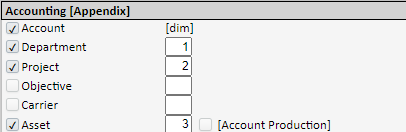
To be used when generating bundle files (under the menu Articles). For more information, contact our Support.
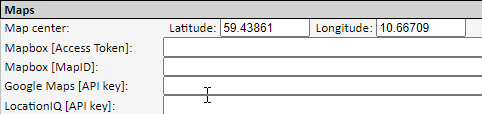
OpenStreetMaps is integrated, and this is the default unless another option is selected here. Google Maps may result in a licence being required by Google if it is used frequently. We therefore recommend not activating this. For more information, contact our Support department.

Setup for setting colours and themes in the system. In addition, every user can select/set colour/theme in their user profile.

For use by Ørn Software AS.

This is where the performance activators that are shown on ‘My page’ are activated/selected. For further details about these, see the description under ‘My page’.

Main page: Here you can insert a link to a web address or other info that will be reached via the menu point ‘Help’.
Message [External]: In the same way as above, you can insert a link or other info that will be reached via the menu point ‘Help’ in the external registration form.