
...
5. To create a new case, click Create new case.
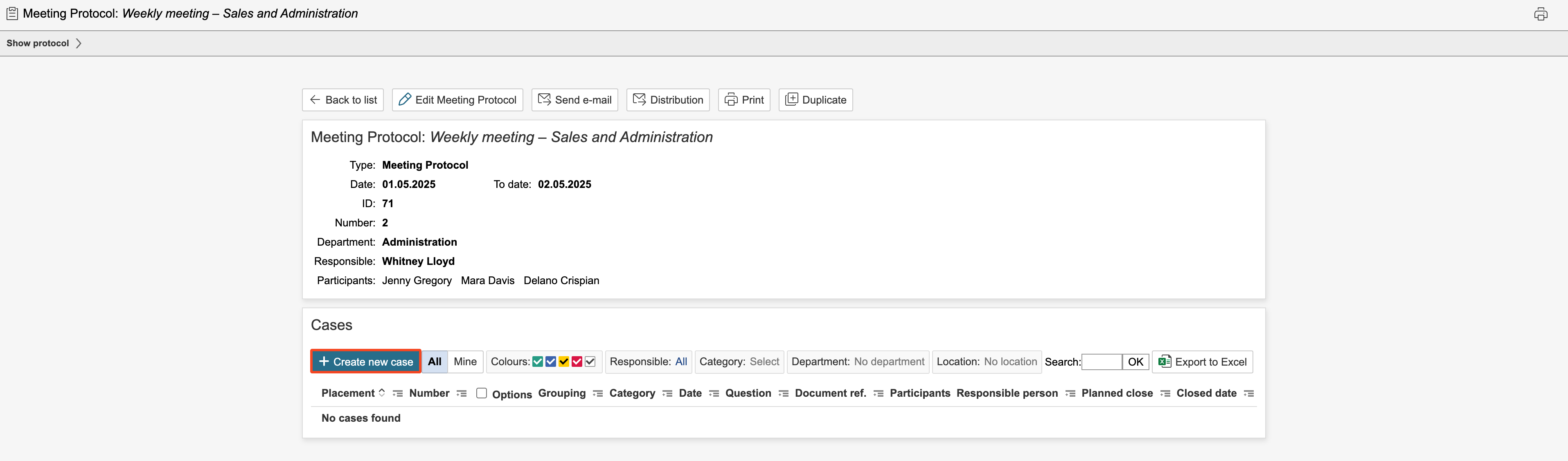
6. Enter information in Complete the fields for the case and click Save. To save and create a new case and move on, click click New case.

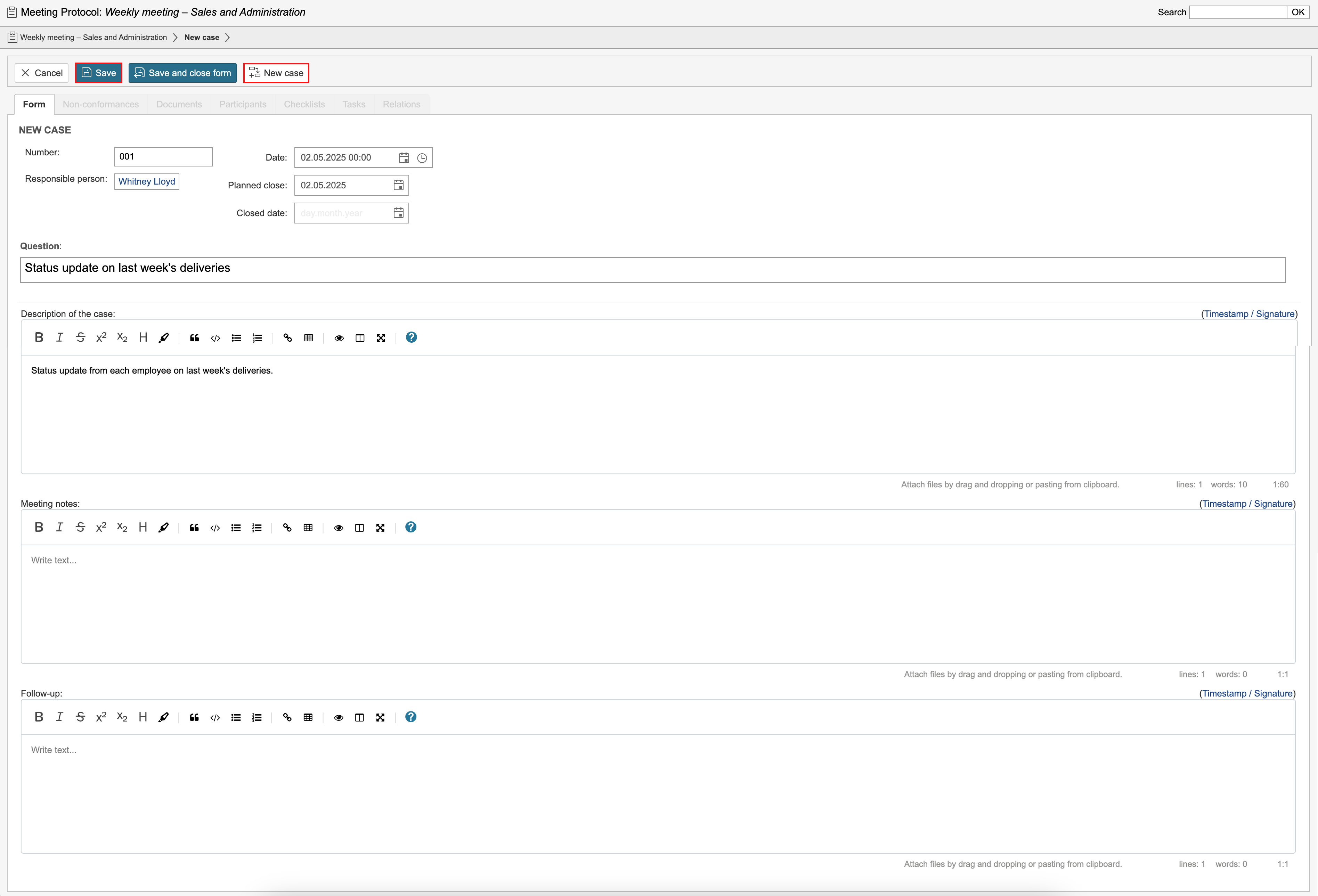
7. Once the information for a protocol case has been entered, you can continue registering additional cases by clicking New Case and filling in the relevant details for each one.

| Info |
|---|
Info: All cases in the protocol are displayed on the left side of the page. |
8. If a case has been answered Clicking New case allows you to create a new case in the auditing and meeting note. All the cases in the auditing and meeting note can be viewed in the list on the left of the page. If a case is responded to and completed during the meeting, the case can be closed by checking Case is you can close it by ticking Case closed. To continue and a create new casescase, click click New case.


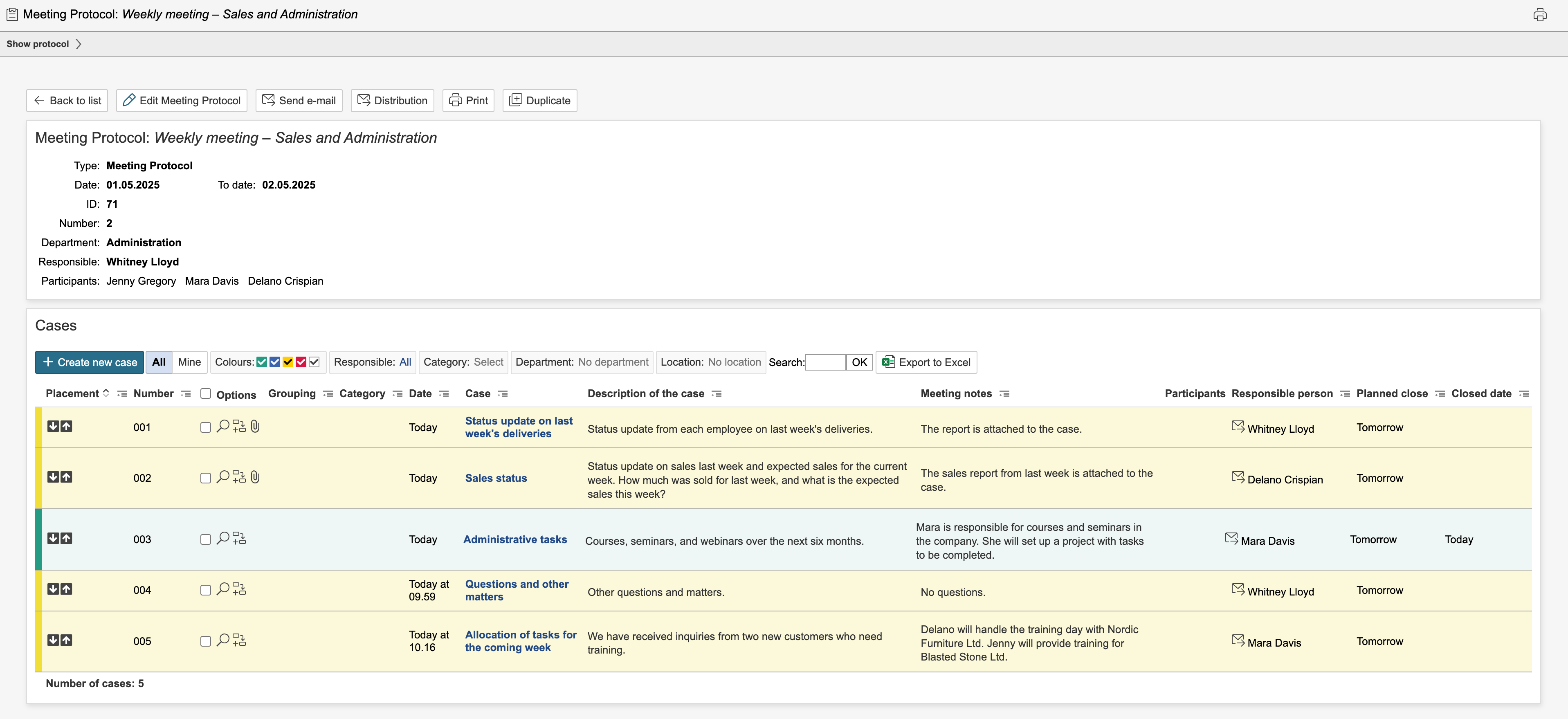
8. When the all cases have been fully registered created and reviewed, click Save and close form to return to access the auditing and meeting note listthe protocol overview.
| Tip |
|---|
Tip:It It is possible to select configure actions for the various responses various answers to the questions and and to create and link to records in in other modules for the cases. |
9. The auditing and meeting note can be closed if all cases are closed and fully processed.
...