
Protocol types can be created at the root level or as subtypes.
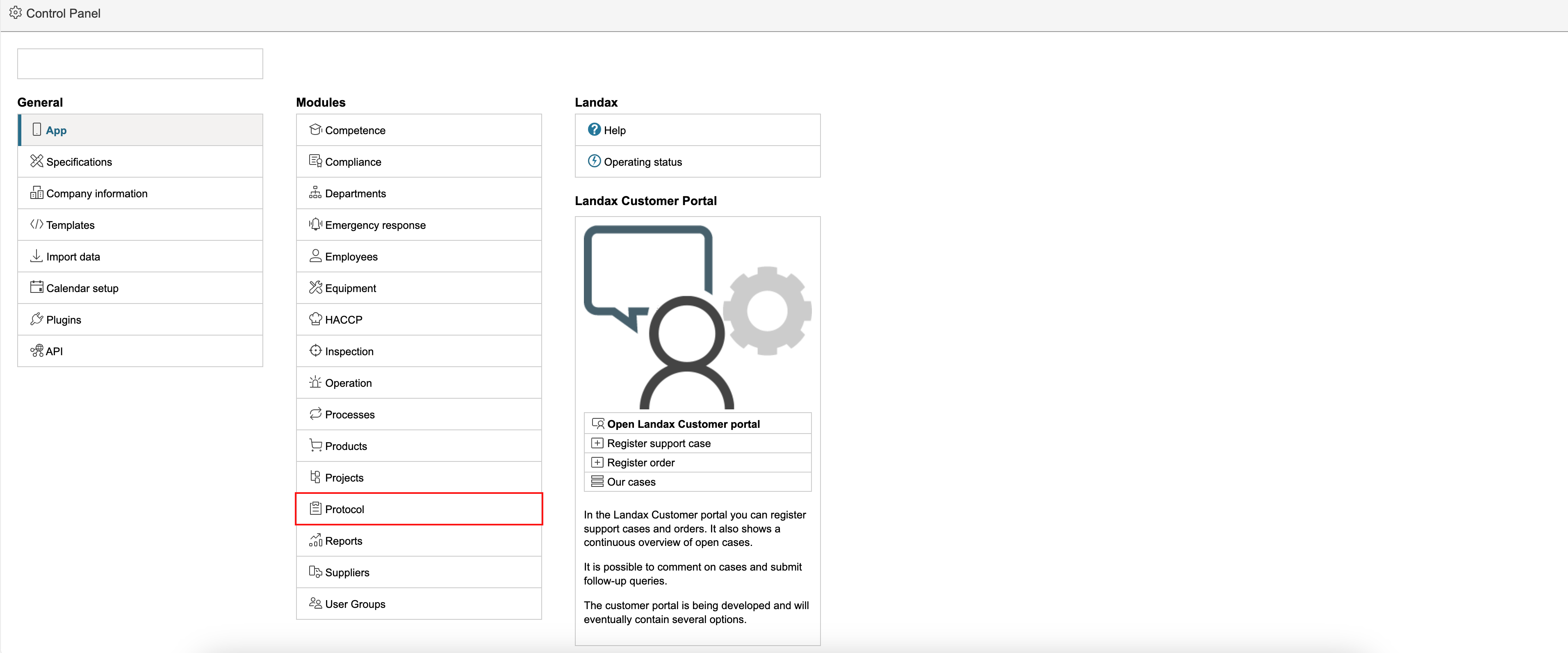
1. To create a new protocol type or edit an existing one, go to the control panel and click Protocol in the middle column.
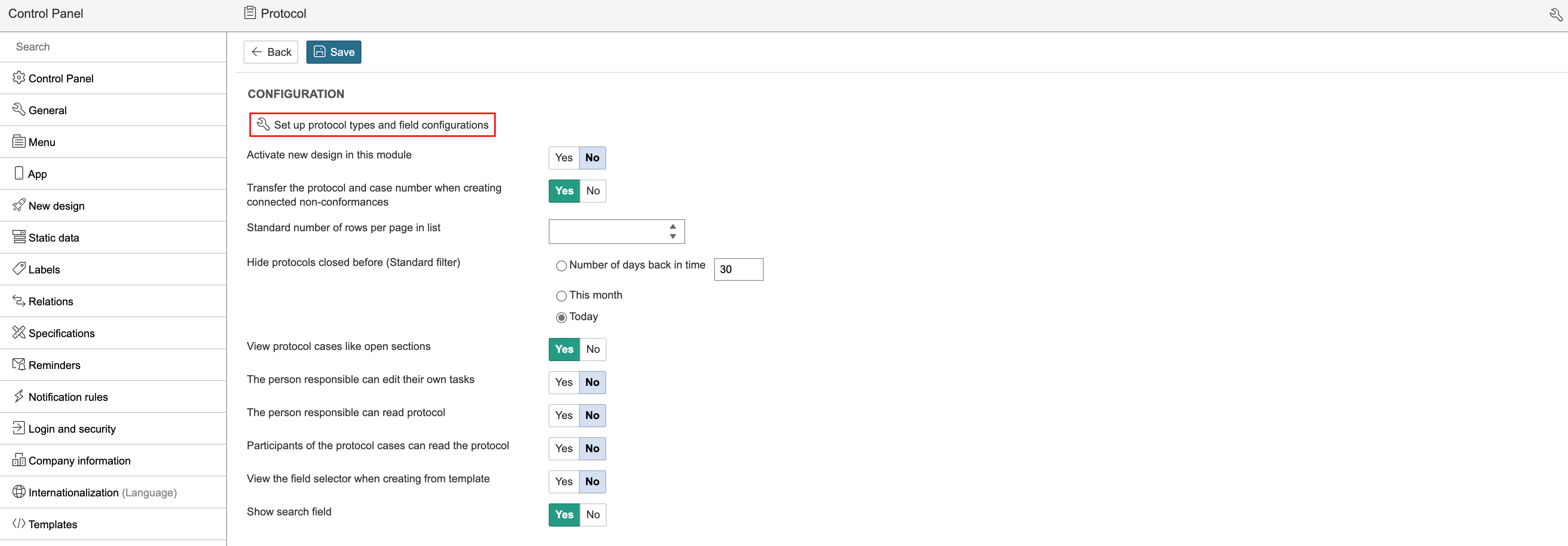
2. Click Set up protocol types and field configurations.
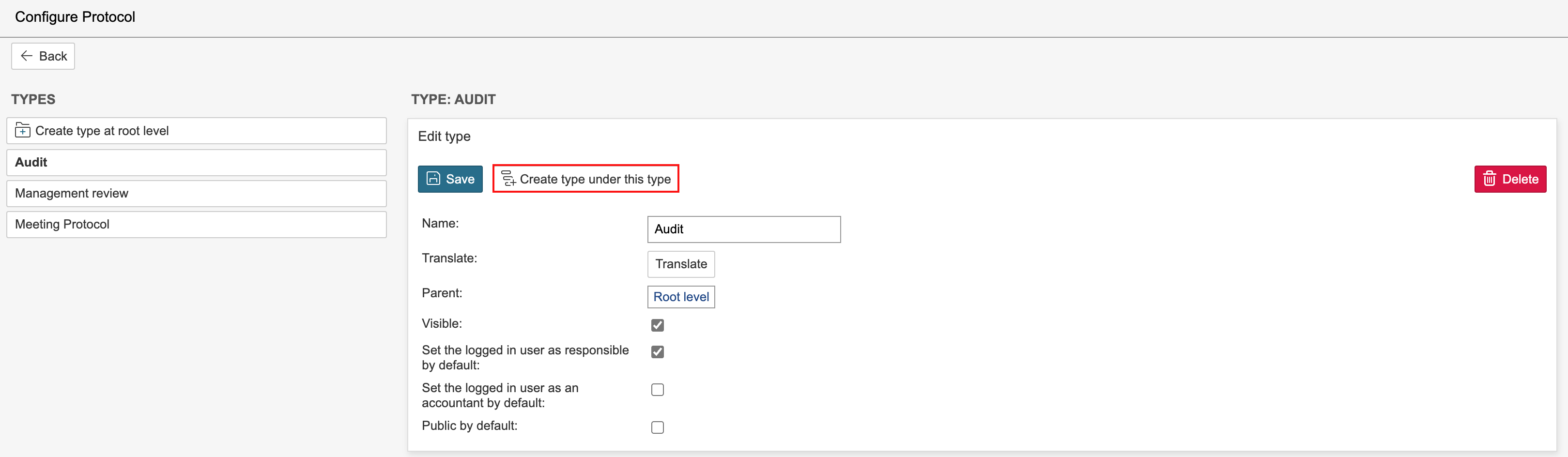
3. To edit an existing protocol type, click its name. Protocol types can be created at both root level and sub-level.
a. To create a protocol type at root level, click Create type at root level.

b. To create a protocol type at sub-level, click the parent protocol type, then click Create type under this type.
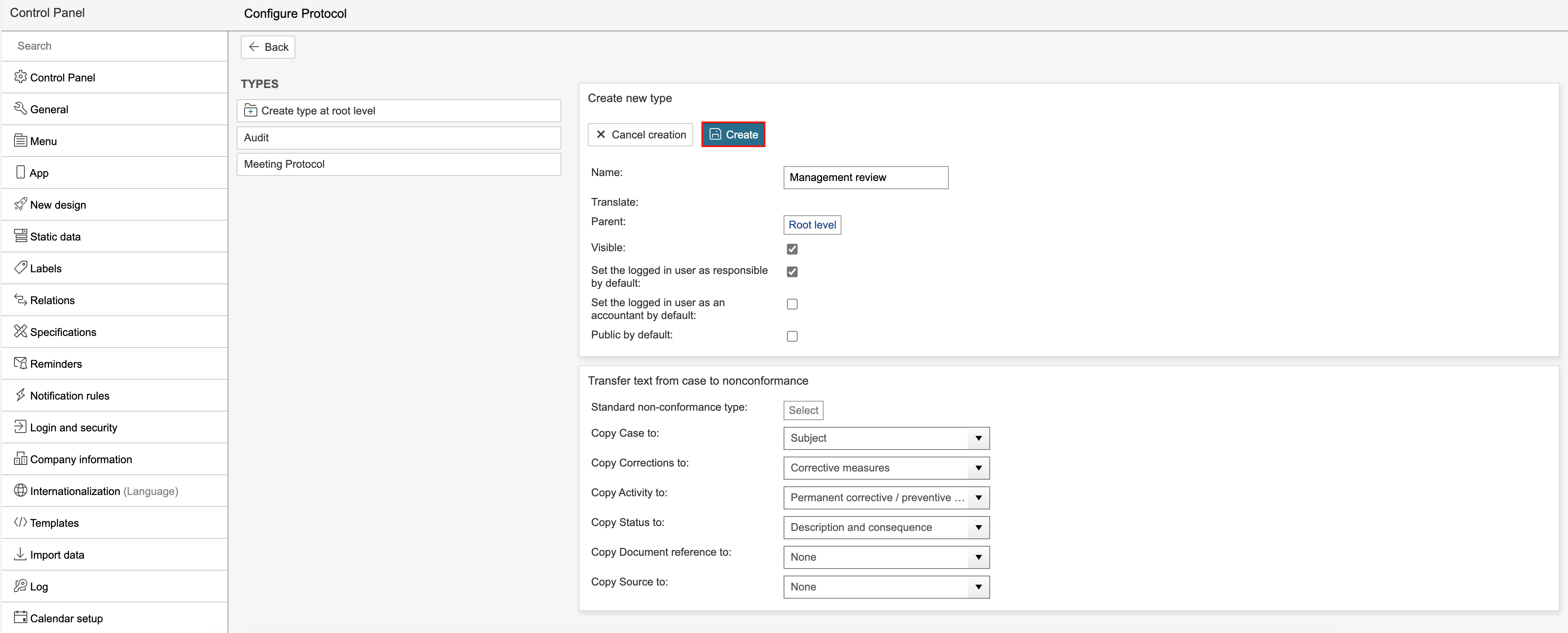
4. Enter a name, select the settings for the protocol type, and click Save.
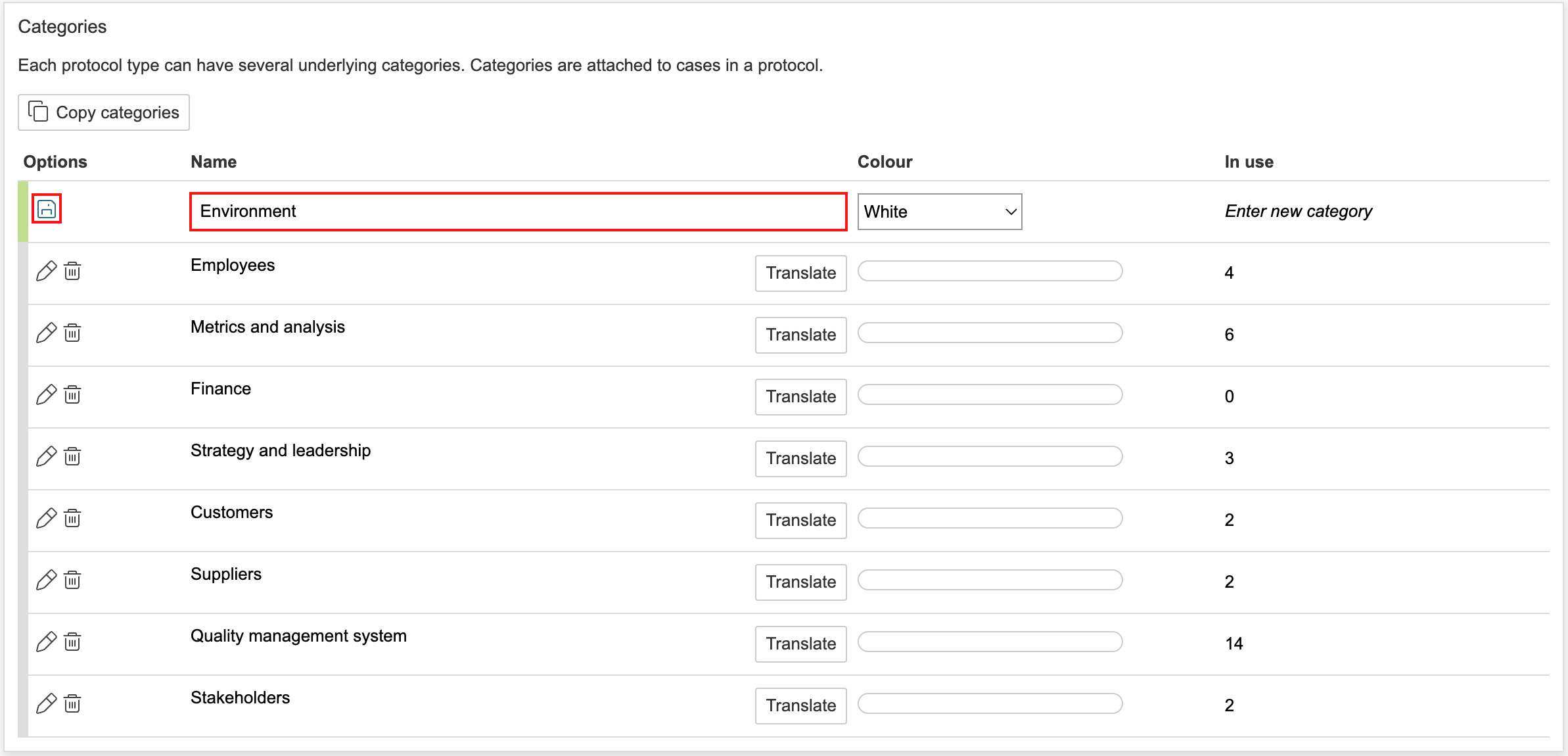
5. You can define categories, groups, and answers to questions that can be used in protocol cases. These are configured in the control panel and are specific to each protocol type.
a. Categories: To edit an existing category, click  . To create a new one, enter a name and click
  . To delete a category, click
  .
.
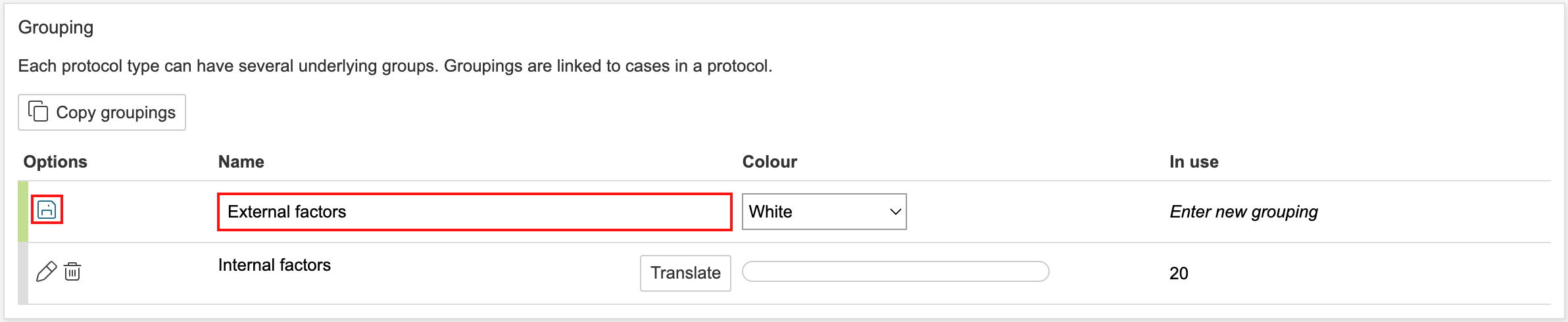
b. Group: To edit an existing group, click . To create a new one, enter a name and click . To delete a group, click .
| Info |
|---|
Info: If you want to use the same categories or groupings for another protocol type, click Copy category or Copy group, go to the target type, and click Paste to add them. |
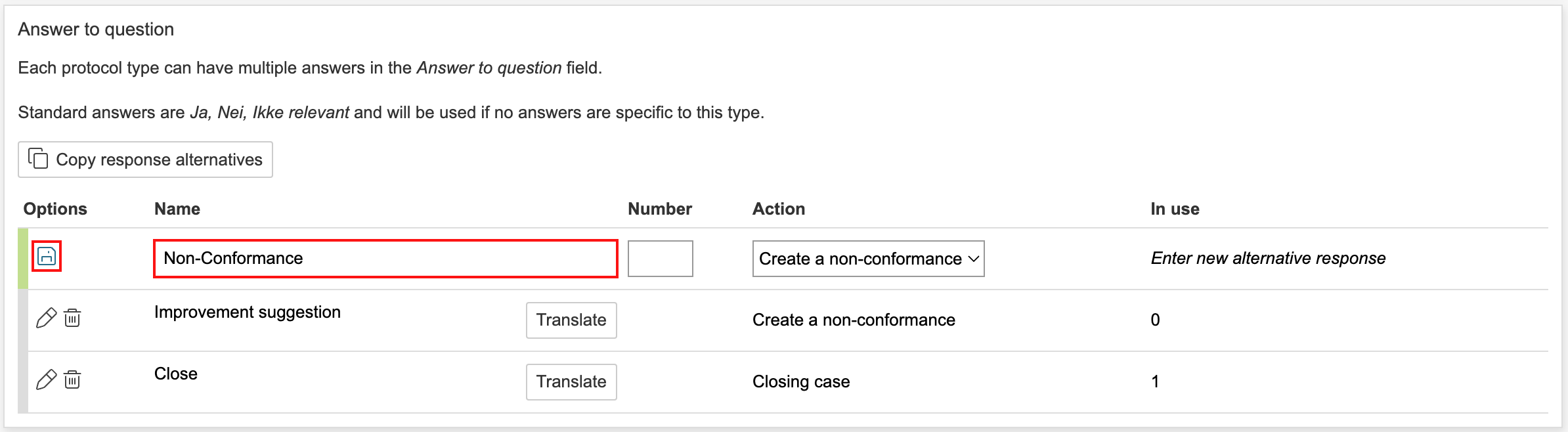
c. Answer to questions: To edit an existing answer, click . To create a new one, enter a name and click . To delete an answer, click .
| Info |
|---|
Info: The field settings found at the bottom of the page are not included in this guide, as it is easier to make these adjustments by enabling configuration mode and editing the form directly on a protocol case. |