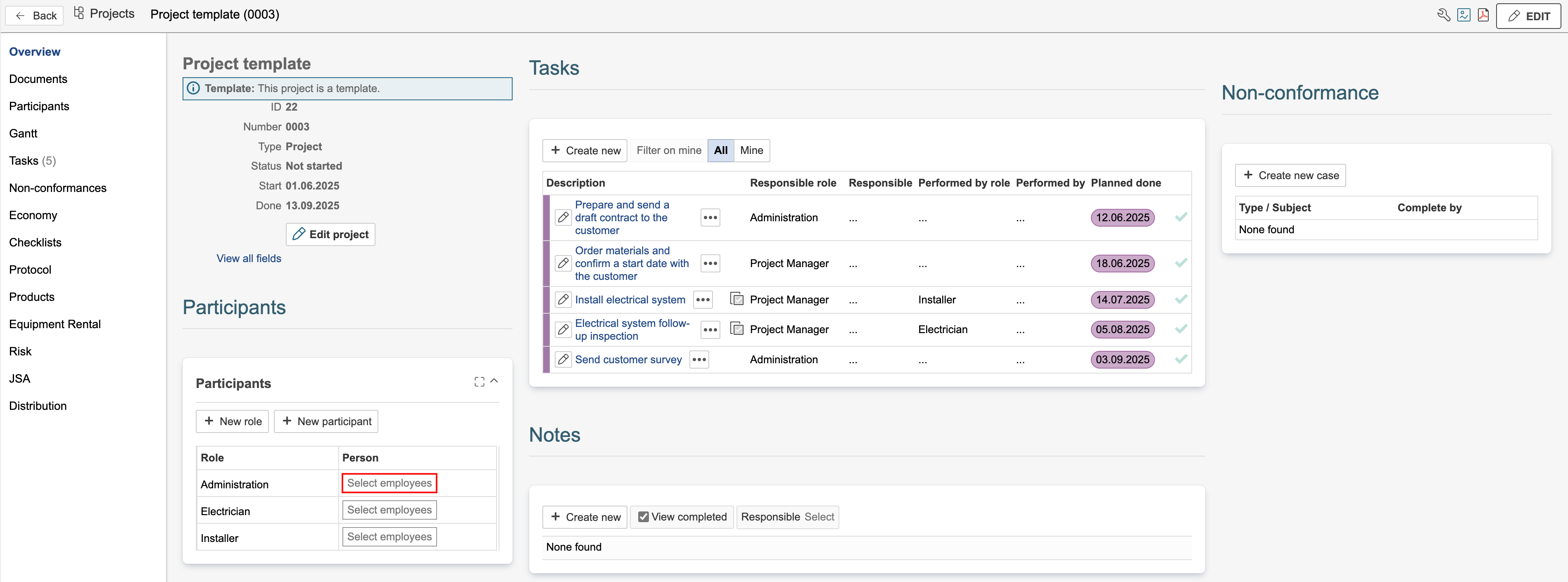
Participant requests are used to predefine which roles should be included in a project. They can be added to a project or a project template. If a project template has participant requests, the requests will be included in any project created from that template.
Create new
Participant requests can be created in the dedicated Participants tab in the project or using the participant gadget in the project overview.
In Participants tab
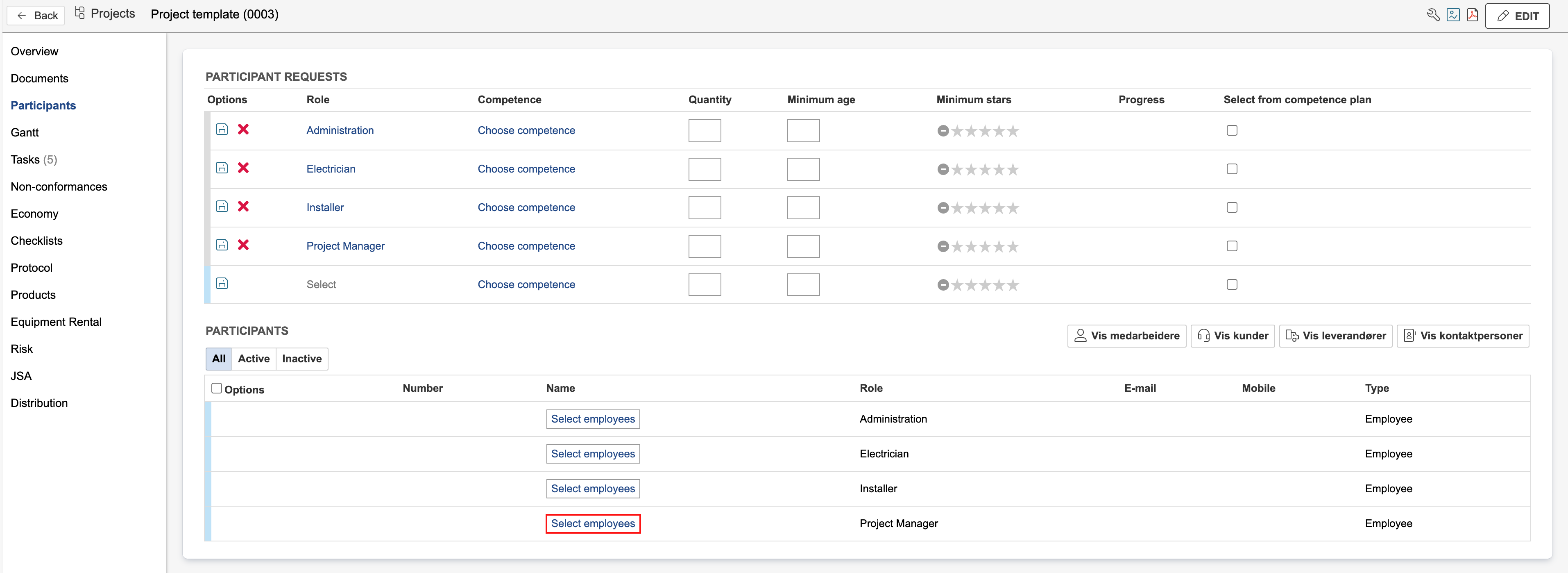
1. To create a participant request, go to the Participants tab and click Select.
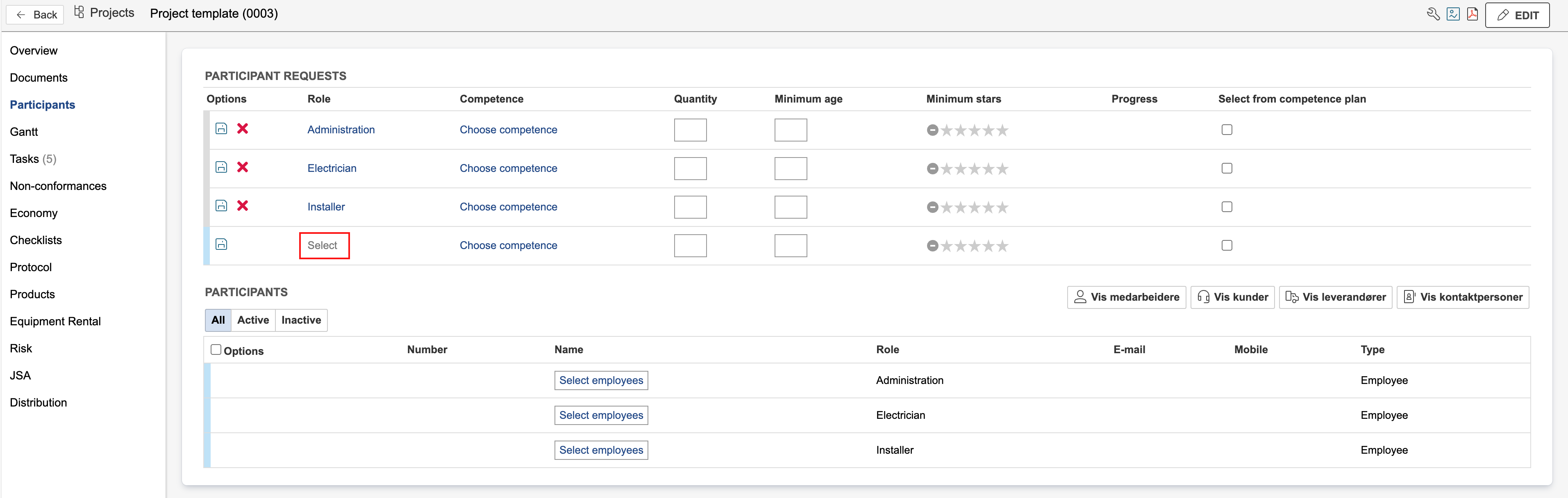
2. Select the role to be added by clicking it.
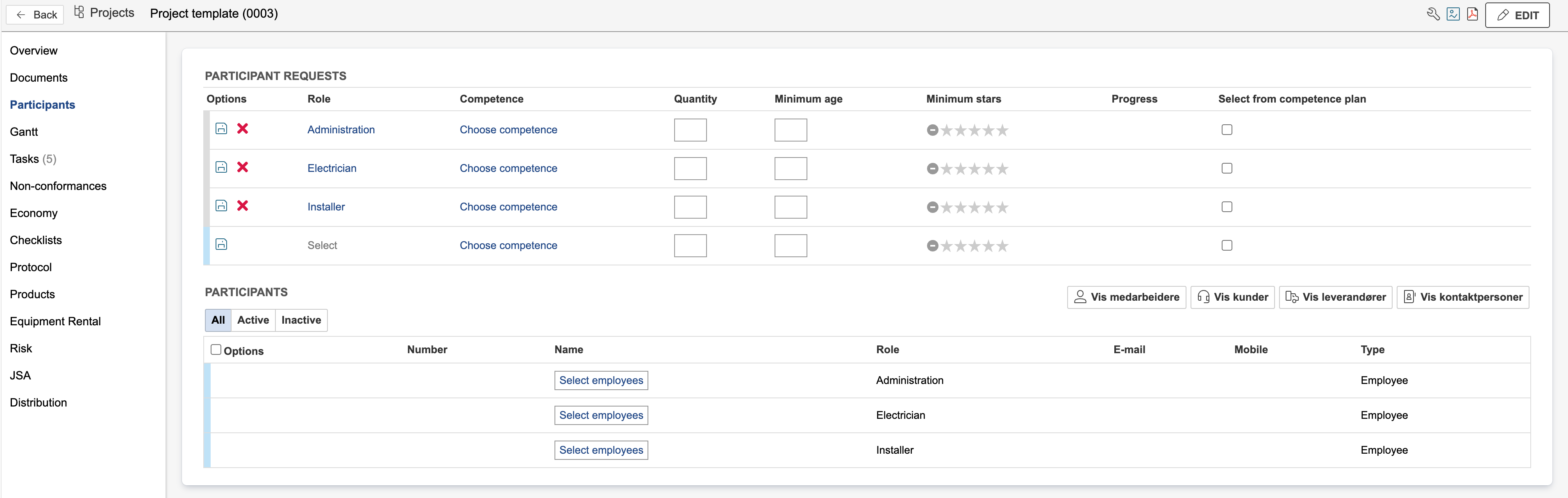
3. Click the  to save.
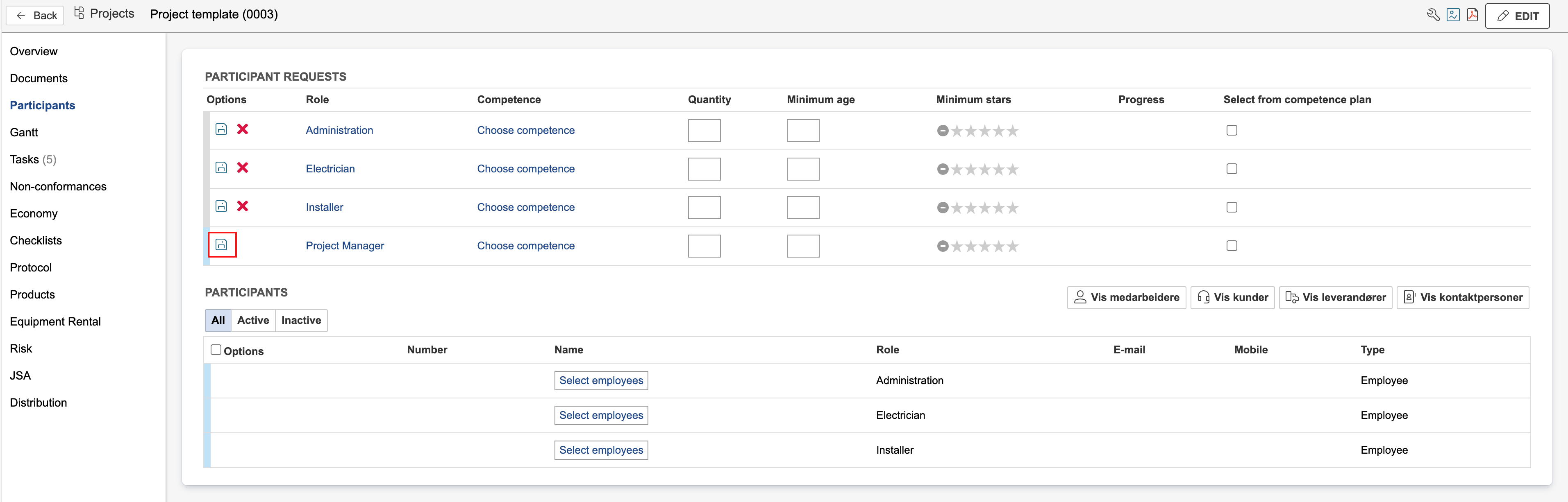
4. Result after adding all requests. To add people to the roles, click Select [module] and select the person to assign to the request.
In gadget
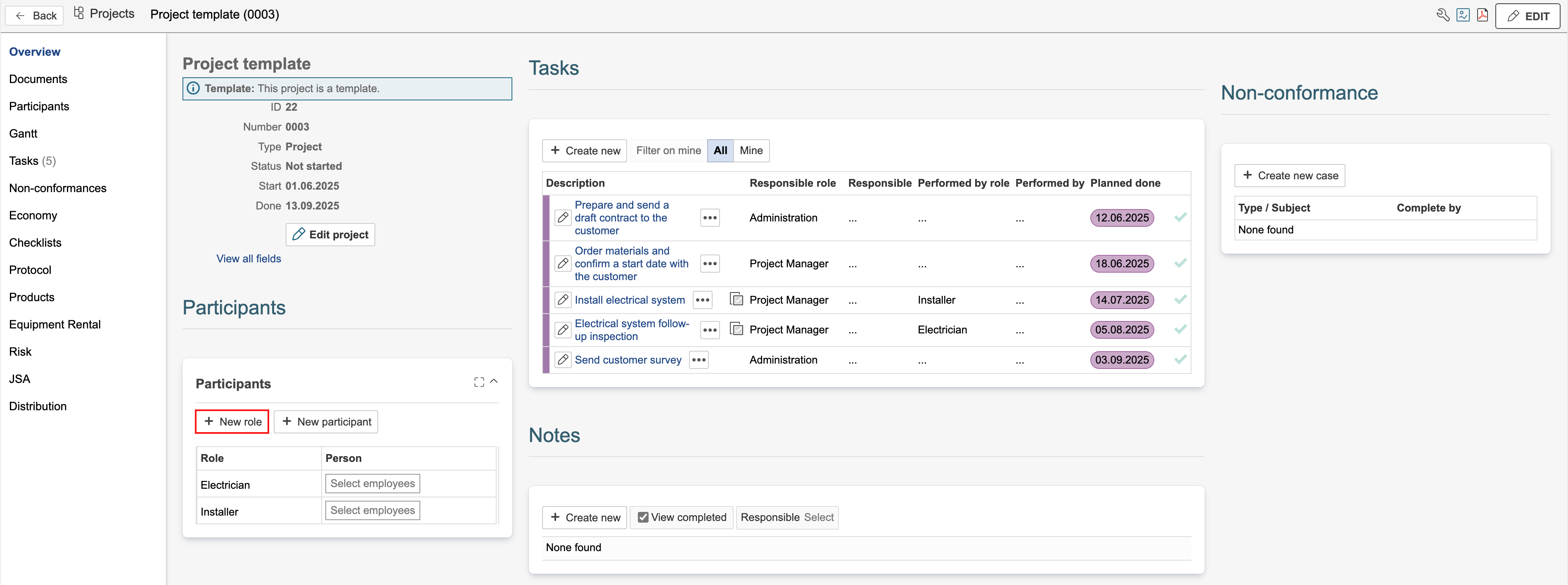
1. Open a dashboard where the participant gadget is available. In the example on this page, it is located on the project overview. If the gadget is not available in one of your project dashboards, you can edit the dashboard to add it. To add a participant request, click New role.
2. Select the role to add as a request, and click OK.
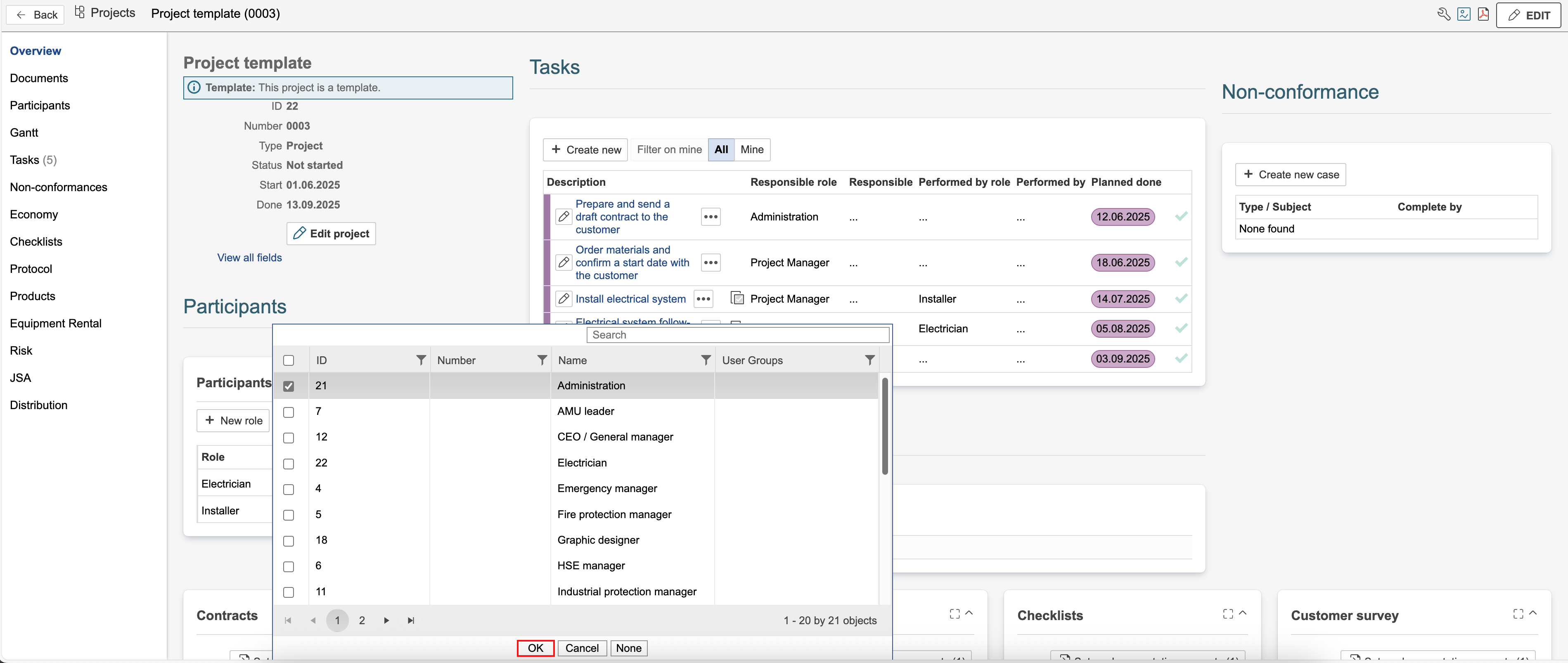
3. Result after adding the request. To add a person to the role, click Select [module] and select the person to assign to the request.