
...
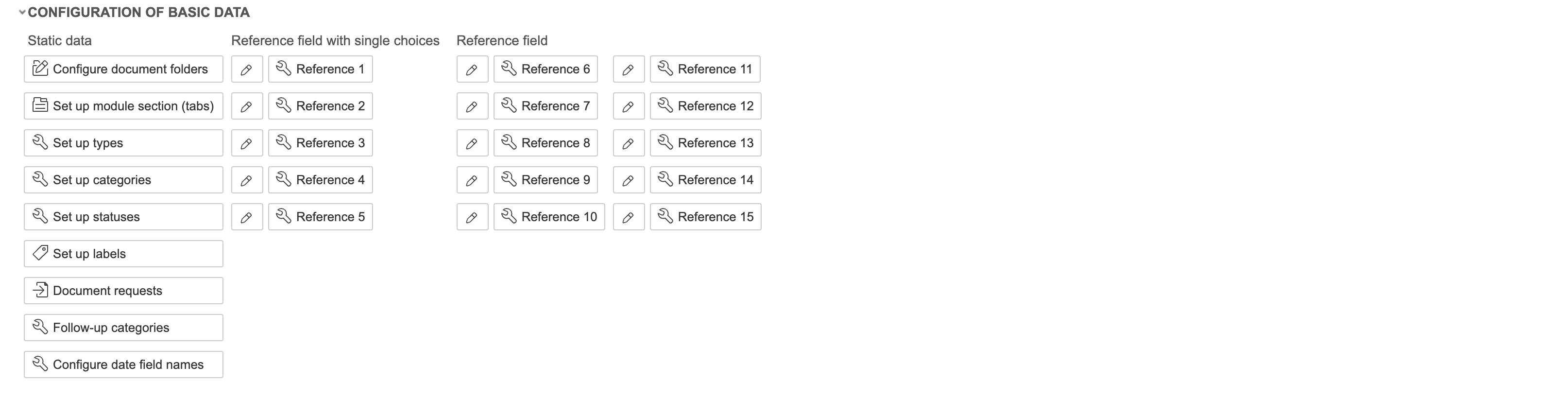
Under Configuration of basic data, you can edit types, statuses, categories, and labels.
Project types
1. Click Set up types to edit project types. To create a new one, click Create new. To edit an existing one, click 'Edit'. To delete a type, click 'Delete'.
...
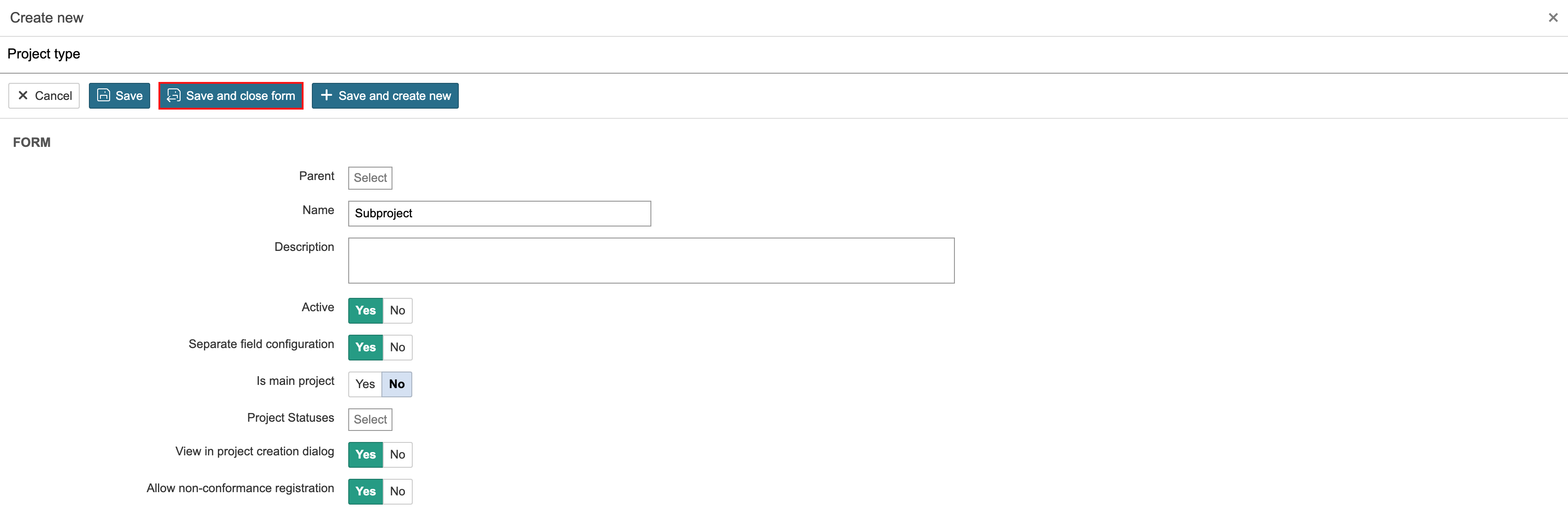
2. Enter a name, select the settings for the type, and click Save and close form. 'Separate field configuration' means that changes to the project form only apply to forms for projects with this type. If you select project statuses for the type, only the statuses you selected will be available for projects with that type. This can also be configured directly on the statuses. 'View in project creation dialog' means that the type will be visible when creating a new project. If 'Allow non-conformance registration' is disabled, non-conformances cannot be registered on projects of this type. To create a tree structure in project types, select a parent type in the Parent fieldthe 'Parent' field.
| Info |
|---|
Info: After saving, you can also configure specific permissions for the project type. |
Project statuses
Create new
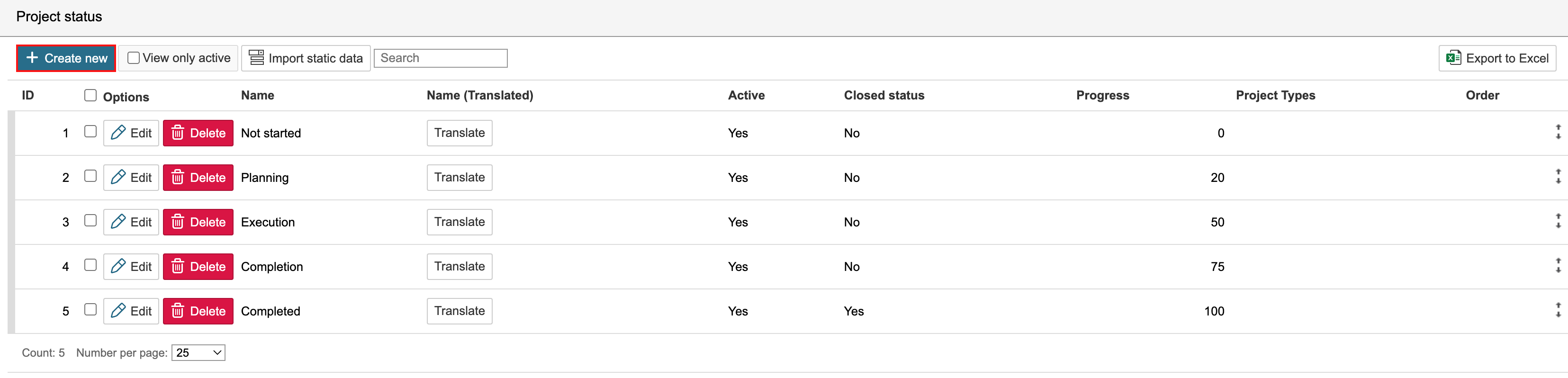
1. Click Set up statuses to edit project statuses. To create a new one, click Create new. To edit an existing one, click 'Edit'. To delete a status, click 'Delete'.
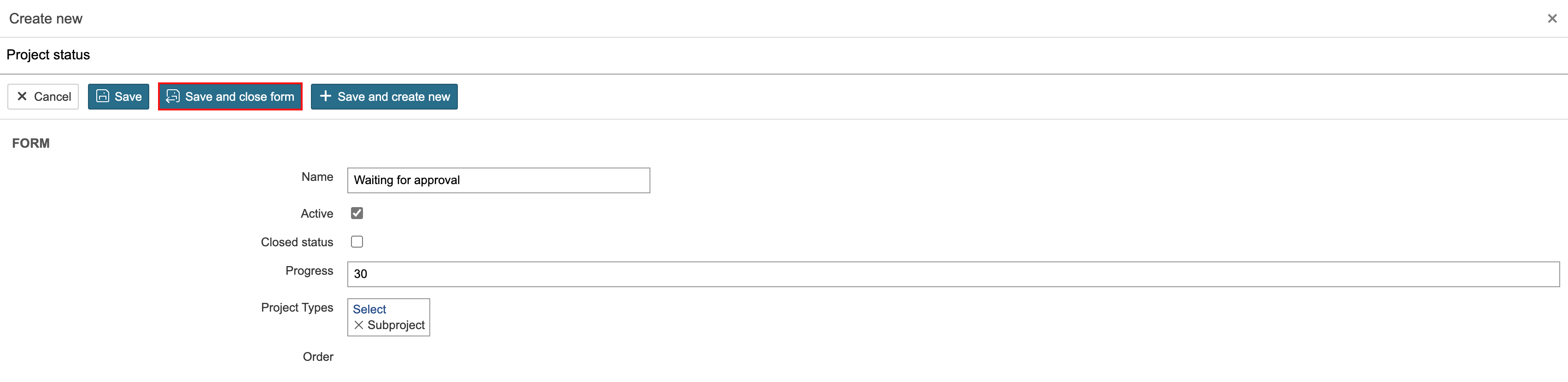
2. Enter a name, select the settings for the status, and click Save and close form. 'Closed status' means that the project will be closed when this status is selected. 'Progress' is linked to the progress of the project. In the example on this page, projects with the status 'Waiting for approval' will have a progress of 30 percent. If no progress is entered, the project's progress is determined by its subprojects and tasks. Progress can also be set manually. If a project type is selected, the status will only be available for that type.
Edit order
The order of statuses
...
Project categories
...
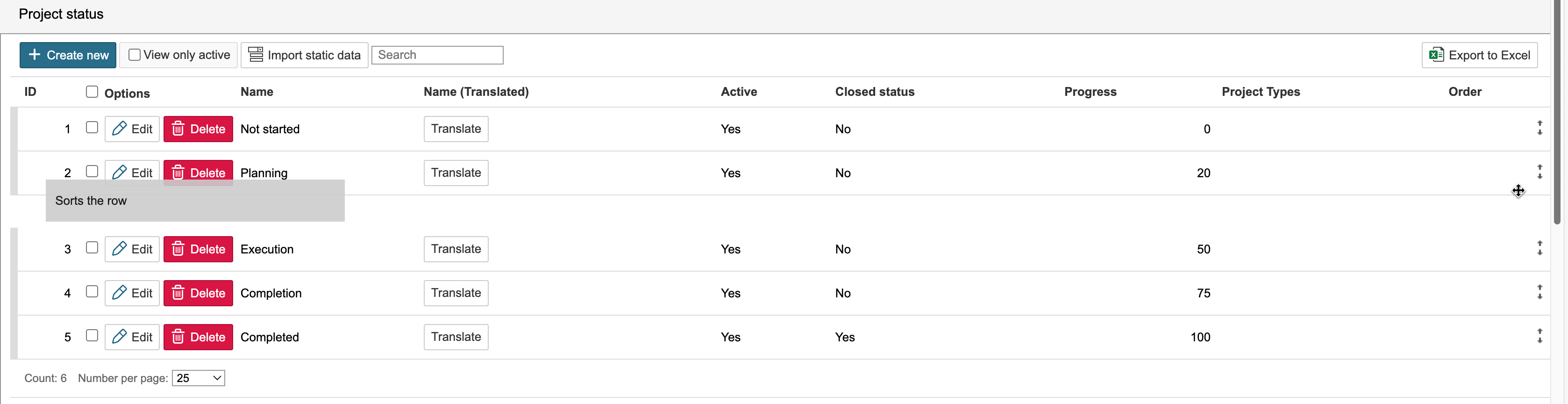
can be changed. To adjust a status's position, hover the mouse pointer over the arrows for that status in the 'Order' column.
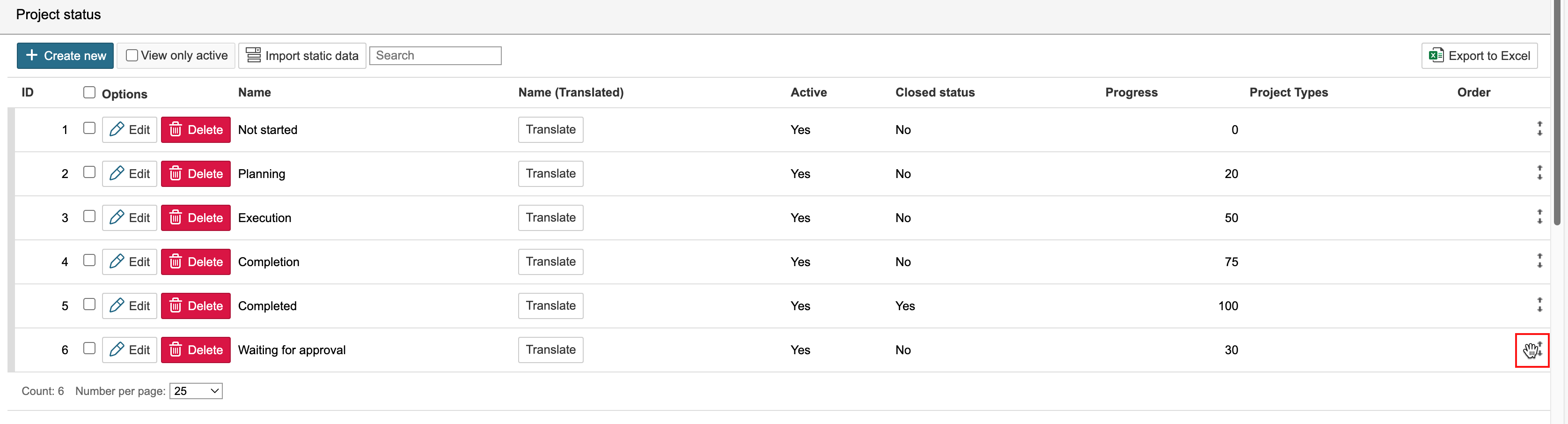
Left-click and drag the status to the correct position.
Labels
Labels have a dedicated page in the guidance. Click here to go to the page.