
Upload data via your smartphone or computer.
The foundation of your analysis and monitoring via Mestro Portal is that the system has your properties' usage in a data format. Much is collected automatically from distribution companies and your suppliers, but some you must upload yourself. For example, water and waste data collected prior to your use of Mestro Portal needs to be uploaded manually. Contact your Customer Success Manager if you are unsure of what to upload!
There are three ways to upload data to the portal; via the edit menu, an Excel template or via Mestro Inputinput. I will describe each in order below.
...
Select the date or month of the reading
Enter the value in the correct unit
Press save

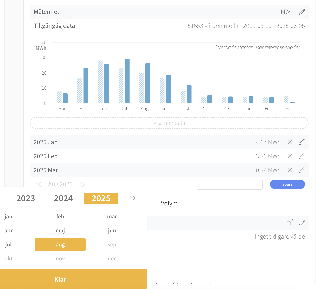
Easy, right!
An Excel template for multiple values
You can download an Excel template from the edit menu by clicking Download at the top of the widget. The template consists of two columns - one with dates and another with values (the units are in parentheses) and looks like this:

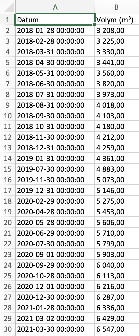
I have entered all meterstands (in red) recorded during 2020 for a water meter in the example property. The final step is simply save and upload! You will find the upload button right below the the one for downloads at the top of the widget.

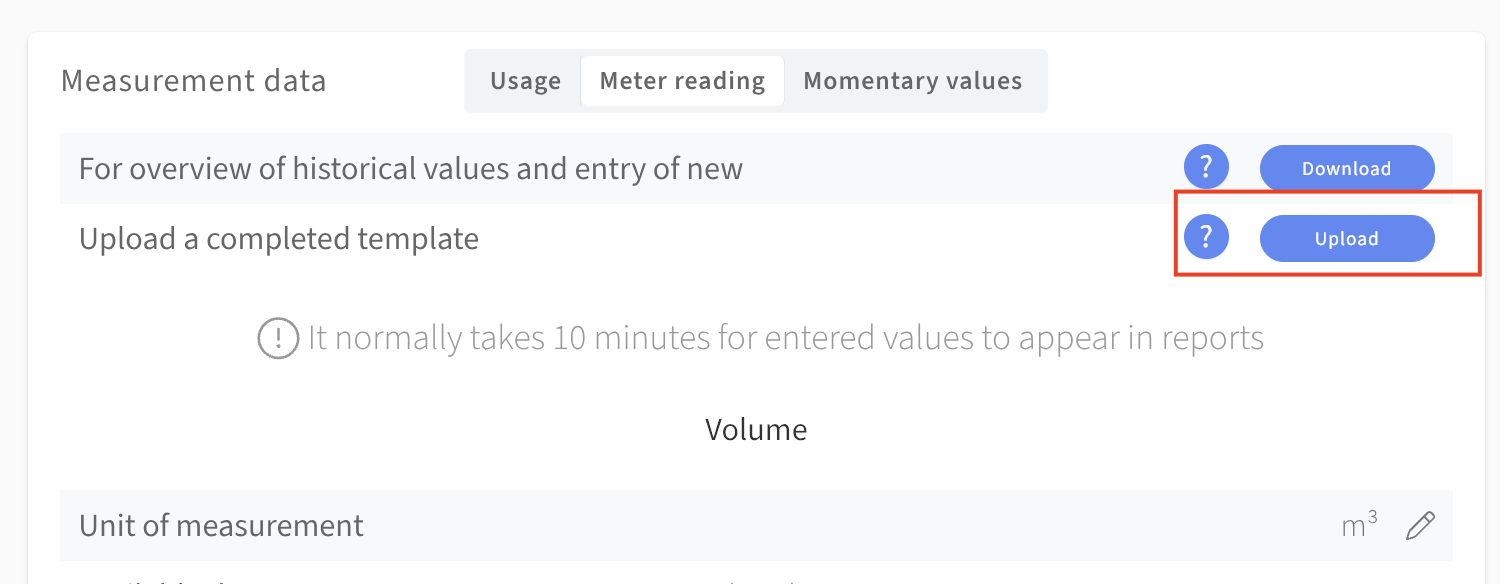
OBS: It is important that you stick to the template's formatting. If you are copying data, make sure to paste only values. On a Mac use cmd+shift+v, on a PC it is ctrl+shift+v.
...