
Using the node tree, search bar and through widgets, reports and analytical tools!
Your account is configured, setup of properties is complete and data is streaming in regularly. This means that it's time to begin working in the portal! A natural first step is to learn how to navigate in the system. There are different methods to find your way, depending on what you need today. I'll describe three ways to move around the portal as well as their pros and cons!
The Node Tree
The system rests upon a tree structure, or node tree. It works the same way as the file system on your computer. You begin with a parent folder, such as Documents, which contains subfolders like Important, Diary or Economy. In Mestro Portal, these "folders" are made up of property groups, buildings and meters, which you can easily group based on your needs. Simply double click the property's (or object's) name, or the arrow on the right-hand side! Check out the picture below for an example from the portal.

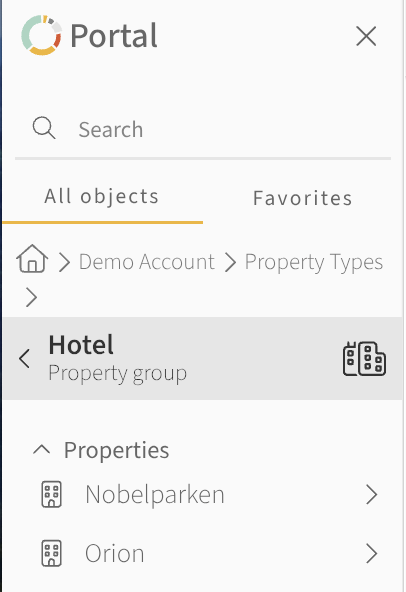
TIP: The node tree dictates which data are presented in reports and analytical tools. You'll only see data for the objects (groups, properties, buildings, building components or meters) that are visible from your position in the node tree. You need to move to a different position to show different data.
...
The search bar is located in the upper right-hand corner. Here you can search for properties, groups of properties, users and meters. I searched for the property Nobelparken in the image below.
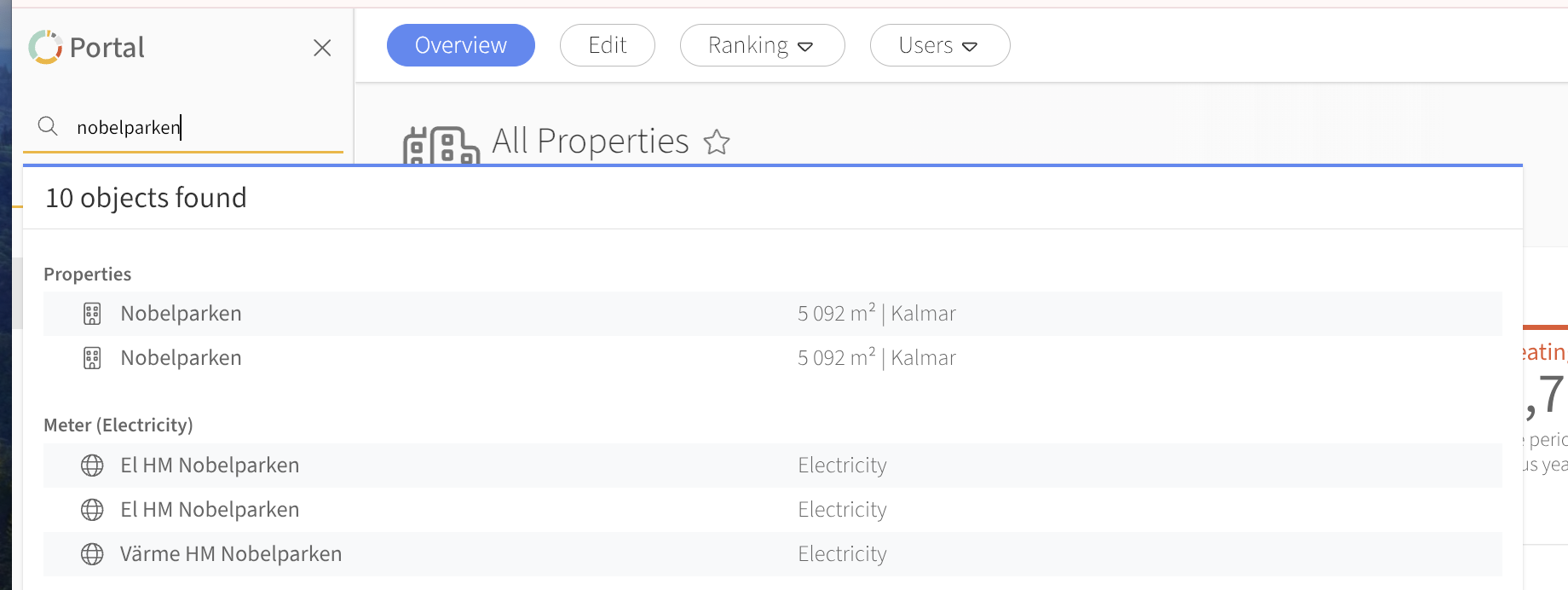

You can search using three different methods:
Use | And you find | Pro | Con |
Letters and numbers | Properties, groups, meters and users based on their name. | Quick and easy if you remember the object's name. | All results containing the search words will be returned. |
#1234567 | Object based on nodID. | Immediately returns correct object. All objects have unique ID:s. | You need to know the nodID. |
@735999... | Meter, based on metering point ID. | You can be certain that you have found the correct meter. | You need to know the metering point ID. |
The nodeID is each objects unique identifier. You will find it by right-clicking the desired object in the node tree. We use nodeID:s daily to help you and other customers solve problems and to communicate internally. It is simply the quickest and most reliable way to find your way.
...
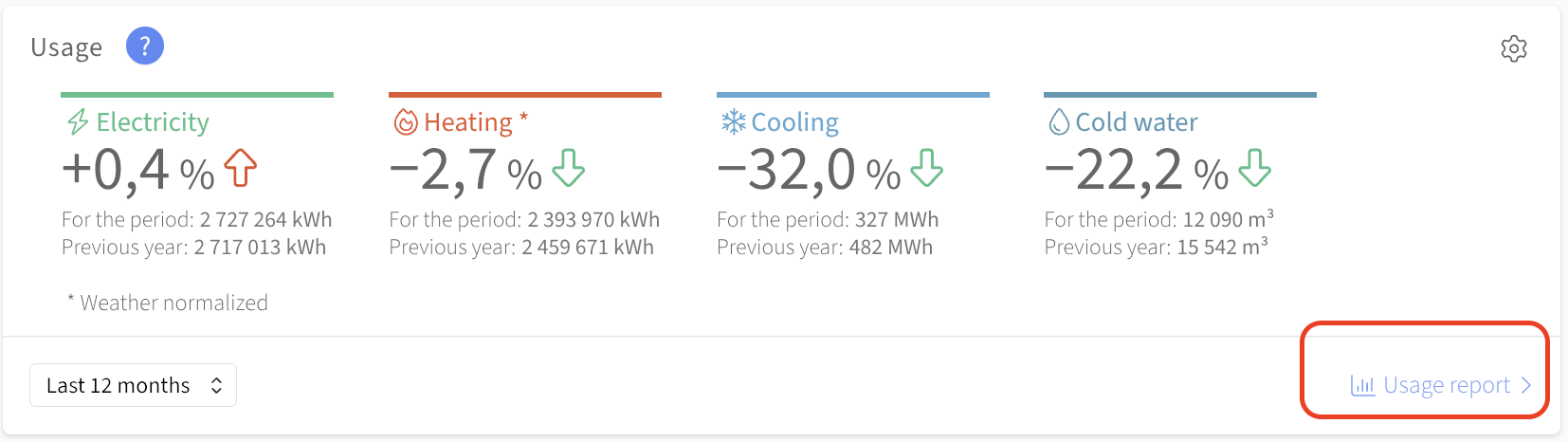
Example shortcut in a widget on the front page:
Example of a shortcut in the Rankingreport.

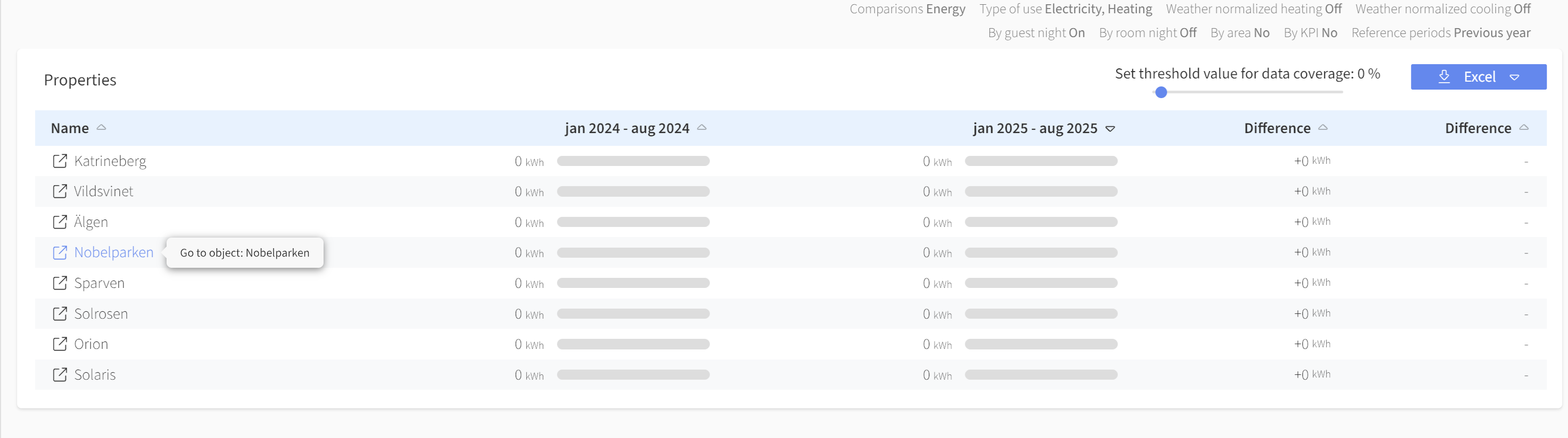
The system is littered with shortcuts. My suggestion is that you browse the system and click on all shortcuts you can find! Perhaps you'll identify a new function previously unknown to you?