...
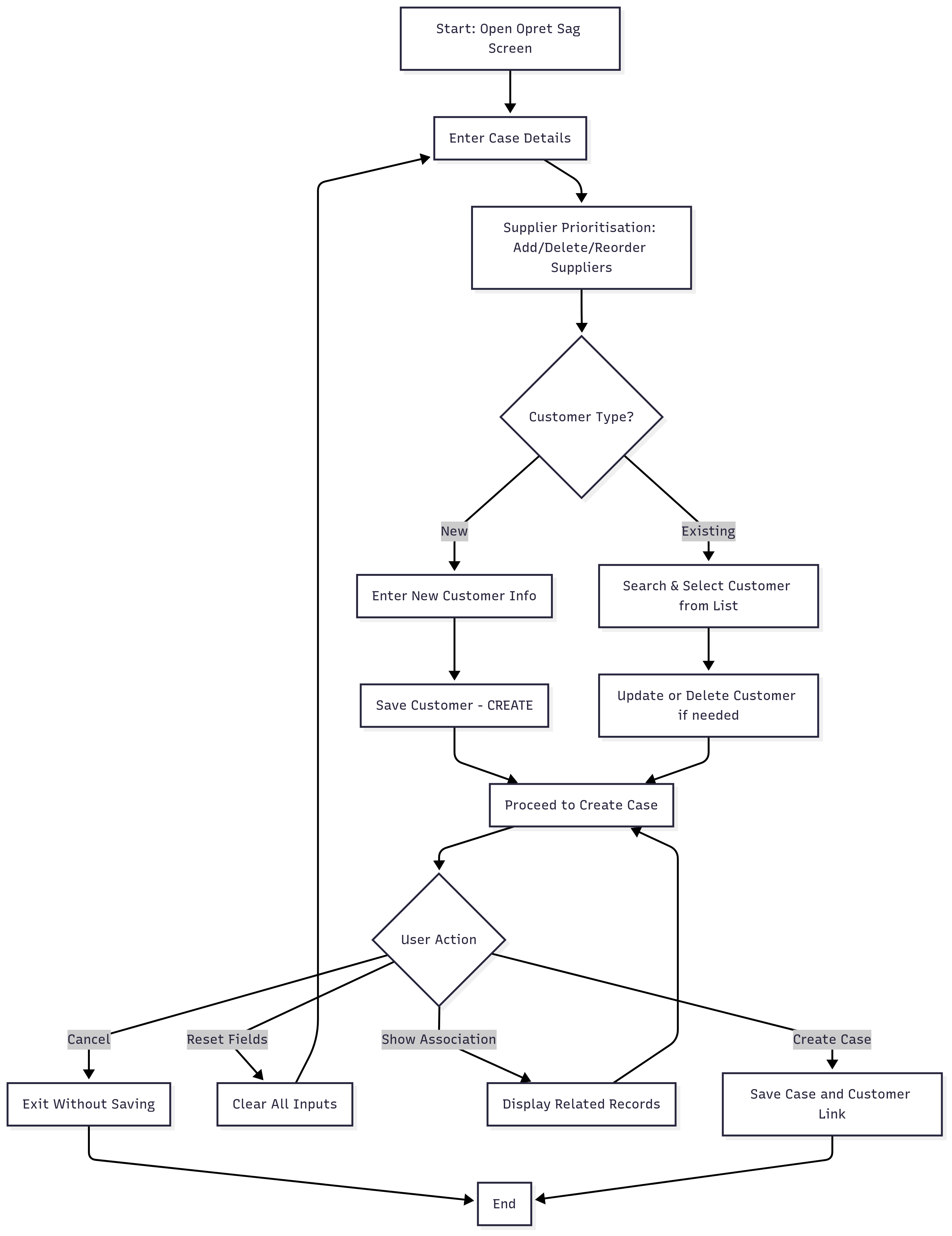
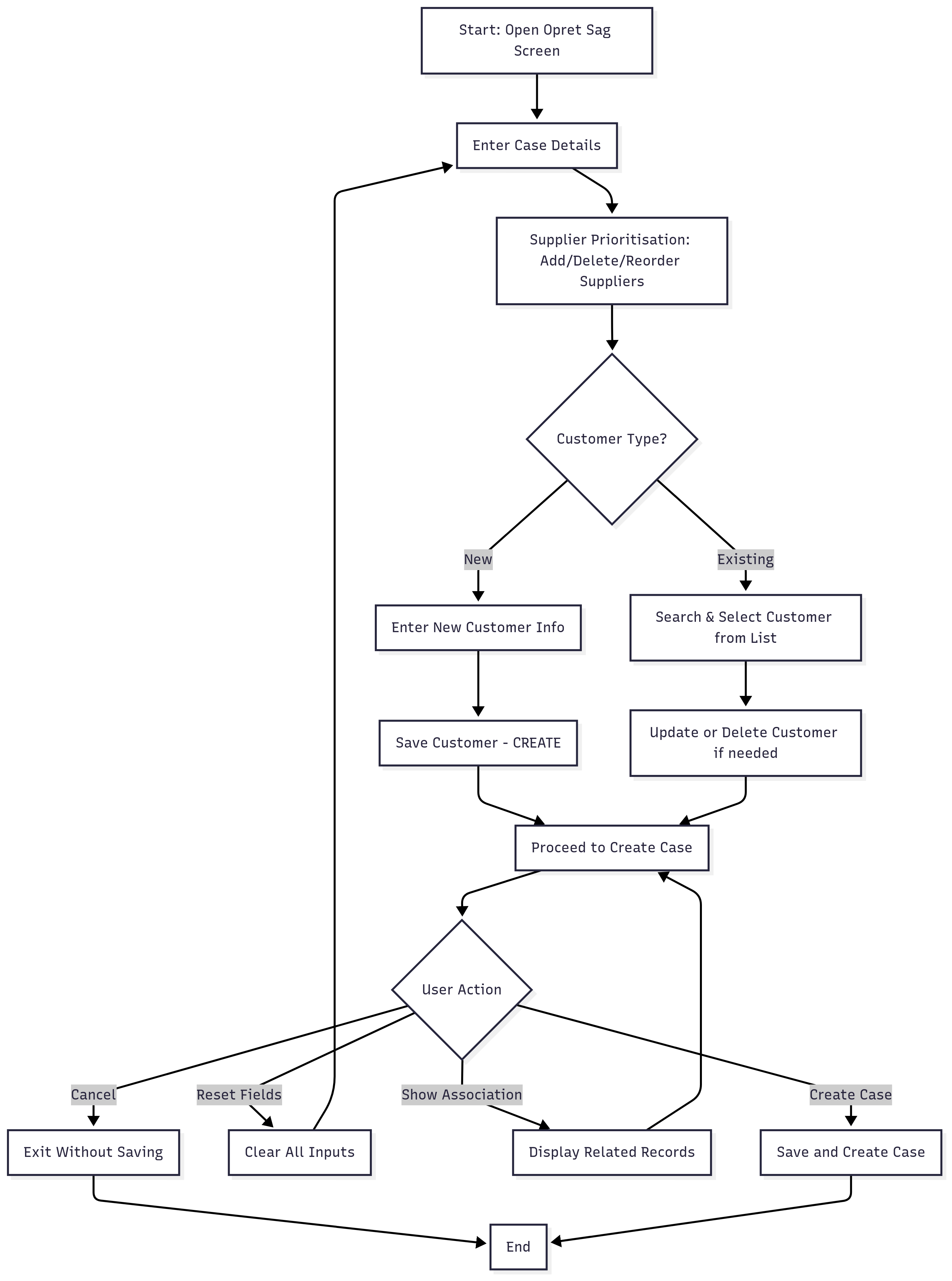
The Opret Sag screen opens.
The user enters case details (e.g., Sagsnr, Lic. dato, Undertitel, etc.).
The user prioritises suppliers in the Grossist/Leverandør Prioritering section (add, remove, reorder).
The customer information panel has:
Customer search / list (existing customers).
Options to create a new customer or update existing.
Once details are entered, the user can:
Click Opret Sag to create the case.
Use Annuller, Nulstil Felter, Vis Tilknytning as supporting actions.
Current Workflow
...
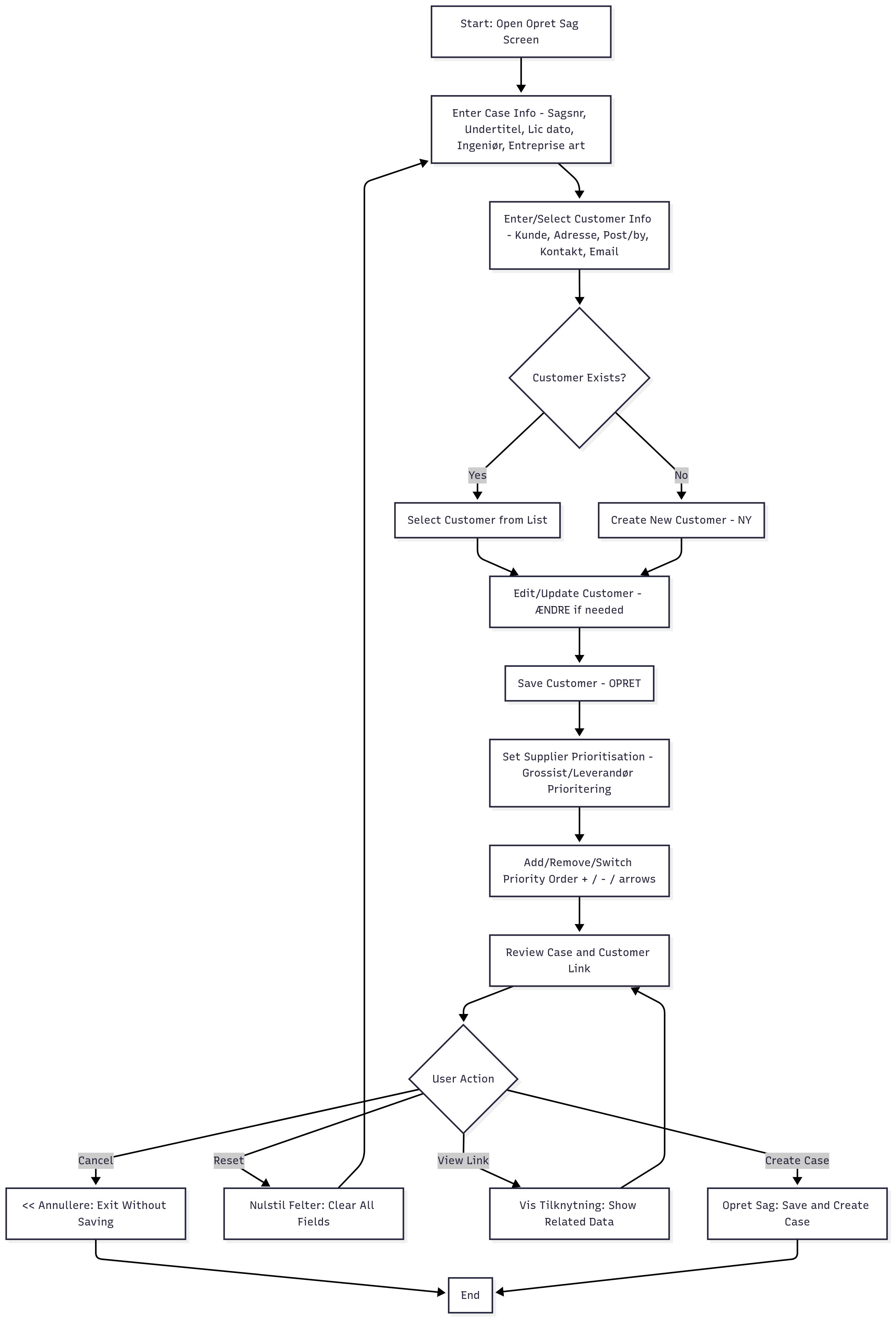
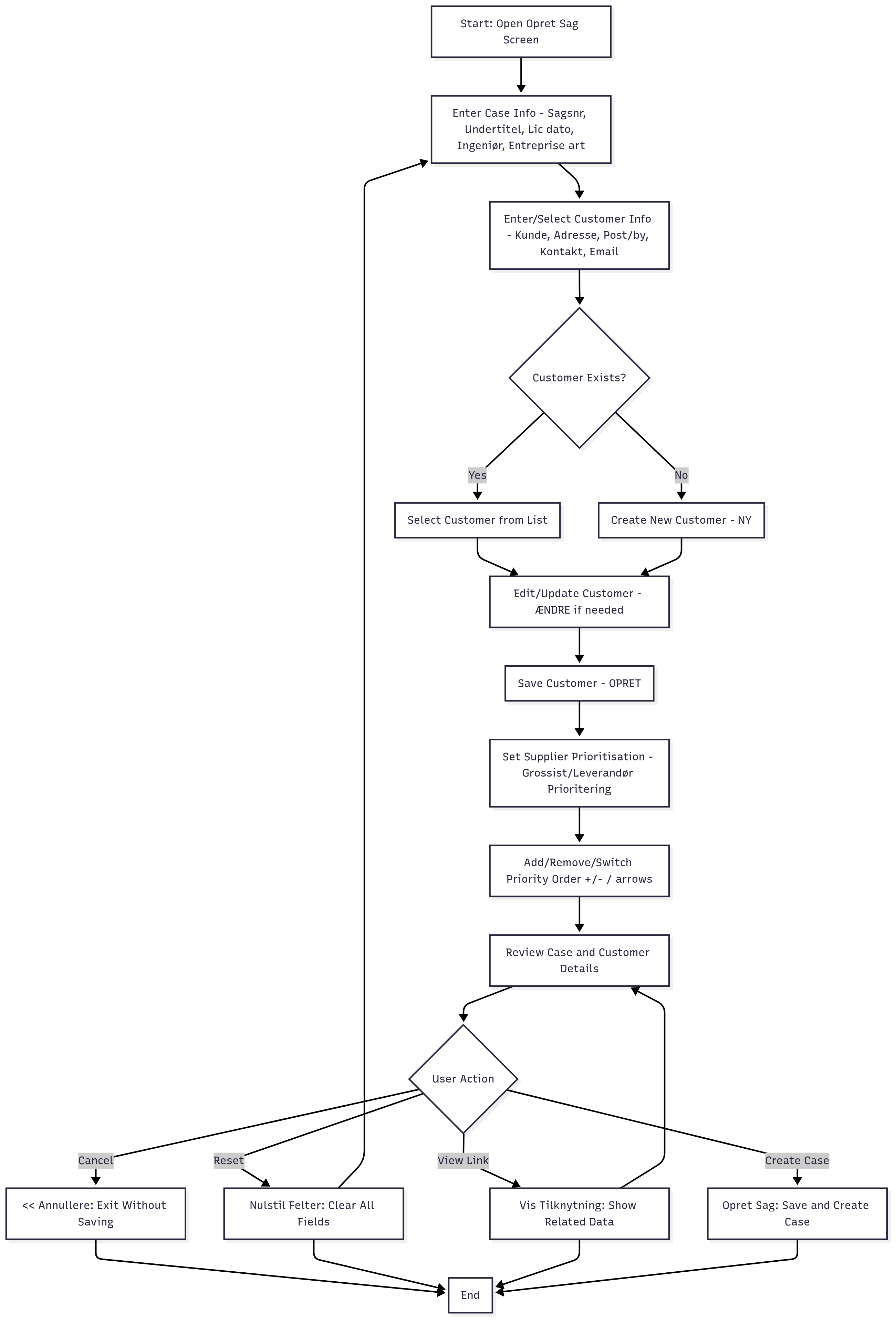
Below is the proposed wireframe of an alternative workflow for the above case
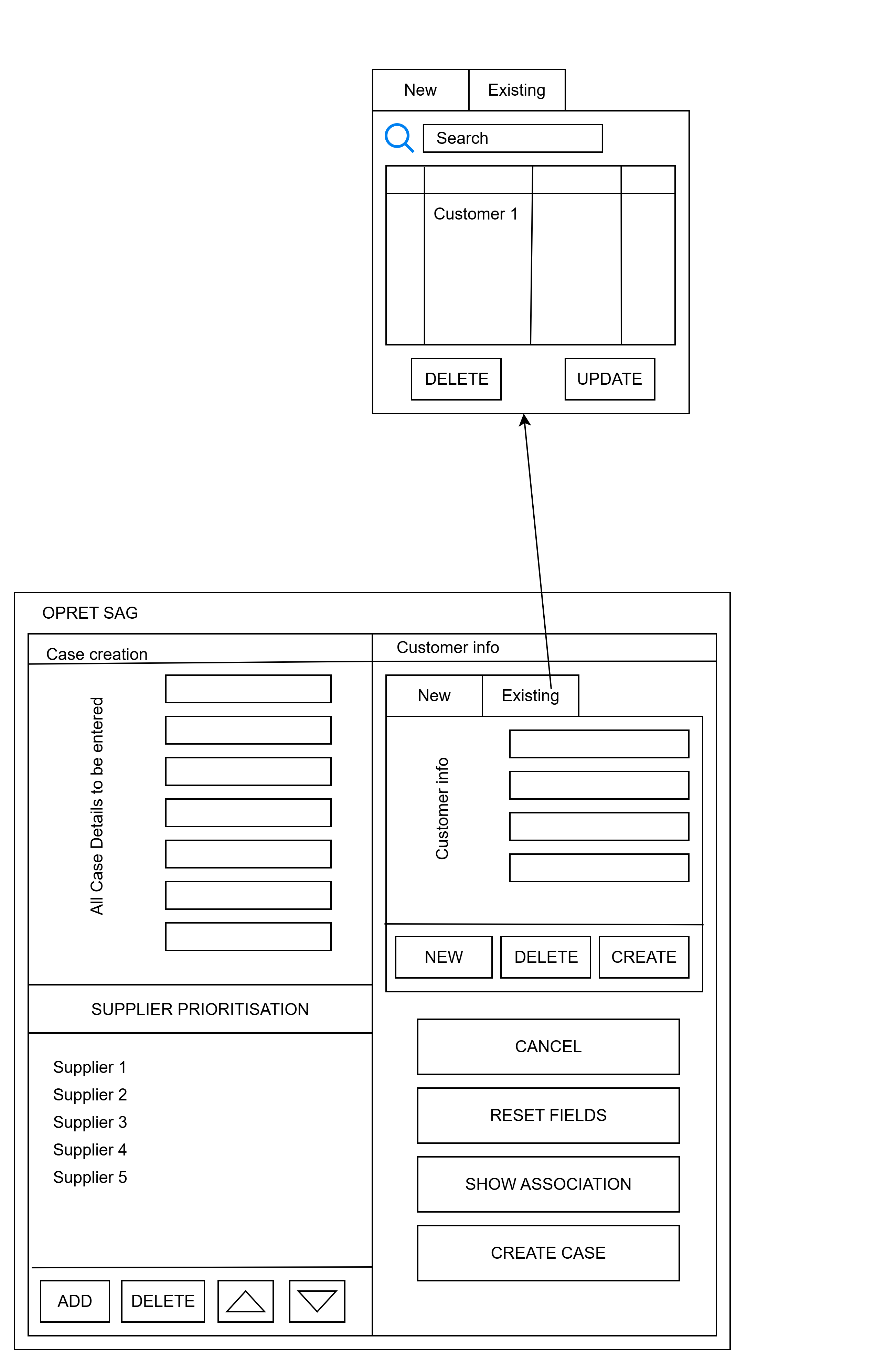
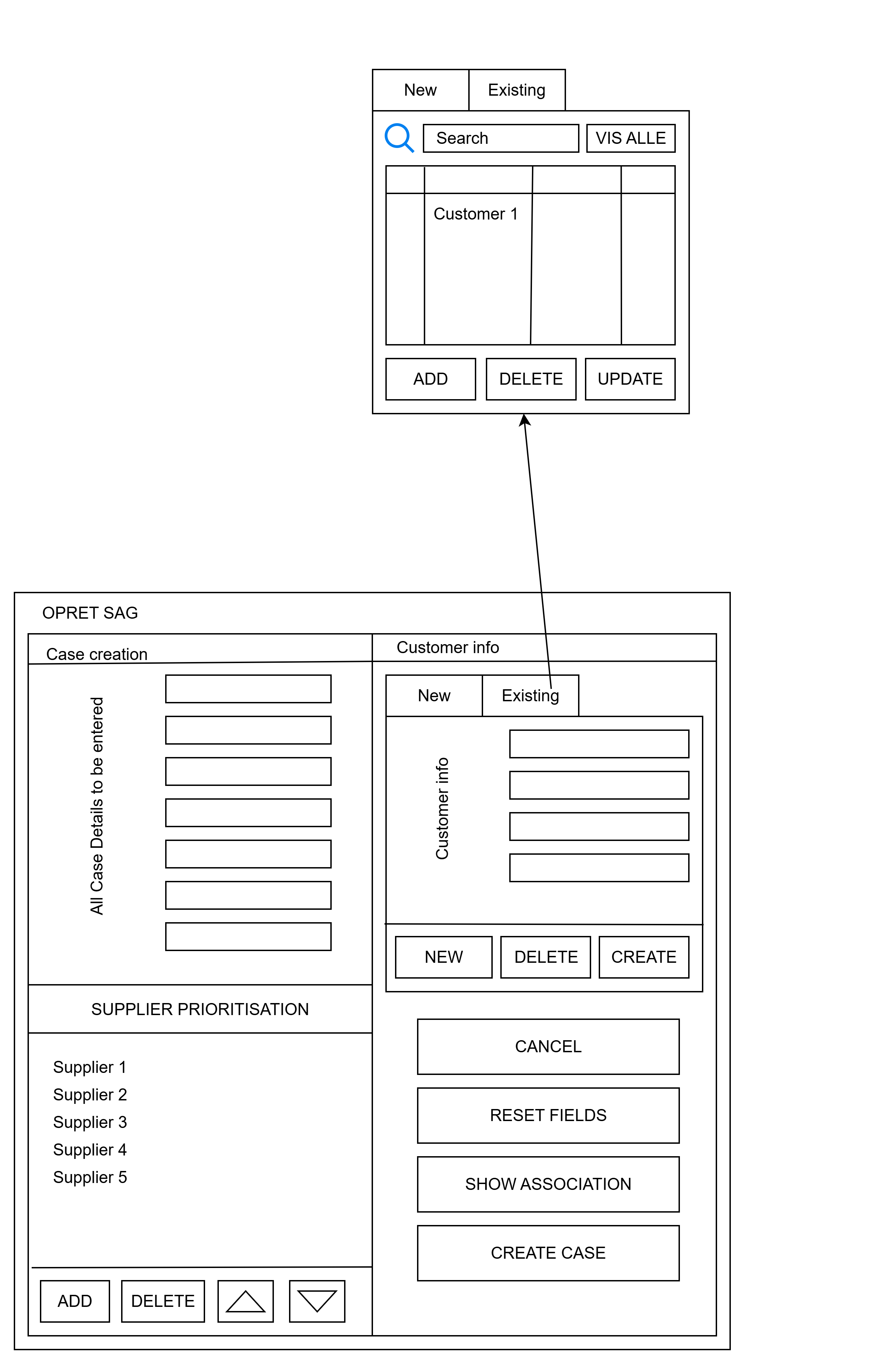
Opret Sag Proposed Functional workflow