
...
- Download Visual Studio
Install Visual Studio from the Visual Studio Marketplace. - Obtain Professional License Access
Ensure you have access to the Professional version of Visual Studio:- Submit an access request through the Service Desk portal
- Notify your manager to approve the license request
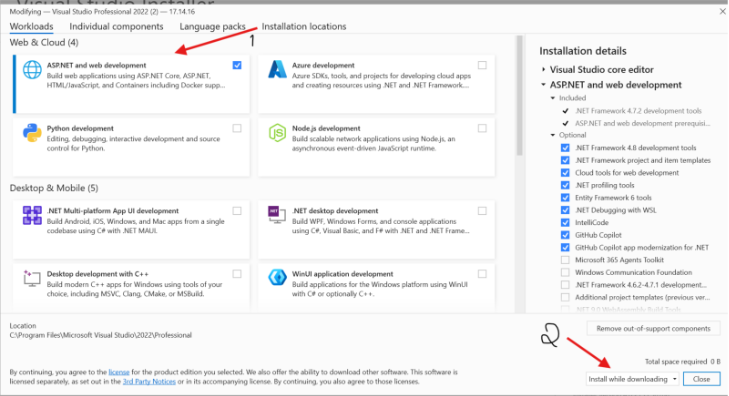
- Configure Installation Components
During the Visual Studio installation process:- When prompted, select the installation components screen
- Check the ASP.NET and web development workload
- his will automatically download all required dependencies and packages for EG-Flow development
- Click Install to begin the installation
- Complete Installation
The installer will now set up Visual Studio on your local machine.
...
Check the image below.
Project Setup and Configuration
...
- After cloning completes:
- Open the Solution Explorer
- You'll see the complete project structure
- For detailed information about the project architecture, refer to the Project Structure Documentation or follow the Readme file of EG-Flow.
Configure Startup Project
...
Note: Aspire is configured as the orchestrator for all projects in this solution
Azure Storage Explorer Setup
Azure Storage Explorer is a standalone application that allows you to manage Azure Storage resources (Blobs, Queues, and Tables) locally, eliminating the need to access the Azure Portal for routine operations.
...
- Install Node.js
- Ensure you have Node.js installed (version 18 or higher)Installer Link
- Install Azurite
- Open a terminal and run:
- npm install -g azurite
- Start the Emulator
- In your terminal, execute:
- azurite
- Verify Operation
- You should see log messages indicating that Azurite is running and listening on specific ports
Connecting Azure Storage Explorer to Azurite
Configuration Steps
Verify Azurite is Running
...
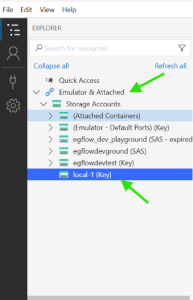
Check the image below-
Important: Keep Azurite running in the background whenever you're working on the EG-Flow project to ensure proper functionality of storage-dependent features.