
...
- Pause Windows update
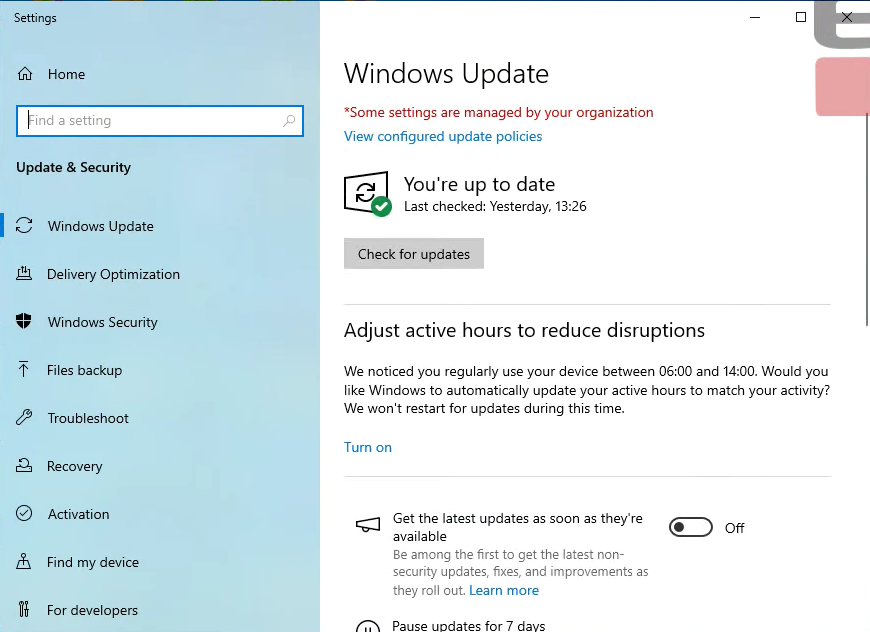
- Open the Windows Update settings by clicking "Start / Settings / Update & Security". You will see the following window.
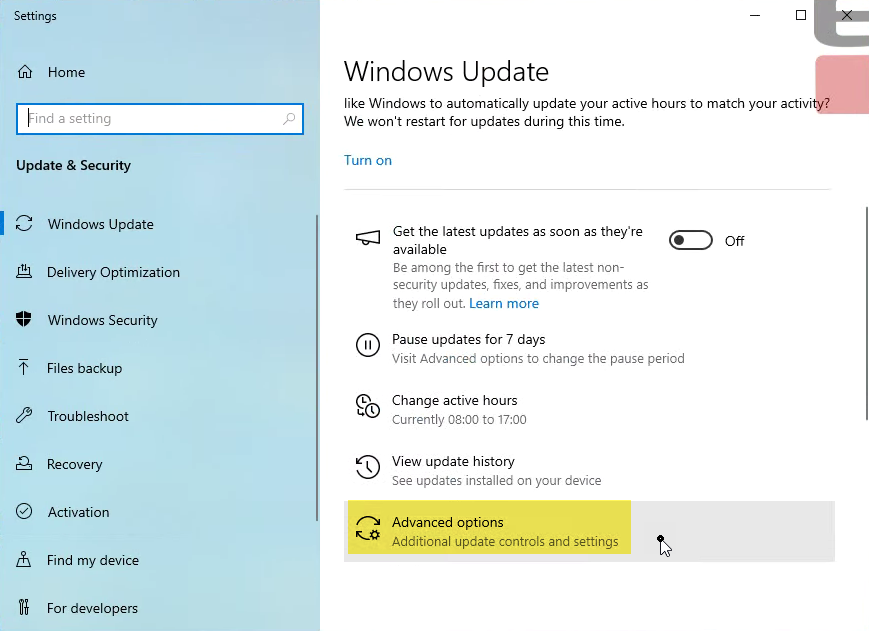
- Scroll down and click the "Advanced options"
- In the "Advanced options" screen, scroll down and select a date in the "Pause until" drop down. Choose a date that is as far in advance as possible, usually 35 days.
Take note of the date because you need to log this in the MI Confluence page.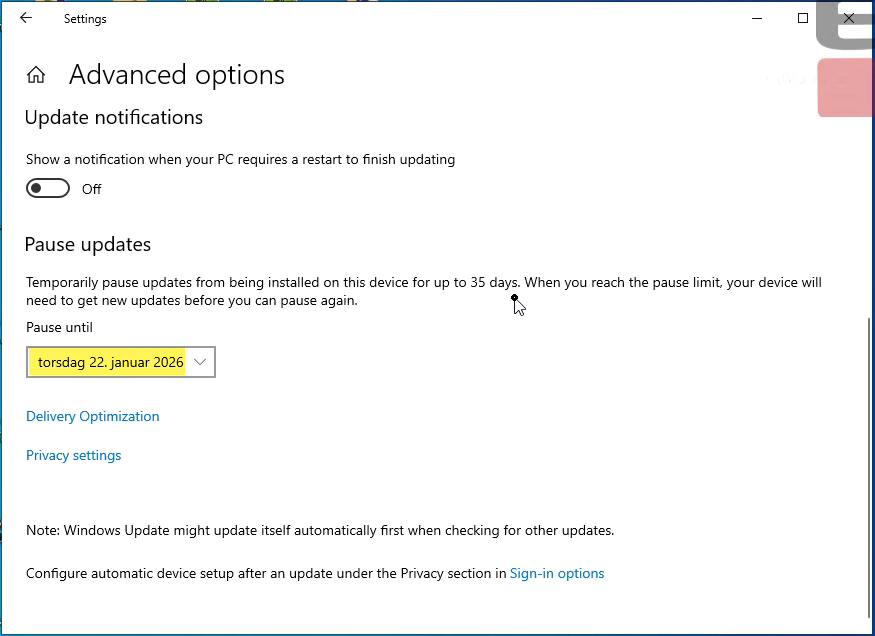
- Close the window. (It automatically saves your setting)
- Open the Windows Update settings by clicking "Start / Settings / Update & Security". You will see the following window.
- Uninstall the Windows update.
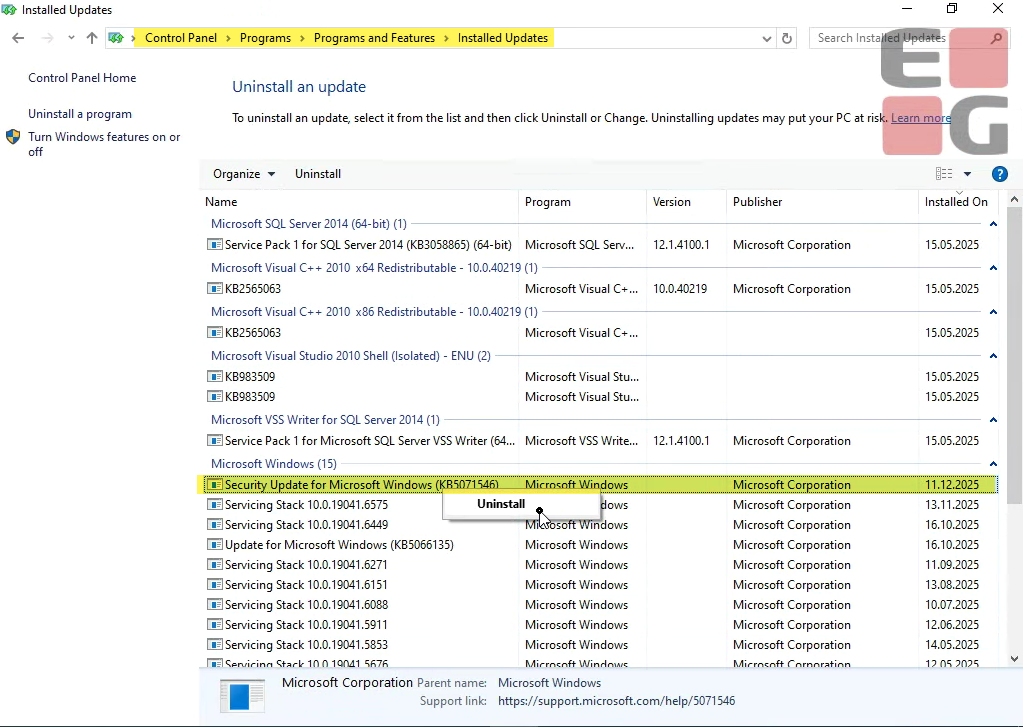
- Go to control panel and the following location "Control panel / Programs / Programs and features / Installed Updates".
- Find the correct update described above. In this instance KB5071546.
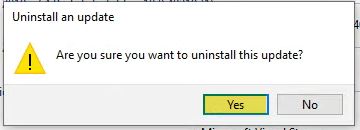
- Right click it and choose "Uninstall"
- Confirm by clicking "Yes" here.
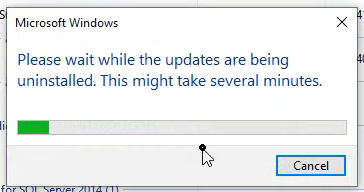
- Wait until the installation is done…
- Confirm restart
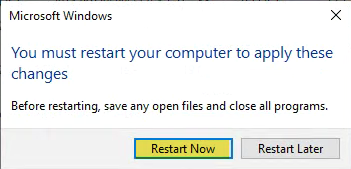
- When reboot is done please check that the Windows update has been uninstalled and that further updates have been paused.
- Start EGPOS.
- The If the cash register has got the function menu active in EG POS you can run the "RUN_IDLE_FUNCTIONS" to process the receipts that are stuck in the database.
The function will clean up 100 receipts each time it runs, and you can run it several times to clear the whole queue.
Please wait for 15 seconds each time you run it. - Press "Shift + F12" while in EG POS to bring up the function menu. (You don' have to be logged in as a cashier)
Some customers have the function menu programed to other keys than the F12 and some have it deactivated - Type "idle" to search for the function and press enter.
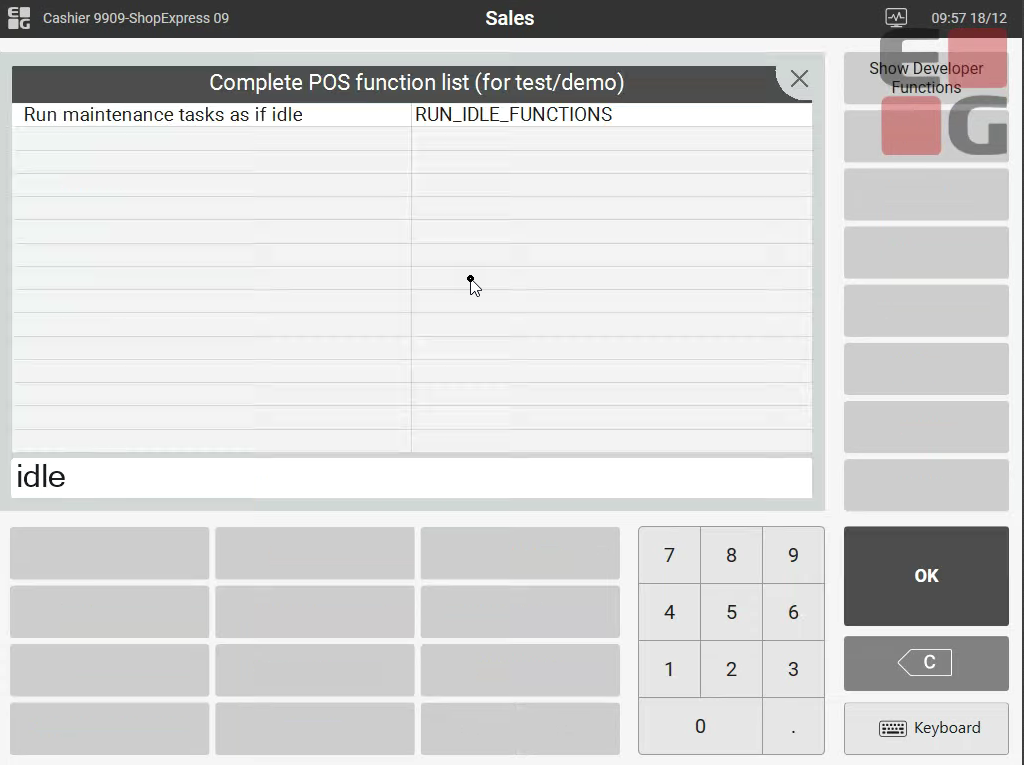
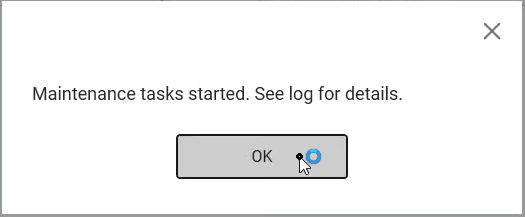
- You should see this message to confirm that the function has run. Click "OK"
 For the customers that have the function menu deactivated the automatic cleanup job running every hour (or every 30 minutes in some cases) will do the processing of the receipts.
It will just take some extra time before all receipts have been processed.