
...
| Table of Contents |
|---|
Change Alarms
We’re pleased to bring you our new Change Alarms this release! This functionality is a brand new Triggered Alarms experience that gives you instant visibility into alarms that need your attention.
What’s new?
We've added a new type of alarm, before we only had the threshold alarms and with this release we are introducing what we call change alarms.
Overview of what a change alarm is!
A Centralized Alarms Overview
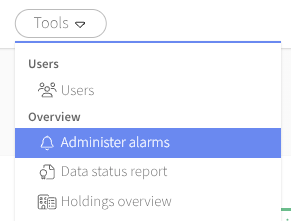
From now on, you administer your alarms from Tools in the top menu bar. See picture above.
This new tool provides a structured list of all triggered alarms.
You can view alarms:
For the specific node you’re currently working in, or
For the entire system
Each alarm includes key details such as name, object, severity, timestamps, and whether it has already been handled.
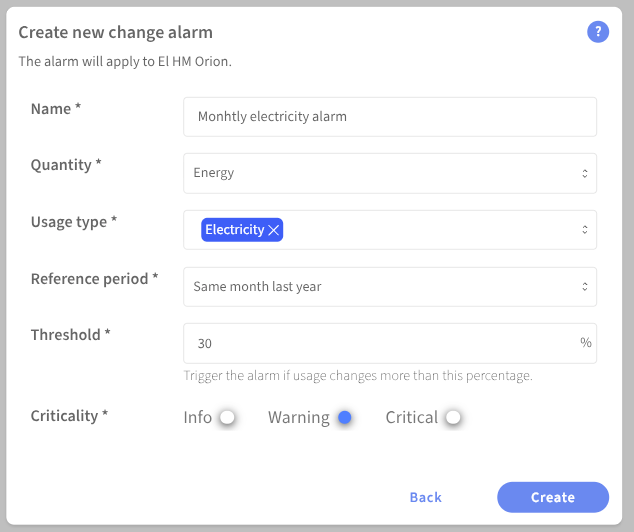
Create a new change alarm
To create a new change alarm, follow these steps
- Navigate to the node where you want to active that alarm for. Could be a property, building or meter.
- Navigate to the tool Administer alarms.
- Click Create alarm.
- Type in a name for your alarm
- Select which quantity you want the alarm for.
- Select a usage type.
- Select a reference period.
- Type in the threshold you want in percent. For example: if you put 30%, the alarm will trigger if the usage for the current period is higher or lower than 30% compared to your reference period.
- Select which criticality level you want for the alarm. It is possible to later sort all of you alarm based on criticality.
- When you are satisfied with your settings, click Create.
Search & Sorting for Faster Prioritization
Quickly search alarms by name or object, and sort them to focus on what matters most.
Handle Alarms Directly
Mark alarms as Handled or Unhandled without leaving the modal — updates happen instantly with clear confirmations.
For inactive nodes, previously triggered alarms can still be marked as handled, while moving them back to unhandled is disabled.
How You Benefit
Immediate awareness of important change alarms
Faster actions with in‑modal handling
Easier prioritization using search and sorting tools
Clear context whether you’re looking at a node or the full system
In this release, we’re finally launching change alarms — a long‑awaited feature that many of you have been eager to get their hands on. These new alarms give you instant insight when energy usage shifts unexpectedly, helping you react faster and skip the guesswork.
Everything is managed through our new Administer Alarms view, where you can easily create, filter, and follow up on your alarms. And the best part? This is just the beginning — more alarm types and smarter functionality are already on the way later this year.
New Mestro Logo Across the Portal
We’ve updated the portal to reflect Mestro’s refreshed brand identity.
Wherever the previous logo appeared, you will now see the new one — ensuring a more consistent and up‑to‑date visual experience.
And - isn't it nice?

This is a visual update only.
No changes to your workflow or functionality.
...
We’ve made several improvements to ensure your data views are as clear and reliable as possible.
What’s improved?
Imporved data coverage calculations
Easier to read values in the Gap Filling tab
Improved display of NA values for monthly data
What this means for you
...