
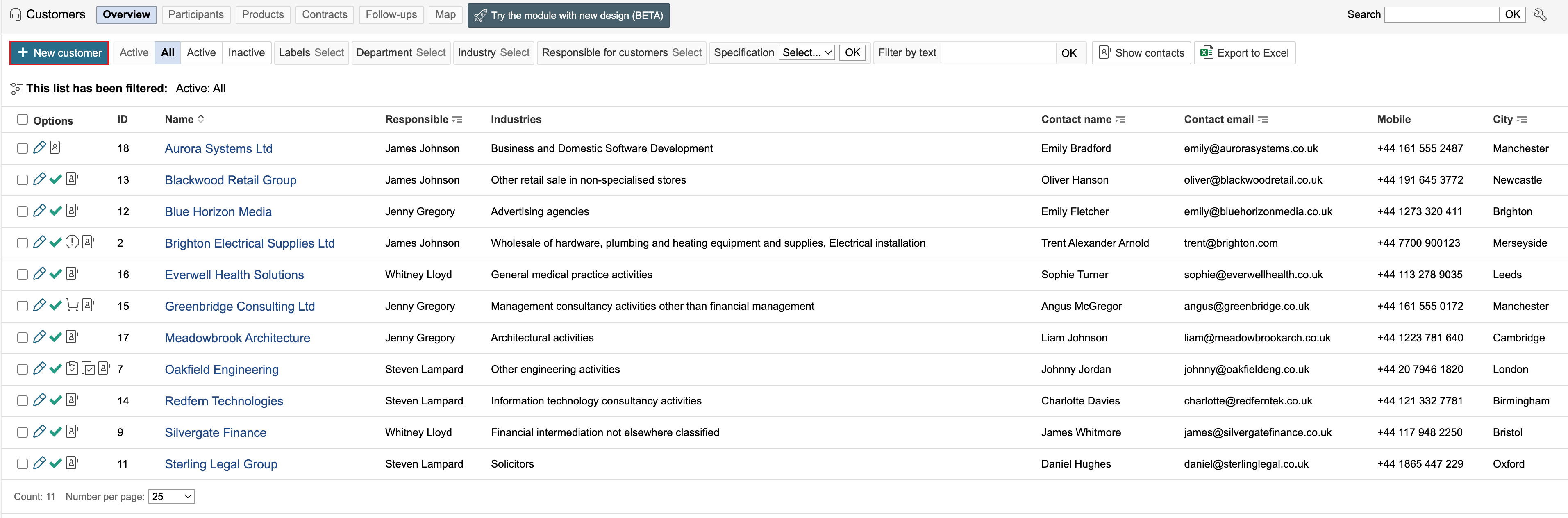
1. Go to the customer list overview and click New customer.

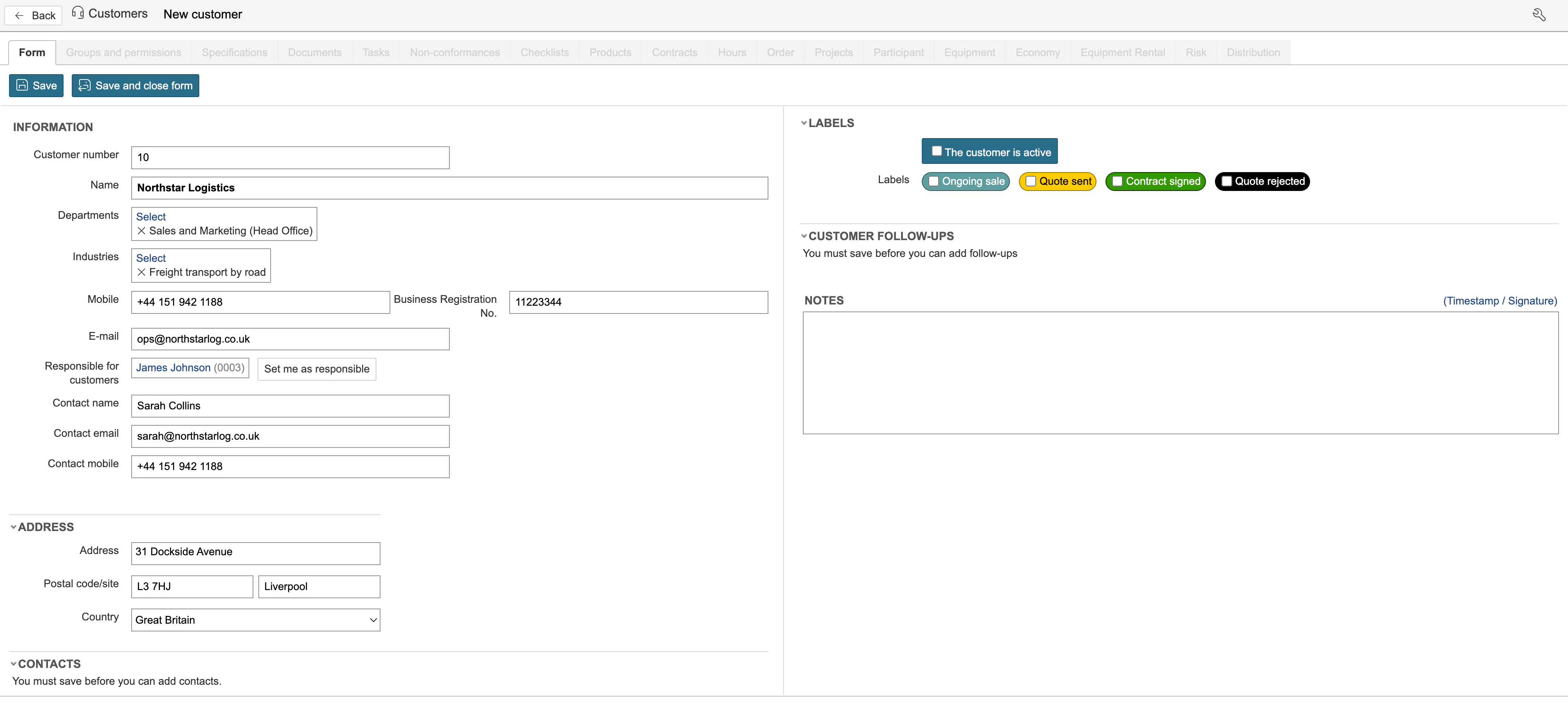
2. Complete the fields and save when finished. The form includes fields for customer number, name, departments, industries, contact details, and business registration number. It also provides options to assign a responsible person and register address details. Additional sections allow contracts to be linked, labels to be applied, customer follow-ups to be registered, and notes to be added. Contact persons may be entered directly in the form or linked to the customer from the contact person register. New contact persons can also be created from within the form and linked automatically to the customer.
Customers can be set to active status. The criteria for when a customer is considered active are determined by each organisation. This may be when an agreement has been signed or when the customer has been verified information and address fields for the customer. If the customer is active, check Customer is active. Active customers are indicated by a green check marks mark in the list. Click Save when the fields are completed.

customer overview.
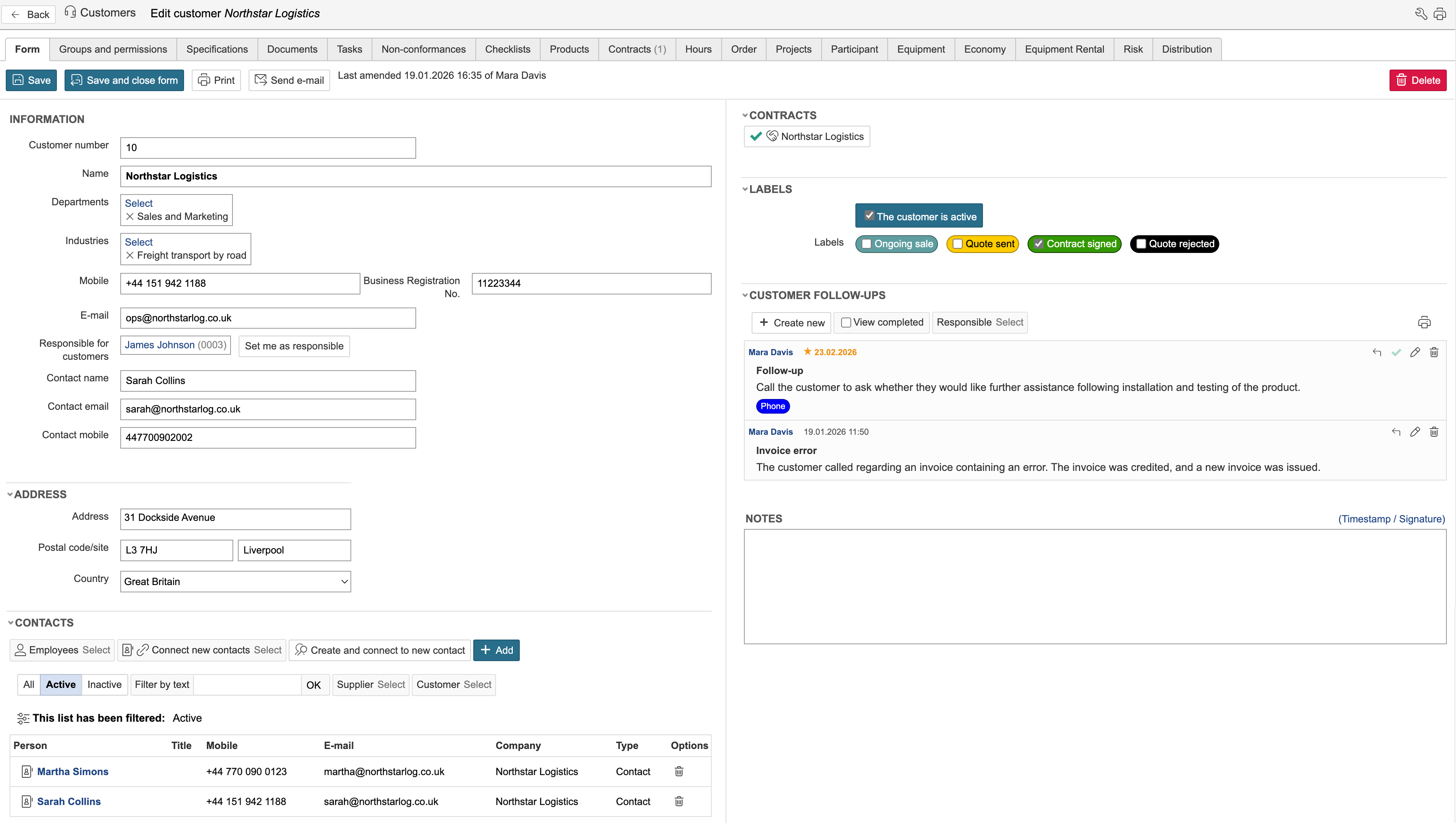
When all fields have been completed and the customer has follow-ups, linked contracts, and linked contact persons, the customer form may appear as follows.
...