
Need to remove a meter, sell a property, or move objects in the portal? This article explains how to handle changes to your property portfolio correctly.
Time relation, archiving and relocation of meters/properties. With the help of time relation and archiving, you make sure that it's right!
Content
| Table of Contents |
|---|
Property stock, buildings and meters all come and go. Buildings gets replaced, meters are added and properties are sold. How should we apply these very physical changes to our digital avatars in Mestro?
...
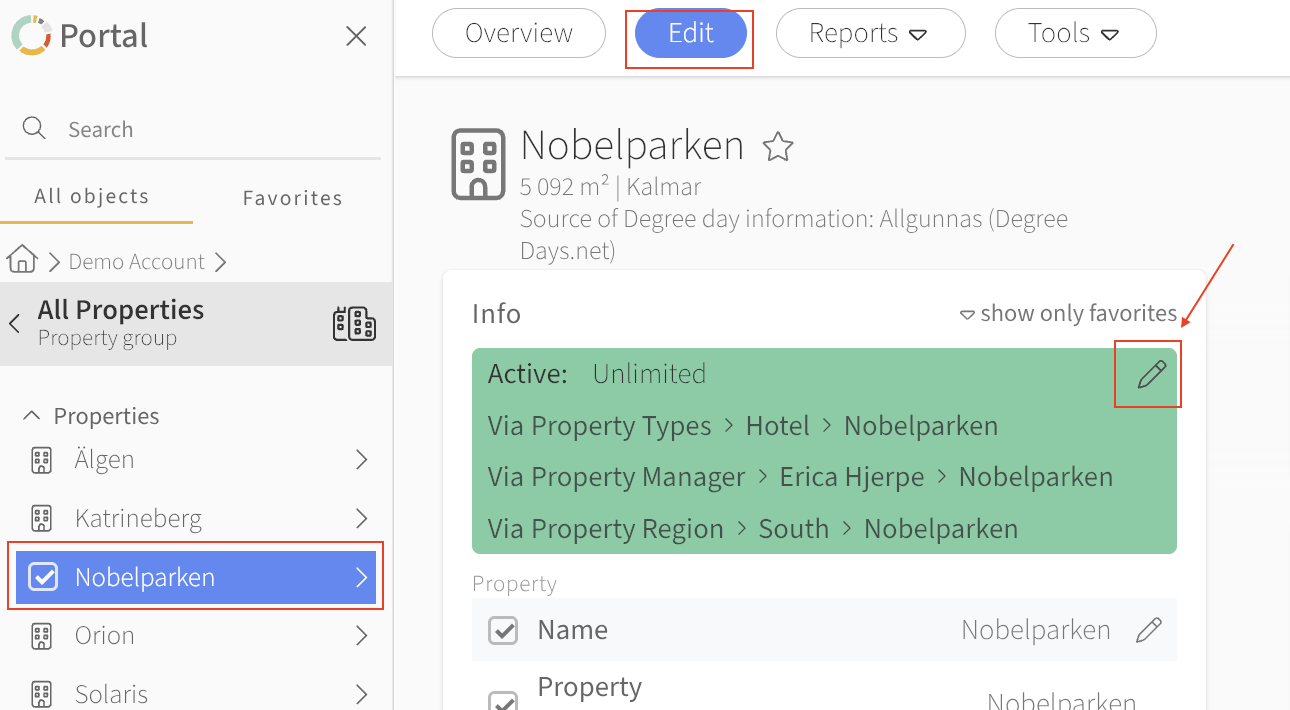
Click on the pen at the right to edit the relation.

You will see an edit box where you can place a Start and End date by pressing the green toggle button, choosing the correct date in the box underneath and then press "Done".

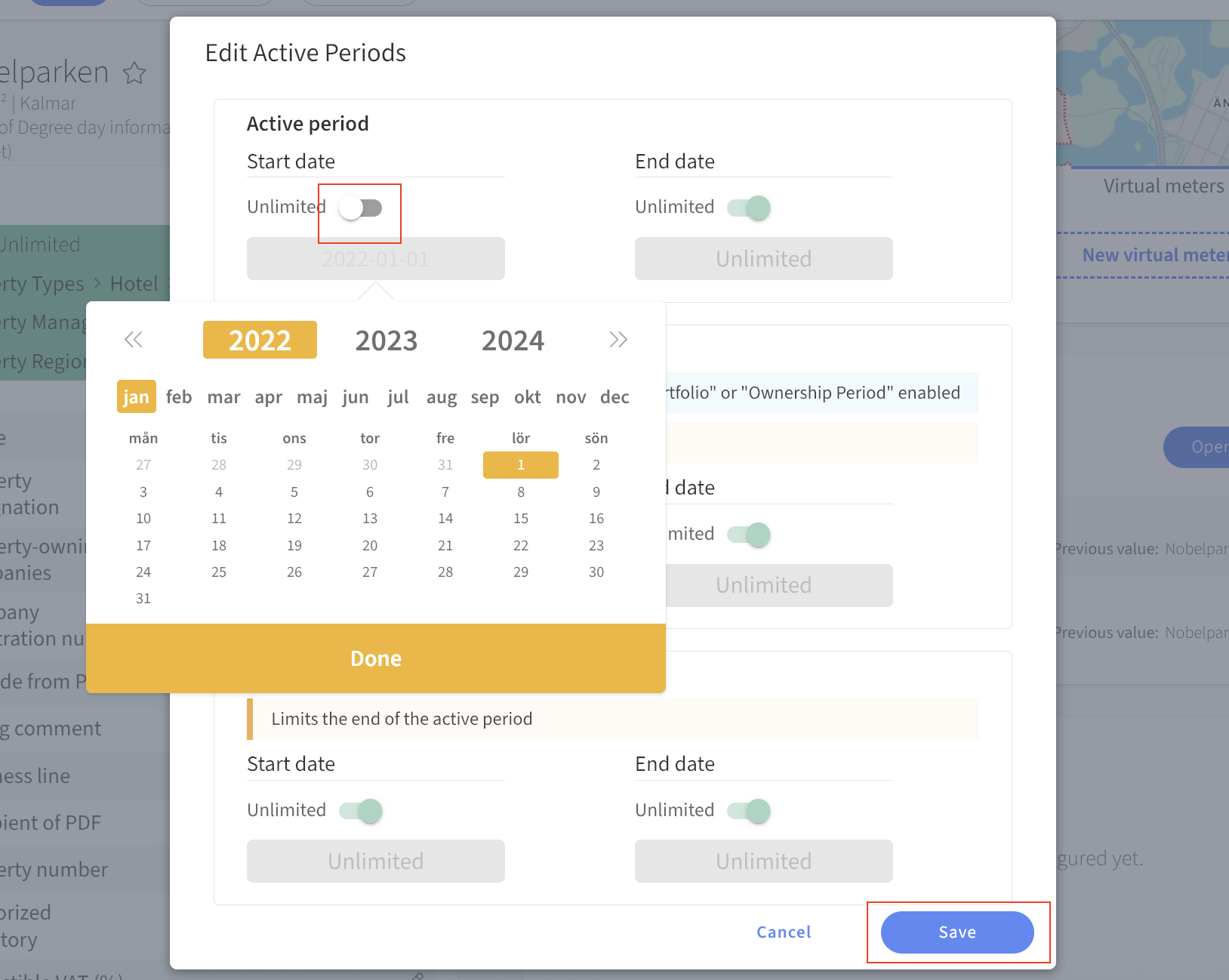
Click on "Save", and there we go!
...
NB: Placing a relation is a great tool for making your energy data to be relevant to the current property stock. Just place the dates right, or else we'll be standing there confused by the data which exists but do not show in any report ;)
NB: Remember that it’s the start date of the time relation on the property that affects how far back you can set the start date on an individual meter. If you have problems setting a date on a meter, the tip is to go to the property's time relation and change there to a date that matches what you want on the specific meter.
...
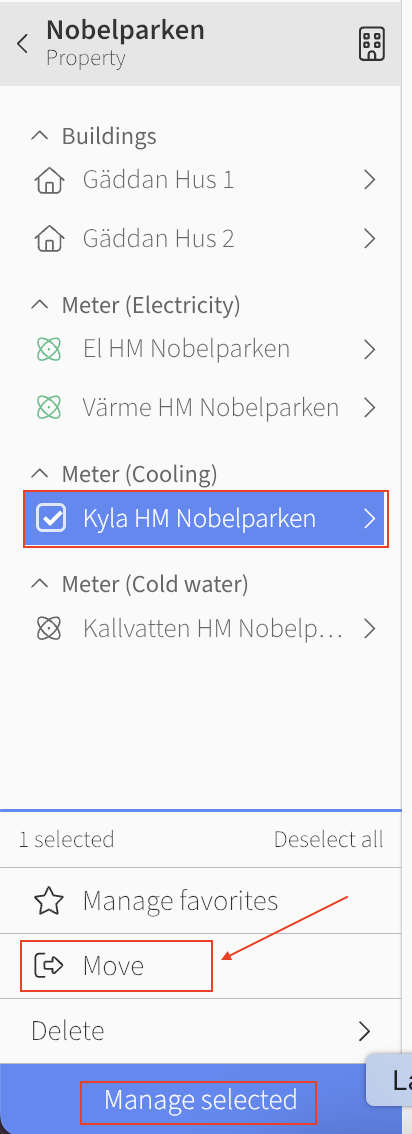
2. Press the blue button on "move" at the bottom below all meters (picture 1).
3. Select options that suit:1a If you want to decouple the meter, select decouple in the options (Fig. 1). These options can be useful if you happen to have dual meters and need to remove one of them. N:B! A decouple person disappears from the property, so make sure this is what you want to do before decoupling. If you have accidentally decouple, please contact support@mestro.com.
1b If you want to move the meter instead, you choose to proceed with the selections. Select the current meter and then select the group to which the meter is to be moved and select "move marked here" in the last step (picture 2)


property, building or building component you want to move the meter to.
Archive meters
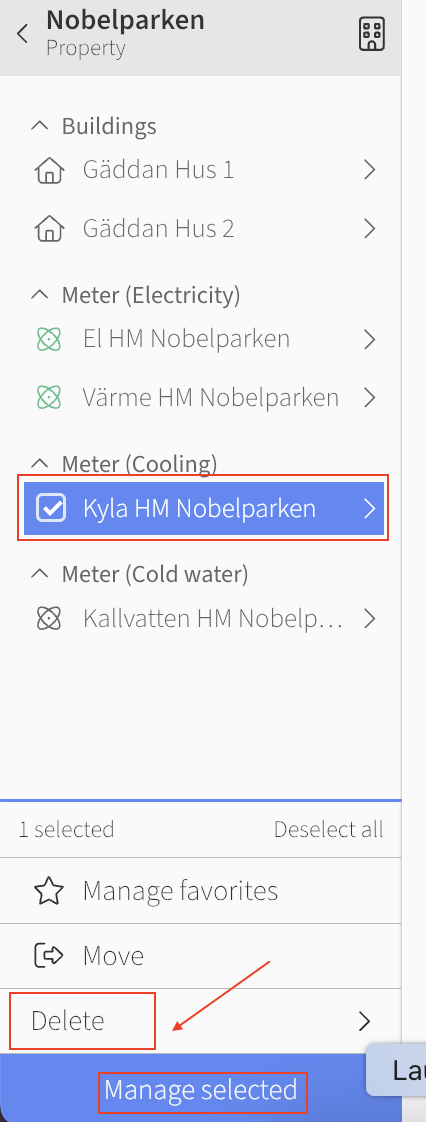
If you want to delete a meter, you can choose to archive it. You then proceed in the same way as moving the meter, but instead choose to archive on the blue button at the bottom. If you have accidentally archived the meter, you can choose to unarchive it. The meters remain inactive when they have been archived, to completely delete them contact us at support@mestro.com and we will help.

Moving a meter to another property
There are two types of moves in Mestro Portal — what you can do yourself and what requires support:
- Moving objects within a property (e.g. moving a meter between buildings within the same property) – you can do this yourself in the portal.
- Moving properties between property groups – you can also do this yourself if you have Admin access.
- Moving a meter to a different property – this requires help from Mestro support. Contact us with the meter's Node ID and the name of the property you want to move it to.
Common questions
- How do I remove a meter from Mestro?
- How do I handle selling a property?
- What is relation time?
- How do I archive a property?
- How do I move a meter to another property?