
| Table of Contents |
|---|
On this page, we will cover how to use the logger on the environment and how to trouble shoot if it doesnt log.
Missing Parameters on environment
The logger relies on environment variables in order to function.
The variables describes if the logger should run at all, and where it is supposed to log (App insights key).
For setup please view teh page regarding the shared solution.
If an environment variable is not found, or cannot be read on the deployed environment, then the logger will create an Exception Log with details in the DEV environment.
The entry will ALWAYS be the App Insights DEV .
Open the Insights App on the DEV environment and search for an entry in the Exception logs:

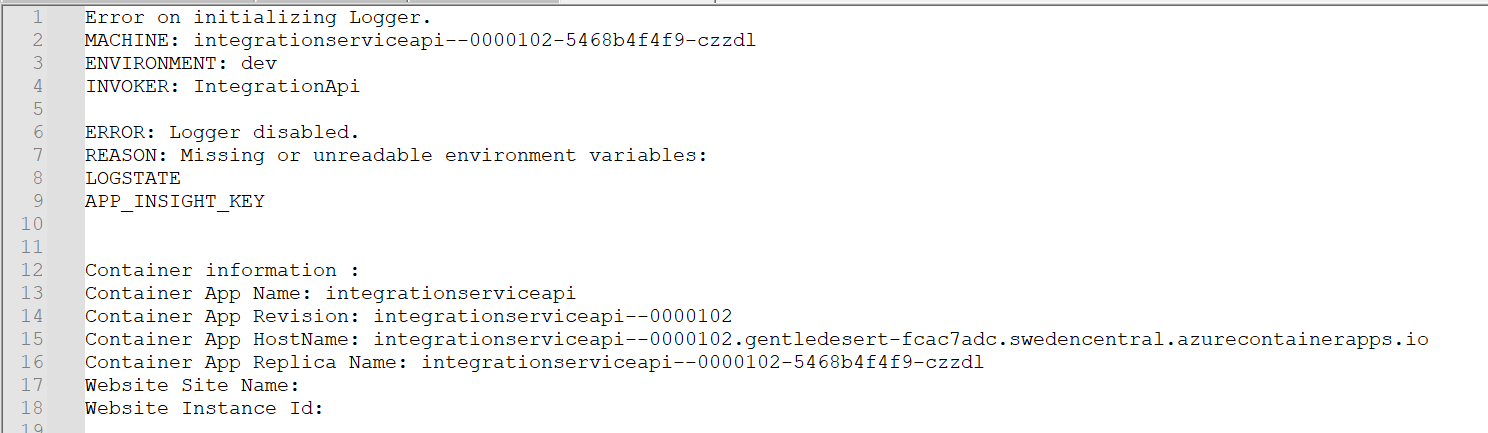
If the message is copied to Notapad++ the message will have the following information, which can be used in order to find out which environment is failing:
Sollution:
As seen in the message, both LOGSTATE and APP_INSIGHT_KEY is either missing on the environment or cannot be read.
In order to fix this , log on to the environment and check if the environment variables are present under the container tag.
If NOT present, add the variables as described in the setup for the shared project.
If present do the following:
- Press the button in the environment variables view, that states 'Save as new reviwion'
- Navigate to the 'Overview' page og the application
- Press 'STOP'
- Wait for the application to stop.
- Press 'Start'
- Wait for the application to start.
- Now the application should be able of logging again.