
...
Therefore, it is important that you setup a variable for this. The variable should follow the following formatvariables:
<MainApplicationname>_LOGSTATE
For instance:
...
- LOGSTATE
...
- TRUE
The logger will create a log entry - FALSE
The logger will not create any logs at all
- TRUE
- APP_INSIGHT_KEY
- Containing the insight key that can be found on the appinsight app hosting page on Azure.
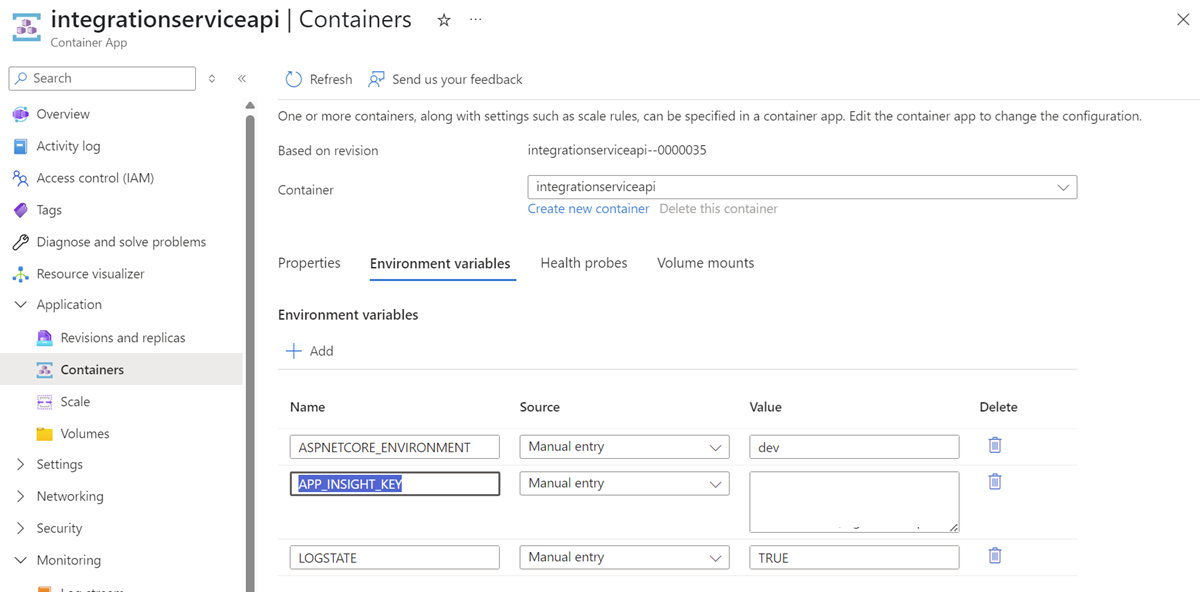
To set the variables one should do the following:
- Go to the application hosting where you have implemented logging.
- Click on Containers in the left most menu
- In the middle of the screen click 'Environment Variables'
- Add the variables
- Click 'Save as new revision'
The application will restart and is now ready for use.
Code
The Logging functionality can be accessed from the static class simply called Log.cs.
...
| Code Block | ||||||
|---|---|---|---|---|---|---|
| ||||||
string invoker = "IntegrationApi"; /*The name of the application using the log*/ string environmentVariableToggle = "INTEGRATIONAPI_LOGSTATE"; /*The environment variable name on the hosting of the invoking application*/ string appInsightsKey = "InstrumentationKey=xxxx"; Log.Initialize(invoker); /*The app insight key. This can be found in the appinsight application on the hosting environment*/ Log.Initialize(invoker, environmentVariableToggle, appInsightsKey); /*Initializing the logger, making it ready for use*/ Log.LogInfo("Integration api started."); Log.LogInfo("Logger running"); |
When wanting to create a logentry do the following in the code:
...