
...
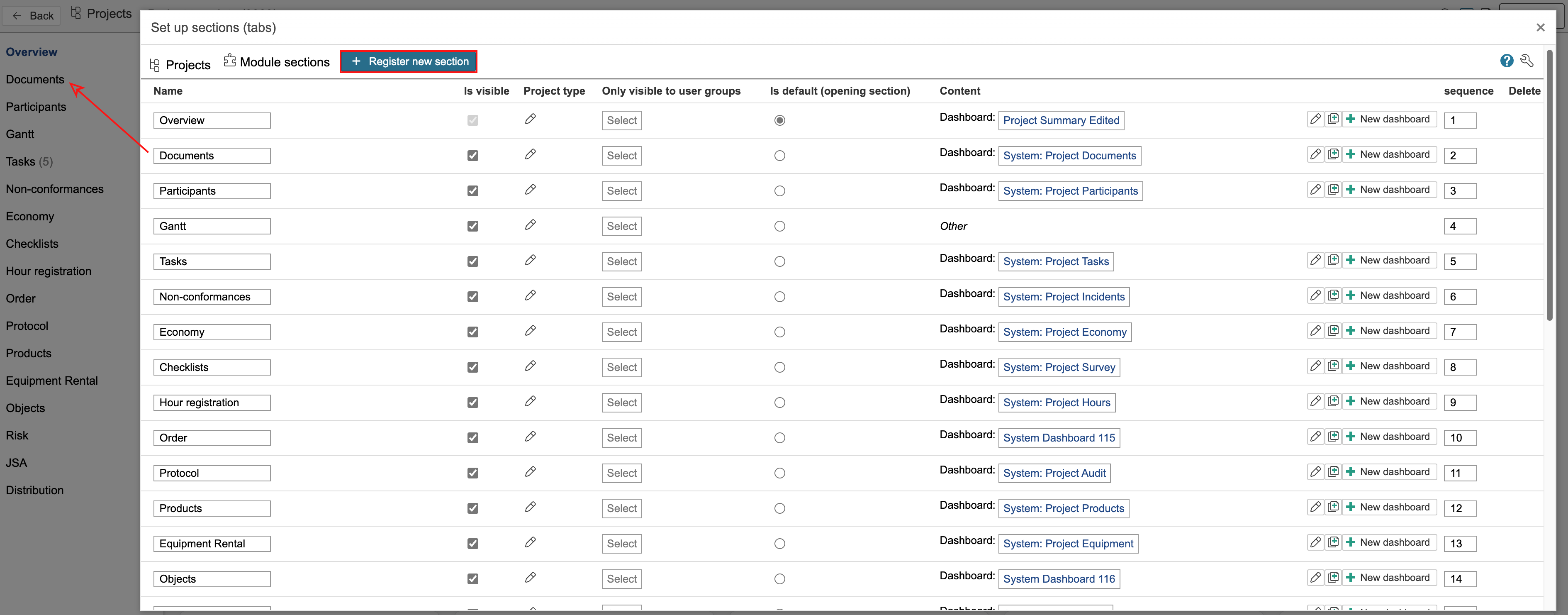
2. This is an overview of the project's sections. They are displayed on the left side in the project. Sections can be made visible or hidden for all users or for specific user groups. You can also control visibility based on project types. The content of a section can be either a URL or a dashboard. To create a new section, click Register new section.
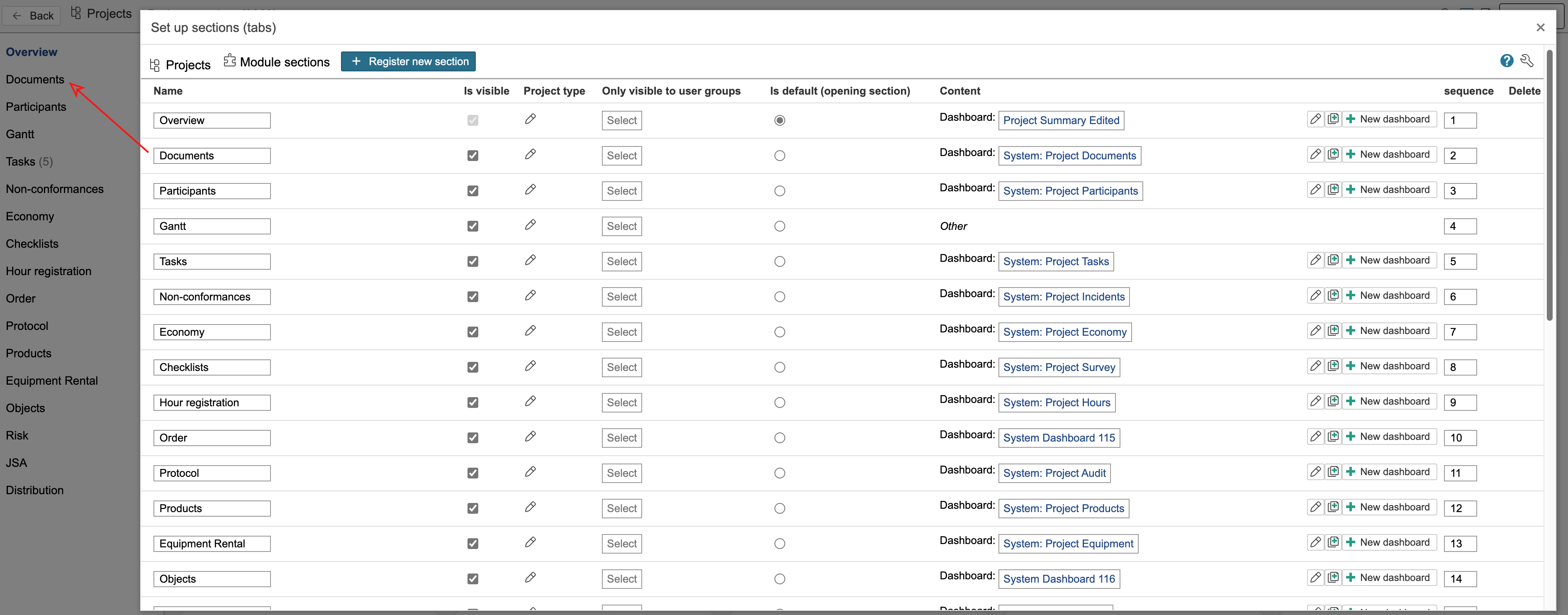
| Note |
|---|
MarkNote: In some platforms, the tabs may appear horizontally at the top of the project portal. If you prefer to display the tabs on the left side, go to the Control Panel, select Dashboards in the middle column, and activate the option Use the left menu in the portal. |
...
4. Enter a name for the section and select its content. In this guide, a dashboard is used as the example. Select Dashboard in the Content column and click New dashboard or select an existing dashboard.

| Info |
|---|
Info: You can change the order of the sections by adjusting the numbering in the 'Sequence' column. |
5. When you click New dashboard, a confirmation prompt with information will appear. Click OK to create the dashboard and continue.
...
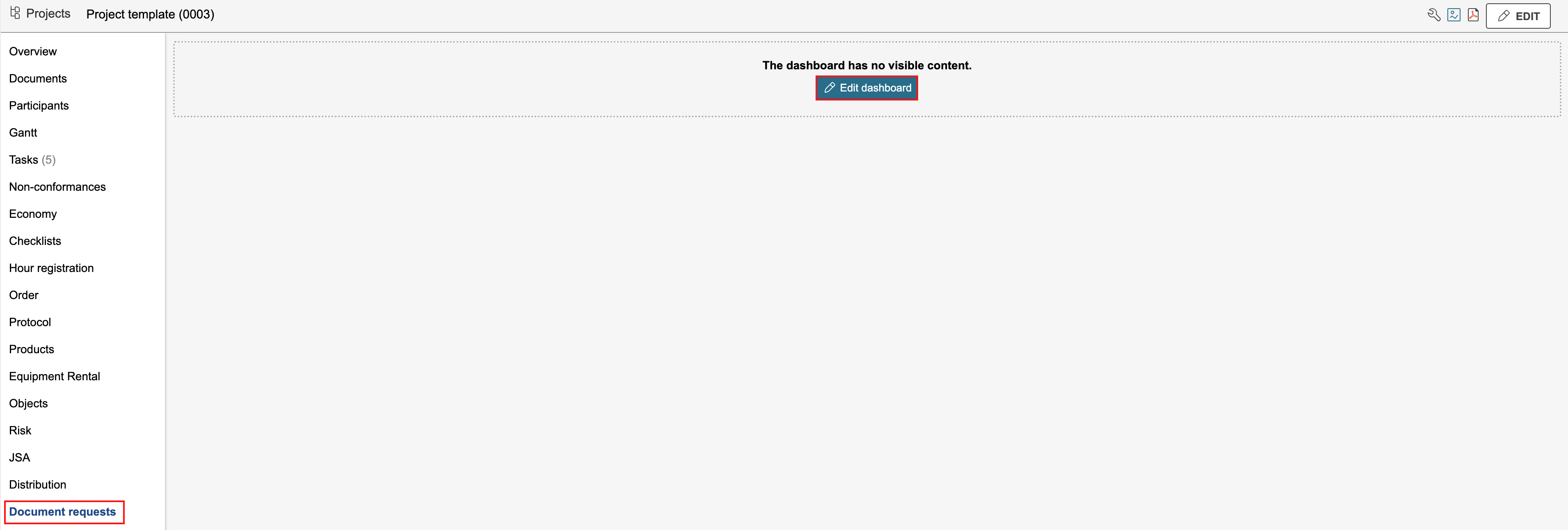
6. When you're finished editing the sections, you can close the modal dialog by clicking the X in the top-right corner. To edit the dashboard linked to the section, go to the tab (section) you created and click Edit dashboard.
Edit visibility
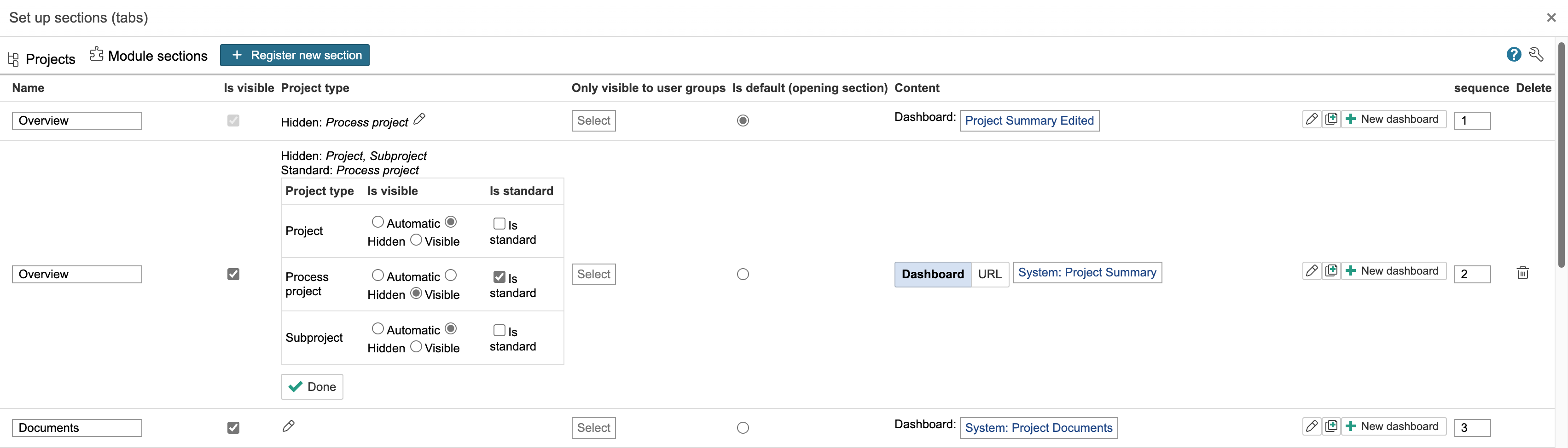
Sections can be made visible or hidden for all users or for specific user groups. You can also control visibility based on project types.
To control visibility by project type, click the pencil icon in the 'Project type' column and select whether the section is visible or hidden for each type. If a project type should have a different opening section than the default, check "Is standard" for the section you want to assign. Click Done when you're finished.
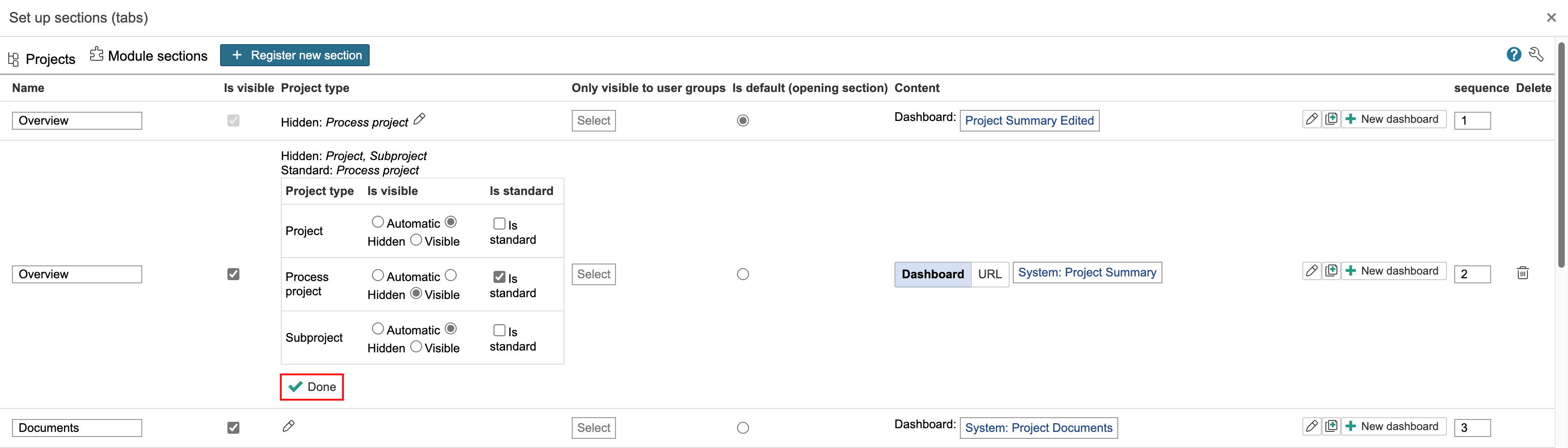
Before changes
...