...
2. Select a template by clicking on it.

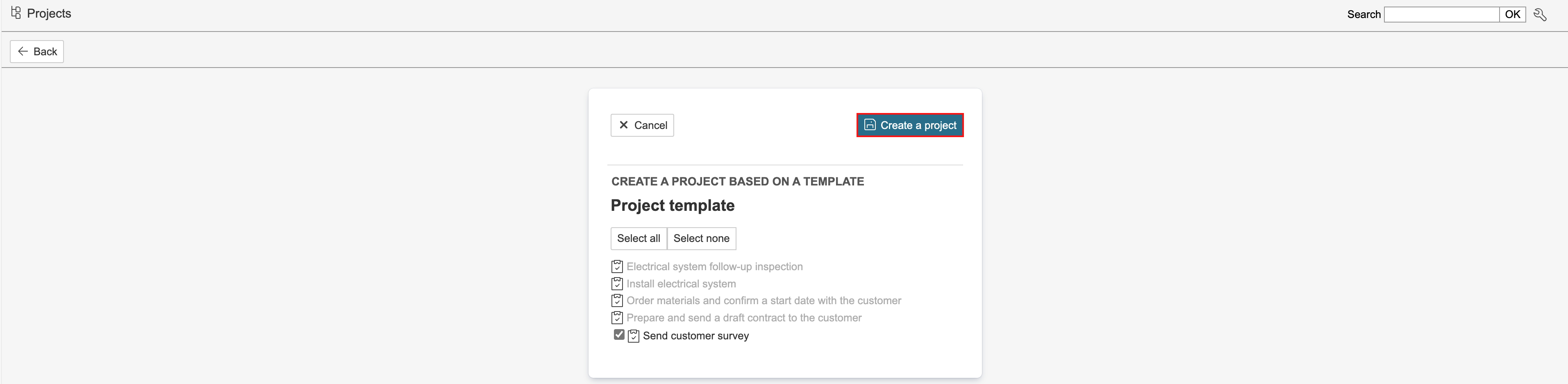
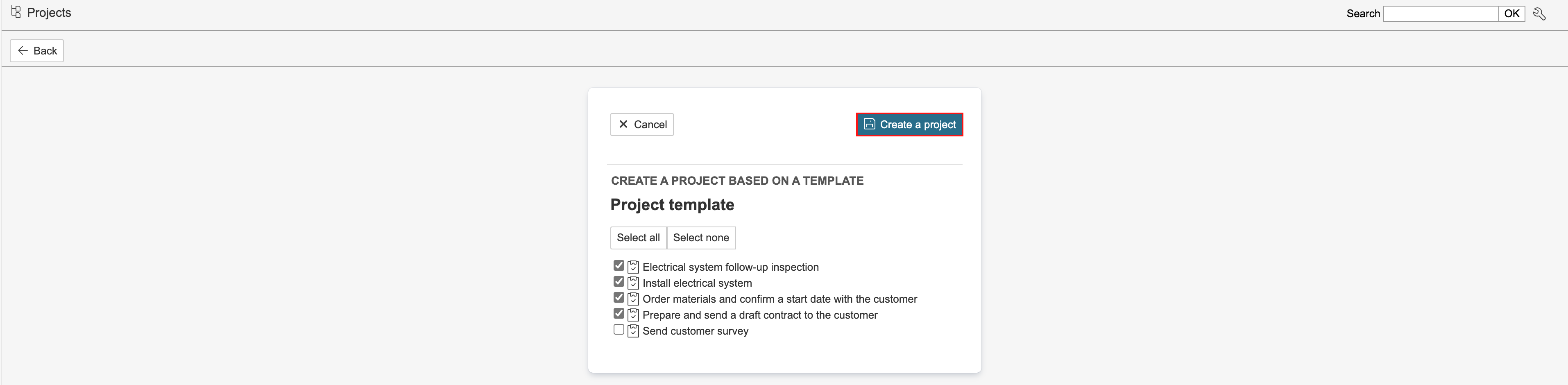
3. Select the tasks to be included in the project and click Create a project. Sub-projects will also be displayed in the selector if the project template has any.
4. Enter the project details and click Save. You can enter details such as project name, status, department, and the customer associated with the project. You can also specify the project’s start and end dates, and assign a project manager and an HSE coordinator to the project. Agreements from the contract module can also be linked to the project.
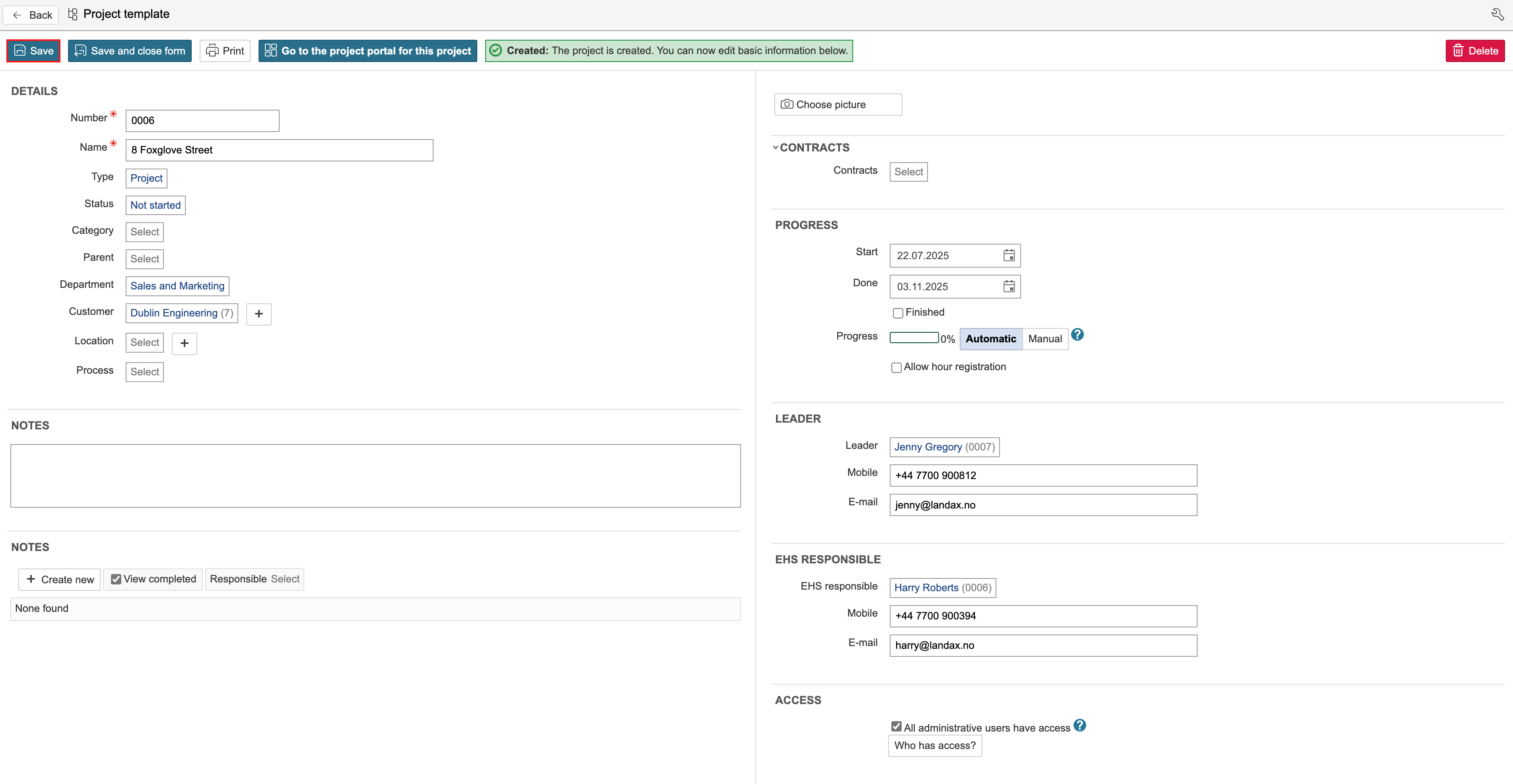
5. After saving, you can open the project by clicking Go to project portal for this project.
...
6. The project start page may vary depending on the project type. The project type determines which start page is displayed. The dashboard on the start page can be edited. Once the project has been created, you can add data such as tasks, notes, non-conformances (cases), checklists, documents, participants, and risk assessments.
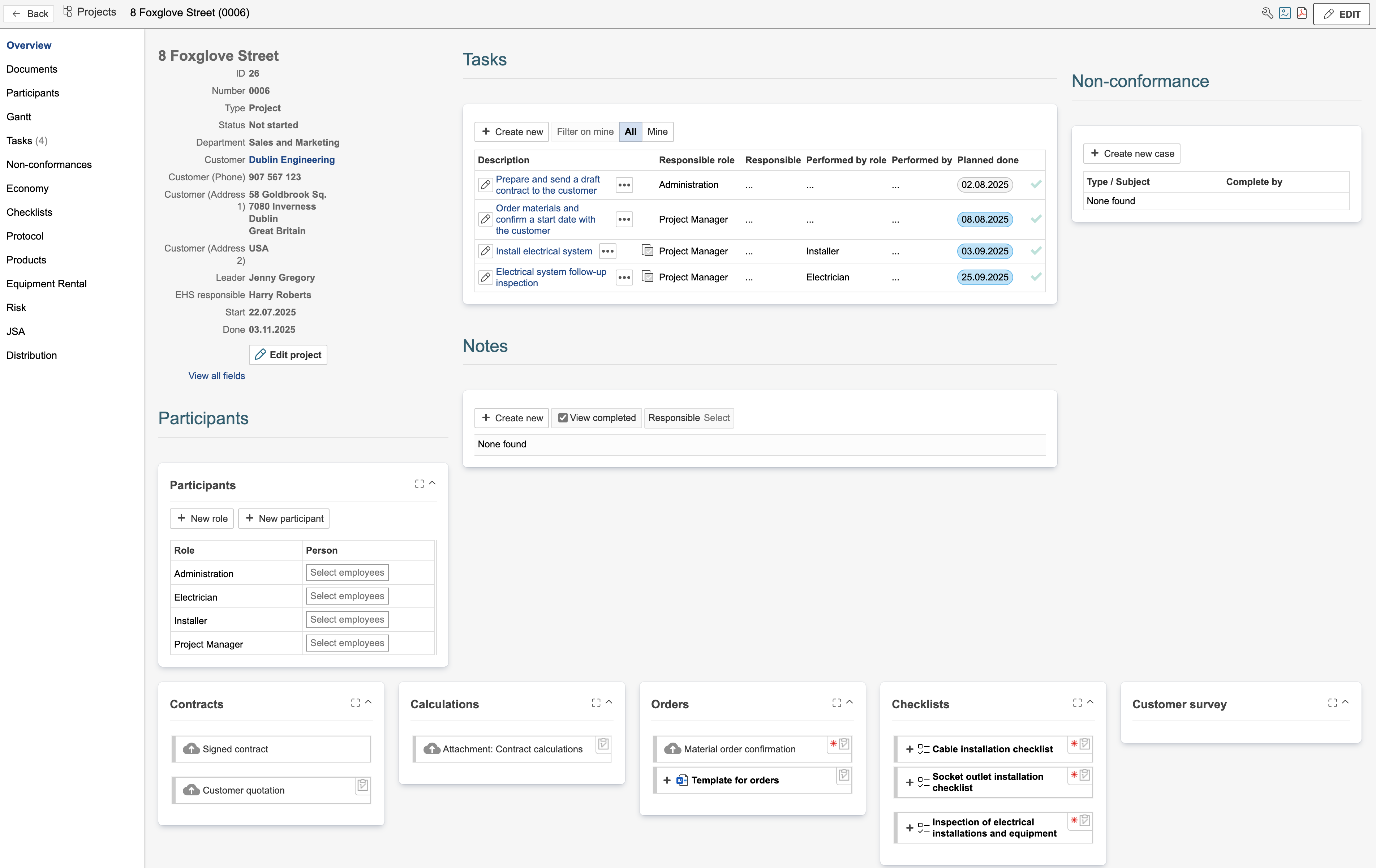
The
tasks task module is often used to define who is responsible for specific activities in the project, as well as the planned start and end dates for these activities.
The non-conformance module can be used to register nonconformities,
improvementsimprovement suggestions, variation
orderorders, and claims related to the project.
Participants can be used to define roles and grant permissions within the project.
Checklists may include safety inspections or
Safe Job
Analyses Safety Analysis (
SJAsJSA), but can also be used for verifying completion of tasks. When responsibility and execution dates need to be defined, checklists can be linked to a task instead of the project.
The risk module can be used to carry out local risk assessments specific to the project.
- Notes can be used to log communication with customers or suppliers, or to record other relevant information in the project.
Other modules that can be used in combination with the project module include financial records, protocols, products, equipment rental, and JSA (Job Safety AnalysesAnalysis).
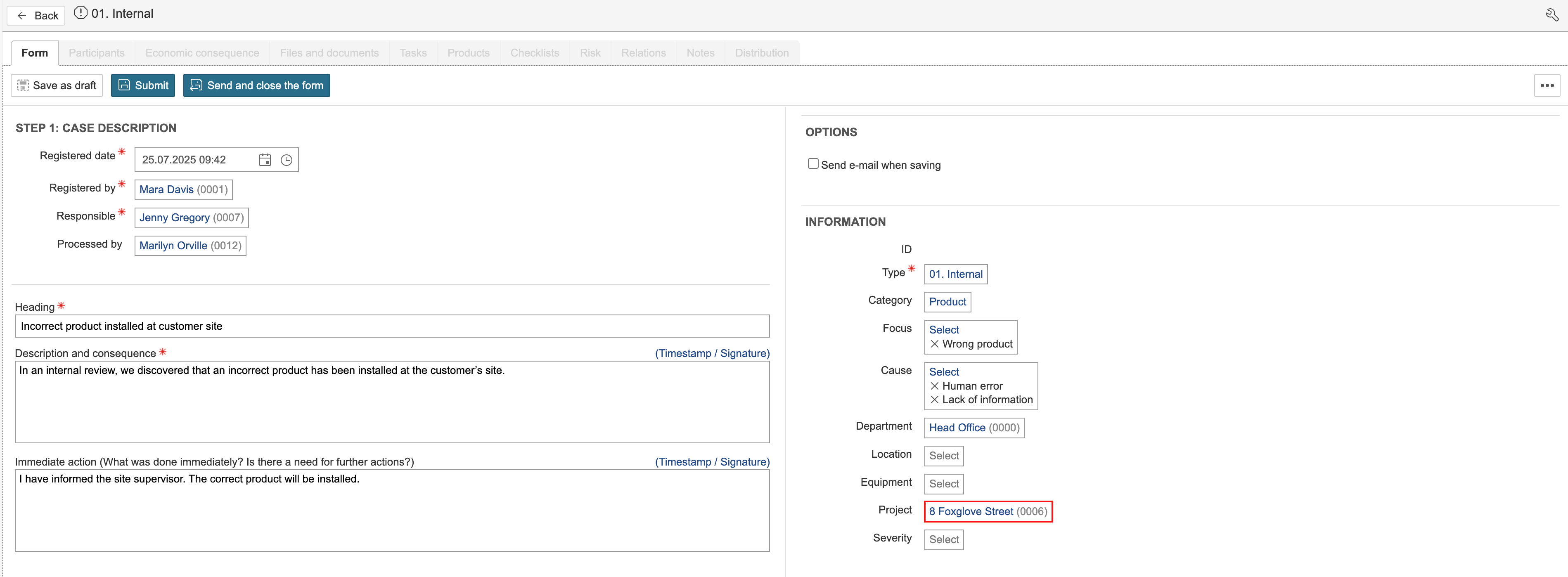
Registrations from certain modules are not predefined in a project template, as they typically occur and are registered during the course of the project. These may include non-conformances, SJAs JSA (Safe Job AnalysesSafety Analysis), protocols, risk assessments, and equipment loansrental, but also tasks, checklists, and documents. Registrations can be linked to a project either by opening the project and creating a new entry record from there, or by going directly to the module and selecting the project within the form. In the non-conformance module, it looks like this:
Create the rest of the project
1. If not all content from the project template was selected when creating the project, you can add the remaining content afterwards. To do so, hover the mouse pointer over Edit on the right-hand side of the page and click Create the rest of the project.

2. Select the content to be added to the project and click Create a project.