1. To edit the dashboard, hover the mouse pointer over Edit and click Edit dashboard.
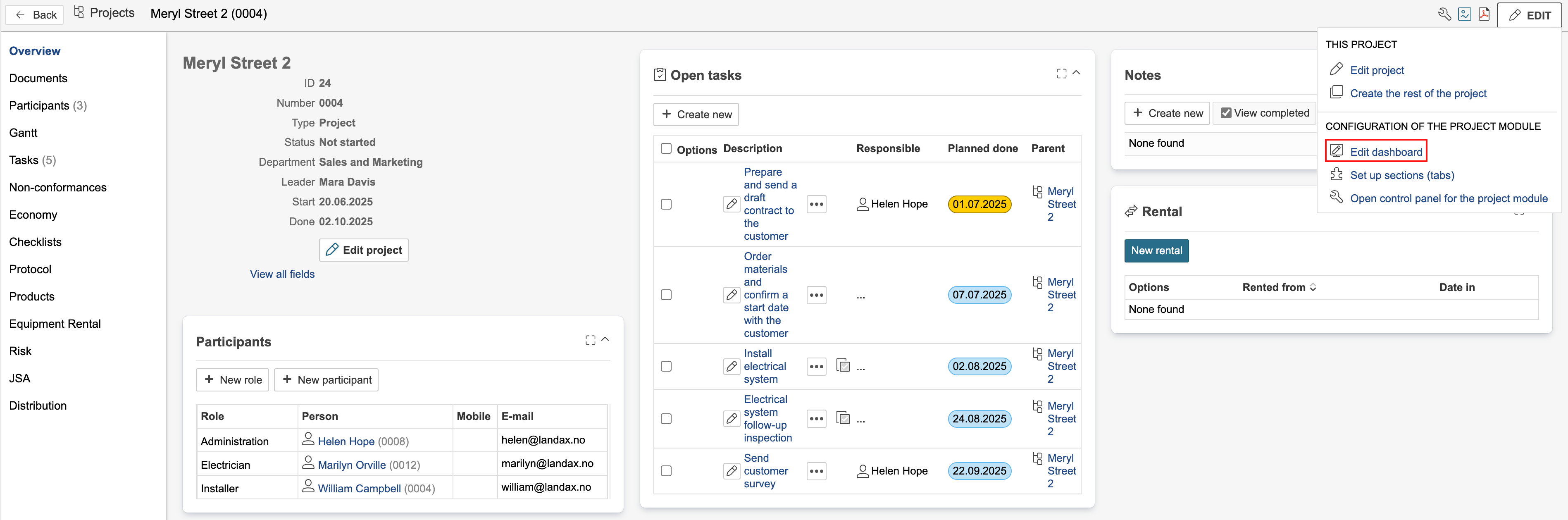
2. If the section tab is using a system dashboard, you must duplicate it before you can make any changes.
...
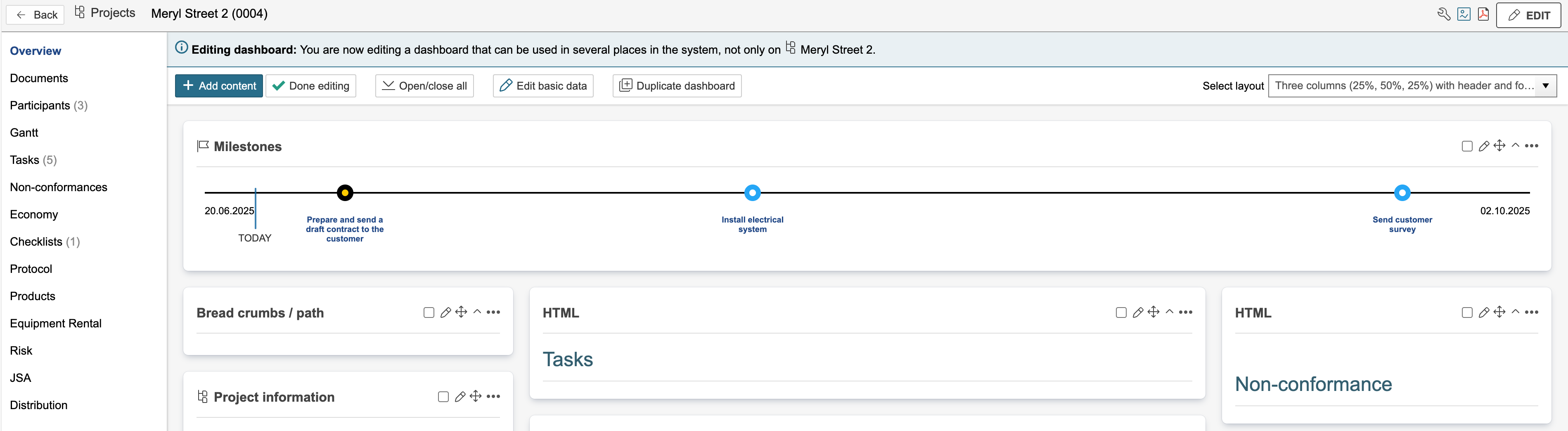
After the dashboard is duplicated, it can be edited. Project dashboards are edited in the same way as the start page dashboard. For more information, see the guide on editing dashboards with subpages.
The gadgets display different content on the dashboard. Some gadgets filter the records based on the project currently open, while others do not. The gadgets are marked with icons.
 - This gadget has special support for dashboards in the project module, but also works on other types of dashboards. Special support means that the gadget displays records based on the project currently open.
 - This gadget is made only for dashboards in the project module. The gadget displays records based on the project currently open.
 - Content in this list is not filtered based on the project currently open, but displays data from the entire module.
| Tip |
|---|
Tip: Hover the mouse pointer over an icon to display the description. |
Example project gadget
An example of a gadget designed specifically for dashboards in the project module is the task gadget "Timeline of milestones in project". This gadget displays project tasks in a timeline based on the project's start and end dates.
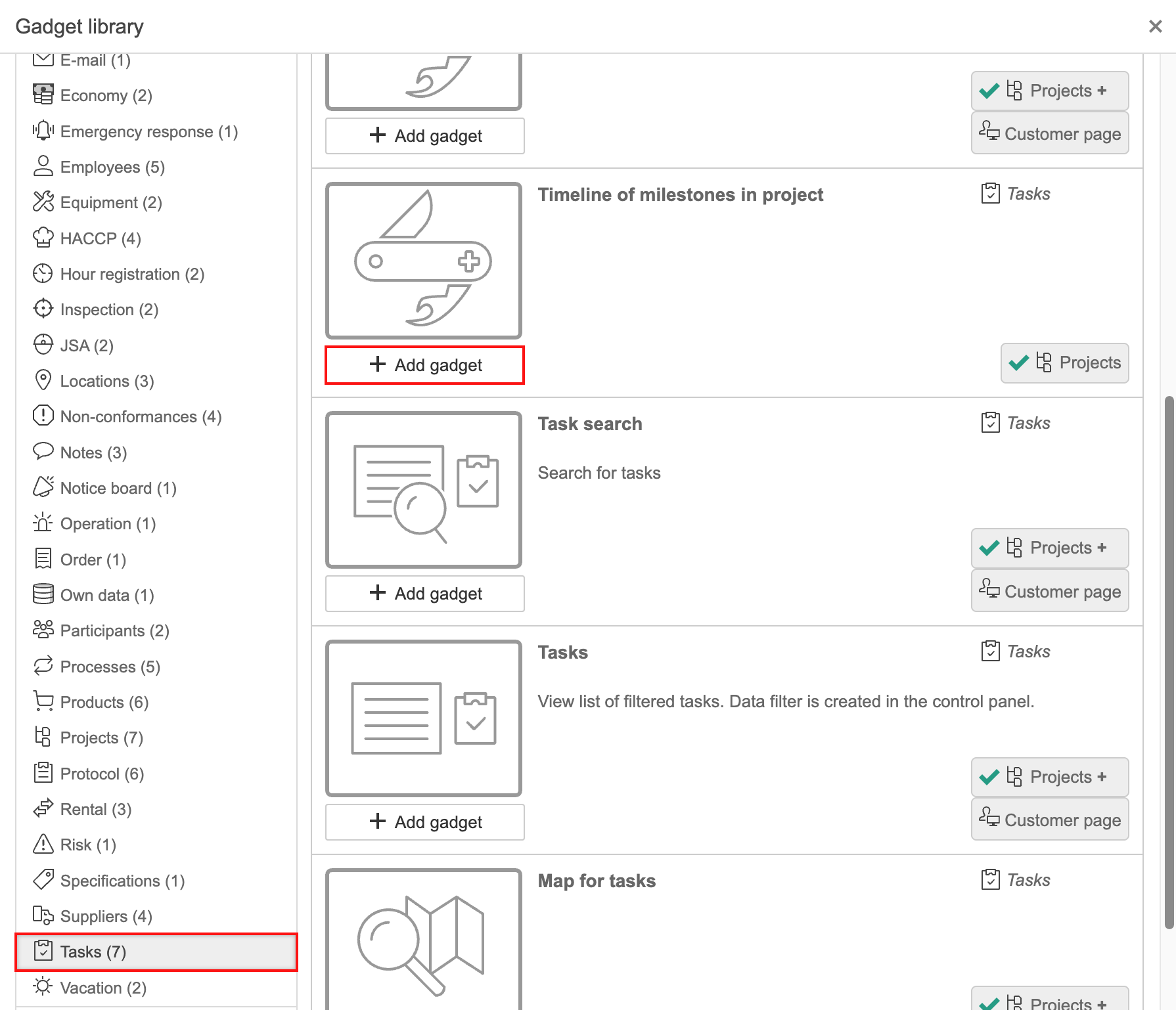
1. To add the gadget, click Modules, then Tasks, and select Add Gadget.
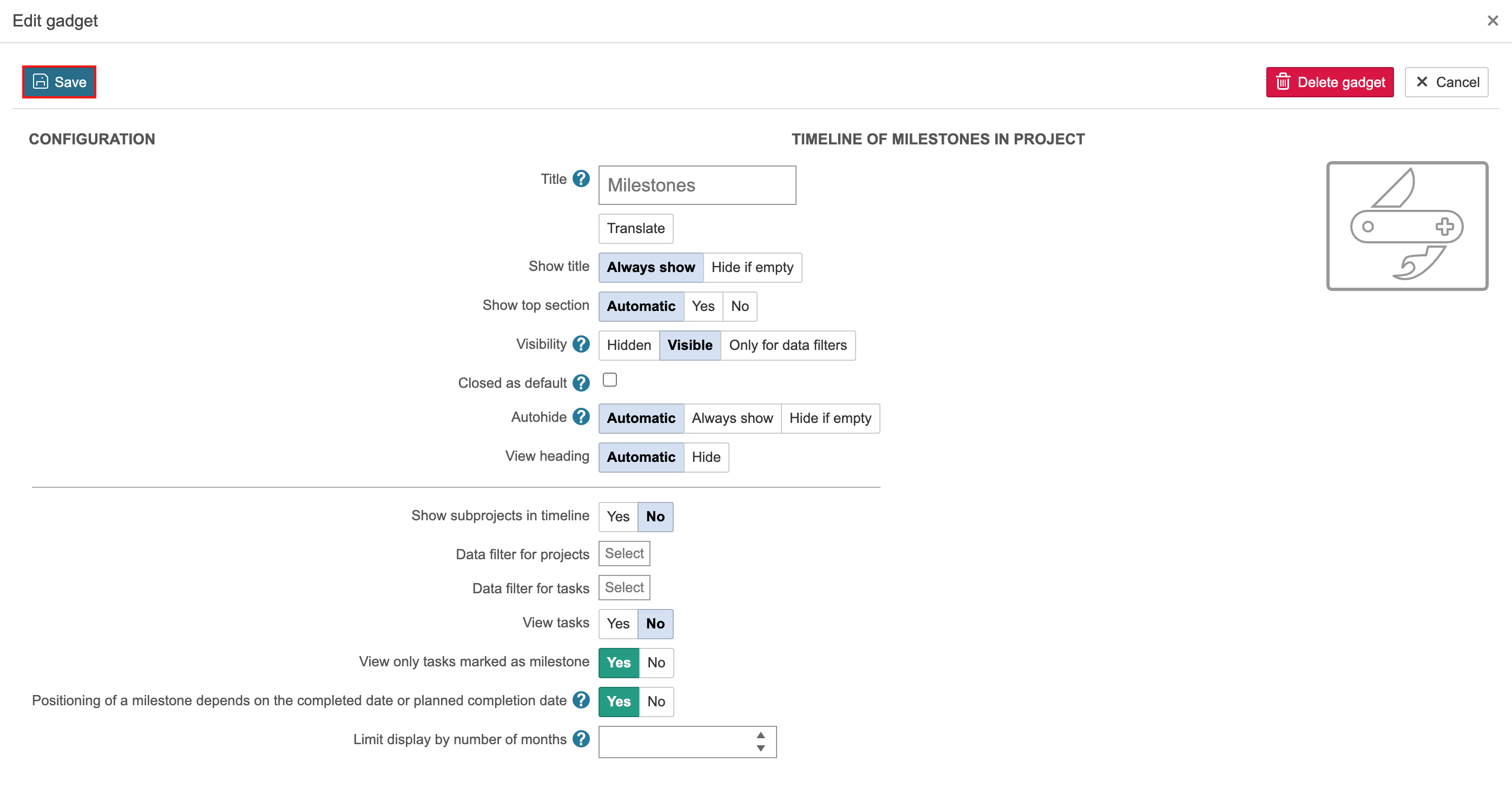
2. Select what should be displayed in the timeline and click Save. You can select whether to include sub-projects, whether only tasks marked as milestones should be displayed, and whether the task’s position should be based on either the completed date or the planned completion date, or on the planned start date.
The gadget in the project dashboard: