Versions Compared

Key

  • This line was added.
  • This line was removed.
  • Formatting was changed.
Info
Workstation
Booking
Bookings dashboard requires internal bookings -feature in EG Worksense. This feature is available for users who have access to
 
EG Optimaze Panorama.

The report dashboard

shows

visualizes the

data from

workstation bookings made by EG Worksense users.

The report is divided into three pages:

  • Summary - an overview of the workstation bookings
  • Number of bookings - total number of workstation bookings per building, seat subtype, organization
  • Percentage of booked workstations - booking rates

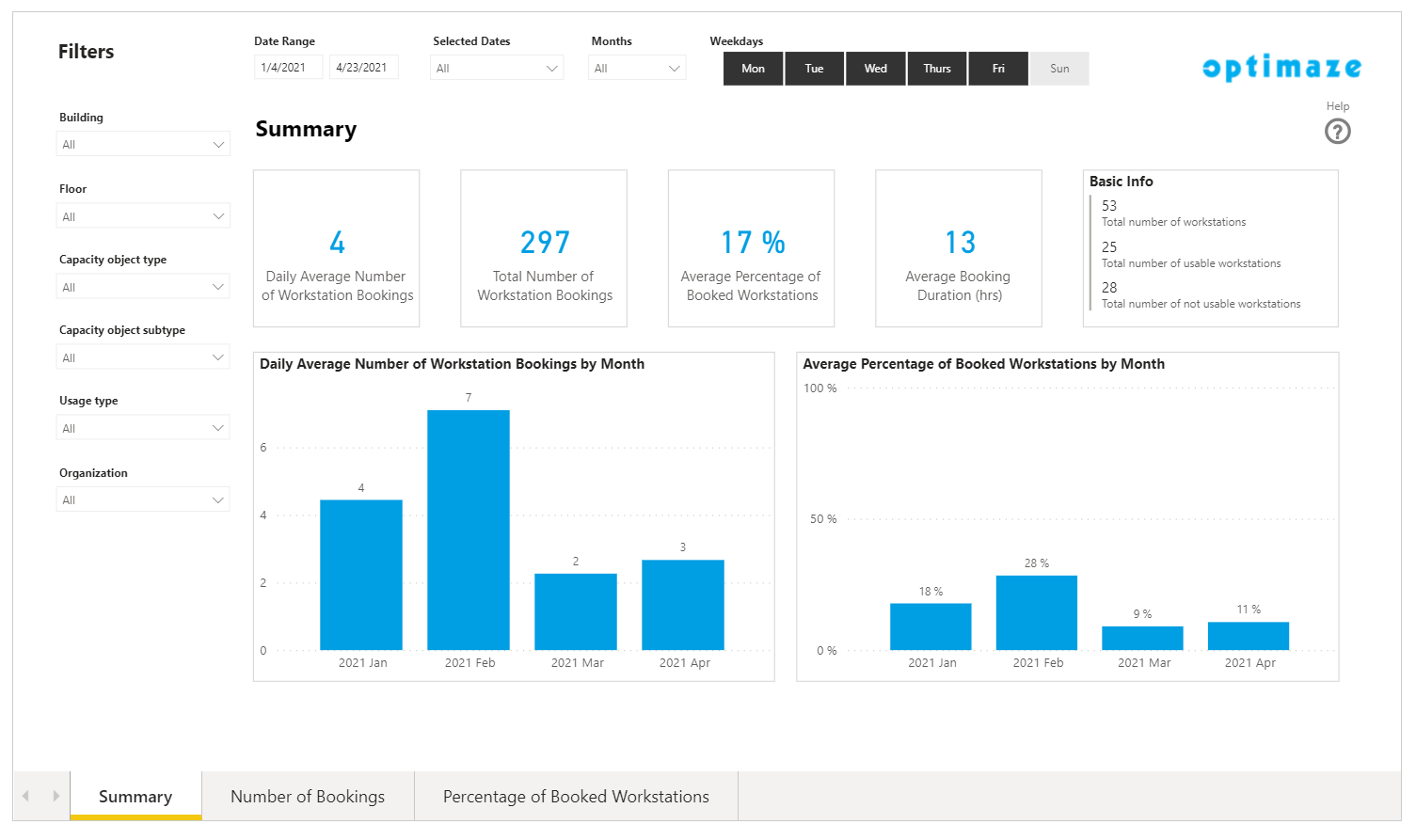
Summary -page

The Summary

-

page shows key and

basic

average workstation booking figures.

The Basic Info

-

box includes the total number of workstations and the number of usable and not usable workstations.

‘Help’ - button on each page will direct you to this report instructions page.

Image Removed Image Removed

Number of bookings -page

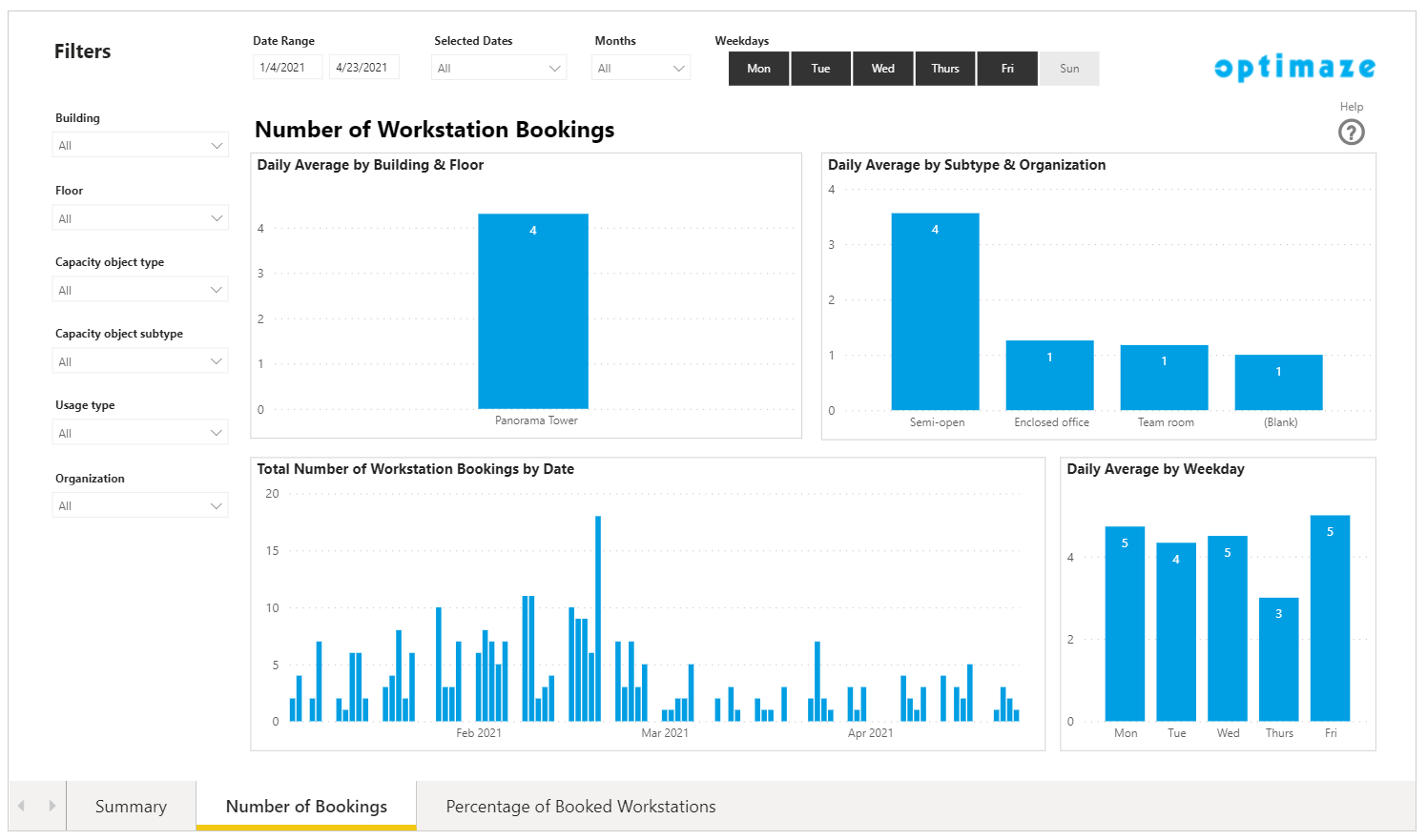
The Number of Bookings

Number of Workstation Bookings

The Workstation Bookings -

page shows the number of bookings by seat subtype, organization, building, floor, weekday and date.

Daily

avearage

average bookings means the number of bookings made per day on average.

Image Removed

Percentage of

Booked Workstations

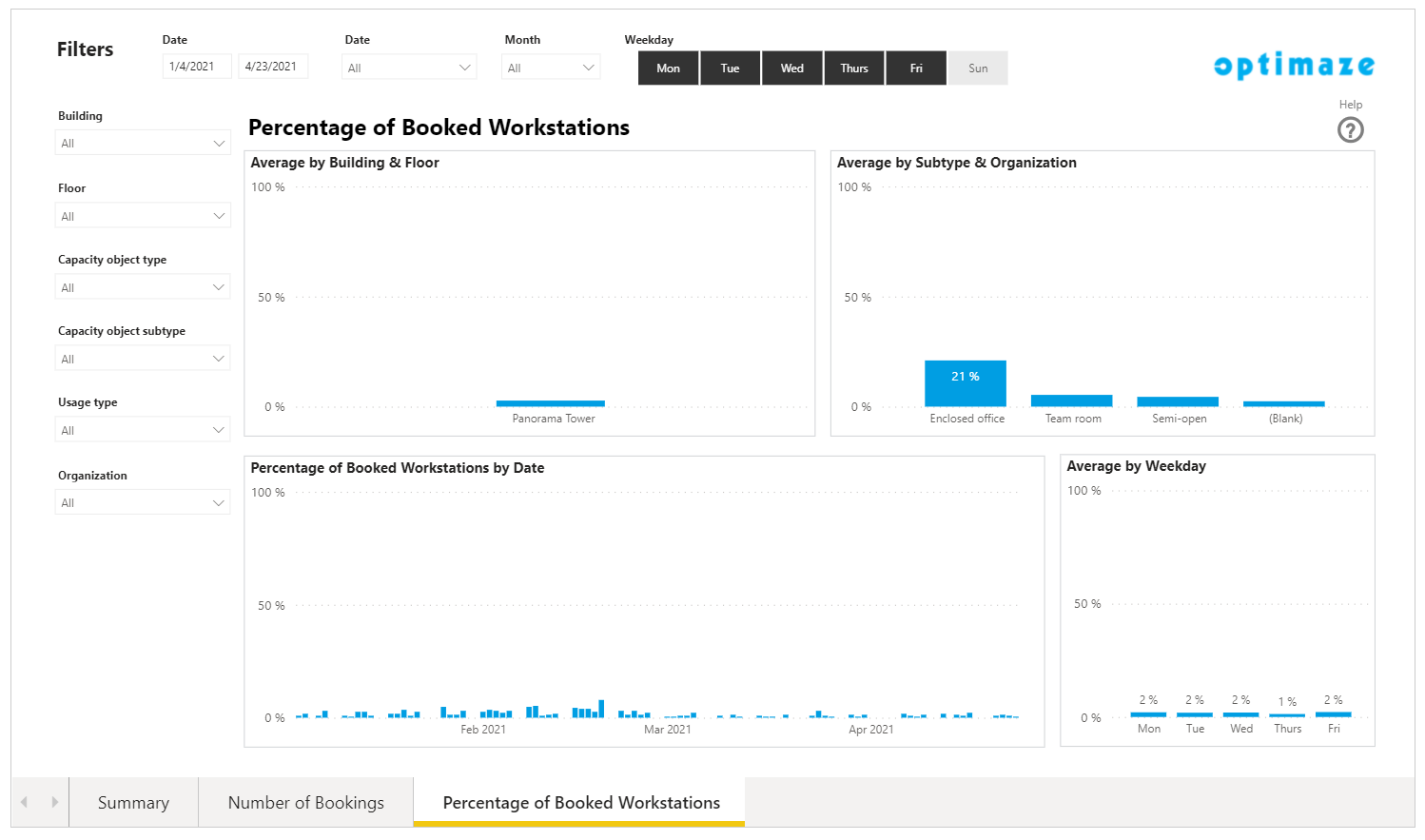
booked workstations -page

The Percentage of Booked Workstations

-

page shows the

workstation bookings in percentages. The graphs depict how many

rate how workstations were booked by building, floor, subtype, organization, date and weekday.

The percentage of booked workstations is calculated by

:

dividing number of bookings

/

with bookable workstations.

Image Removed

Drill

Down Bar

down bar charts

‘Building

The Building & Floor

'

bar graph shows the data by

Building

building as a default.

And '

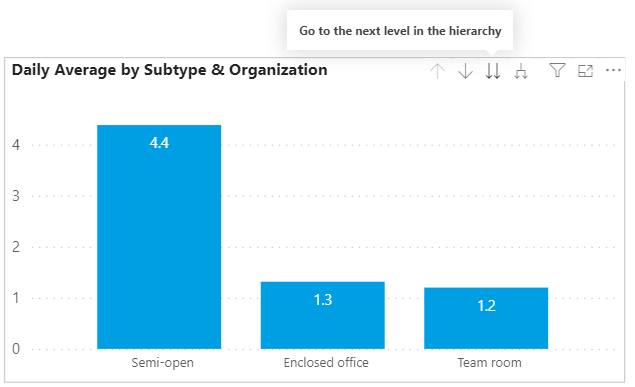
The Subtype &

Organization’

Organization graph shows the data by

Subtype

subtype as a default.

In order to view the

Floor

floor or

Organization

organization data, drill down the graph by

clicking

moving the mouse pointer over the graph and click the two downward arrows on the top right corner.

Image Removed
Or ‘Expand all down one level in the hierarchy’ by clicking
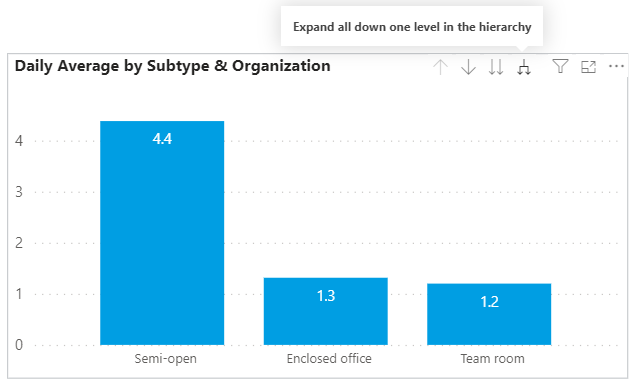
 Or click the joint downwards arrow.

Image Removed