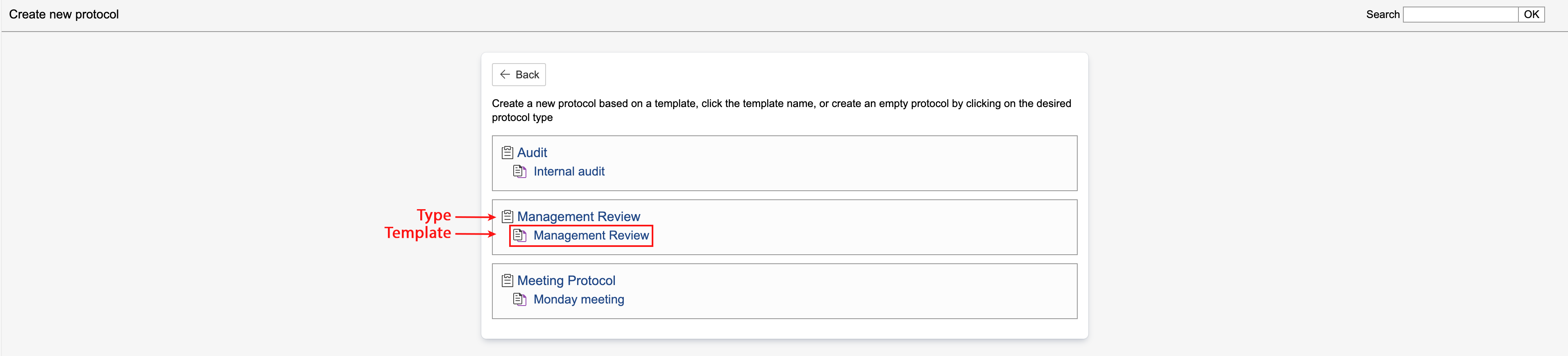
1. To create a protocol based on a template, go to the protocol module and click Create new.


2. Select a template by clicking it.

| Info |
|---|
Info: Protocol types are indicated by |


...
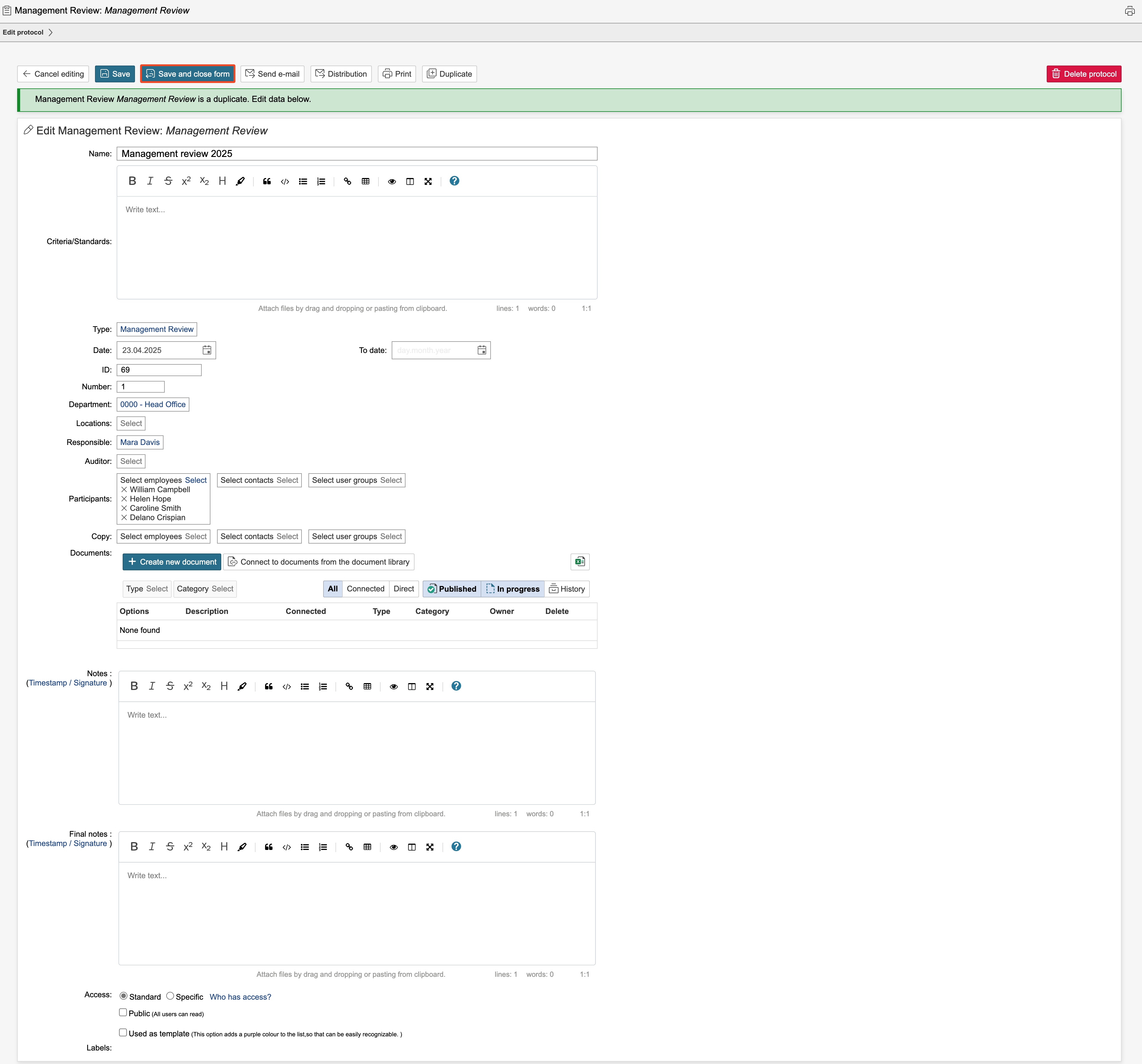
3. Edit the name and any other data, add participants and edit access, if applicable. Click Save and close form to view the protocol overview.

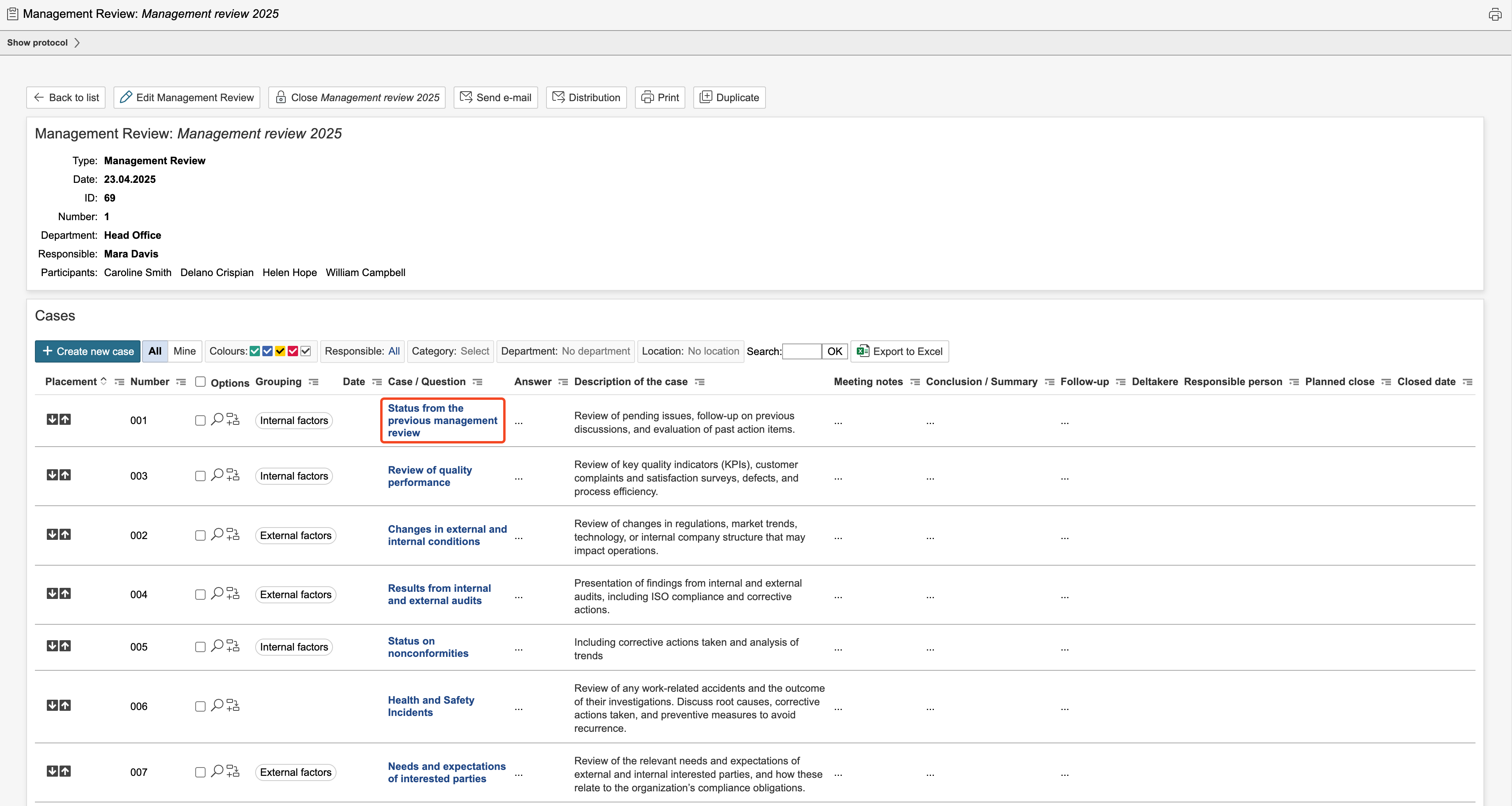
4. Click one of the cases in the overview to open and edit a the case.

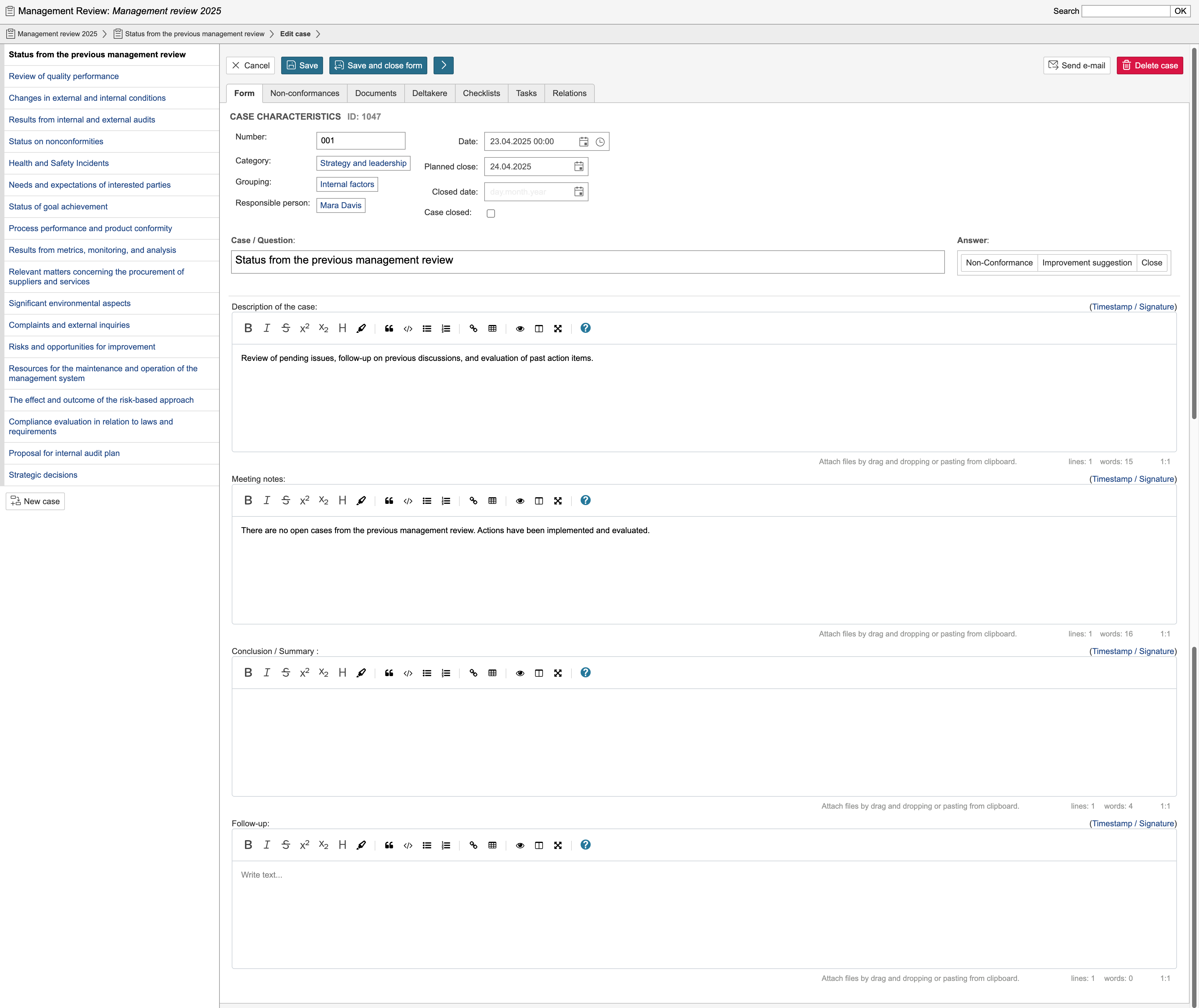
5. Edit case information such as the responsible person, category, group, and planned close date. If applicable, you can also add a description, discussion, and/or conclusion. If answers have been configured, they can be used when handling cases. Certain answers may trigger actions such as closing the protocol case or creating a case in the nonconformity module. Protocol cases can also be linked to data in other modules, if applicable. Click Save or Save and close form to save the changes. To save and move on to the next case, click  .
.
| Tip |
|---|
Tip: It is possible to configure actions for the various answers to questions and to create and link to records in other modules for the cases. |
6. Proceed through the list of cases, adding a responsible person, dates, and any additional information if applicable. The colours displayed to the left of each case indicate whether the case is closed, ongoing, or overdue. Green indicates that the case is closed, yellow indicates that the case is ongoing, and red indicates that the case is overdue. The 'Planned Close' field determines the colour for cases that are ongoing or overdue.
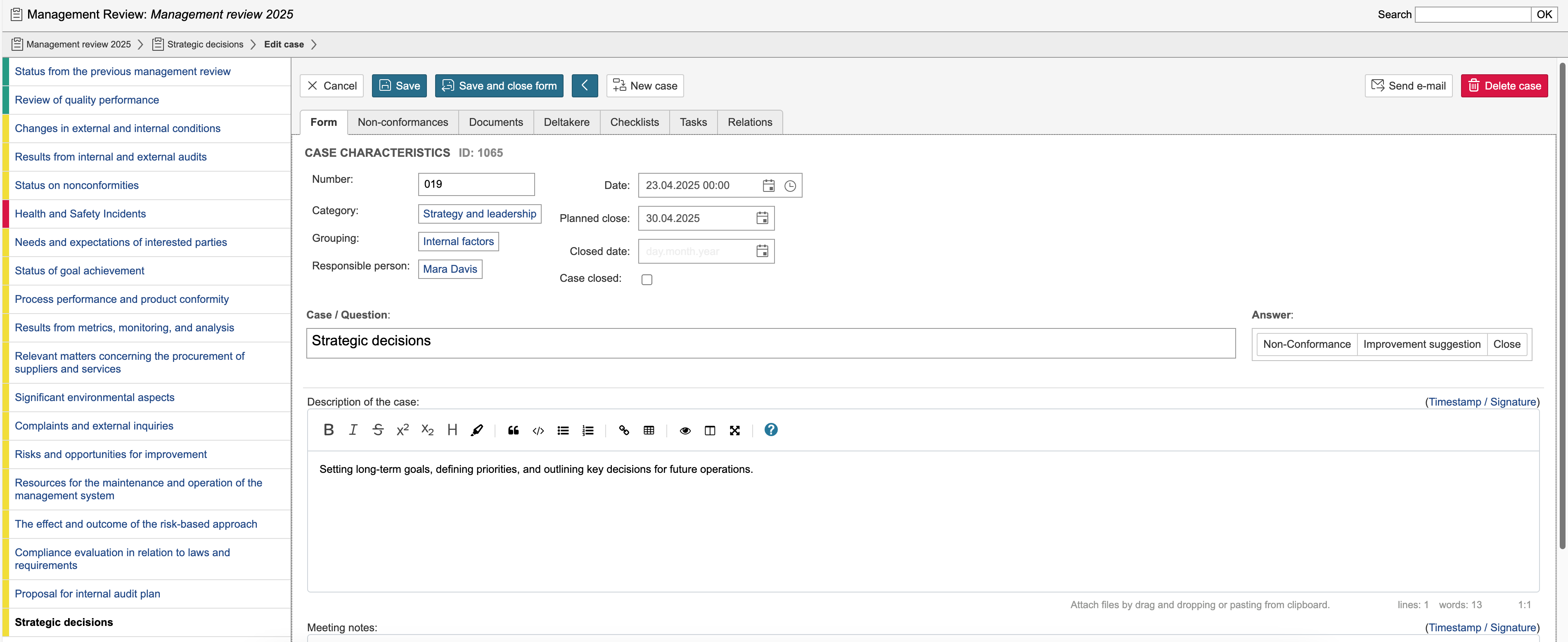
7. If you need to add more cases to the protocol, go to the last case in the list and click New Case. This does not affect the template from which the protocol was created. When all cases have been reviewed, click Save and close form to view the protocol overview.

| Tip |
|---|
Tip: It is possible to select actions for the various responses to the questions and to create and link to records in other modules for the cases. |

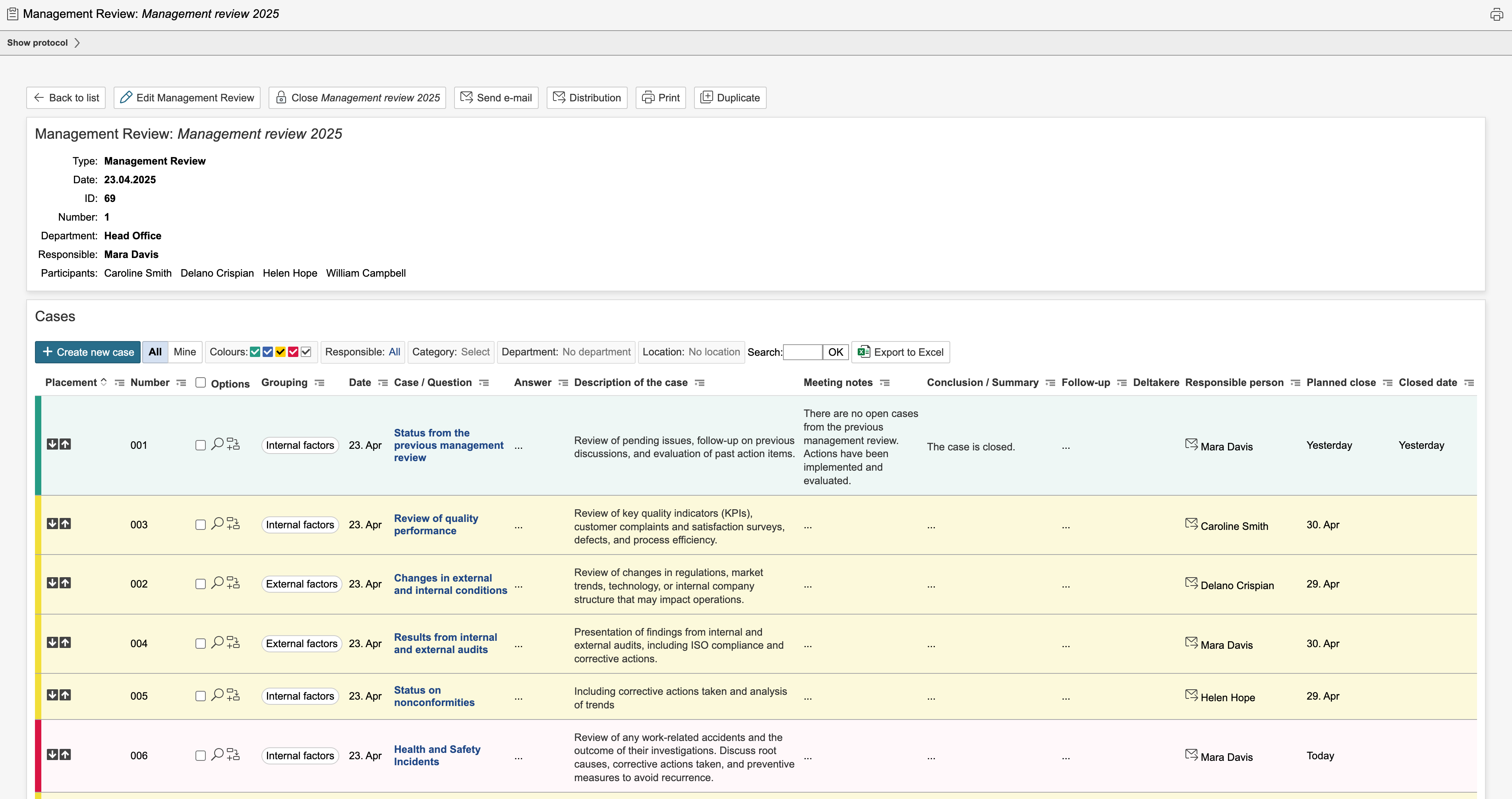
The protocol overview displays The auditing and meeting note list provides a list of the cases' properties and informationcases with their associated information and descriptions.

| Note |
|---|
Note: It is 's not possible to close an auditing and meeting note a protocol until all cases are have been closed. |
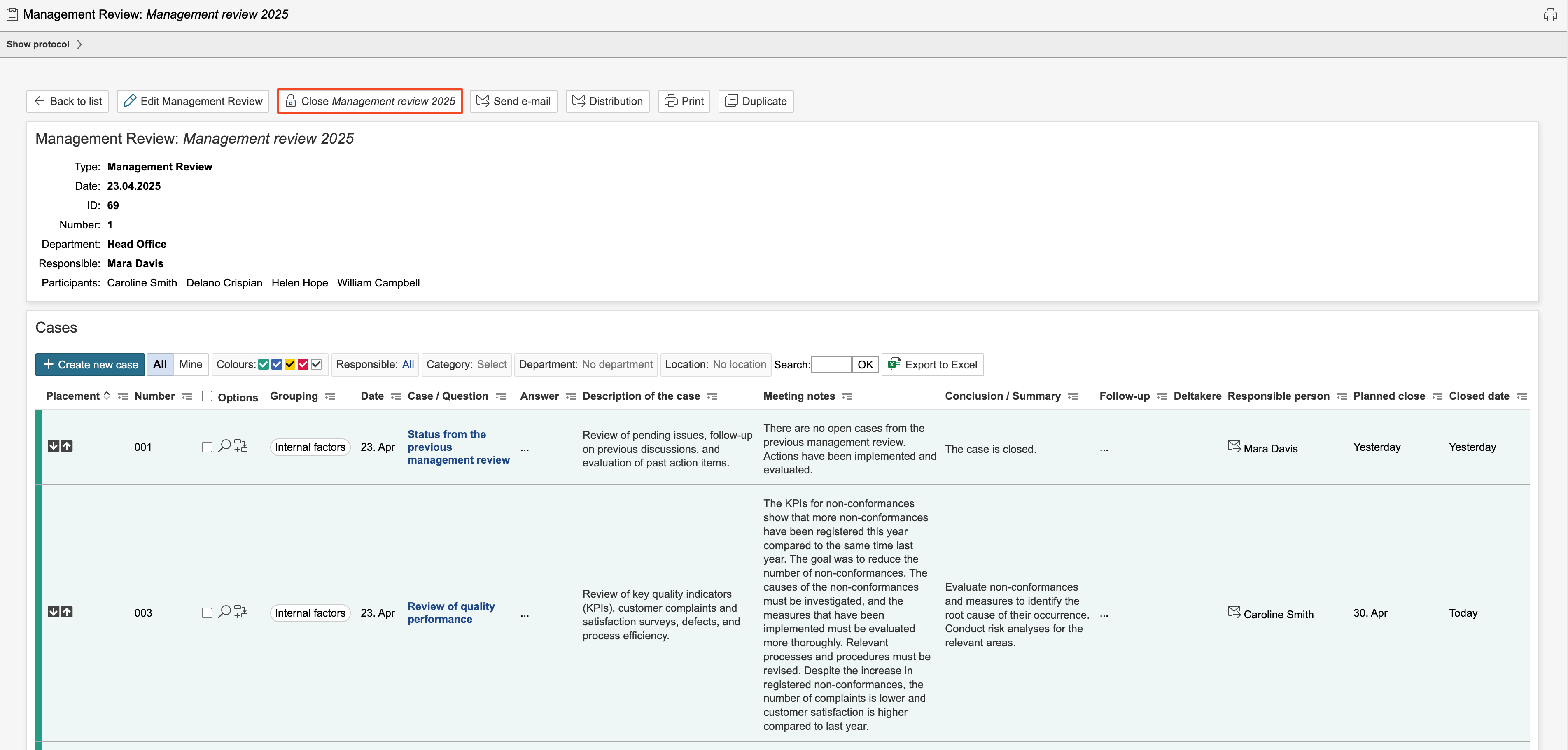
To close an auditing and meeting note, click  Close Auditing and meeting note
When all cases are closed, you can close the protocol. Click 'Close (protocol name)' to close the protocol.