
...
Automatic notification for readings outside the limits: If If this is activated, a notification of measures will automatically be sent to the person set as the supervisor for a checklist inspection round if the reading indicated is outside the lower or upper alarm limit. In addition, a message/alert is sent if the read value exceeds the specified trend limit at the checkpoint. Note: For checkpoint set up with the type ‘Calibration’, regardless of whether this is activated or not, an action message is sent when the ‘Calibrated’ value is outside the limit values.
...
Exhange rate: This function is only displayed when 'NOK' or 'SEK' is set as the default currency in the system. If this function is activated, the latest exchange rate is retrieved automatically from Norges Bank 's API(Norway) or Riksbanken (Sweden), and updates the exchange rates contained within the system system 15.7.11 Currency. If this is not activated, there will be a separate button inside the currency register to update the exchange rates from the API of Norges Bank (Norway) or Riksbanken (Sweden).
Profession group from responsible [WO]: The WO can be set up to inherit the profession group from the person who is set as responsible on the work order. If this is set here, the profession group can still be changed on the work order, and it will also change automatically if the responsible changes.
...
Items [Assets]: If this is activated, you are authorized to manage assets as items, with separate item numbers, which makes it possible to connect items in/out to the asset, with associated item log. See separate description under ‘Assets’. Also remember to activate 'Items [Object]' in the list views for work orders and history in your user profile.
Notification [Meter reading]: Validation that the Notification [Meter reading]: Validation that the registered counter count is higher than the last registered. When this is active, it will not be possible to enter a counter level lower than the previous registration.
...
Reduce stock [WO/Checklists]: If this is activated, by default, on approval, ‘Reduce stock’ will be checked on the approval screen. Note that this setting does not affect the automatic stock draw when approving a checklist where the unit at the lubrication point has the same unit as the article connected to the lubrication point. Here, it is deducted from the storage regardless of whether it is activated or not.
Reduce stock [History]: If this is activated, ‘Reduce stock’ will be checked by default in the screen for selecting items on the history job.
Articles [For approval]: The system can be set up to require approval of new registered articles before they are put into use. Access to approval of new articles is set on the employee's user profile 17.0 Edit profile.
...
WO → Invoice [History]: If this is activated, invoices can be created for historical jobs (Service management).
Articles [VISMA]: Only use these two items (If this is activated, only these two articles are used ('Add. cost [Materials]' and 'Add. costs cost [Work]') in VISMA for materials and work.
...
OpenStreetMaps is integrated, and this is the default unless another option is selected here. Google Maps may result in a licence being required by Google if it is used frequently. We therefore recommend not activating this. For more information, contact our Support department.
Colors/Themes


Setup for setting colours colors and themes in the system. In addition, every user can select/set colourcolor/theme themes in their user profile.
Background color: Activate this if you want to have the original color of mandatory fields, i.e. no red frame around the fields.
License API

For use by Ørn Software AS.
KPI

This is where the performance activators that are shown on ‘My page’ are activated/selected. For further details about these, see the description here: 19.1.0 My Page.
Help
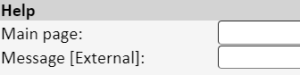
Main page: Here you can insert a link to a web address or other info that will be reached via the menu point ‘Help’.
Message [External]: In the same way as above, you can insert a link or other info that will be reached via the menu point ‘Help’ in the external registration form.
Bulletin

Field for inserting a specific bulletin that is displayed in the system when it is locked (checkbox to the right).
Logo

Via ‘Choose File’, you can upload your own company logo. The logo will display in the system and on all default PDF printouts.