
...
In this page, it is described how to add teh project theproject to your sollution solution and how to use the functionality in it.
Adding the project to your
...
solution
To use the project functionality, you need to first add the library to your sollutionsolution.
It is done in Visual Studio by following those steps:
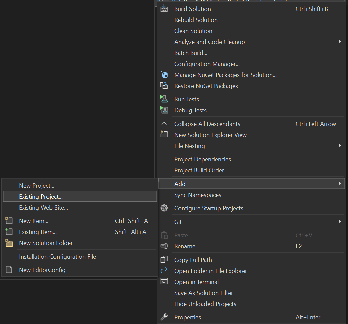
- Right click the sollution solution explorer on the top level sollutionsolution
- Choose Add→Existing project
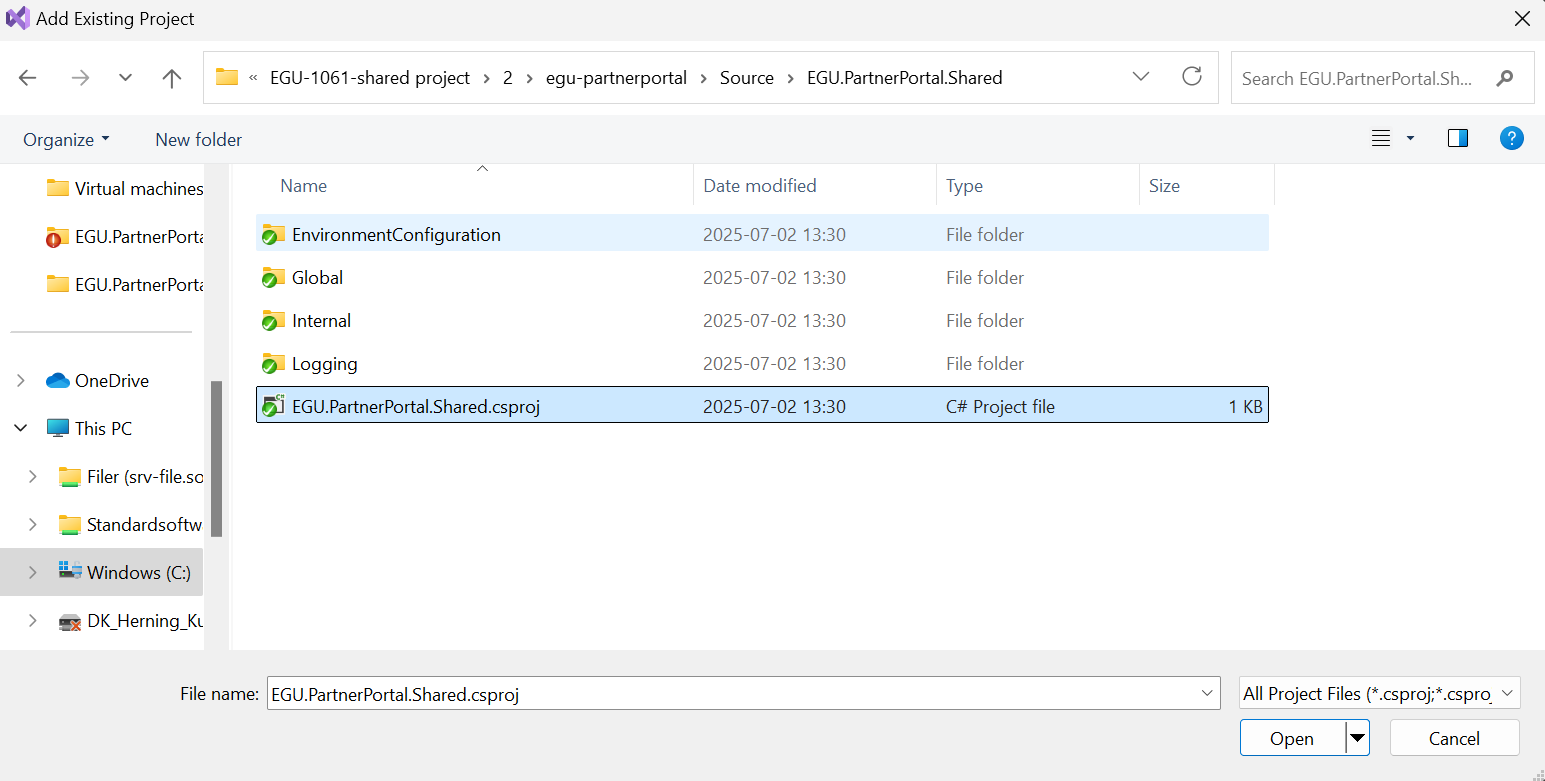
- Navigate to EGU.PartnerPortal.Shared project
- Double click the csproj file
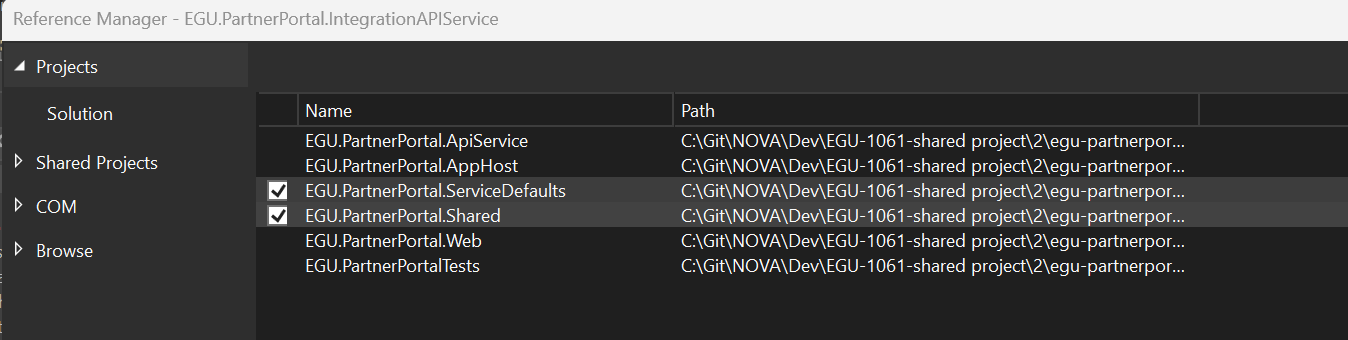
- Now add teh the project reference inside your project
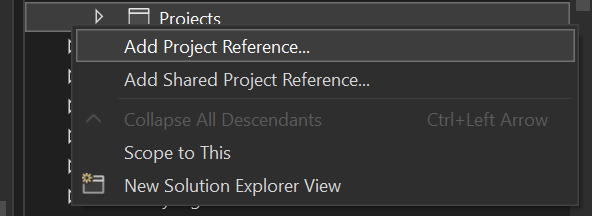
- Right click the sollution solution explorer in Dependencies→Projects→Add Project Reference
- Add a tag in teh shared project:
...
Therefore, it is important that you setup a variable for this. The variable should follow the following formatvariables: <MainApplicationname>_LOGSTATE
For instance:
...
- LOGSTATE
The value should be a string stating one of the two values:
- TRUE
The logger will
cretae - TRUE
- create a log entry
- FALSE
The logger will not
cretae - create any logs at all
- APP_INSIGHT_KEY
- Containing the insight key that can be found on the appinsight app hosting page on Azure.
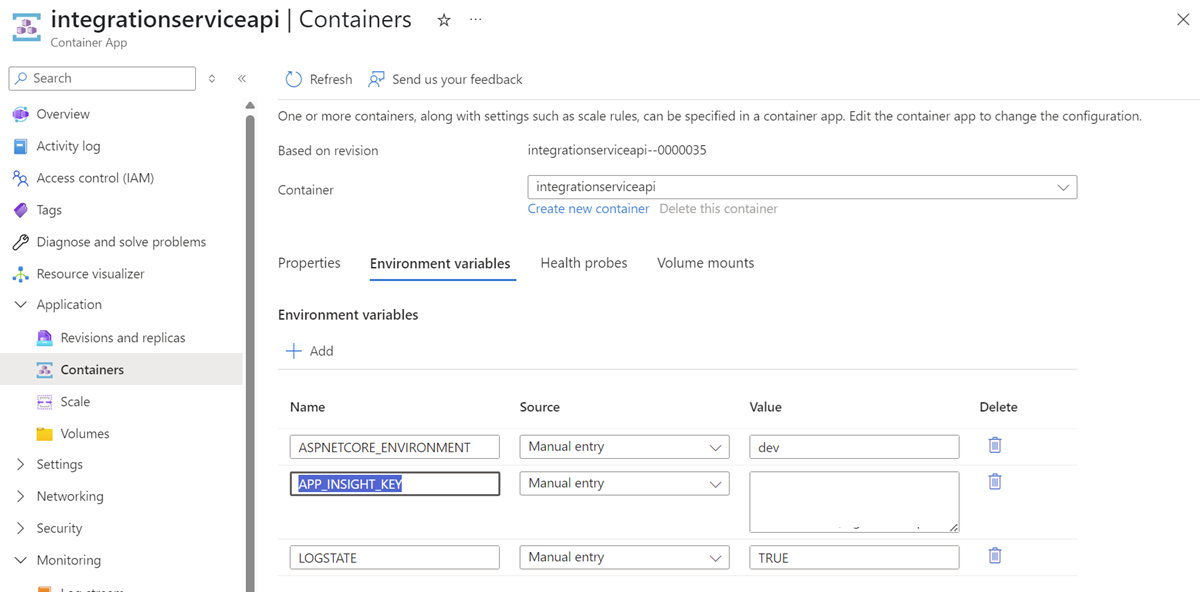
To set the variables one should do the following:
- Go to the application hosting where you have implemented logging.
- Click on Containers in the left most menu
- In the middle of the screen click 'Environment Variables'
- Add the variables
- Click 'Save as new revision'
The application will restart and is now ready for use.
Code
The Logging functionality can be accessed from the static class simply called Log.cs.
Before being able to log through the project you need to initialize the logger. (Should always be done when your application starts up, and is only done ones)
Initializing is done in this way:
| Code Block | ||||||
|---|---|---|---|---|---|---|
| ||||||
string invoker = "IntegrationApi"; /*The name of the application usinusing the log*/ string environmentVariableToggle = "INTEGRATIONAPI_LOGSTATE"; /*The environment variable name on the hosting of the invoking application*/ string appInsightsKey = "InstrumentationKey=xxxx"; Log.Initialize(invoker); /*The app insight key. This can be found in the appinsight application on the hosting environment*/ Log.Initialize(invoker, environmentVariableToggle, appInsightsKey); /*Initializing the logger, making it ready for use*/ Log.LogInfo("Integration api started."); Log.LogInfo("Logger running"); |
When wanting to create a logentry do the following in the code:
| Code Block | ||||||
|---|---|---|---|---|---|---|
| ||||||
/*The logger have tehthe following options:*/ Log.LogInfo("This is an info message"); Log.LogDebug("This is a debug message"); Log.LogWarn("This is a warning message"); Log.LogException(new Exception("This is an exception message")); |
Having logged in this way will make the messages appear in the application insights logs.
On how to view those, view the documentation for the integration service.
Other functionality
Global Enums
In here , you can store the enums that are to be used throughout the systems.
EnvConf
Use this class to get environment variables from Azure.
The methods provide options for getting various types of data.
DTOs folder
This folder is reserved for DTO entities.
Please keep a good order and follow the guidelines for putting them here:
- Add a top level folder under the 'DTO' folder
- Name the sub folder a descriptive thing according to where the DTOs are used
- Put the DTOs in the folder