
...
December 2025 Windows security update (KB5071546, KB5071544, KB5071543)
Instruction on how to fix this issue is lower in the confluenceATTENTION! Completing the uninstallation of a KB update can in some cases take a very long time at reboot; over an hour. So if the store only has one cash register, do the uninstallation outside opening hours.
We've hade cases on windows 10 where it took over one hour at the startup after rebooting windows to finish the uninstallation of the KB.
The initial uninstallation in the "Uninstall windows updates" before reboot takes only around 5 minutes.
If a customer reports an issue in EGPOS related to:
Receipts are not sent from the local POS to the central environment.
Receipts cannot be parked because they are not transferred to the master register (StoreCentral) for further processing.
Sales data is not transferred centrally, which means that reports are not updated.
End-of-day reports are not submitted.
...
13.12.2025 00.00.23.669 Error 38 Exception occured: 'Unable to write POSLOG XML to MSMQ', System.Messaging.MessageQueueException: 'Insufficient resources to perform operation.'
Stack:
at System.Messaging.MessageQueue.SendInternal(Object obj, MessageQueueTransaction internalTransaction, MessageQueueTransactionType transactionType)
at System.Messaging.MessageQueue.Send(Object obj, String label, MessageQueueTransaction transaction, MessageQueueTransactionType transactionType)
at System.Messaging.MessageQueue.Send(Object obj, String label, MessageQueueTransactionType transactionType)
at Lindbak.Kasse.DataLayer.ServiceAgents.Services.KasseJournalSA.MSMQJournal.SendMessageOnMSMQ(Message message, String label)
at Lindbak.Kasse.DataLayer.ServiceAgents.Services.KasseJournalSA.MSMQJournal.SaveJournal(String xml, Int64 receiptid, POSLogStatus status, Int32 version, String retailStoreId, String retailStoreIdLocal, Byte[] receiptAsPdf, List`1 signatures, Nullable`1 isSendingPOSLogBatchEnabled)
Command line command to check if any of the causing updates are installed
wmic qfe | findstr "KB5071546 KB5071544 KB5071543"
Fixes
Important - Pause Windows Updates
...
- Pause Windows update
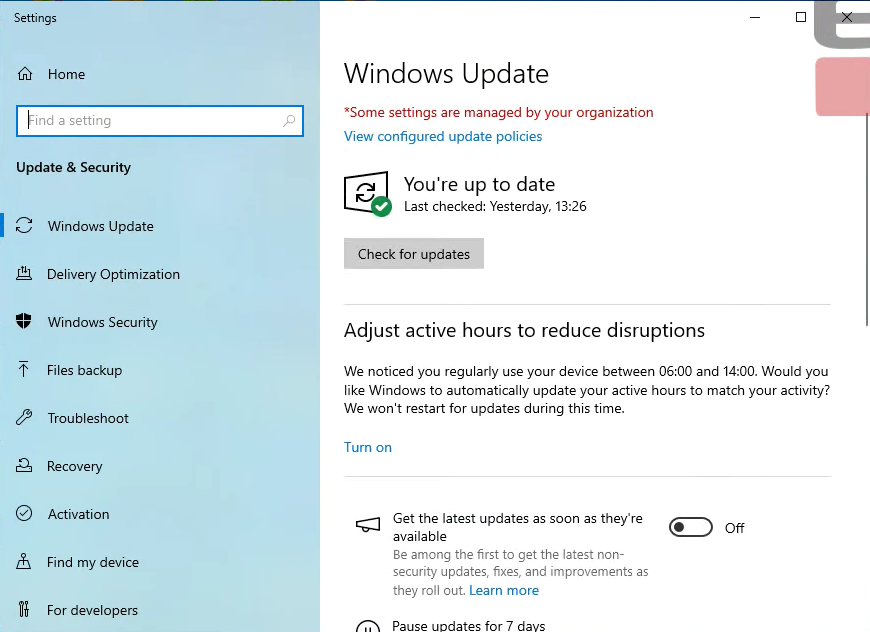
- Open the Windows Update settings by clicking "Start / Settings / Update & Security". You will see the following window.
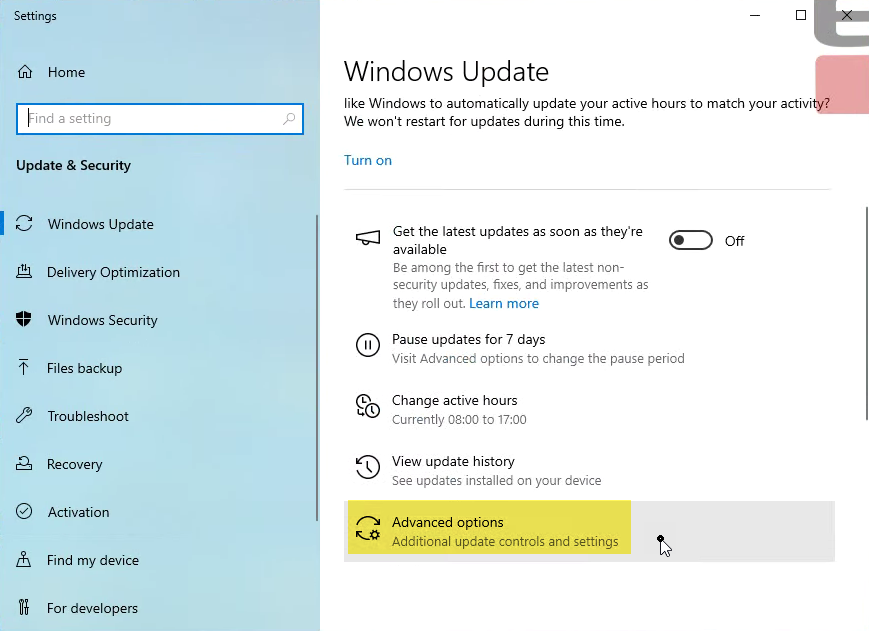
- Scroll down and click the "Advanced options"
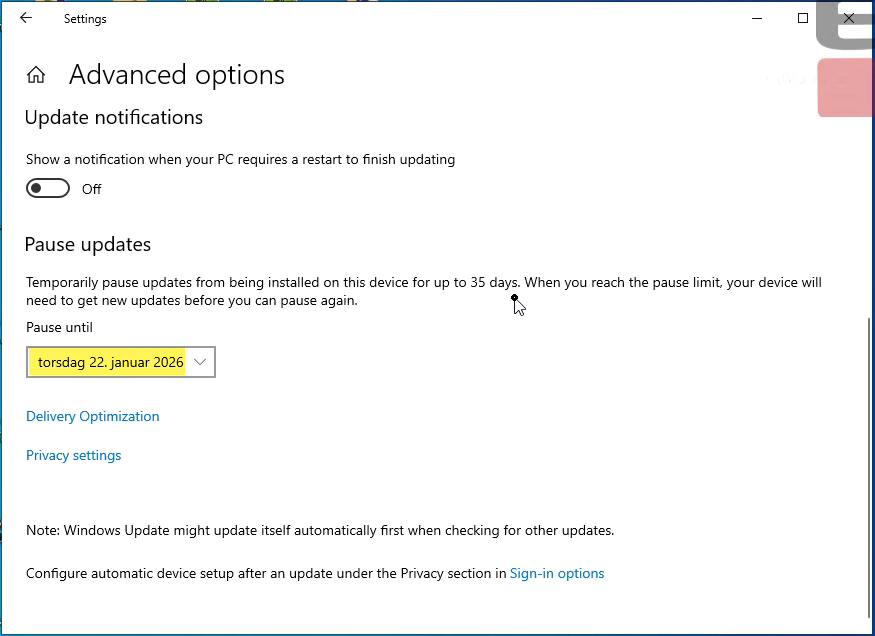
- In the "Advanced options" screen, scroll down and select a date in the "Pause until" drop down. Choose a date that is as far in advance as possible, usually 35 days.
- Close the window. (It automatically saves your setting)
- Open the Windows Update settings by clicking "Start / Settings / Update & Security". You will see the following window.
- Uninstall the Windows update.
- Go to control panel and the following location "Control panel / Programs / Programs and features / Installed Updates".
- Find the correct update described above. In this instance KB5071546.
- Right click it and choose "Uninstall"
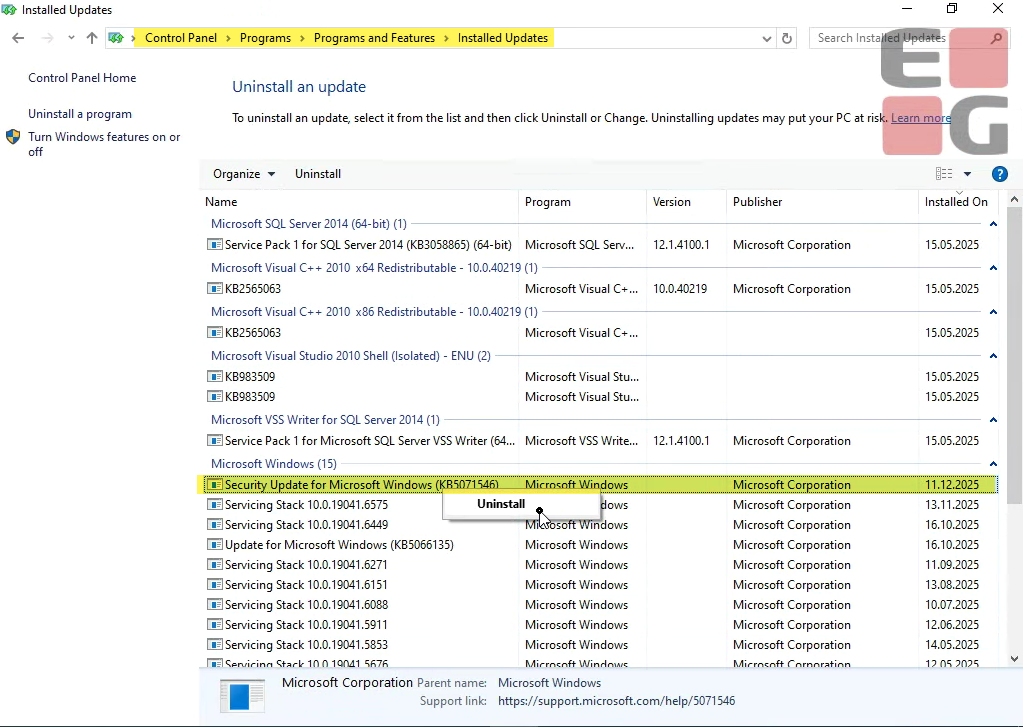
- Confirm by clicking "Yes" here.
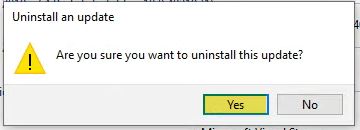
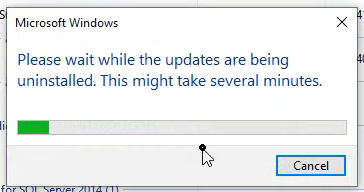
- Wait until the installation is done…
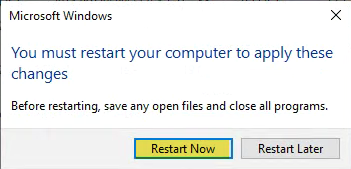
- Confirm restart
- When reboot is done please check that the Windows update has been uninstalled and that further updates have been paused.
- Start EGPOS.
- The automatic cleanup job running every hour (or every 30 minutes in some cases) will do the processing of the receipts.
It will just take some time before all receipts have been processed.
Command line command to check if any of the causing updates are installed
...
Group Policy Editor on Windows 10
...
- Press Windows key + R
- type gpedit.msc, and press Enter to open the Local Group Policy Editor.
- Navigate to: Computer Configuration > Administrative Templates > Windows Components > Windows Update.
- Double-click "Configure Automatic Updates".
- Select "Disabled" to stop automatic downloads entirely
- Click OK
- A windows restart seems to be required to apply the setting.