
System

Designation: The designation usually reflects the company name, and displays on the log-in screen and other places.
Time zone: Set up time zone.
WEB address: State the hostname for the system (e.g. https://my-site.com/ ). The address is used to generate QR codes and for cURL (PDF generation).
Date Format: Default setup with DD.MM.YYYY
Time format: Default setup with 24h
First Day of Week: Default setup with Monday
Log_errors: For use for Ørn Software AS
Security

Strong password: One lowercase letter, one uppercase letter, one number and minimum 8 characters.
2FA: Two-factor authorisation: If this is activated, every user must confirm their contact information (mobile number or email) and install the authentication app the next time they log in. More info: https://docs.myview.cloud/activate2FA/
Single sign-on: SSO must be configured in VMWebAppConfig.ini. For assistance, contact our Support.
Uploading

Physical path for uploading: Default folder for uploading documents and pictures.
Use path from document type: If this is activated, the path from the document types is used for uploading.
Max file size: Indicates the maximum size for uploading documents and pictures. Note: Upload max_filesize that is set in php.ini, see ‘System information’ and PHP info
Default Document type: If a document type is selected, this will be suggested as the default when creating a new document.
Messaging settings
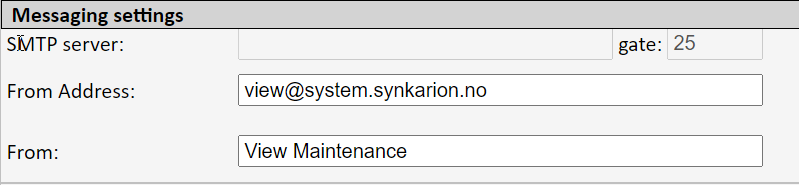
SMTP server: This does not apply to customers who use our cloud system.
Gate: This does not apply to customers who use our cloud system.
From Address: The address that is inserted here will be used as the From Address for all emails that the system sends out.
From: This is shown as the name on emails and SMSs that are sent out from the system.
SMTP Secure E-mail (this does not apply to anyone using our cloud system)
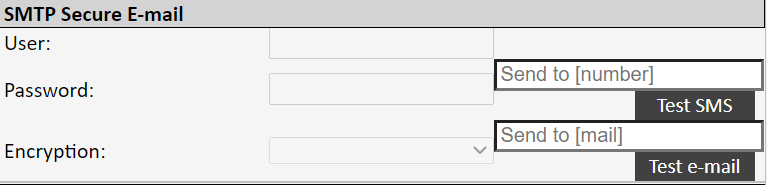
User and password: States the sender’s email address and password
Encryption: Select SSL or TLS
Messages
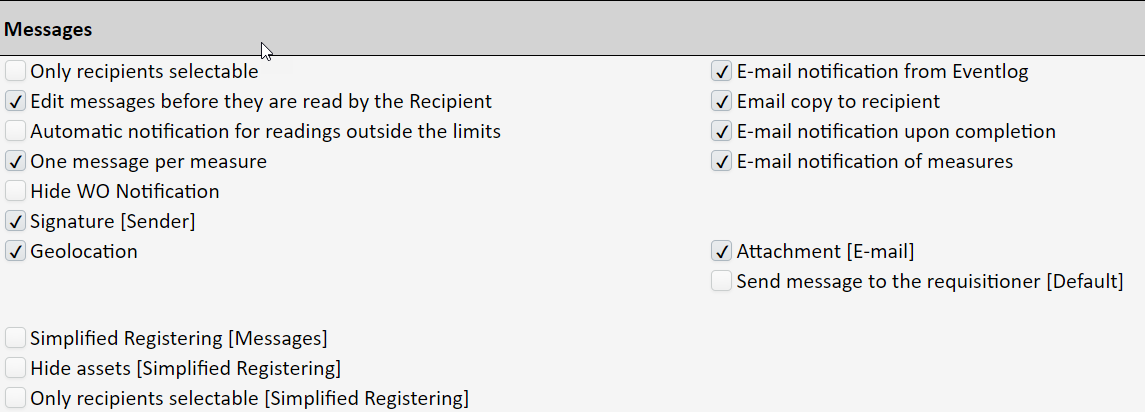
Only recipients selectable: If this is activated, only recipients are displayed when selecting the recipient to receive a message. This is set up under ‘System’ → ‘Messages’.
Edit messages before they are read by the recipient: If this is activated, the user can edit their sent messages until the recipient has read the message.
Automatic notification for readings outside the limits: If this is activated, a notification of measures will automatically be sent to the person set as the supervisor for a checklist if the reading indicated is outside the lower or upper alarm limit.
One message per measure: If this is activated, a notification of measures per measure will automatically be sent when the checkpoint is saved or set to complete. If this is not activated, the notification of measures will not be sent until the applicable checklist is approved. All the measures are grouped by asset.
When this is activated, a notification of measures will immediately be sent for the sub-activity on the work order when a measure on the work order is registered.
Hide WO Notification: If this is activated, it will not be possible to switch on a notification of the number of days or hours before ‘From date’ or ‘From hours’ on the job.
Signature (Sender): If this is activated, the sender/logged-in user (name) will be inserted in the message.
Geolocation: If this is activated, geolocation can be activated/ inserted in a message and in the asset in mobile layout.
Simplified Registering (messaging): If this is activated, a simplified registering screen will display. Note that this only applies to users who have been set up with the log-in type ‘Messaging’.
Hide assets (Simplified registering): If this is activated, assets cannot be linked to the message. Note that this only applies to users who have been set up with the log-in type ‘Messaging’.
Only recipients selectable (Simplified registering): If this is activated, only recipients are displayed (set up under ‘System’ → ‘Messages’) when selecting the recipient to receive a message. Note that this only applies to users who have been set up with the log-in type ‘Messaging’.
E-mail notification from Eventlog: If this is activated, there will be an email copy from the event log post.
Email copy to recipient: If this is activated, there will be an email copy of the message.
E-mail notification upon completion: If this is activated, there will be an email copy of the WO completion.
Email copy of measure: If this is activated, there will be an email copy of the measure from checkpoint and WO sub-activity.
Email notification to customers (default No/Yes): If this is activated with ‘Yes’, an email with a PDF file of the historical job will automatically be sent to the email address that is on the customer card when the job is approved. If this is set to ‘No’, you must manually check off ‘Send Notification’ in the completion screen if you want an email to be sent.
Info WO: Description or comments: These control what will accompany an email copy of the customer’s PDF file (historical job), i.e. whether there will be a description field or a comments field.
Attachment (email): If this is activated, pictures will be attached to the email.
Send message to the requisitioner (Default): If this is activated, a message is automatically sent to the person who submitted the message when the job is approved. Can be turned off in the completion screen.