This page describes how to install Optimaze Worksense to your Organization’s Microsoft 365 account as an ‘Azure Enterprise Application’.
General
Azure Enterprise Applications
Microsoft allows 3rd party developers to create applications that can be easily integrated to their own solutions and use Microsoft identity platform to provide secure sign-in and authorization. These 3rd party applications are registered in Microsoft’s platform. Optimaze Worksense application (App) is registered under Rapal’s Azure AD tenant (Developer’s tenant).
You can read more information about M365 Integrated Apps from Microsoft’s documentation here and about Microsoft identity platform here.
Why install Worksense as an Azure Enterprise Application?
Optimaze Worksense installed as an Azure Enterprise Application your organization’s employees can:
Sign in to Worksense with their personal Microsoft work accounts
Use the booking feature to quickly find and book meeting spaces
Global Admin
Why a Global Admin is needed in the installation?
In MS 365 only a ’Global admin’ can install ‘Azure Enterprise Applications’. This prevents any user from granting apps access to sensitive parts of your configuration. You can read more from Microsoft documentation about installing an Integrated App, here.
Optimaze Worksense does not need to work ’Global admin’ privileges, it is only required in the installation. Also, Worksense does not gain the abilities of a ’Global admin’, similar to how creating a new user mailbox as the ‘Global admin’ does not transfer power to the user account simply because an admin is needed to complete the set up step.
Required Permissions by Worksense
Permissions required for using Single Sign-On
Permission | Type | Description | Worksense feature using permission |
|---|---|---|---|
Sign in and read user profile | Delegated | Allows users to sign-in to the app, and allows the app to read the profile of signed-in users. It also allows the app to read basic company information of signed-in users. User’s name and email are saved into Optimaze Worksense. These are always read when the user signs in and will be updated to Worksense if they change. | Sign in with Microsoft, The permission is not used if you do not enable the feature. |
Permissions required for integrating Microsoft 365 bookable resources with Worksense
Permission | Type | Description | Worksense feature using permission |
|---|---|---|---|
Read and write calendars in all mailboxes | Application | Allows the app to create, read, update, and delete events of all calendars without a signed-in user. Worksense needs read and write permissions to all calendars in order to use the booking features from lobby screens as lobby screen is not an actual user. | Booking features, The permission is not used if you do not enable the feature. |
Optimaze Worksense has access to all calendars in your organization’s M365 account with the ‘Read and write calendars in all mailboxes’ application level permission. More information regarding the permissions can be found on Microsoft’s Graph documentation, here.
Unfortunately we cannot restrict from Optimaze Worksense’s end the access. It has to be restricted from Microsoft M365 side. If you have the need to restrict the use of certain calendars, you can do that by scoping application permissions to specific exchange online mailboxes. See Microsoft instructions here.
Installing Optimaze Worksense as an Enterprise Application
Optimaze Worksense account can be linked to only one Azure AD tenant at a time.
You can install manually Optimaze Worksense in Azure AD. This requires work by our support and must be agreed separately.
When setting up Worksense the redirect uri is: https://worksense.optimaze.net/signin-oidc and you need to provide us your Azure AD tenant ID.
You must have a ’Global admin’ role in M365 to continue and ‘Administrator permissions’ in Optimaze Worksense.
If you do not have an account with the ‘Global admin’ role you need to contact your organization’s IT department.
1. Log in to Optimaze Worksense on your web browser
2. Navigate to the ‘Administration’ tab and click ‘Office 365’ under integrations
If the tab is not visible please contact your organization’s Optimaze Worksense main user or Submit a Support Request to find out who in your organization to contact
3. Click the ‘Connect’ button
This will start Microsoft’s Oauth flow to install the app
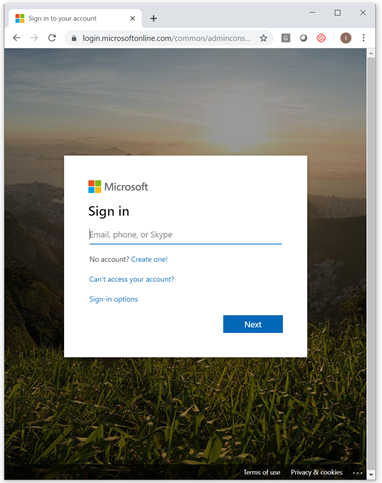
4. Enter your ‘Global admin’ account credentials
If you get “Need admin approval”, it means the account you used is not a ‘Global Admin’ in M365. You need to log in using a different account or have your IT department temporarily change your user permissions in M365.
5. Optimaze Worksense will ask for permissions to access your organization’s O365 data. Click ‘Accept’ to proceed
noteTake your time to read what permissions are required to fully understand them
Take your time to read what permissions are required to fully understand them
Why does Optimaze Worksense need the permissions? For certain features to work Optimaze Worksense requires these permissions. You can see for more details on this page under the ‘Required Permissions by Worksense’ section.
6. You are good to go!
You can check that Optimaze Worksense is visible from your M365 account’s app overview, here
7. Now you can: