PLANNED
Prerequisites are located in the menu on the left.
Blocking member search identifiers in POS
POS supports blocking specific member search identifiers configured for the loyalty system. To block an identifier, list it in the new 'BlockMemberIdentifiersWhenOnline' parameter in POS Configuration. This applies to both MemberService/Bridge and PosCustomerService, allowing more control over which identifiers can be used when searching for members.
Forcing manned and unmanned mode with a button
Manned mode can be forced with a button, similar to how unmanned mode works. This allows switching to manned mode even outside the store's configured opening hours, or enabling unmanned mode during open hours.
The new function SNG_FORCE_MANNED_MODE overrides unmanned mode. Each activation toggles manned mode on or off. To disable forced manned mode, existing function SNG_FORCE_UNMANNED_MODE may be used as well.
The forced mode status is saved in VolatileSettings, so the selected mode remains active even after restarting EG POS.
Configurable images for self-service POS modes
Self-service EG POS display different images on the Welcome Page and Goodbye Page depending on whether they are in unmanned or manned mode. This helps users quickly identify the current mode of the POS.
Improvements POS
Area | Description |
|---|---|
| Cashier | Cashier Permissions to pay in and out of cash drawer (RTP-37275) Handling of the permission to perform cash drawer pay in and pay out has been improved so the work correctly when the cashiers are handling in Chain Classic/Web and User Management. |
| Finished receipts | Finished receipt view (RTP-36772) When a previously finished receipt is scanned, the cashier name for the original receipt is hidden if Cashier Name is not configured in InformationInTitleBar parameter. |
| Fuel integration | Online return in Fusion Forecourt integration (RTP-34882) Online return can be performed on a fuel sales transaction done via Fusion Forecourt integration. The relevant information for the fuel transaction is added in ARTS XML. |
| Item search | Fix to show article Information (RTP-37281) Item information can be displayed using a button in item search view. Information are showed without issues encountered. |
| Maintenance | Cleanup of receipts (RTP-36777) The maintenance job that cleans up completed receipts in the database was fixed. A problem had occured with cleanup after new columns were added to the POSLog table in the database. |
| Orders | Printing of order confirmation for prepaid web orders (RTP-37327) "Print order confirmation " button is added in Prepaid Web Orders tab in Web Orders view. Moreover, automatic print of order confirmation no longer fails. |
| Payment | Handling returns and sales on the same receipt (RTP-37011) When canceling dialog "Confirm Klarna Payment - Order will pay to Klarna xxx" will now not send anything to Klarna. Fixes for scanning when paying by credit (RTP-37136) Social ID field in Credit payment dialog can be filled in by using a scanner, which means the customer can have their identification cards (e.g. driver's license) scanned to fill in the field. |
| PLU Board | Fix for unexpected error in PLU board (RTP-37528) Unexpected error in POS when switching between PLU Board no longer occurs. |
| Prices | Fix for incorrect VAT Rate (RTP-34228) The correct VAT Rate is shown in the receipt. Required POS Master v. 3.0.0.201 or higher |
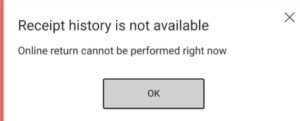
| Return | Online return when receipt history is unavailable (RTP-36778) It is configurable (OfflineItemReturnAllowed) if POS allows online returns when the receipt history from the central server is not available (typically in an offline situation). If it is not allowed, the following dialog is shown:
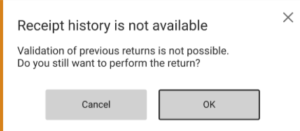
If it is allowed, the following dialog gives the cashier the possibility to go ahead with the return process:
|
| Sale | PLUS integration issues (RTP-36971) When doing purchase via PLUS integration, the issue that default printer name is empty is handled. |
| Self-service | Age control for time restricted items (RTP-37230) When age control messages for time-restricted items, such as alcohol in Norway, are set to display as information text only, the age approval at the POS remains valid even if more time-restricted items are added later. This prevents repeated age approvals for items with the same age requirement, making the checkout process smoother. Existing relevant parameters in POS Configuration: 'SurveillanceApprovalOfAlcoholPossible' (default 'True') - if set to 'False' age control messages are shown as information text only, and the buttons Yes / No are not visible. Applies to cashier approval for age control of time-restricted items (only). Configuration must be equal for all POS's and Pos Monitors within a store! 'SurveillanceApprovalPossible' (default 'True') - if set to 'False' age control messages are shown as information text only, and the buttons Yes / No are not visible. Applies to cashier approval for age control (in general), for configured items, for low total amount, for deletion of items and for staff purchase.
|