
Our new Administer alarms view in Mestro gives you a clear overview of deviations in energy consumption and helps you quickly identify when something isn’t right. With the new Administer alarms tool, you can create, manage, and follow up on both change alarms and—later this year—threshold alarms. This guide explains how to work with the alarms, which settings are available, and how to make the most of the functionality.
Administer Alarms View
To get an overview of all your active alarms—and to create new ones or edit existing ones—navigate to the Administer Alarms tool. See the image below. The list displays all alarms related to the object you are currently viewing. You can filter the list by metric, usage type, reference period, and alarm level. It is also possible to search for specific alarms by entering the alarm name or the object on which the alarm was created. Alarms can be created at the property, building, or meter level.
Note: As of February 2026, only change alarms are visible in this view. Later this year, threshold alarms will also be included in the Administer Alarms tool.
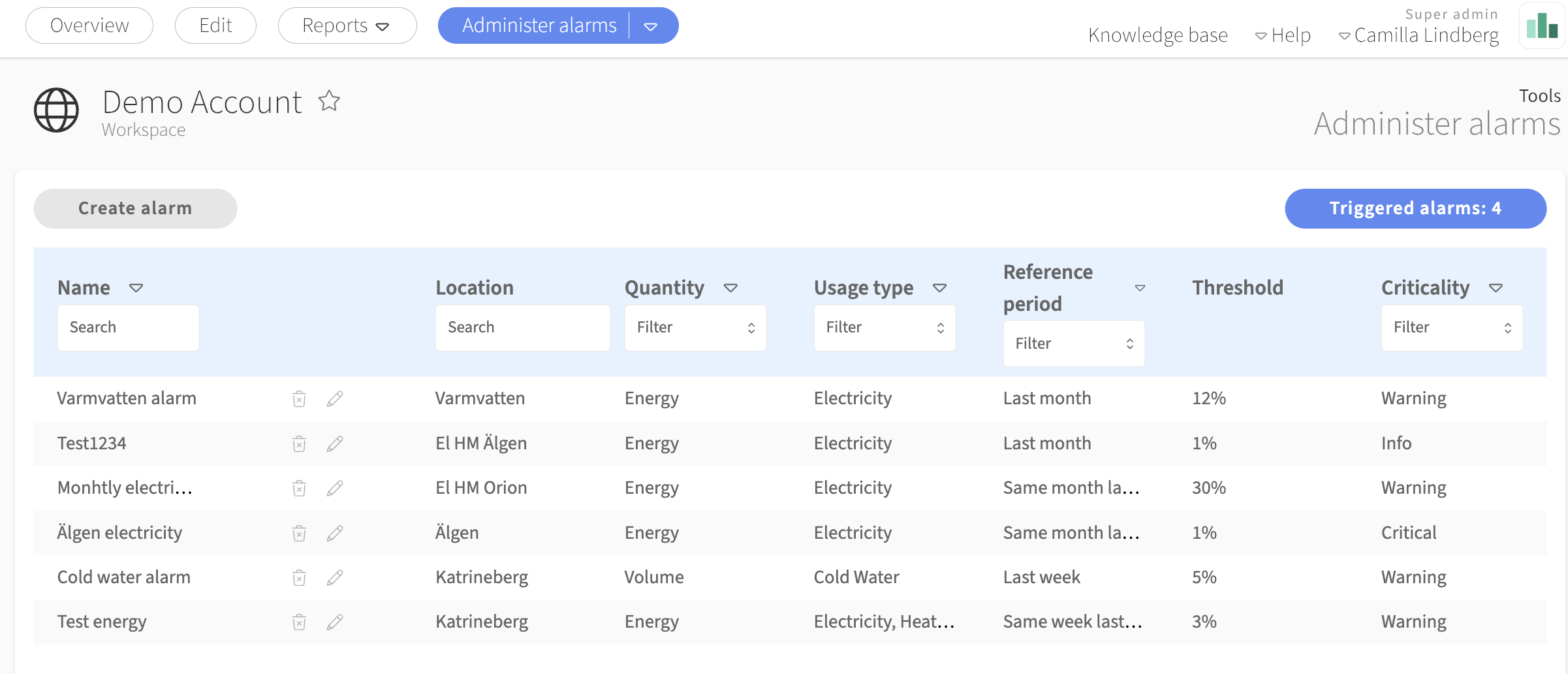
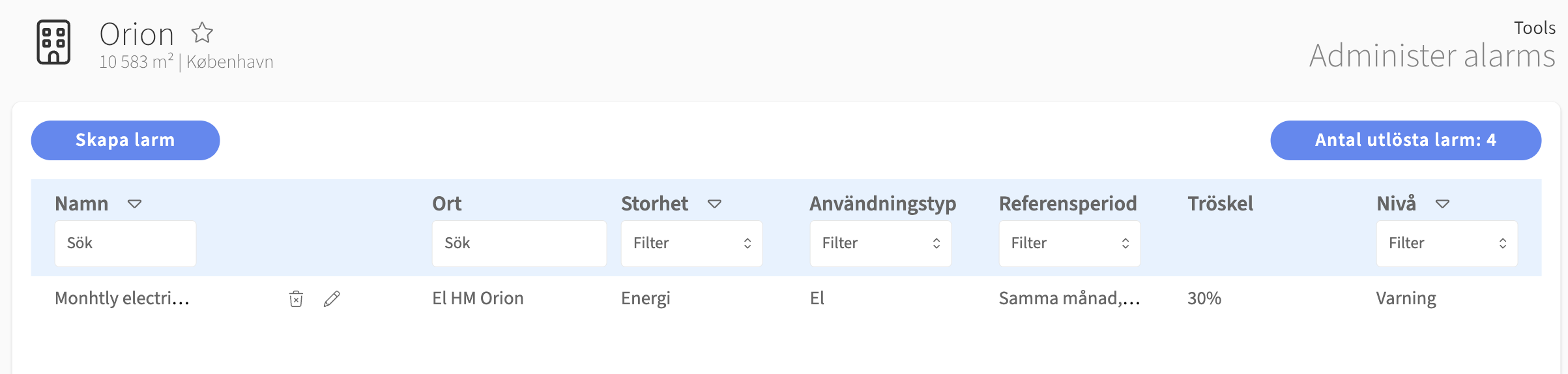
In the upper right corner, the number of unhandled triggered alarms is displayed for the level you are currently viewing. Note that in the images above, we are positioned at the property group All properties—here, all alarms from every property and meter within the group are included. In the image below, however, we are viewing the property Orion, where only a single alarm is present.
When you click on the number of triggered alarms, you are taken to the view shown below. From here, you can switch between the tabs for unhandled and handled alarms. Each alarm is presented on a card displaying the alarm name, the meter and/or property it belongs to, the number of handled alarm events, the time the alarm was triggered, and the alarm level.
To move an alarm from unhandled to handled, select the alarm or alarms in the list and choose Mark as handled. After that, you will find the alarm in the Handled tab. You can also move alarms back to Unhandled again if needed.
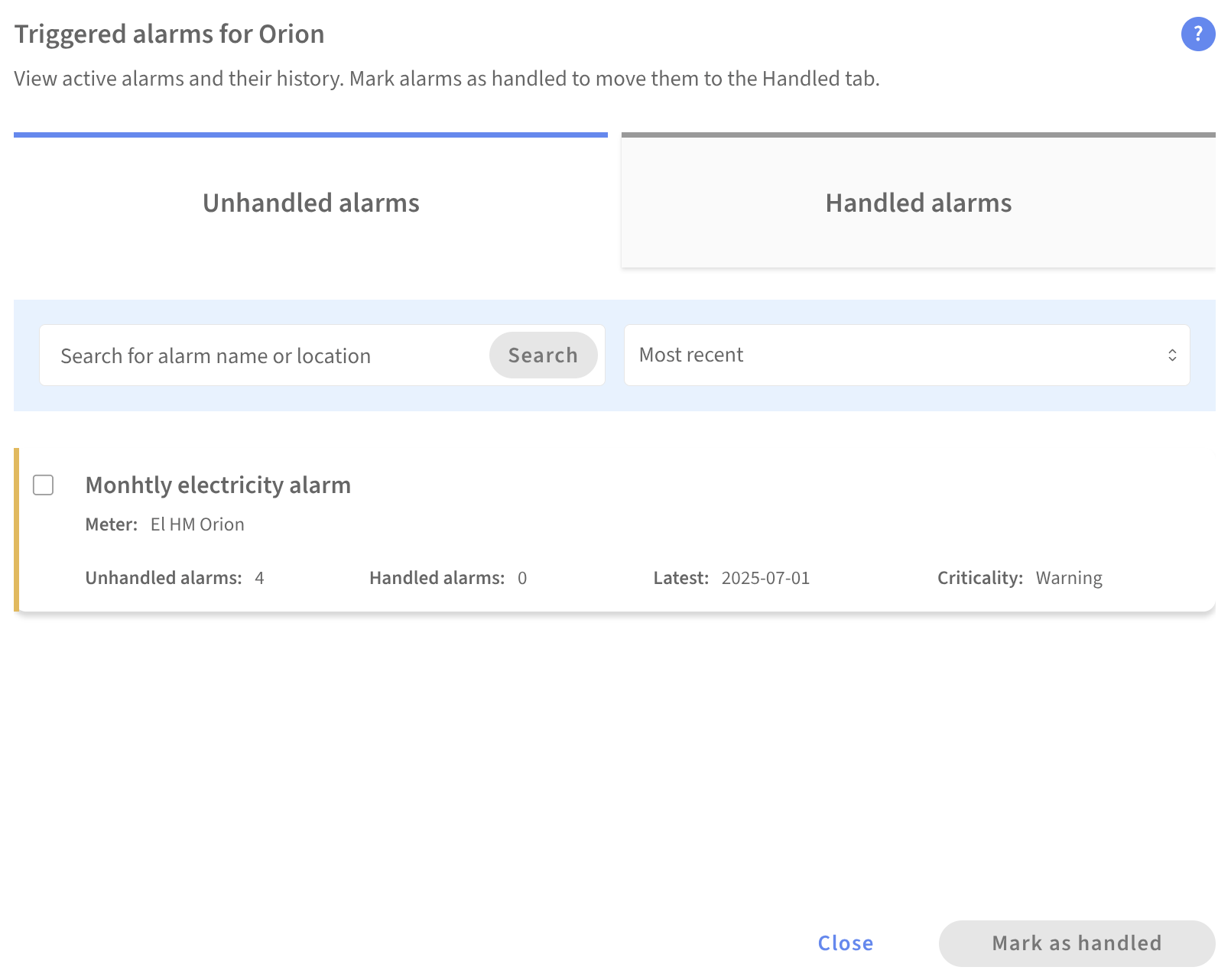
Note: Later this year, the alarm functionality will be expanded, and each alarm will be possible to inspect directly via the cards in this view. Stay tuned!
To create a new alarm, navigate to the object you want the alarm to be associated with—this can be a property, a building, or a meter. Then click Create Alarm. If the button is not available, it may be because you are positioned on an object that does not support alarms, such as a property group or a building component.
Change Alarms
A change alarm is triggered when there has been a change in usage that exceeds or falls below a defined percentage for a given reference period.
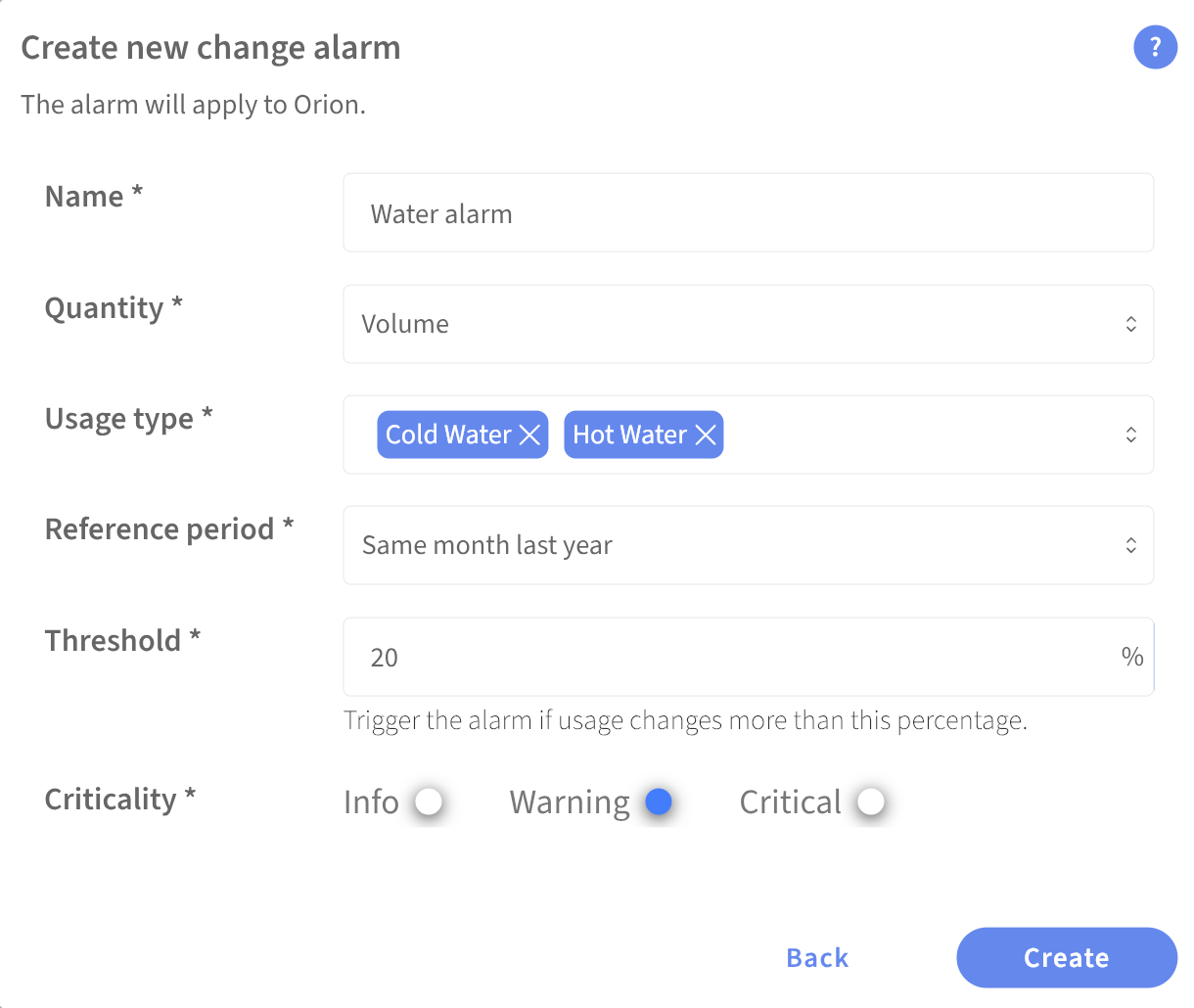
To create a new alarm, you need to provide the information listed below. A change alarm can be created for a property, a building, or a meter. If it is created for a property or building, the same aggregation rules used in the reports apply—meaning that energy series from main meters are used, and if no main meter exists for the energy type, data from sub‑meters will be used instead.
Each alarm can have one metric but may include multiple usage types if desired. See the example in the image below.
The alarm levels allow you to categorize how critical each alarm is, with the options Info, Warning, and Critical. These levels can then be used as filters in the Administer Alarms view.
Reference Periods for Change Alarms
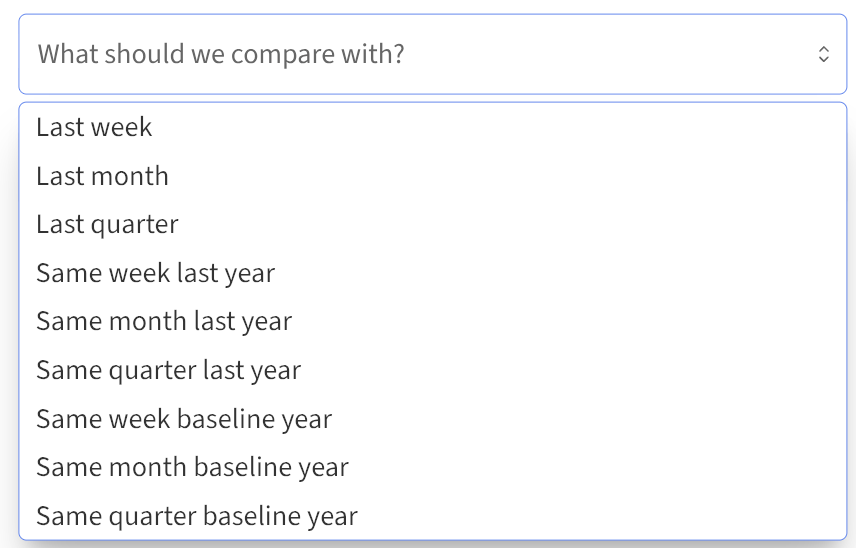
There are three possible periods for a change alarm: week, month, or quarter.
Each of these periods can then be compared against one of three different reference periods: the previous/most recent period, the same period in the previous year, or the same period during your base year.
For example, if your change alarm for electricity uses the reference period the same month in the previous year, the most recent full month with good data coverage will be compared to the same month in the previous year.
If you have not defined a base year for your portfolio, you can do so in your outermost node under Edit.
When Are Alarms Triggered?
As soon as there is data with good coverage (above 95%) for both the period and the comparison period, the usage is checked, and an alarm is triggered if the usage during the period has changed more than the alarm’s specified threshold. If new data becomes available for the meters at a later time, the usage will be checked again.
Threshold Alarms
As of February 2026, threshold alarms are still created via the Edit tab in Mestro. Later this year, this functionality will be updated, and threshold alarms will also be moved into the Administer Alarms tool.
Here you can read more about how to create threshold alarms in Mestro.