
This page contains
What is this feature?
The Contractor Registration and Approval flow in EG Zynergy Partners enables external contractors to onboard through the Partner Portal and be approved by the correct Grid Company.
The solution ensures:
Grid Companies are created and controlled by EG Admins
Contractors are reviewed and approved/rejected by Grid Company Admins
Access is restricted based on role and user state
Invitations and user management are handled via Microsoft Graph
Overall Flow Overview
The flow begins with a Super Admin (EG Admin) setting up the business partner structure.
EG Admin creates a Grid Company
EG Admin invites one or more Grid Company Admins
Grid Company Admins review and approve contractors
Contractors gain access after approval
System State Model (Contractor Lifecycle)
Status Definitions
| Status | Description | Can Login | Can Create Blankets | Can Invite Users ( Admin role required ) |
|---|---|---|---|---|
| Pending | Awaiting Grid Company approval | ✅ Yes | ❌ No | ✅ Yes |
| Approved | Approved by Grid Admin | ✅ Yes | ✅ Yes | ✅ Yes |
| Rejected | Explicitly rejected by Grid Admin | ✅ Yes | ❌ No | ✅ Yes |
| Deactivated | Access revoked after approval | ✅Yes | ❌ No | ✅ Yes |
Important Rules
A Contractor cannot create or submit blankets before approval.
Roles are assigned during the register process - Roles does NOT change based on approval/rejection
- Blankets can only be created when approval is done by gridcompany
Step 1 – Grid Company Setup (EG Admin)
Description
Before contractors can register, a Grid Company must exist in the system.
The EG Admin is responsible for:
Creating the Grid Company
Inviting Grid Company Admins
Flow
EG Admin navigates to /admin (Assigned by EG)
EG Admin creates a Grid Company
EG Admin invites a Grid Company Admin
Invitation is sent using Microsoft Graph
System creates:
User through graph api invite
GridCompanyContactPersonGroup and role assignments
📸 Grid company creation
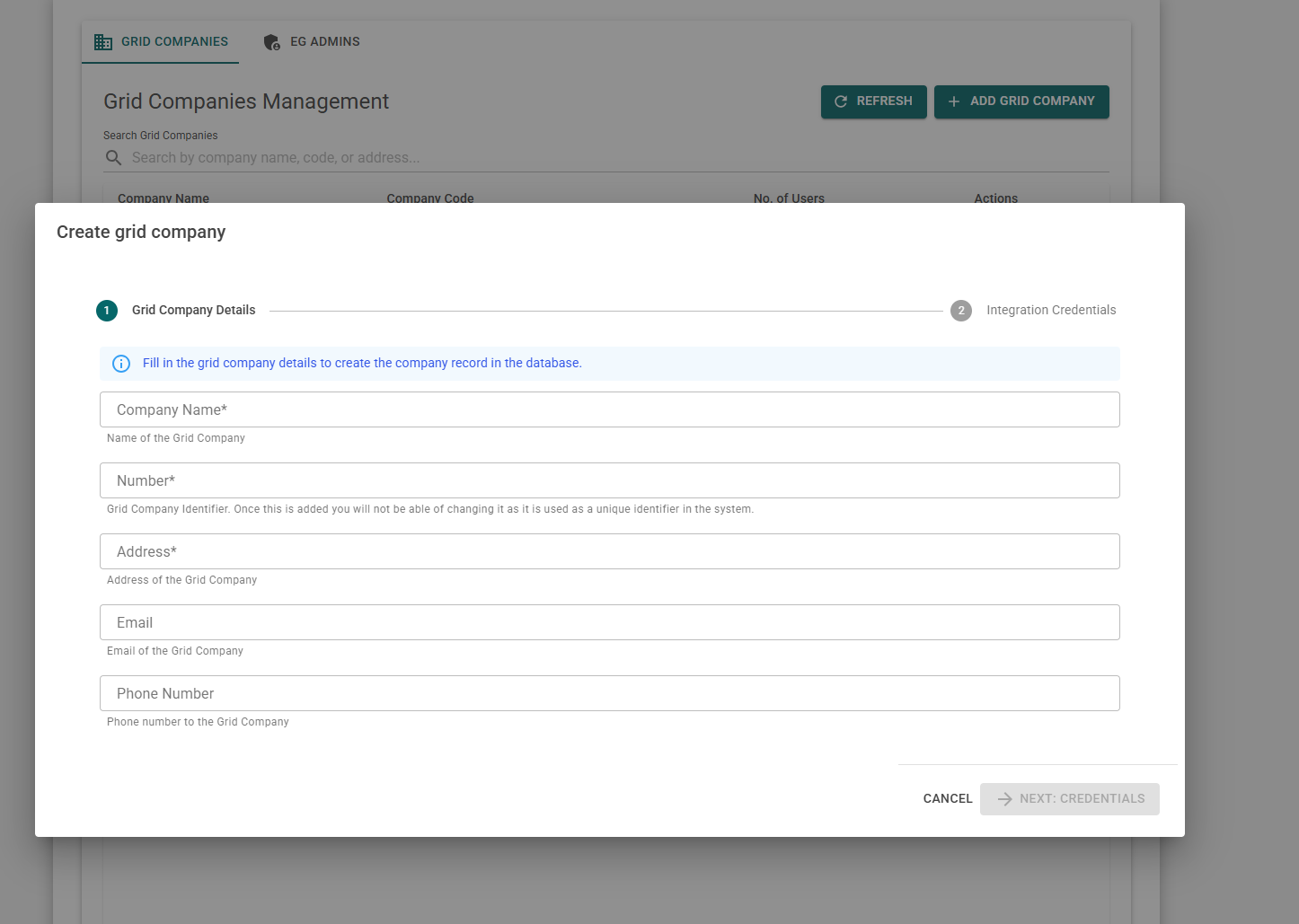
Note; the first step is database creation, second step is the sonwin communication step. (Saved in azure keyvault securely)
📸 EGAdmin page - Grid Company management
📸 EGAdmin page - Grid Company management action buttons
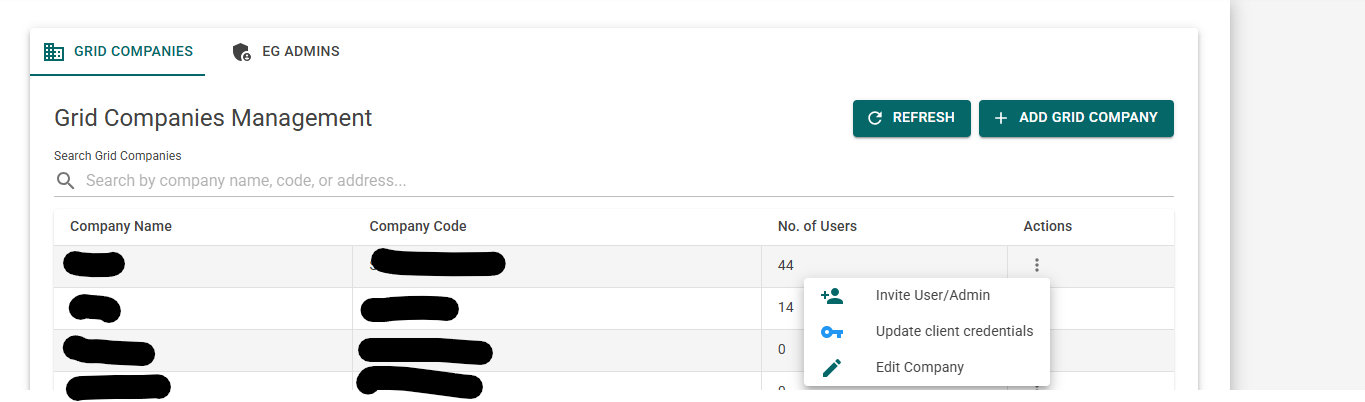
Note; Here you can:
1 - Invite the first ( or more ) gridadmin to start the flow
2 - Update the client creds (sonwin comminication)
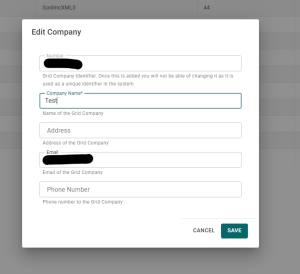
3 - Edit gridcompany
Step 2 – Contractor Registration
Access Limitation Before Approval (Based on User Manual)
While Contractor status = Pending:
The user can log in.
The user CANNOT access overview page.
The user CANNOT:
Create new blankets
Submit blankets
Send “Ready for Meter”
Finalize blankets
The system must enforce this restriction consistently across:
UI
API
Role checks
Access Rules
Registration is denied if the user is:
Grid Admin
Grid User
Application Admin
Reason; One user can only have one role.
Flow
Contractor loads https://partners.egzynergy.com/ for the first time
Contractor clicks "Don't have an account? Create one"
- Contractor fills out email,
Contractor selects a Grid Company
Contractor submits the registration
System Behavior
If no contractor exists:
A new
Contractoris created
If a contractor already exists for the user:
The existing record is updated
A
ContractorContactPersonis created
Contractor status is set to Pending
Screenshots
- 📸 Login screen - upon clicking 'Don't have an account? Create one'
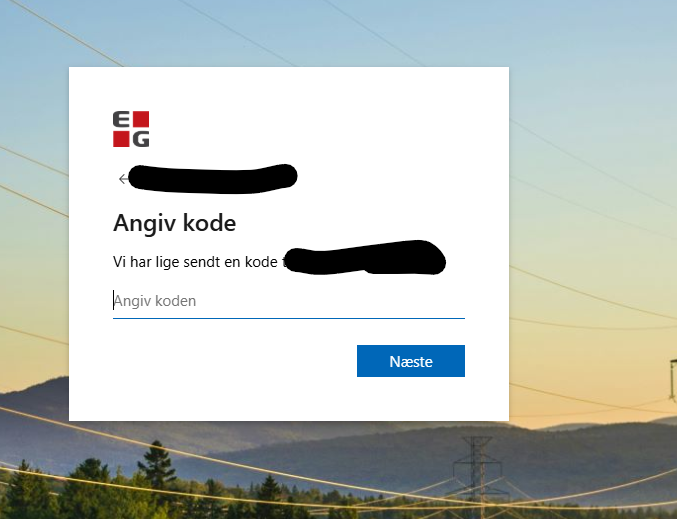
- 📸 OTP - Password sent

📸 Entra - Registration
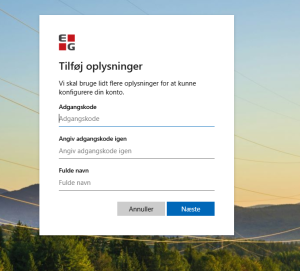
📸 EG Zynergy partners - Contractor Registration
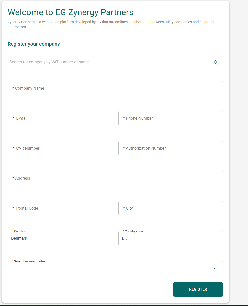
Note; This is the company creation page.
📸 EG Zynergy partners - Aftermatch of registering (Approval needed)
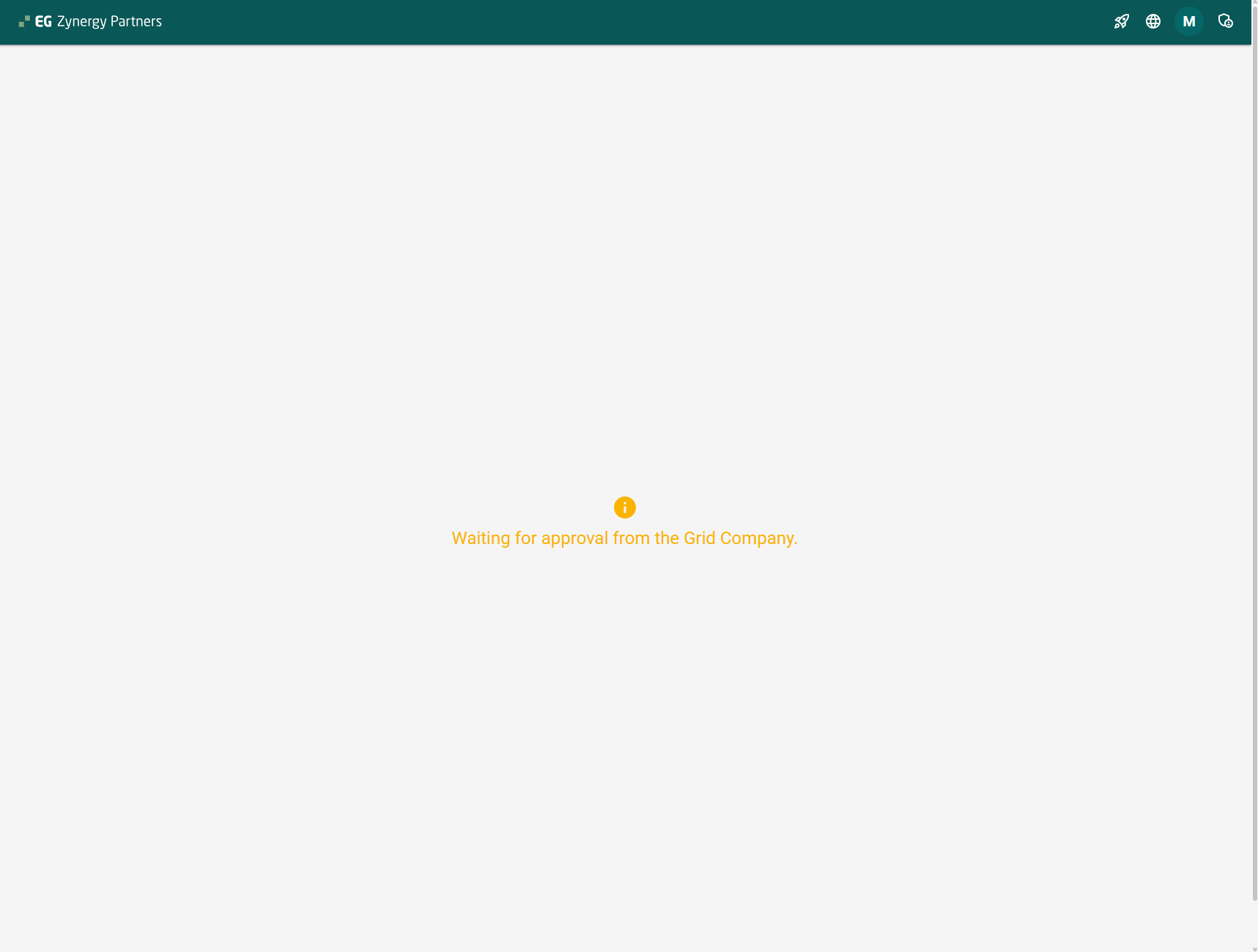
Note; The button at the top right is the contractor management page. The contractor can now (with or without approval) invite his users ( workers )
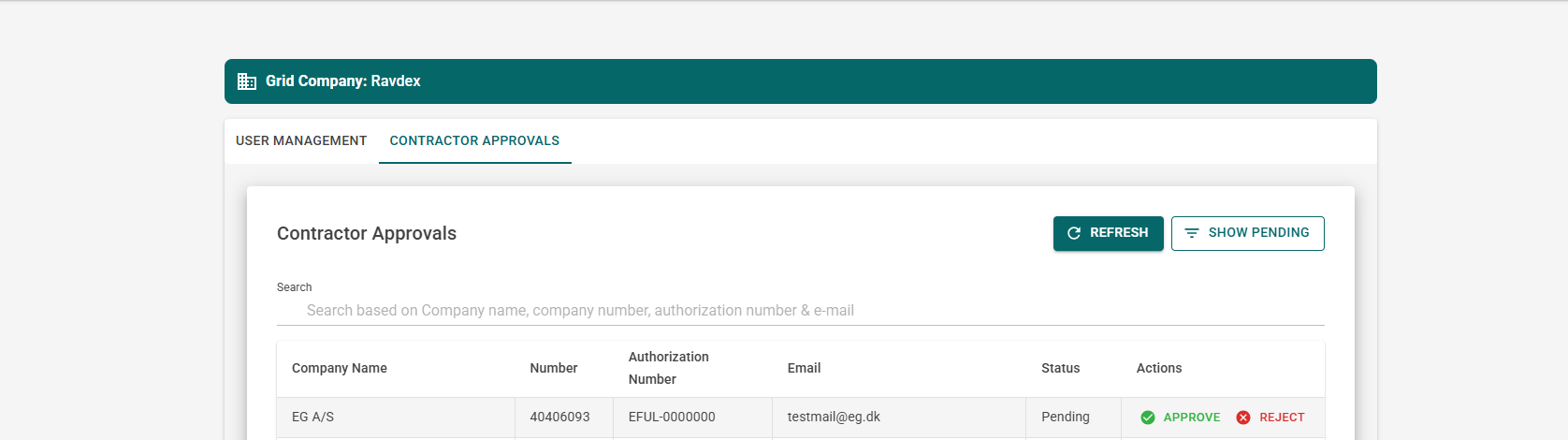
📸 EG Zynergy partners - Grid admin approval page.
📸 EG Zynergy partners - Post approval.
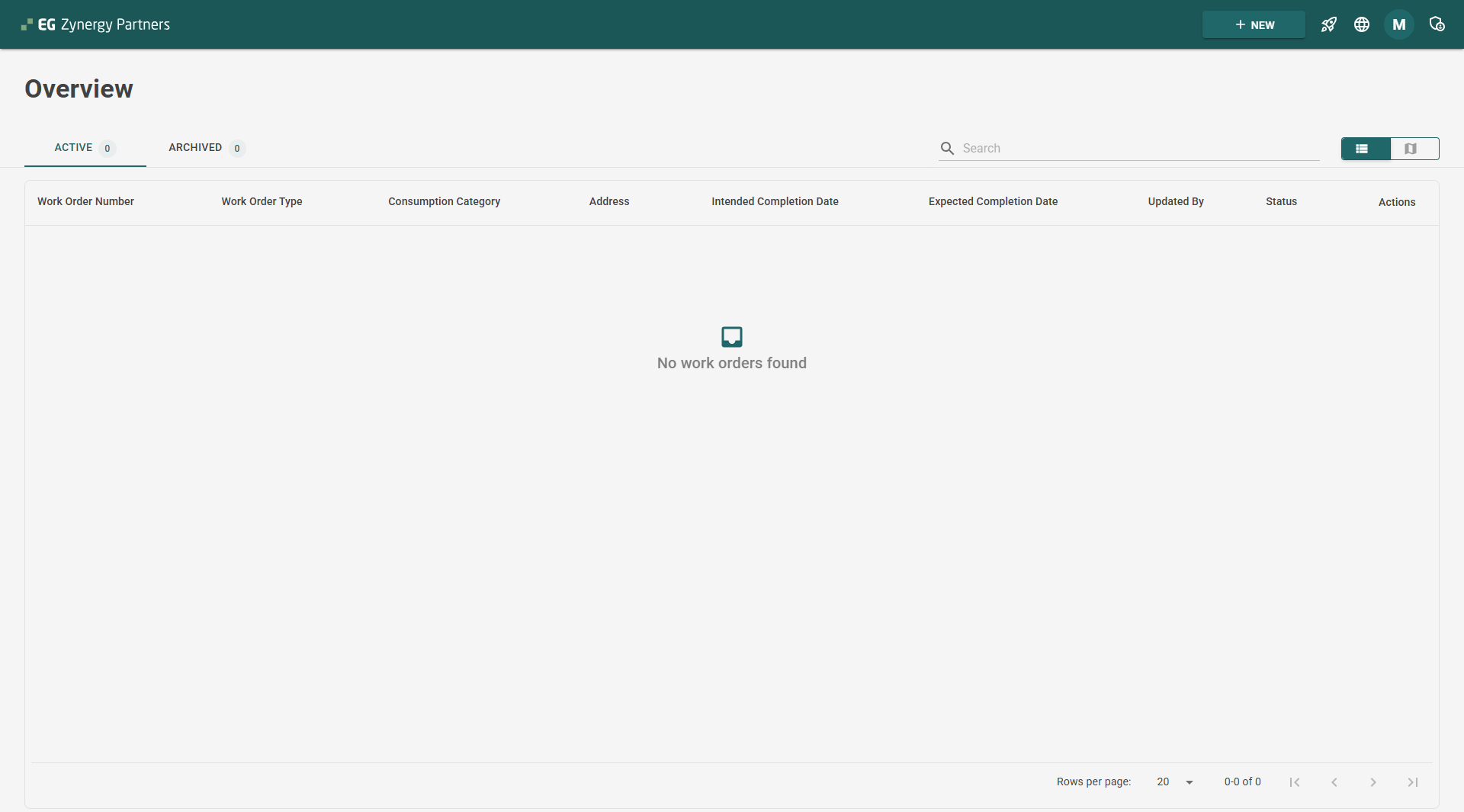
Note; You can now see that the contractor has access to the system.
Step 3 – Contractor Review & Approval (Grid Admin)
Approval as Business Activation Trigger
When a Grid Admin approves a Contractor:
The system must:
Change Contractor status → Approved
Enable:
“New” button (blanket creation)
File attachments
CVR lookup
DAR address validation
PDF export
Copy blanket functionality
Grant access to:
Active / Archived tabs
Status transitions (Draft → Submitted → etc.)
Flow
Grid Admin navigates to /GridAdministrator
Pending contractors are displayed
Grid Admin selects a contractor
Grid Admin chooses to:
Approve, or
Reject
System Behavior
Contractor status is updated
Email notification is sent to the contractor:
Approval email
Rejection email
Step 4 – Contractor Operational Flow (Blanket Lifecycle)
Blanket Status Lifecycle
After approval, blankets follow these statuses:
Draft
Registration Sent
Instruction Received
Ready for Meter
Finalized
Cancelled by Contractor
Cancelled by Grid Company
Rejected by Grid Company
Closed
Rules
Blankets can only be deleted in Draft state.
Blankets cannot be edited after submission.
Cancellation is allowed only in:
Registration Sent
Instruction Received
Archiving is allowed when status is:
Closed
Cancelled
Rejected
This step ensures Confluence reflects the actual operational behavior.
Draft & Save Behavior
Based on the User Manual:
A blanket can be saved as Draft only if the following required fields are filled:
Grid Company
Electrical Installer Contact Person
Category
Electricity Producing Installation (Yes/No)
Drafts:
Can be edited
Can be deleted
Cannot be archived
Cannot be copied if not yet saved
Copy Blanket Function (From User Manual)
When copying a blanket:
Copied:
User-entered data
Attachments
Not copied:
Instruction section
Ready for Meter section
Finalization section
Meter number
Installation number
Desired connection date
Allowed copy statuses:
Draft
Submitted
Cancelled
Rejected
Not allowed:
Unsaved blankets
Archived blankets
This ensures consistency between business documentation and technical flow.
Language & Localization Behavior
The application supports multiple languages via internal translation.
Rules:
Language preference is stored per user session.
Language persists:
Across browser tabs
After logout/login
After browser restart
If browser storage is cleared → default language resets to English.
Important:
Google Translate should not be used to avoid incorrect translations.
Email templates must match selected UI language.
Email Notifications
Email notifications are sent when:
A contractor is approved
A contractor is rejected
- A gridcompany notification when new contractor has chosen them as partners
Notes
Templates are localized (depending on which language youre on)
Email content is managed by the email service
Triggered from the ApiService