
Upload data via your smartphone or computer.
The foundation of your analysis and monitoring via Mestro Portal is that the system has your properties' usage in a data format. Much is collected automatically from distribution companies and your suppliers, but some you must upload yourself. For example, water and waste data collected prior to your use of Mestro Portal needs to be uploaded manually. Contact your Customer Success Manager if you are unsure of what to upload!
There are three ways to upload data to the portal; via the edit menu, an Excel template or via Mestro input. I will describe each in order below.
The Edit Menu
When you have few values
Begin by navigating to the meter to which you want to upload data in the node tree. Then press Edit in the menu bar at the top of the page. To the right you will find a widget where you can manage your data.
TIP: You have to upload data to all manual meters. You can check if a meter is manual in the field Key.
The next step is to verify that the meter is set to receive the Data type you have collected, either meterstand, usage or instantaneous value. Then follow these steps:
Select the date or month of the reading
Enter the value in the correct unit
Press save
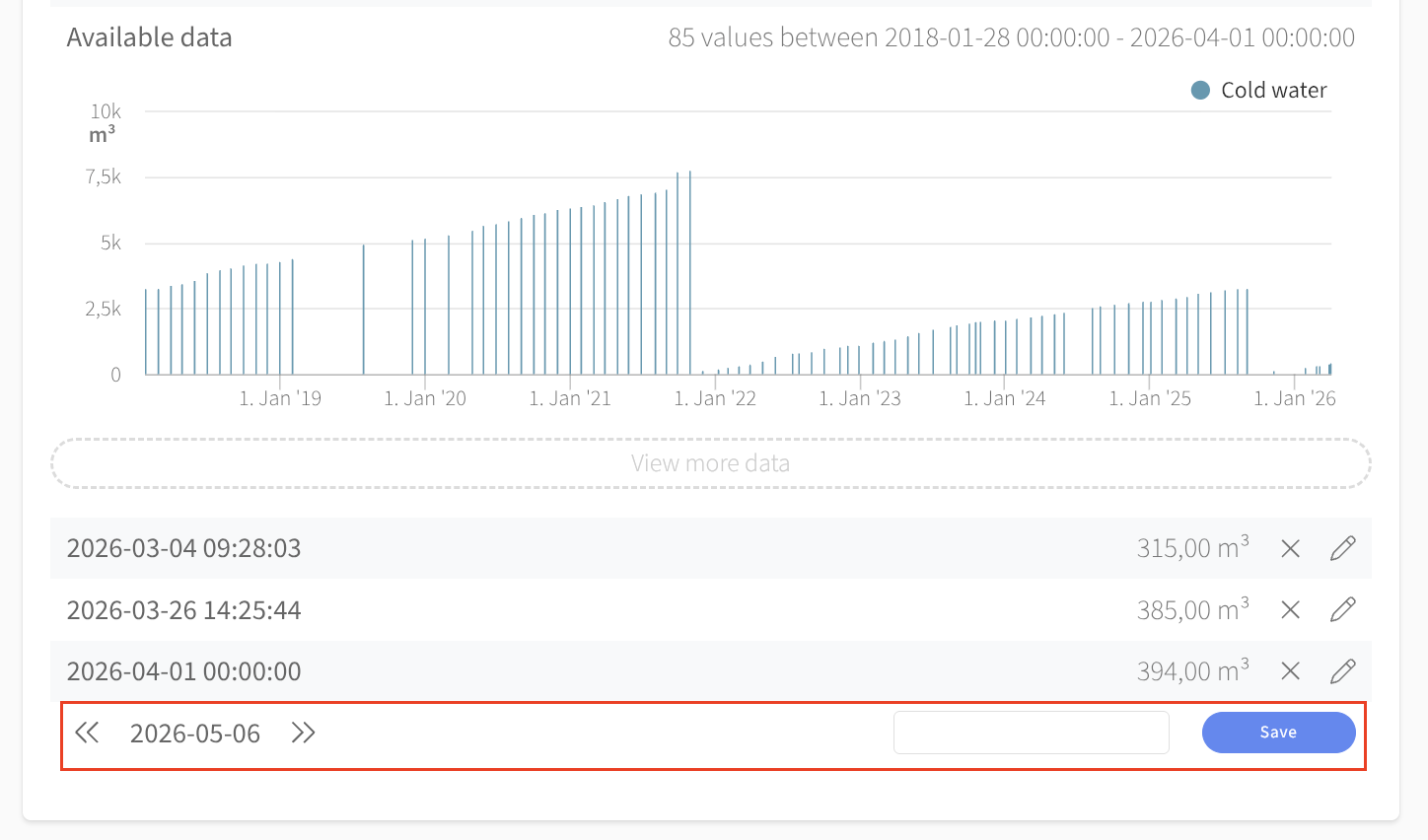
Easy, right!
An Excel template for multiple values
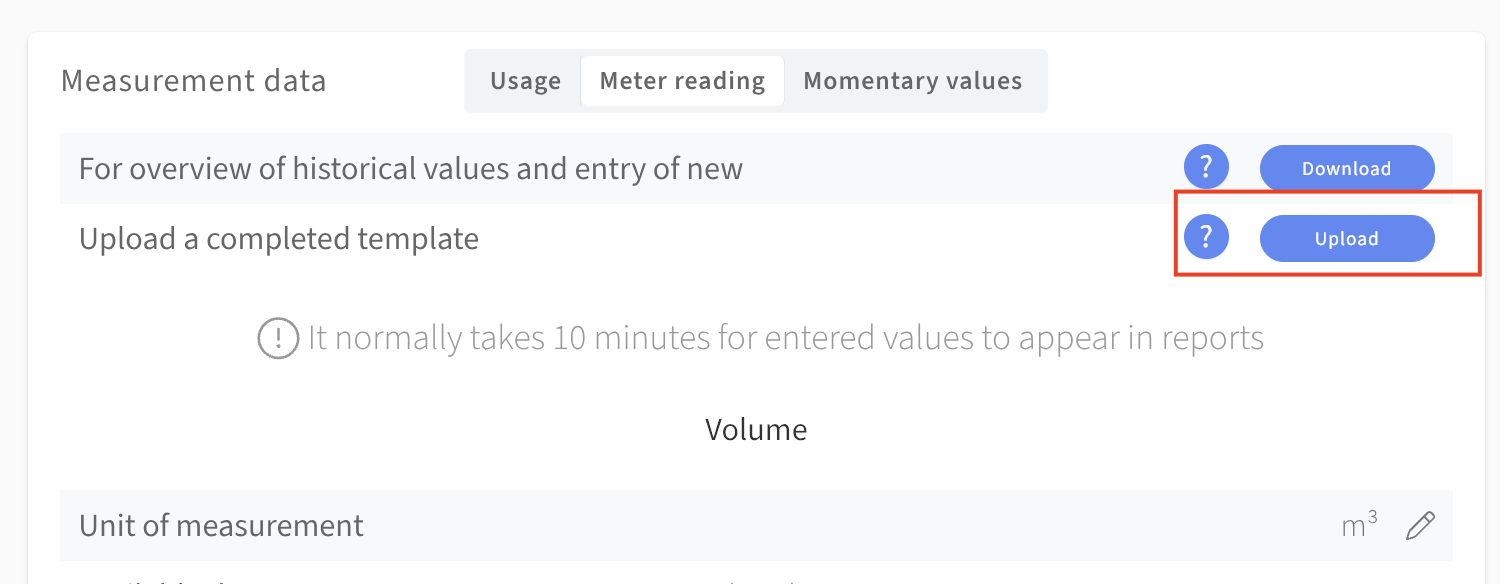
You can download an Excel template from the edit menu by clicking Download at the top of the widget. The template consists of two columns - one with dates and another with values (the units are in parentheses) and looks like this:
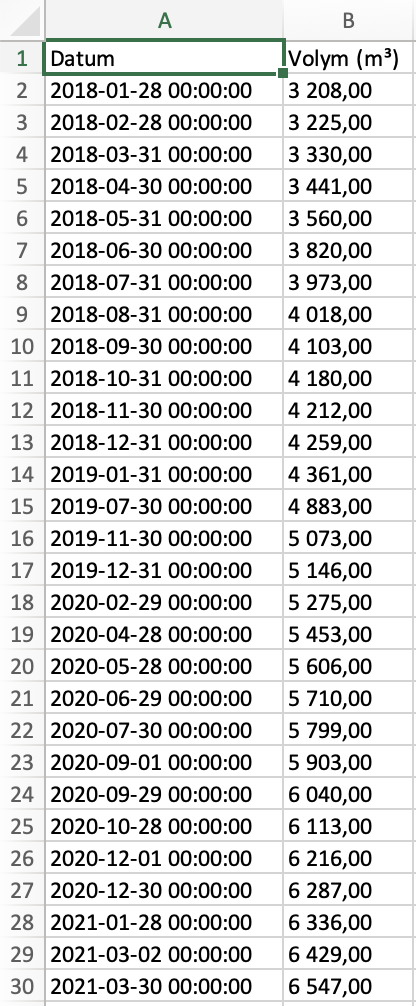
I have entered all meterstands (in red) recorded during 2020 for a water meter in the example property. The final step is simply save and upload! You will find the upload button right below the the one for downloads at the top of the widget.
OBS: It is important that you stick to the template's formatting. If you are copying data, make sure to paste only values. On a Mac use cmd+shift+v, on a PC it is ctrl+shift+v.
Mestro Input
If you have employees that regularly read manual meters we recommend you to use Mesto Input- our app for recording values with your smart phone. Click the link to read more about it!
Data transfer after a property sale
If a property has changed ownership and you need to move or copy data between Mestro accounts, this is not something you can do yourself in the portal. Please contact your Customer Success Manager or Mestro support and we will help you clone or move the properties to the correct account.
Please have the following ready:
- The property name and Node ID in Mestro Portal
- Which account the data should be moved to (if known)
- The desired date for the transfer