Purpose
To show an easy way for us to help salons create direct links/URL:s which they can then use when sending it to their customers, or needing it for marketing purposes.
As there seem to be different ways of doing this internally, I’m offering a one way solution that’s easy to follow and works for each country team.
Resources
What we need in order to create a direct link is:
- The salons online booking. For instance; SE https://boka.timma.se/timmase
FI: https://varaa.timma.fi/meetingrooms
2. Two different commands.
- ?category=xxx (where x is category ID)
- ?&service=xxx (where x is service ID)
We can either use one of these, and only link directly to a category or service, or we can combine them. How to fetch the different ID’s will be shown later on.
As an example:
For category - https://boka.timma.se/timmase?category=1000 (This makes the URL directly link to the category “Ansiktsbehandlingar”)
For service - https://boka.timma.se/timmase?&service=1001 (This makes the URL directly link to the service “Ultraljudsrengöring”)
And if we’d combine them both: Both combined - https://boka.timma.se/timmase?category=1000&service=1001 (Here we got to both the category to open and select the service we want.)
There is only a small visual difference between ‘For service’ and ‘Both combined’, which is that the online booking with ‘For service’ does not take you to the category, but instead keeps you in the first page of the online booking with the connected service selected for customer.
Where to find the ID’s
The most simple method for finding category and service ID is by using Hallinta and impersonating as force admin for category, and for service to use the marketplace URL.
For category:
Impersonate the company account as forced admin for any of the users and simply navigate to the “services” page.
Here you should see that at the end of each category name there is a caID: x, oNum: y. We’re only interested in the caID, in this case 500.

And that’s it for categoryID.
For service:
ServiceID is a different issue. Even with forced admin impersonation, we cannot see which service has what number. This is where we instead use the marketplace URL’s.
To be able to see a service ID, salon must be visible on the MP-page, and the service we want to directly link also needs to be visible on the MP-page.
Note that this solution doesn’t mean that if a salon doesn’t want to be visible on the MP-page that we cannot help them out. It simply means that, IF they are not visible, we have to make them visible for a short timeframe; so that we can get the serviceID. Afterwards, we can hide them from the MP-page if they wish.
An alternative method that isn’t reliant on the Salon being visible in the marketplace can be found below
What to do:
Go the the salons MP Page → select the service that you want the serviceID from → click and continue onto ‘choose time’ → and now look at the URL.
It should be something like: [https://timma.se/salon/randomsalon/select-time?services=[{"serviceId"%3A151%2C"additionalServiceIds"%3A[]}]](https://timma.se/salon/elips-har-studio/select-time?services=[{"serviceId"%3A151%2C"additionalServiceIds"%3A[]}])
”So which is the serviceID” I hear you say… It’s the red text, or rather numbers.
[https://timma.se/salon/randomsalon/select-time?services=[{"serviceId"%3A151%2C"additionalServiceIds"%3A[]}]](https://timma.se/salon/elips-har-studio/select-time?services=[{"serviceId"%3A151%2C"additionalServiceIds"%3A[]}])
The serviceID is always the numbers that appear after the letter A.
With both the categoryID and serviceID now in our hands, we are able to use the previous commands and create direct links for the customer.
Alternative way to find service id
Open google chrome -> right click and select Inspect -> select Console from the thing that just appeared. Copy paste the following code to that window and make the changes below and press enter:
- Replace timmase in the code with the salon’s reservation page name from Hallinta - Companies - Info tab
- Also replace both nameNo with whichever country you are in. e.g. nameFi, nameSe, nameDk, nameEe
Note: For this command to work, make sure that you do the above steps on Timma pro, or Timma marketplace.
(() => {
const slug = 'timmase'
const url = `https://varaa.timma.fi/api/customers/withservices/slug/${slug}/public?subCategories=true`
fetch(url).then(res =>
 res.json()
).then(body => {
 console.log('------------- CATEGORIES --------------')
 body.subCategories.forEach(x => {
   console.log(`${x.nameNo} -> ${x.serviceId}`)
 })
 console.log('\\n------------- SERVICES --------------')
 body.subCategories.flatMap(c => c.services).forEach(x => {
   console.log(`${x.nameNo} -> ${x.serviceId}`)
 })
})
})()
Should get you something like this:
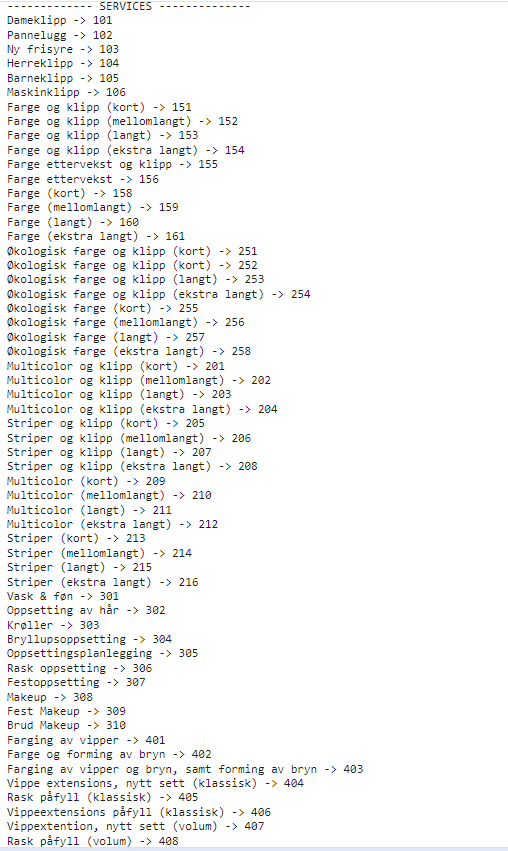
If you’re having issues with the language displayed, where some services might display as “null” due to an imperfect translation. Try to change the text “nameNo” which you can find for category and service too nameSe, nameFi, etc., to have the language you’d like displayed and more easily find the correct service.
Troubleshooting
This guide will need to be updated whenever the MP URL trick stops working as it would make this obsolete for the serviceID. The second alternative method provided in the guide will then be the preferred method of acquiring the ServiceID.