
Designation: The designation usually reflects the company name, and displays on the log-in screen and other places.
Time zone: Set up time zone.
WEB address: State the hostname for the system (e.g. https://my-site.com/ ). The address is used to generate QR codes and for cURL (PDF generation).
Date Format: Default setup with DD.MM.YYYY
Time format: Default setup with 24h
First Day of Week: Default setup with Monday
Log_errors: For use for Ørn Software AS

Strong password: One lowercase letter, one uppercase letter, one number and minimum 8 characters.
2FA: Two-factor authorisation: If this is activated, every user must confirm their contact information (mobile number or email) and install the authentication app the next time they log in. More info: https://docs.myview.cloud/activate2FA/
Single sign-on: SSO must be configured in VMWebAppConfig.ini. For assistance, contact our Support.

Physical path for uploading: Default folder for uploading documents and pictures.
Use path from document type: If this is activated, the path from the document types is used for uploading.
Max file size: Indicates the maximum size for uploading documents and pictures. Note: Upload max_filesize that is set in php.ini, see ‘System information’ and PHP info
Default Document type: If a document type is selected, this will be suggested as the default when creating a new document.
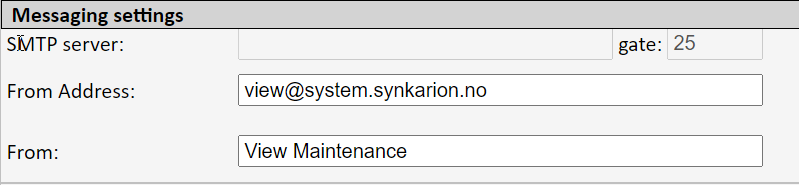
SMTP server: This does not apply to customers who use our cloud system.
Gate: This does not apply to customers who use our cloud system.
From Address: The address that is inserted here will be used as the From Address for all emails that the system sends out.
From: This is shown as the name on emails and SMSs that are sent out from the system.
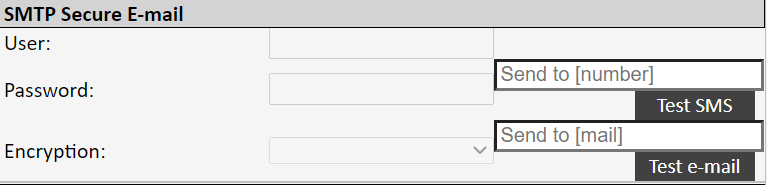
User and password: States the sender’s email address and password
Encryption: Select SSL or TLS
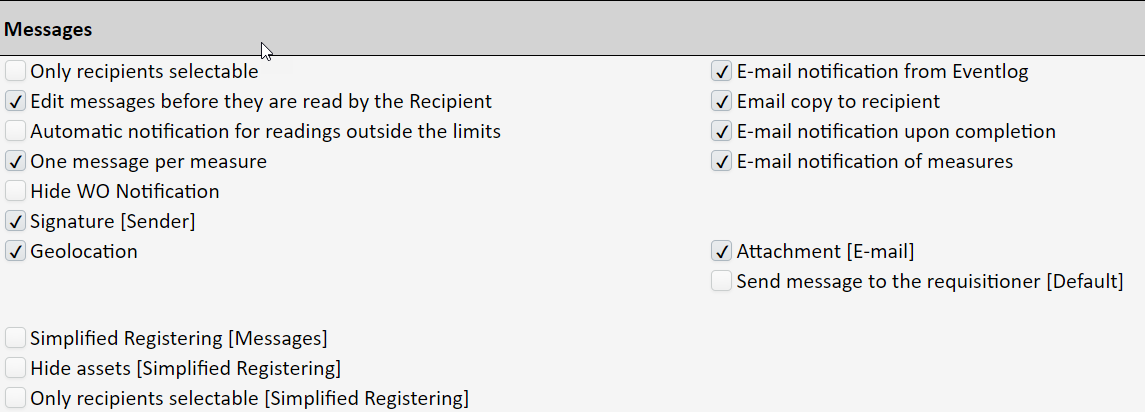
Only recipients selectable: If this is activated, only recipients are displayed when selecting the recipient to receive a message. This is set up under ‘System’ → ‘Messages’.
Edit messages before they are read by the recipient: If this is activated, the user can edit their sent messages until the recipient has read the message.
Automatic notification for readings outside the limits: If this is activated, a notification of measures will automatically be sent to the person set as the supervisor for a checklist if the reading indicated is outside the lower or upper alarm limit.
One message per measure: If this is activated, a notification of measures per measure will automatically be sent when the checkpoint is saved or set to complete. If this is not activated, the notification of measures will not be sent until the applicable checklist is approved. All the measures are grouped by asset.
When this is activated, a notification of measures will immediately be sent for the sub-activity on the work order when a measure on the work order is registered.
Hide WO Notification: If this is activated, it will not be possible to switch on a notification of the number of days or hours before ‘From date’ or ‘From hours’ on the job.
Signature (Sender): If this is activated, the sender/logged-in user (name) will be inserted in the message.
Geolocation: If this is activated, geolocation can be activated/ inserted in a message and in the asset in mobile layout.
Simplified Registering (messaging): If this is activated, a simplified registering screen will display. Note that this only applies to users who have been set up with the log-in type ‘Messaging’.
Hide assets (Simplified registering): If this is activated, assets cannot be linked to the message. Note that this only applies to users who have been set up with the log-in type ‘Messaging’.
Only recipients selectable (Simplified registering): If this is activated, only recipients are displayed (set up under ‘System’ → ‘Messages’) when selecting the recipient to receive a message. Note that this only applies to users who have been set up with the log-in type ‘Messaging’.
E-mail notification from Eventlog: If this is activated, there will be an email copy from the event log post.
Email copy to recipient: If this is activated, there will be an email copy of the message.
E-mail notification upon completion: If this is activated, there will be an email copy of the WO completion.
Email copy of measure: If this is activated, there will be an email copy of the measure from checkpoint and WO sub-activity.
Email notification to customers (default No/Yes): If this is activated with ‘Yes’, an email with a PDF file of the historical job will automatically be sent to the email address that is on the customer card when the job is approved. If this is set to ‘No’, you must manually check off ‘Send Notification’ in the completion screen if you want an email to be sent.
Info WO: Description or comments: These control what will accompany an email copy of the customer’s PDF file (historical job), i.e. whether there will be a description field or a comments field.
Attachment (email): If this is activated, pictures will be attached to the email.
Send message to the requisitioner (Default): If this is activated, a message is automatically sent to the person who submitted the message when the job is approved. Can be turned off in the completion screen.
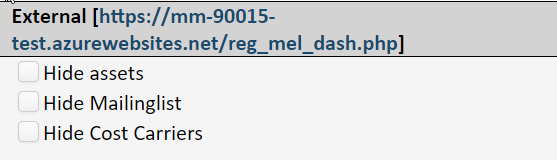
Hide assets: If this is activated, the option to link to an asset on the external registration form is hidden. For deviation messages, this applies irrespective of whether the deviation was created from within the system or via the URL for deviation registration.
Hide Mailinglist: If this is activated, the option to link to a mailing list on the external registration form is hidden.
Hide Cost Carriers: If this is activated, the checkbox for ‘Details’ is hidden on the message, where there is the option to link to cost carriers and other message details on external registration form.

Deviation registration requires login: If this is activated, you must be logged on in View to create a deviation message.
Close deviation when WO is approved: If this is activated, the deviation closes when all the connected work orders (tasks) are approved.
Copy text to WO: If this is activated, the text/description that is in the deviation is included in the work order (task).
Simplified Registering: If this is activated, a more simplified deviation registration screen displays. Among other things, it will not be possible to link an asset or a project to the deviation.

Please wait until WO/Asset etc. is saved: If this is activated, you remain in e.g. the work order screen, or you get to the work order list after saving.
SJA: Can now be made available on all work orders, regardless of whether the jobs have an ‘SJA’ requirement.
Show all hours in Timesheet: If this is activated, hours that are not registered via detailed time registration are also shown, i.e. hours without an account rate).
Login via URL: If this is activated, you can log in without using a password. This is on condition that the username and password are in the URL.
Use Active Session: If this is activated, it saves you logging in again if there is an active session, i.e. if you end up out of the system.
Description [asset] - - > WO: If this is activated, the description that is in the asset’s description field is automatically included in the work order’s description field when a new work order is created.
Approve own WO: If this is activated, users that do not have ‘AP1’ (Approval Work Order) are given permission in access control to approve the work orders that they themselves have created.
Work permit: If this is activated, a special checkbox appears on the work order, as well as a special filter function in the work order list.
Hour calculation locked: If this is activated, From/To time displays, and the work hours are locked to prevent change in the time registration.
Description - -> Invoice: If this is activated, the description on the work order is included on the invoice (Service management).
Comments - - > Invoice: If this is activated, the comments on the work order are included on the invoice (Service management).
Invoiced Hours [on]: If this is activated, you see the field for ‘Ready for invoicing’. Inserted hours are transferred to this field by default. (Service management).
Simplified time registration: If this is activated, you see a simplified screen for posting hours in which there is no From/To time.
Unique asset no.: If this is activated, you must insert a unique asset number. This is not effective retroactively if it is turned on afterwards.
Multi device: If this is activated, you can be logged into the system on both your mobile/tablet and desktop computer at the same time, if the user also has this activated in their user profile.
Require WO when taking parts: If this is activated, it will not be possible to withdraw a part without a work order number.
Items [Assets]: If this is activated, you are authorised to manage assets as items, with separate item numbers, which makes it possible to connect items in/out to the asset, with associated item log. See separate description under ‘Assets’.
Only assigned can scan PMI: If this is activated, it is only the person who has been set as assigned to the checklist that can scan the QR codes on the checkpoints. In other words, it is only this person who will see these points and can set them to completed.
Open Shadow handling: If this is activated, the same shadow reference is permitted for different assets.
Show all [SELECT Project]: If this is activated, inactive projects are also shown on select lists.
Lock [Measures PMI]: If this is activated, you cannot create a new measure on a checkpoint if an active measure is already there on the checkpoint.
Lock [Transactions Articles]: If this is activated, it is not possible to run transactions on articles.