Select the layout (design) of the dashboard in the top right corner of the page. Click the Select layout field to edit the dashboard layout and structure. To select a layout, click on it in the list.
1. To add content, click Add content.

2. The gadget library contains gadgets that are used to design the dashboard. To add a gadget to the dashboard, click Add gadget.
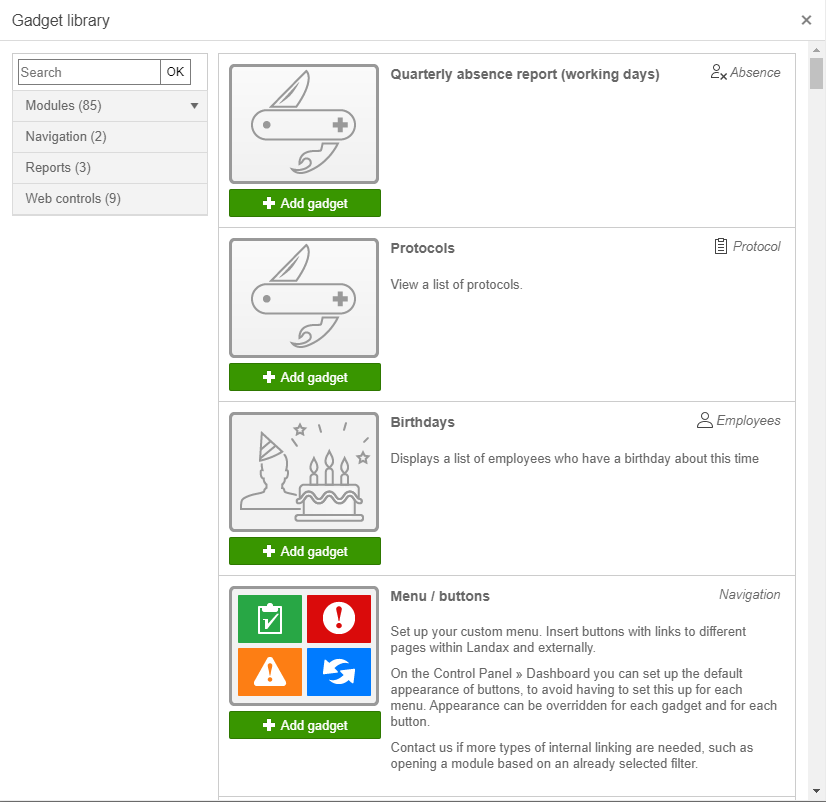
In the library, the gadgets are sorted as follows:
Modules: Gadgets for the modules are sorted module-wise
Navigation: Gadgets for navigation
Reports: Dashboard report gadgets. Data filters and reports are set up on the control panel
Web Controls: Gadgets for images and links on the dashboard
To edit an existing gadget on the dashboard, click the  icon on the gadget.

Info: Clicking on the pencil to edit the gadget, opens the same window as when adding a gadget. See gadget example pages for more information on editing gadgets. |
Gadgets can be moved between columns on the dashboard.
1. Hover the mouse over  for the chosen gadget.

2. Left-click, hold down the mouse button, drag the gadget to where it should be, and release.
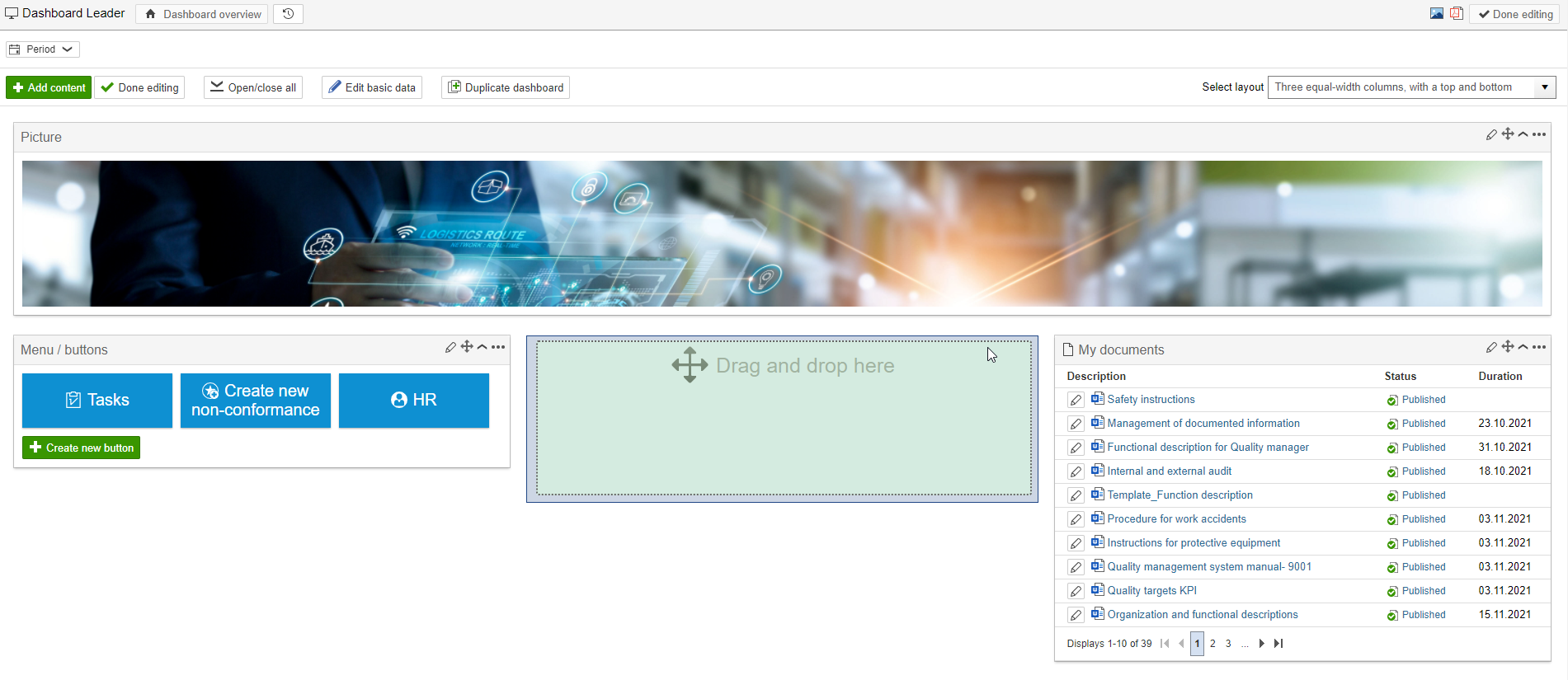
To duplicate a gadget, hover the mouse over  and click Duplicate gadget.

Info: When duplicating a gadget, it is copied with all the settings and filters. To make changes you can edit the gadget. |
There are also shortcuts to show/hide and delete a gadget. Hover the mouse over and click Hide / Show or Delete.

When editing a gadget, you will find the options here:
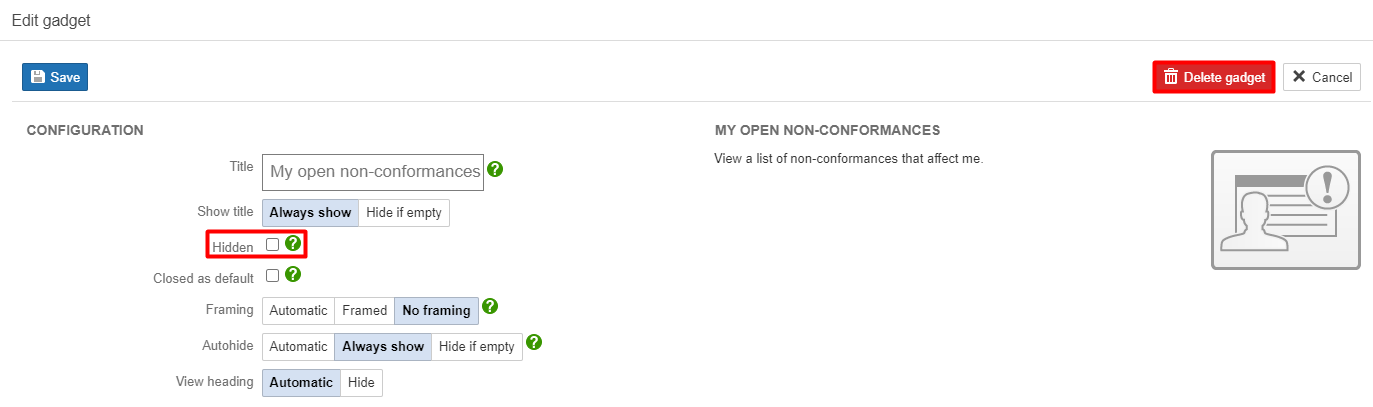
Click  to close the gadget and hide its content on the dashboard.

Tip: When editing a dashboard, all gadgets can be opened and closed at the same time by clicking |