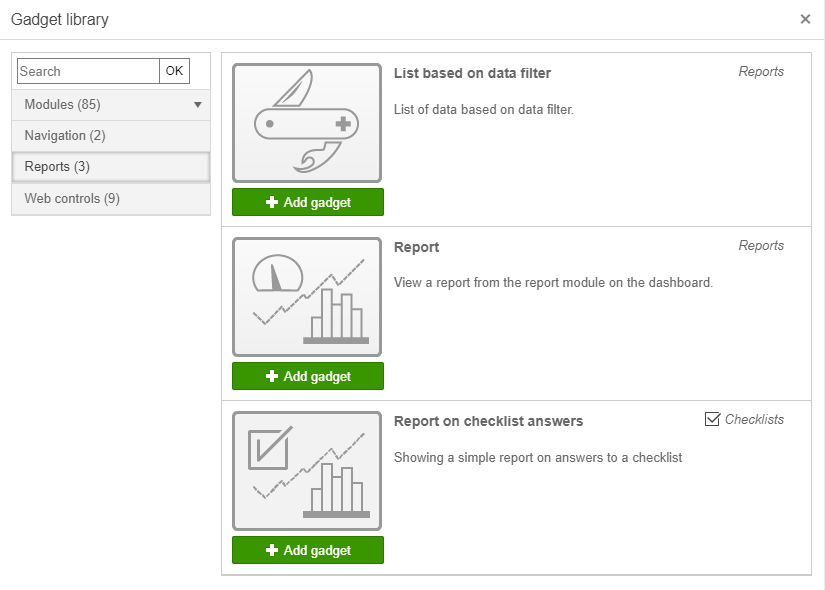
It is possible to create reports and add them to a dashboard.
The gadget displays a simple report of the answers to a question from a checklist. Click Add gadget, select the report type, checklist and question, then click Save.
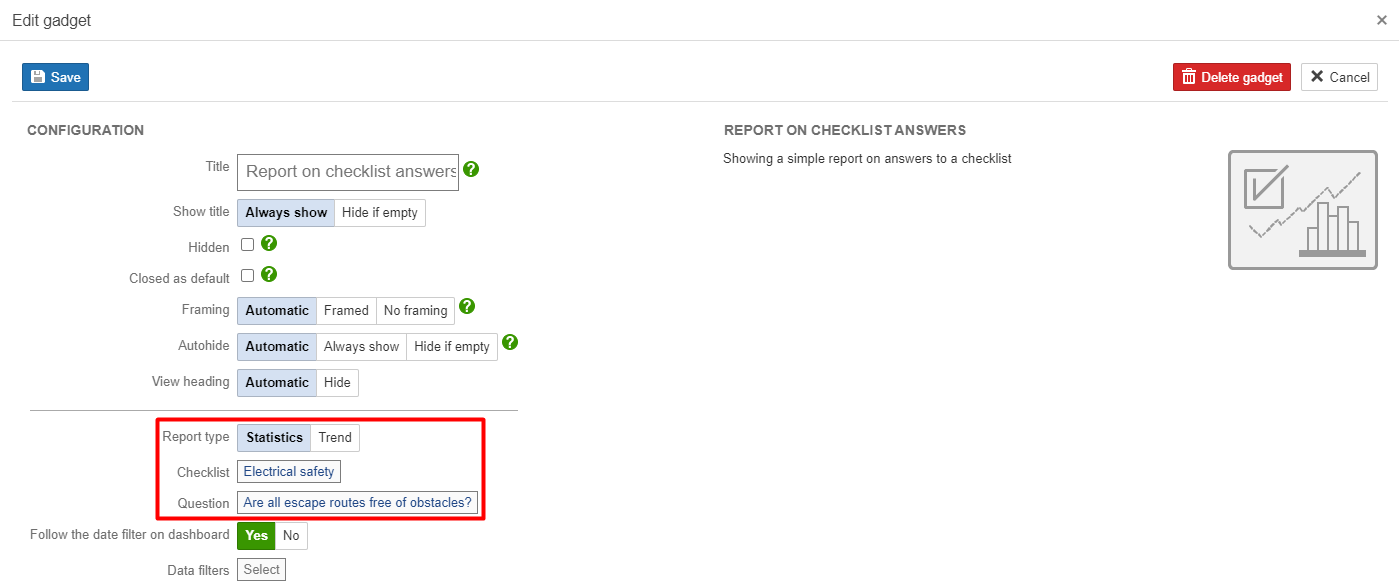
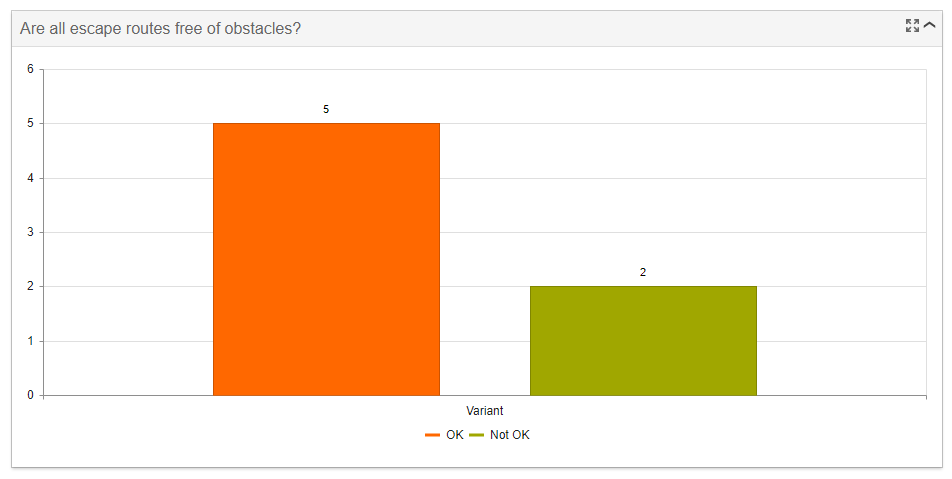
Tip: Type the selected question as the Title for the gadget in order to see which question is displayed in the report. |
1. To add a report to the dashboard, click Add gadget.
2. Configure the gadget and select a report in the drop-down list.
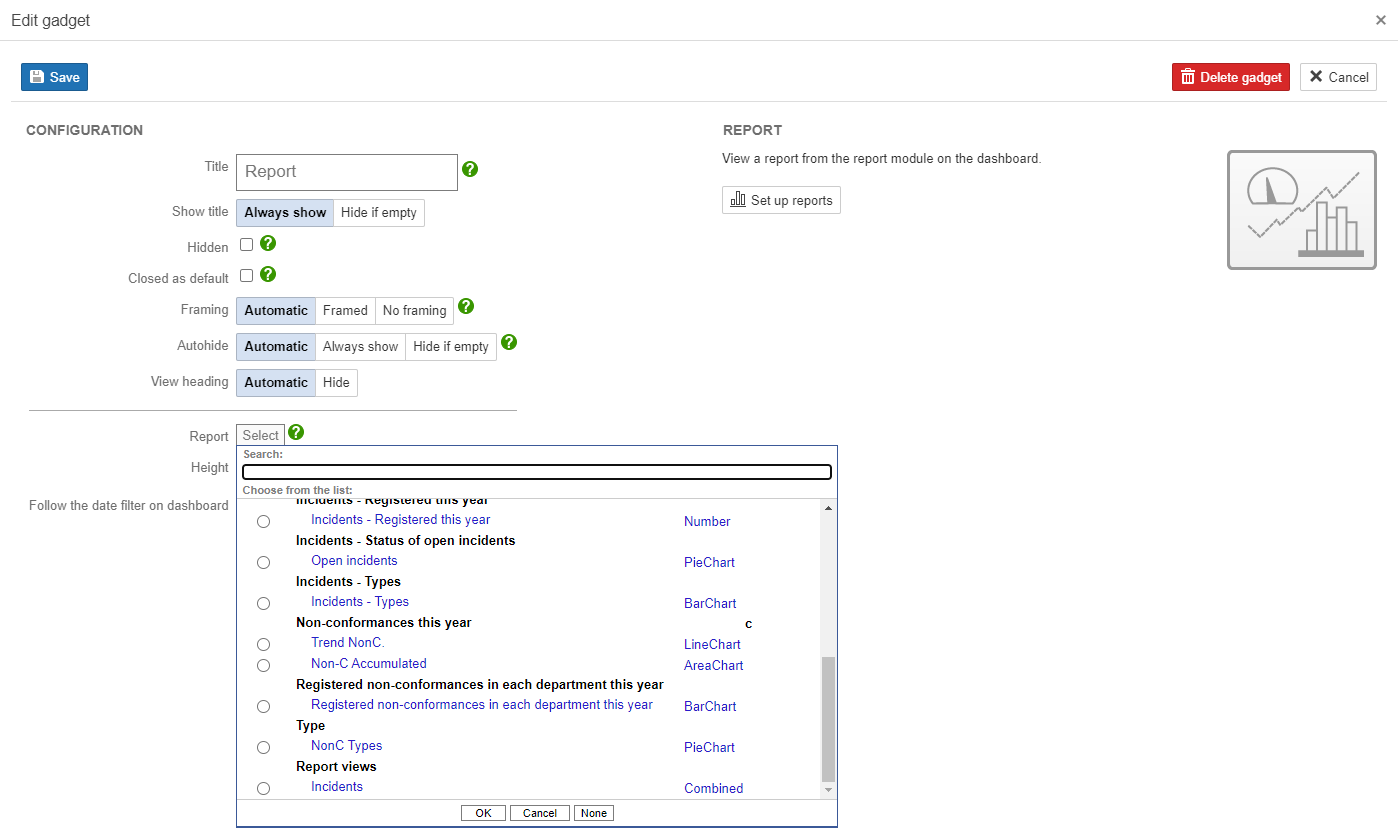
Info: Reports can be created and edited in the control panel or by clicking Set up reports. A report can have several different views. The blue options in the list are the different views created for a report. The View column in the drop-down list displays what type of view it is. |
3. To add the gadget to the dashboard, click Save.
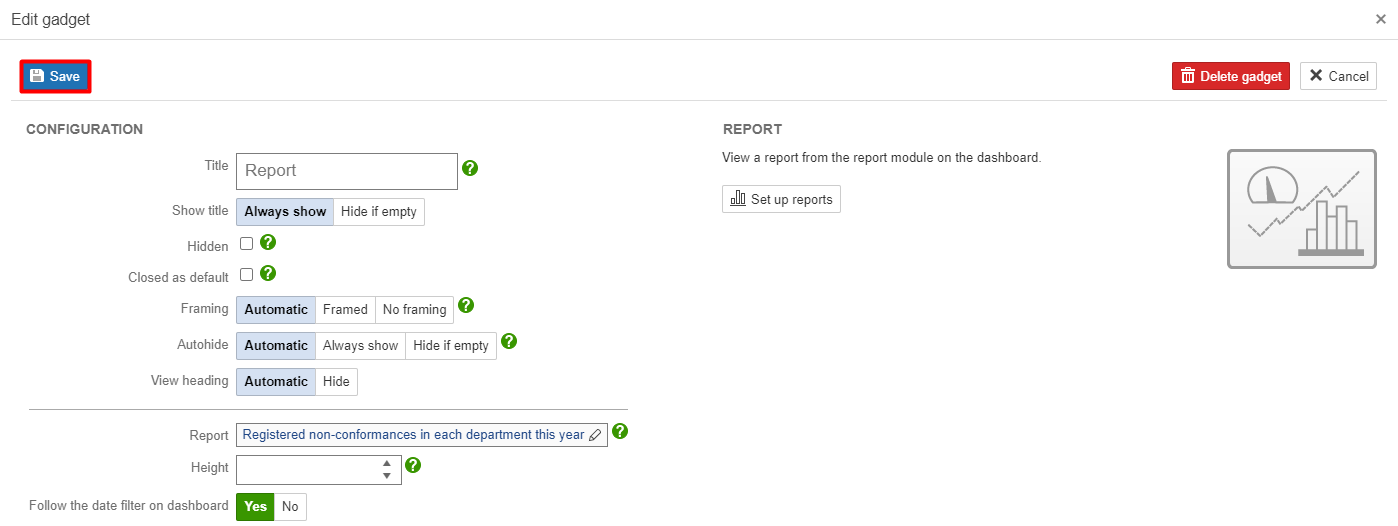
Tip: Click |
When the gadget is saved, the report is displayed on the dashboard.
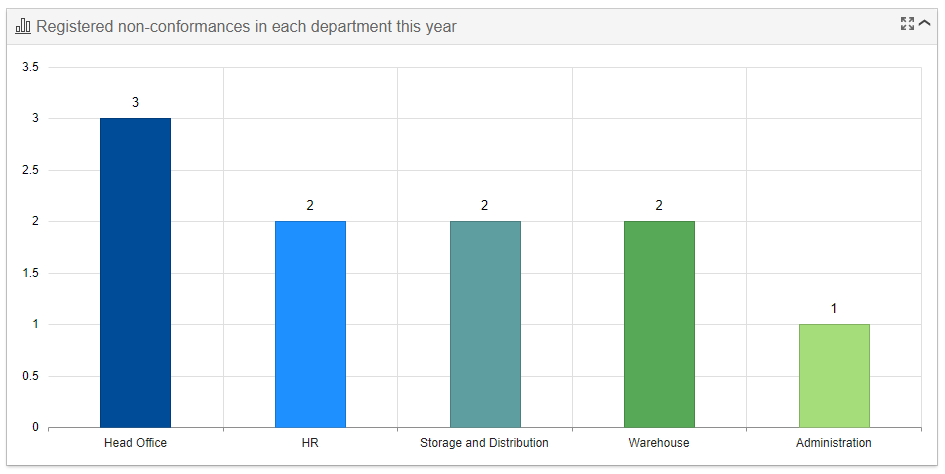
Info: The colours of the columns in the report are selected for the departments. Go to the department overview to select colours. |
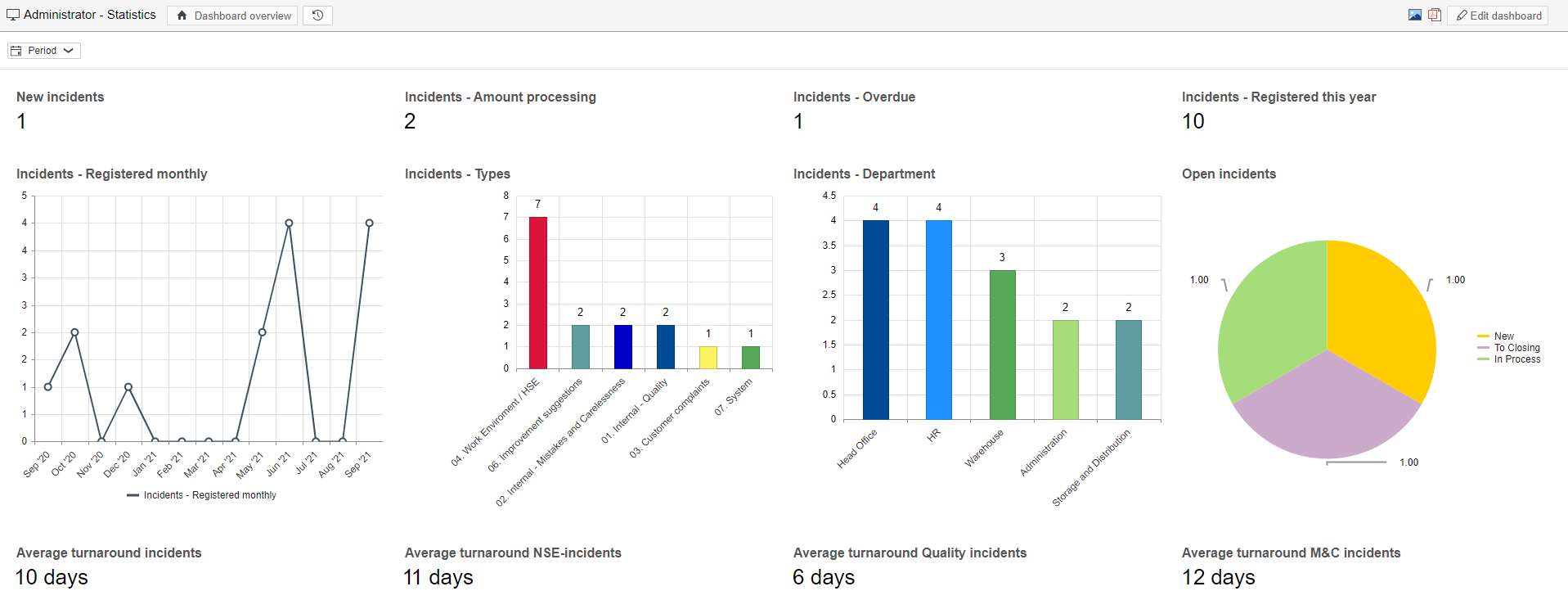
Create separate dashboards for reports and add them as under-dashboards, or use them as an overview.
An example of a report dashboard with an overview of non-conformances and improvements:
 in the Report field to edit the selected report, or click
  for more information about the options for the gadget.