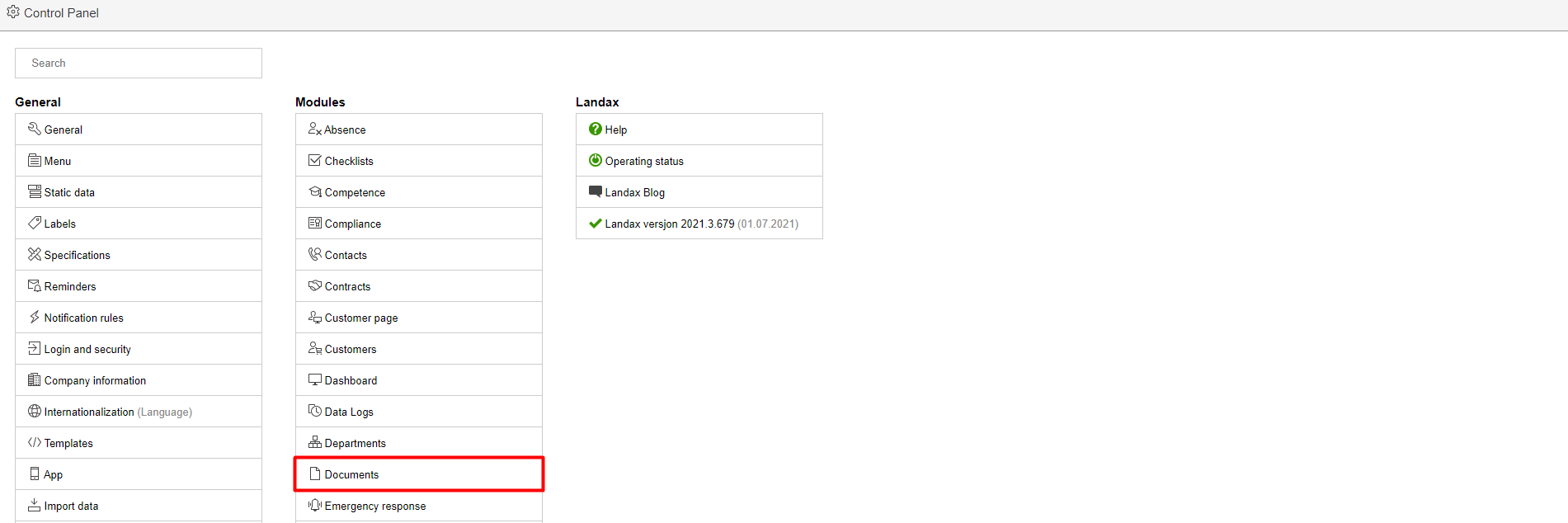
1. Go to the Control panel and click Documents in the middle column.
2. Click Configure document folders.

3. Click Create new folder to create a new one. To edit an existing folder, click on the folder.

4.
Create a new folder:
Enter a name for the folder, assign it a number and complete the other fields if you so wish. Click Save and close form when you are finished.
Edit existing folder: Make the desired changes and click Save and close form.
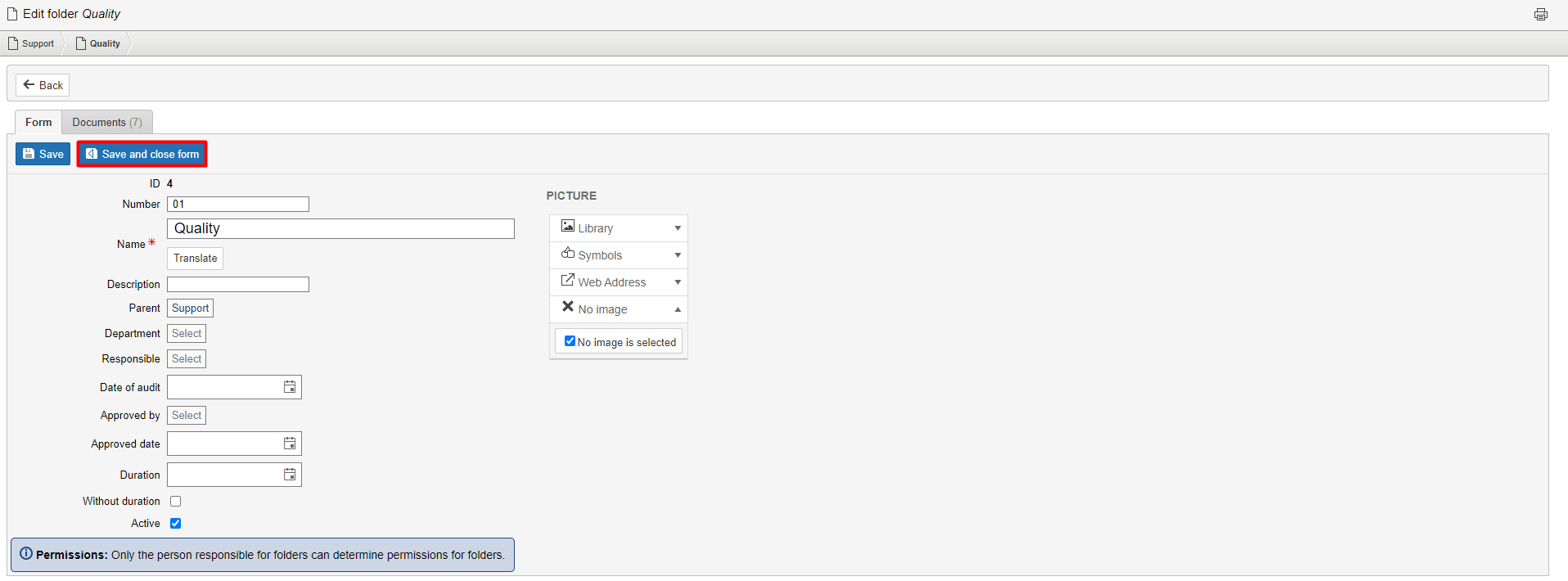
Info: The order of the folders is controlled by the numbers of the folders. If the folders don`t have a number they are sorted alphabetically by name. If the numbering exceeds 9, the numbers must be typed as 01, 02, etc. for the folders to be sorted correctly. |
To create a subfolder, select the parent folder in the Parent field when creating or editing a folder.
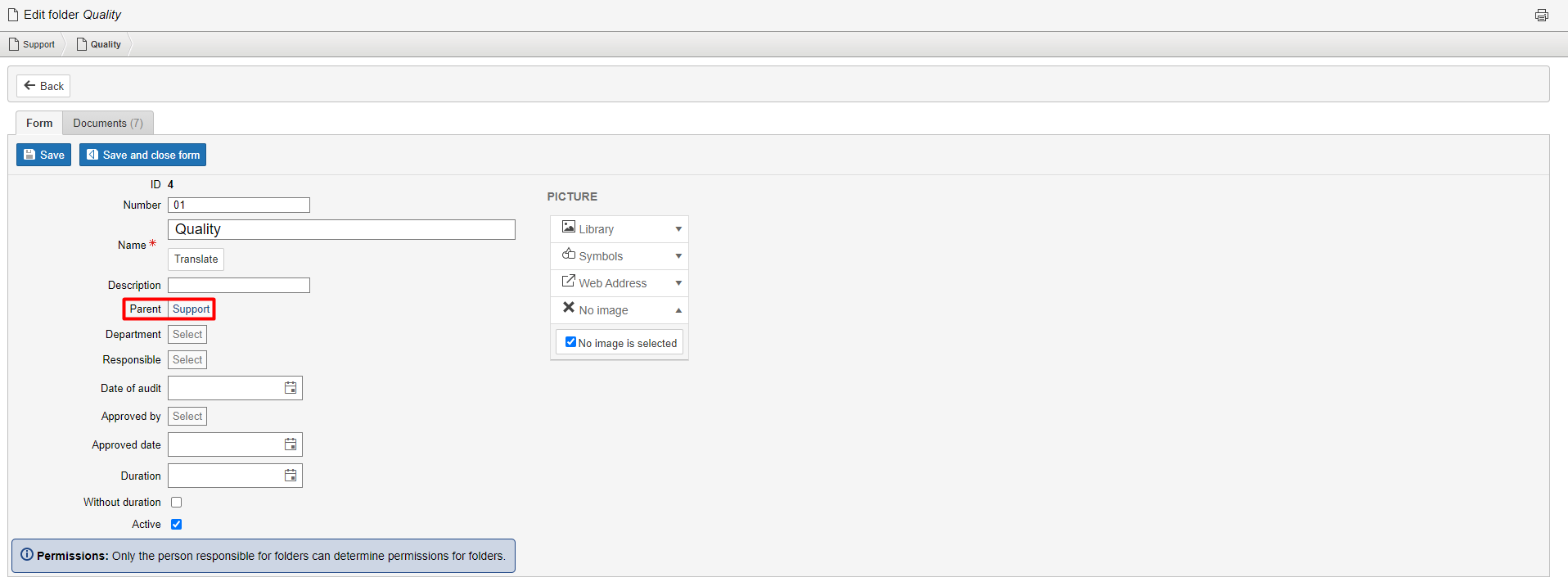
Tip: The Documents tab provides a list of documents in the folder. If a folder is inactive and therefore not visible in the document module, the documents are still available there. |
Mark the parent folder by clicking on it and then click on to create a subfolder. Complete the fields and click Save.

Mark the folder you wish to edit and click on  to edit the folder. Make the desired changes and click Save and close form.
