This is a short guide to using the EG Worksense mobile app.
| Your organization may not have all the features available for use. Please contact your organization’s Worksense admin to check which features are available. |
1. Download EG Worksense
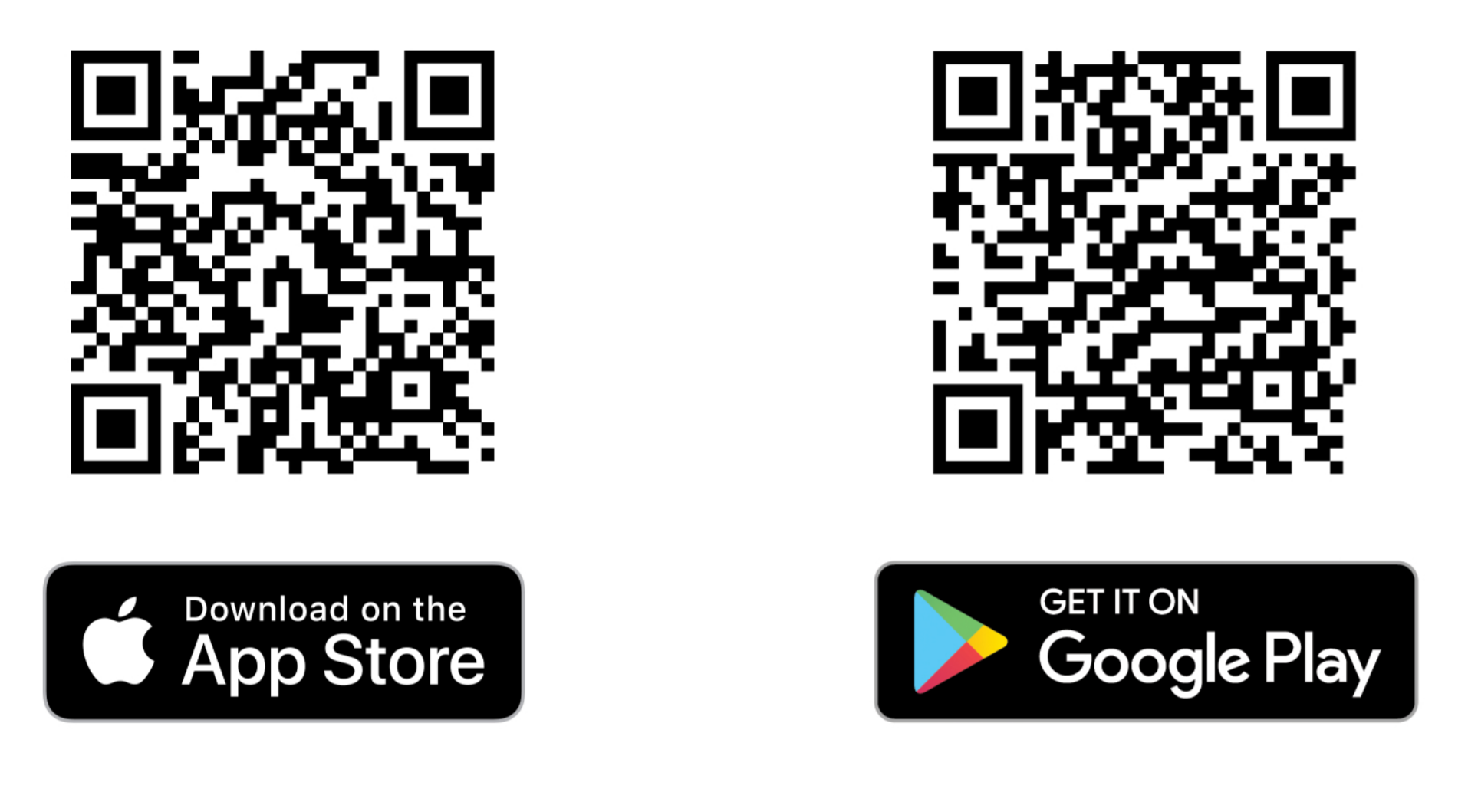
Download the EG Worksense app to your mobile phone on the Google Play or App Store. Point your phone's camera to the QR code on the right, or search for EG Worksense.
2. Sign in to Worksense
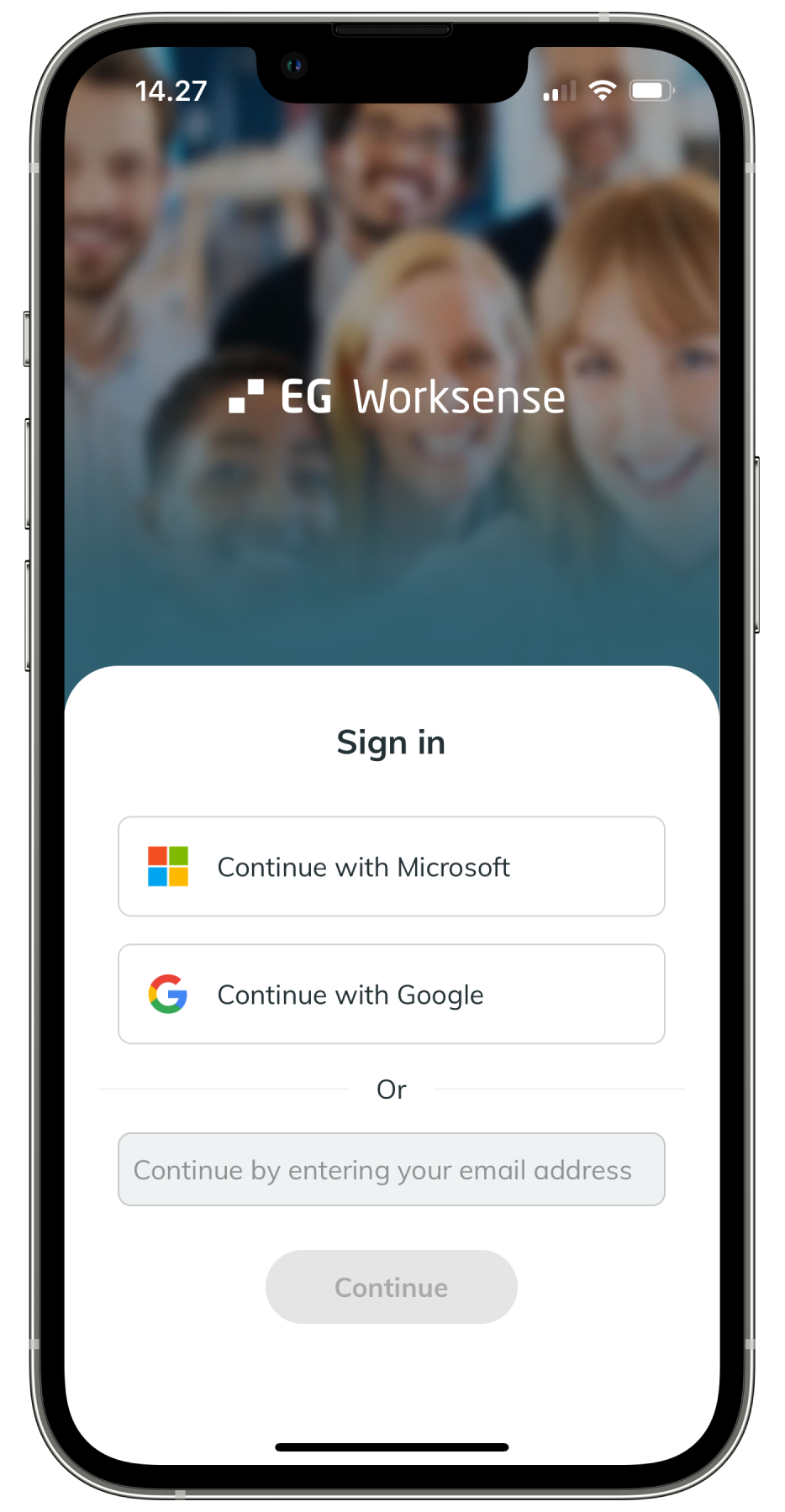
Sign in with Microsoft or Google
If Microsoft or Google sign-in is enabled for your organization, use the Microsoft or Google buttons to sign in to EG Worksense.
If you have any questions about the Microsoft sign in, contact your organisation’s IT department.
For IT department: how to enable Sign in with Microsoft and enable Sign in with Google
Sign in with email and password
Use your email address and password
This requires registration to Worksense.
For Worksense admins: how to invite users to Worksense
3. Navigate easily to your building and floor
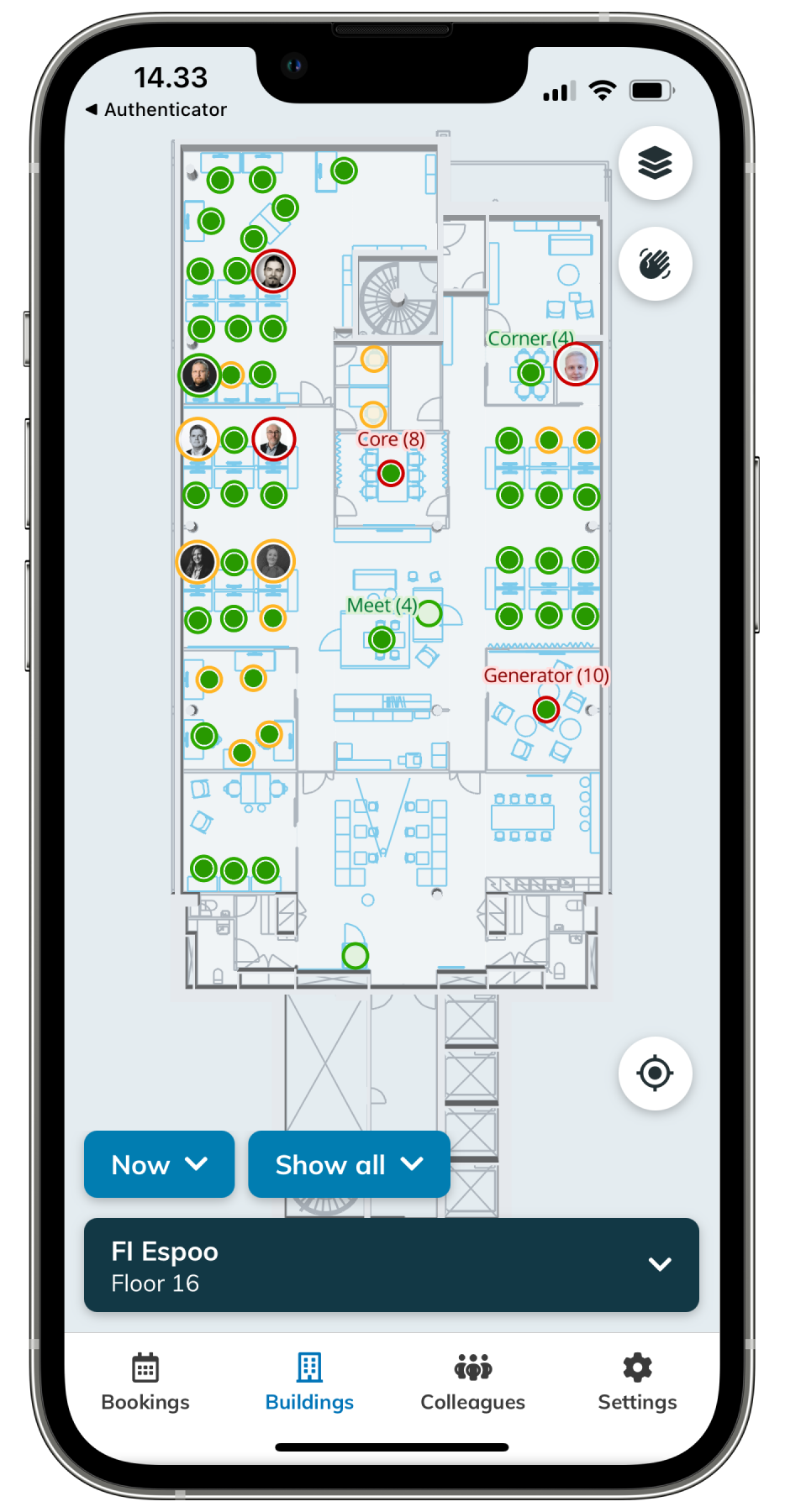
Tap the Buildings tab to see the floor plan of your default building floor. Tap the building name at the bottom to choose another floor or building.
4. Find available workspace
After signing in, open a floor where you would like to find an available space, such as workstation or meeting room. The floor plan tells you whether the space is
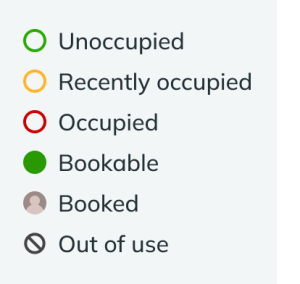
Unoccupied - No one is using the space at the moment (based on occupancy sensor data)
Recently occupied - Someone has recently been using the space (based on occupancy sensor data)
Occupied - Someone currently uses the space (based on occupancy sensor data)
- Bookable - The space is available for booking
Booked - Someone has booked the space via Worksense mobile app
Out of use - The space cannot be used or booked, or it is in need of maintenance
5. View indoor air data
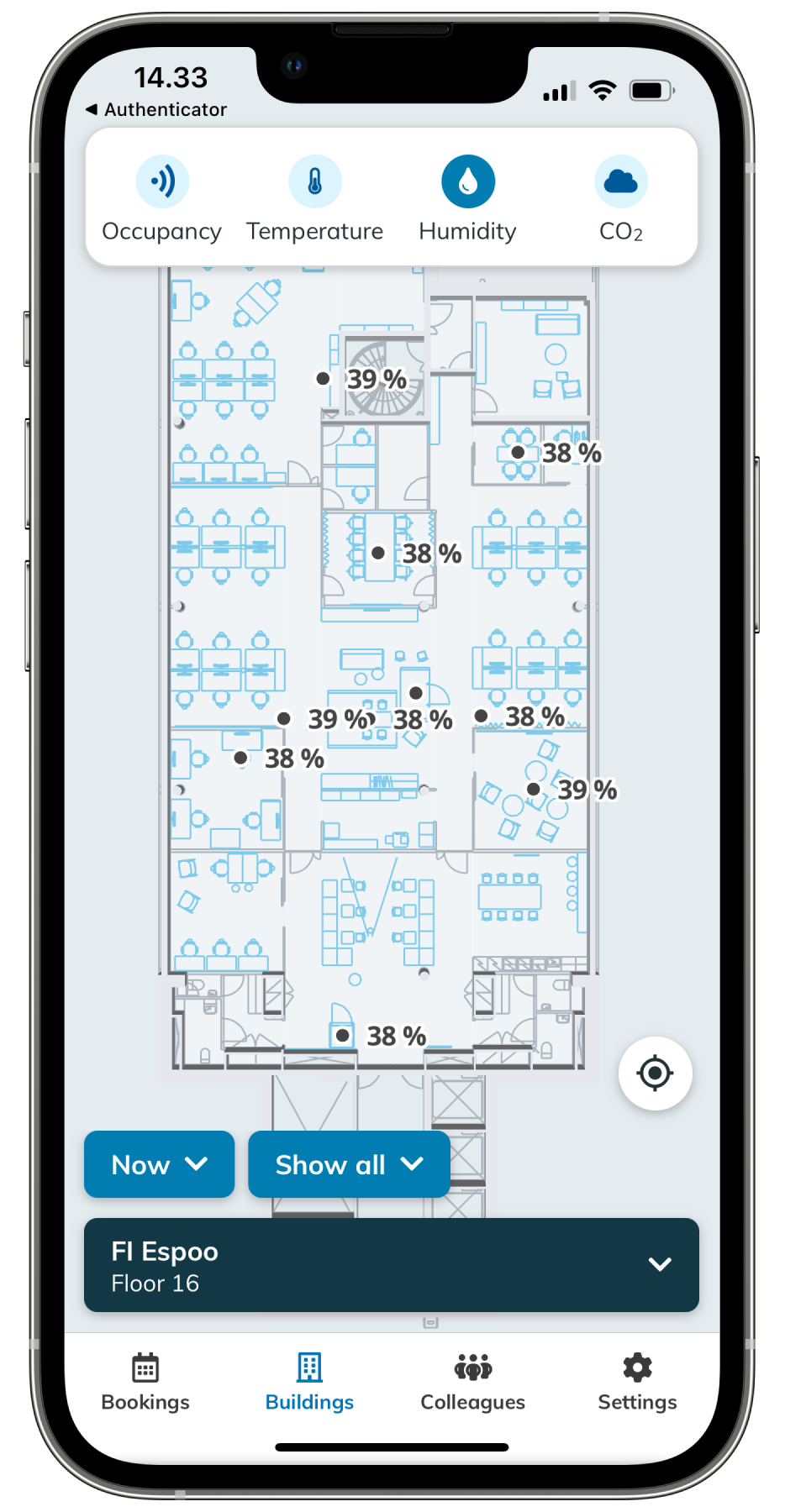
In the floor plan view you can choose to view indoor air data by tapping the  button on the top right corner. The available indoor air data includes temperature, humidity & CO2 levels. The data is based on indoor air sensors.
6. Book workstations, meeting rooms or other resources
There are two ways to start a new booking. The actual booking of the resource is the same for both.
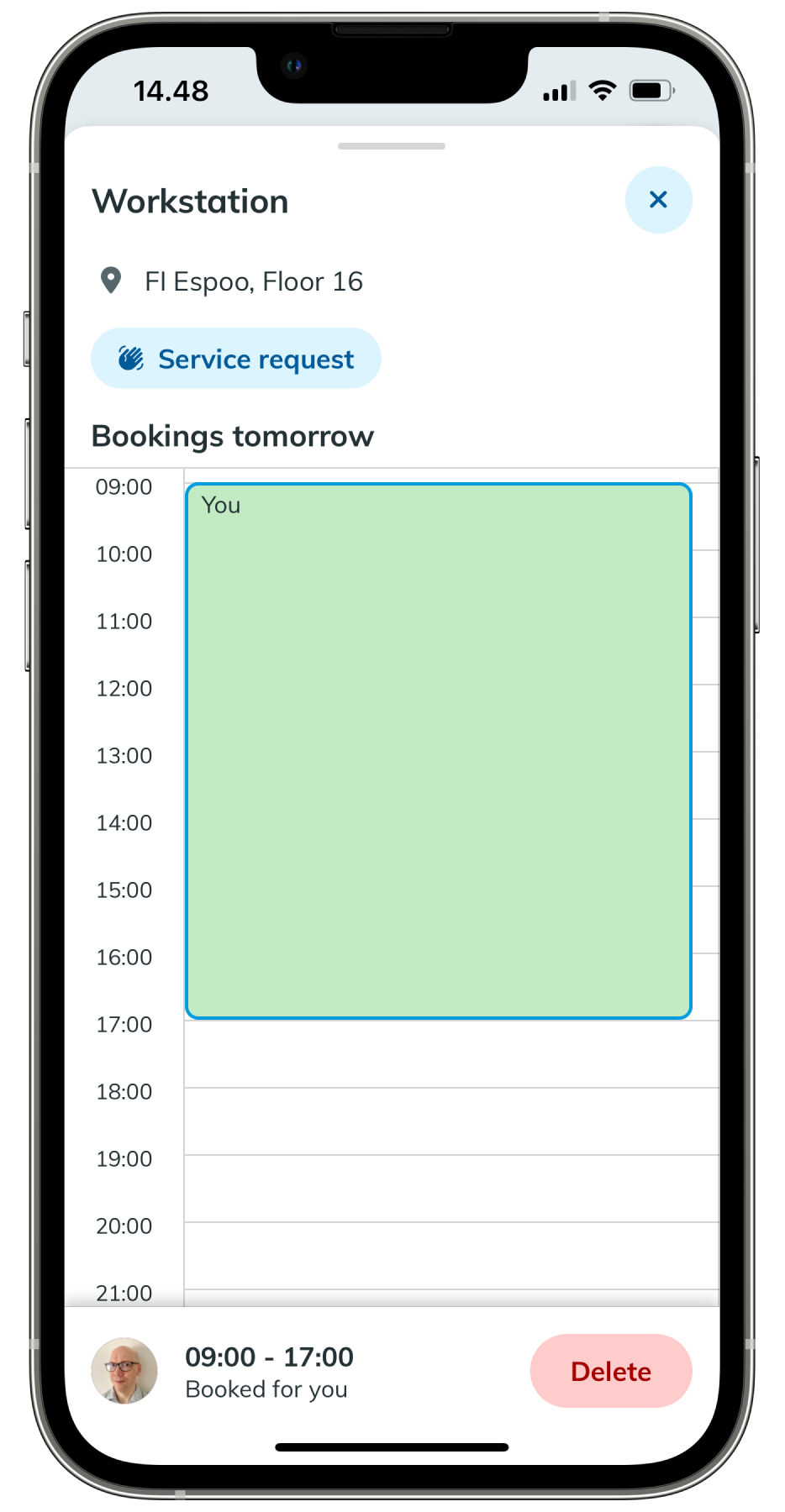
Booked resources are marked on the floor plan with the profile picture or initials of the person who made the booking. For anonymous bookings, a placeholder profile picture is shown. When you book a meeting space, a new room booking will be added to its calendar in Outlook. You can only cancel calendar bookings in Worksense which have been made in the Worksense app. Bookings made in Outlook cannot be deleted or modified via the Worksense app. |
Book a resource from the Bookings page
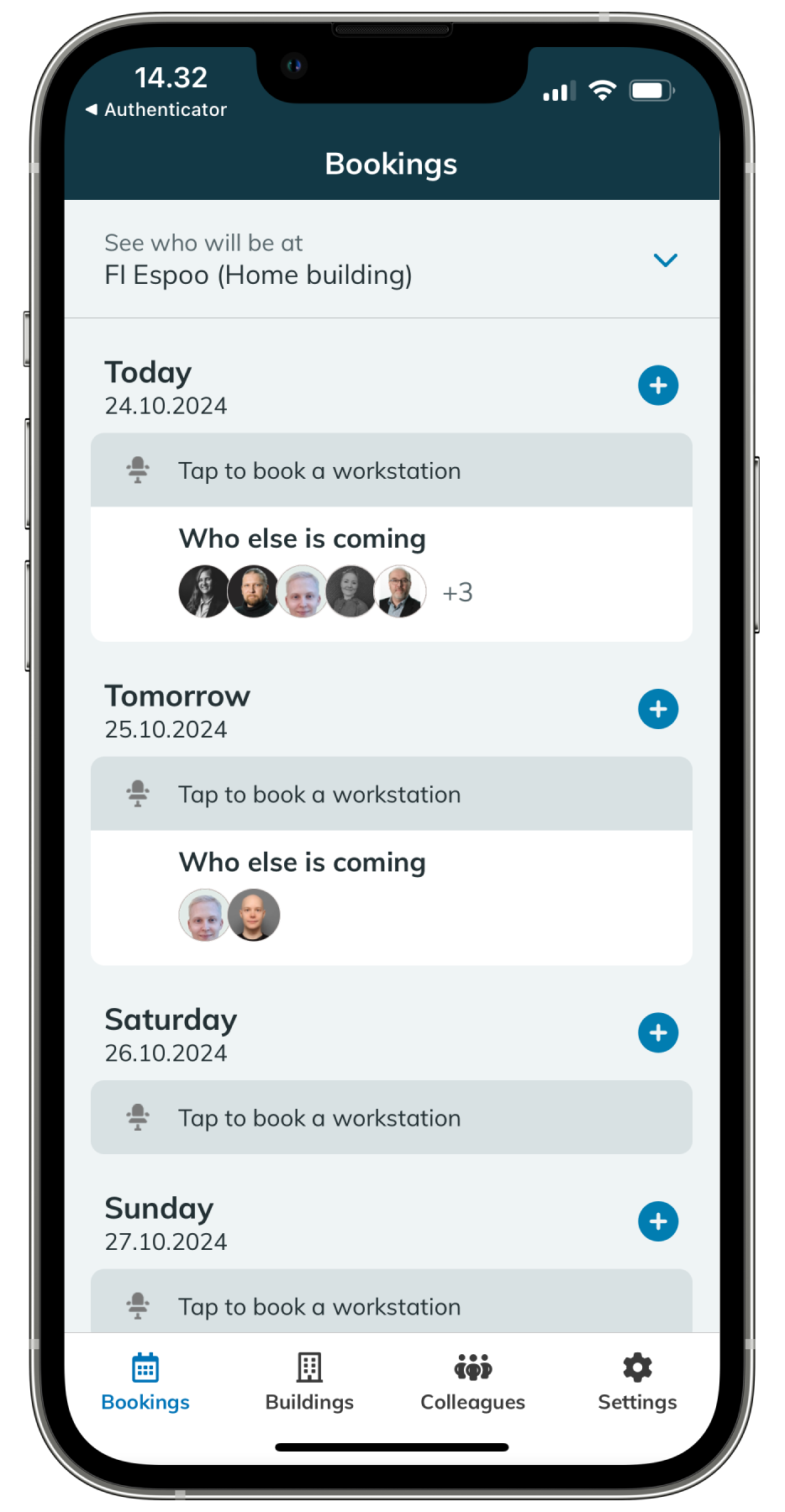
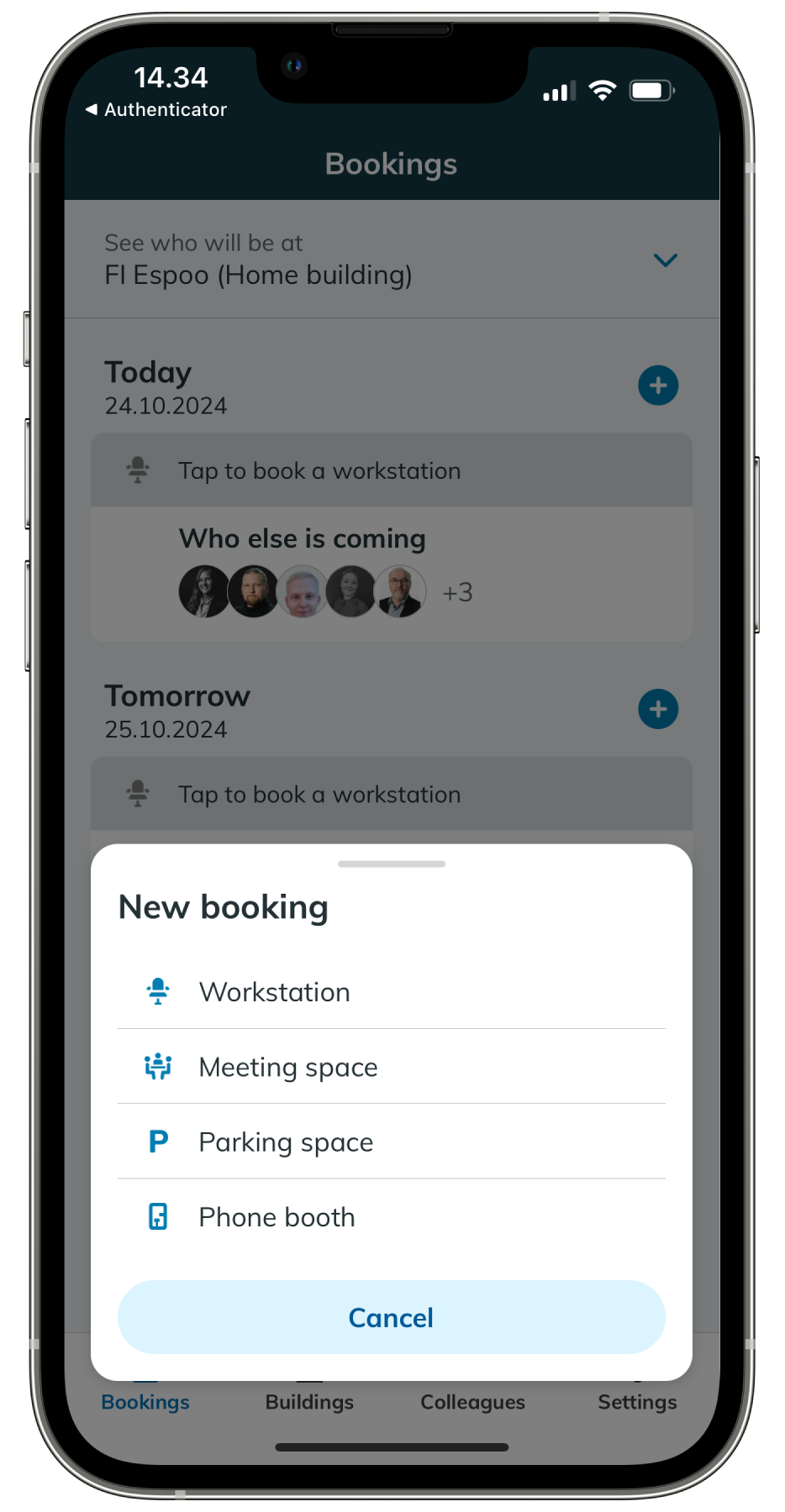
- In the Bookings page, tap the
 button next to the date you want to make the booking for. How many days you can book in advance depends on your organization settings.
 - Choose the type of resource you want to book.
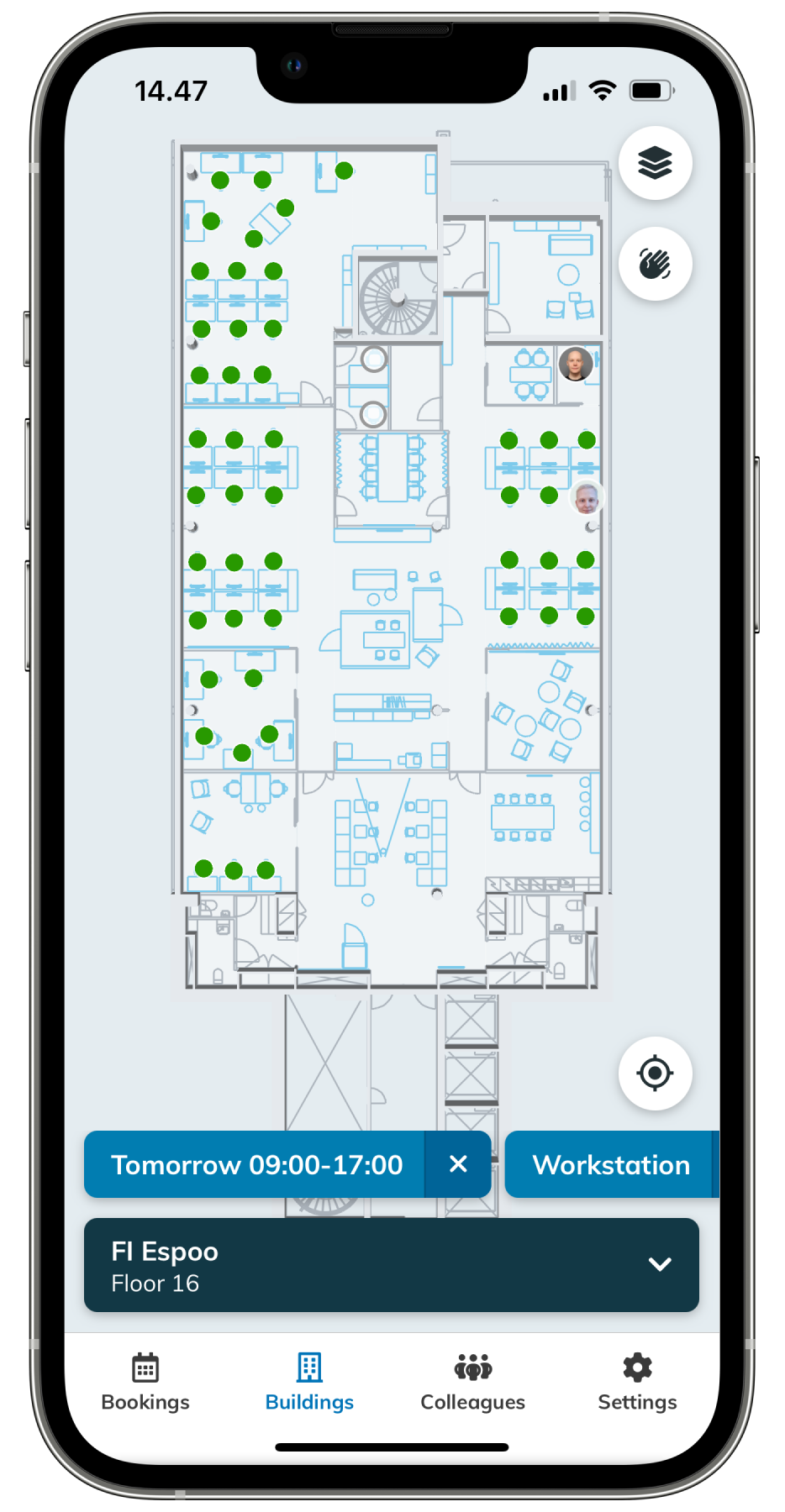
- The floor plan will be shown, filtered to only show the resource type you selected. Available resources are shown with a green circle. By default, the floor plan will show resource availability on your selected date for 8 hours from the start of your default booking time, but you can adjust the time interval.
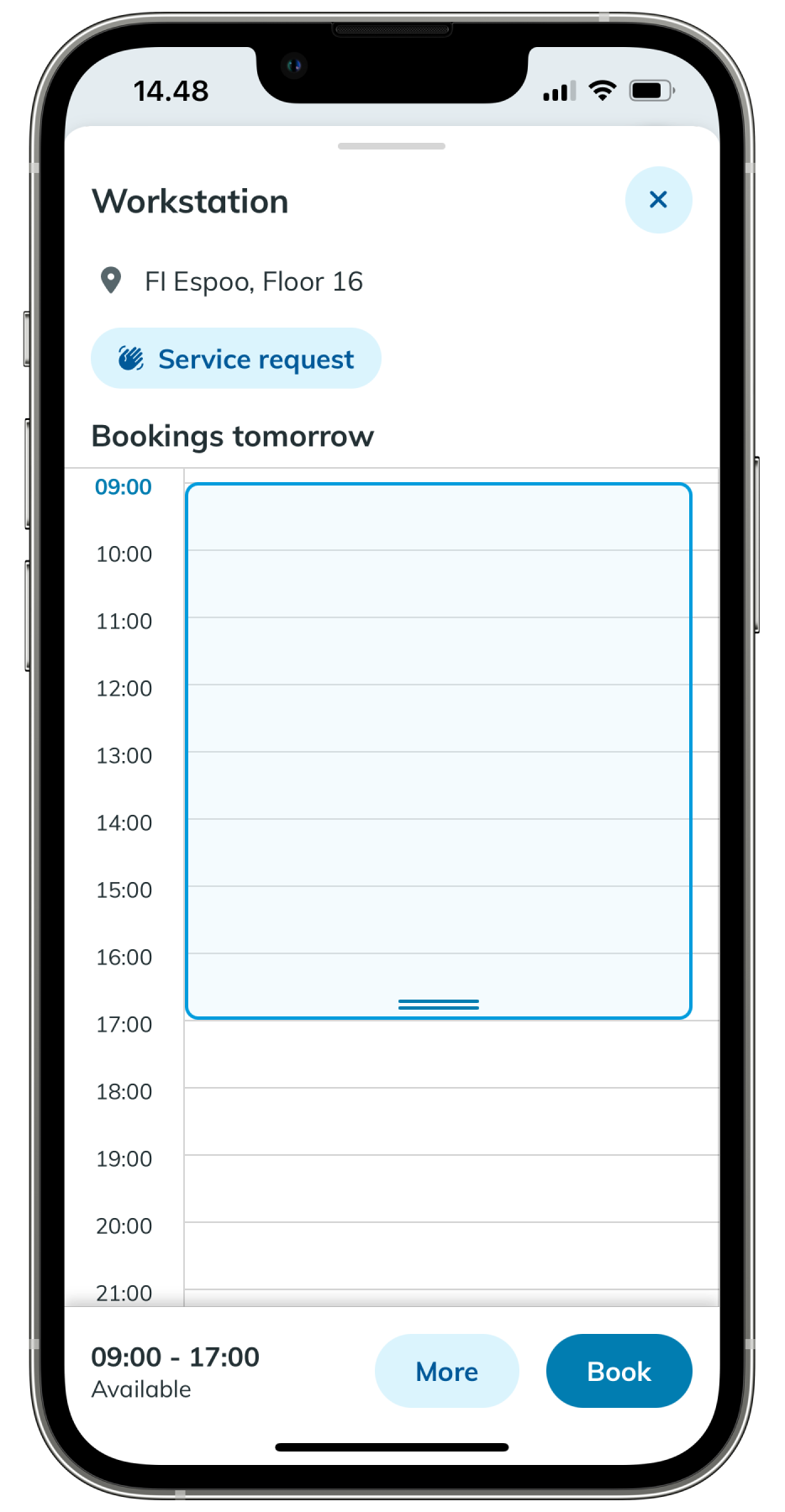
- Tap a resource on the floor plan to see its details, which may include name of the resource, the type of the resource, occupancy status, capacity (how many people a room fits), and existing bookings.
- If the resource is available, the time interval will be shown as Available for booking. If you want to adjust the booking start time and duration, you can drag the selection vertically on the calendar view or tap More and change the start and end time.
- Tap Book to make your booking.
See also: video of booking a workstation.
Book a resource from the floor plan
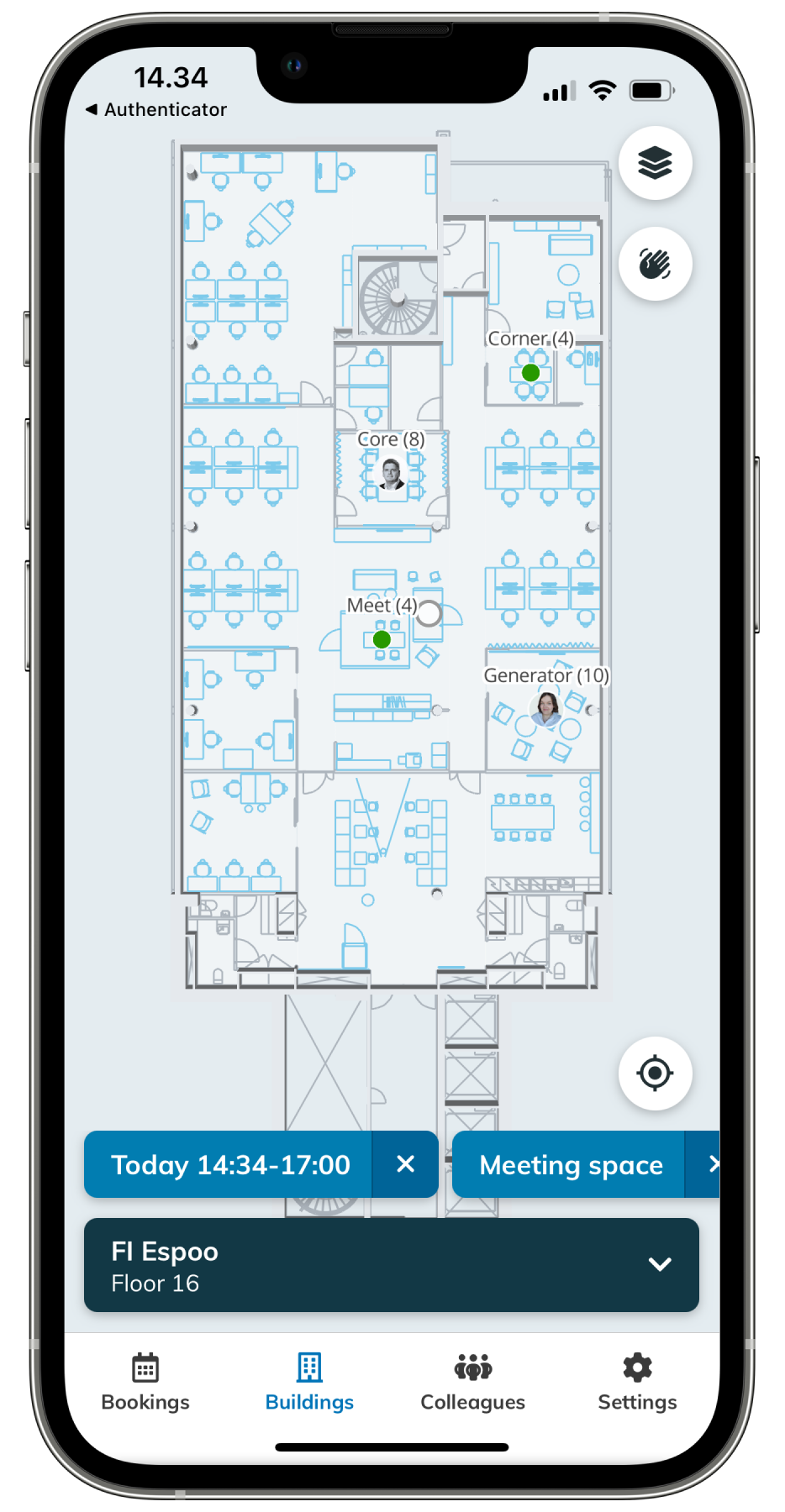
- Tap Buildings to see your default building floor.
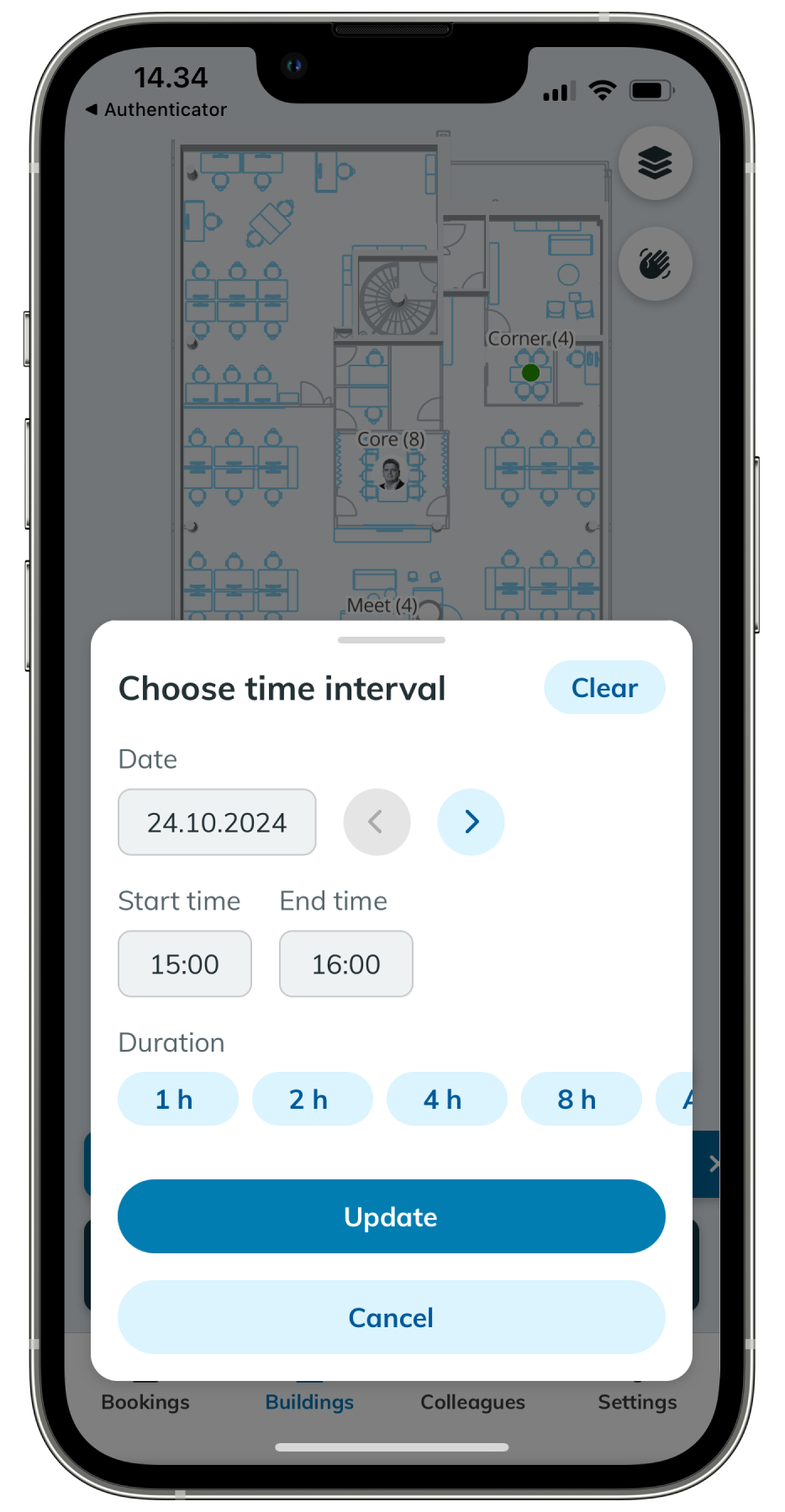
- If you want to book for future, tap Now, set the date, start time, and end time and tap Update. The floor plan will then show the available resources during the specified period with a green circle.
- Optionally, you can filter the floor plan to show specific type of resources, such as meeting spaces, by tapping Show all and then selecting the type of resource you want to see.
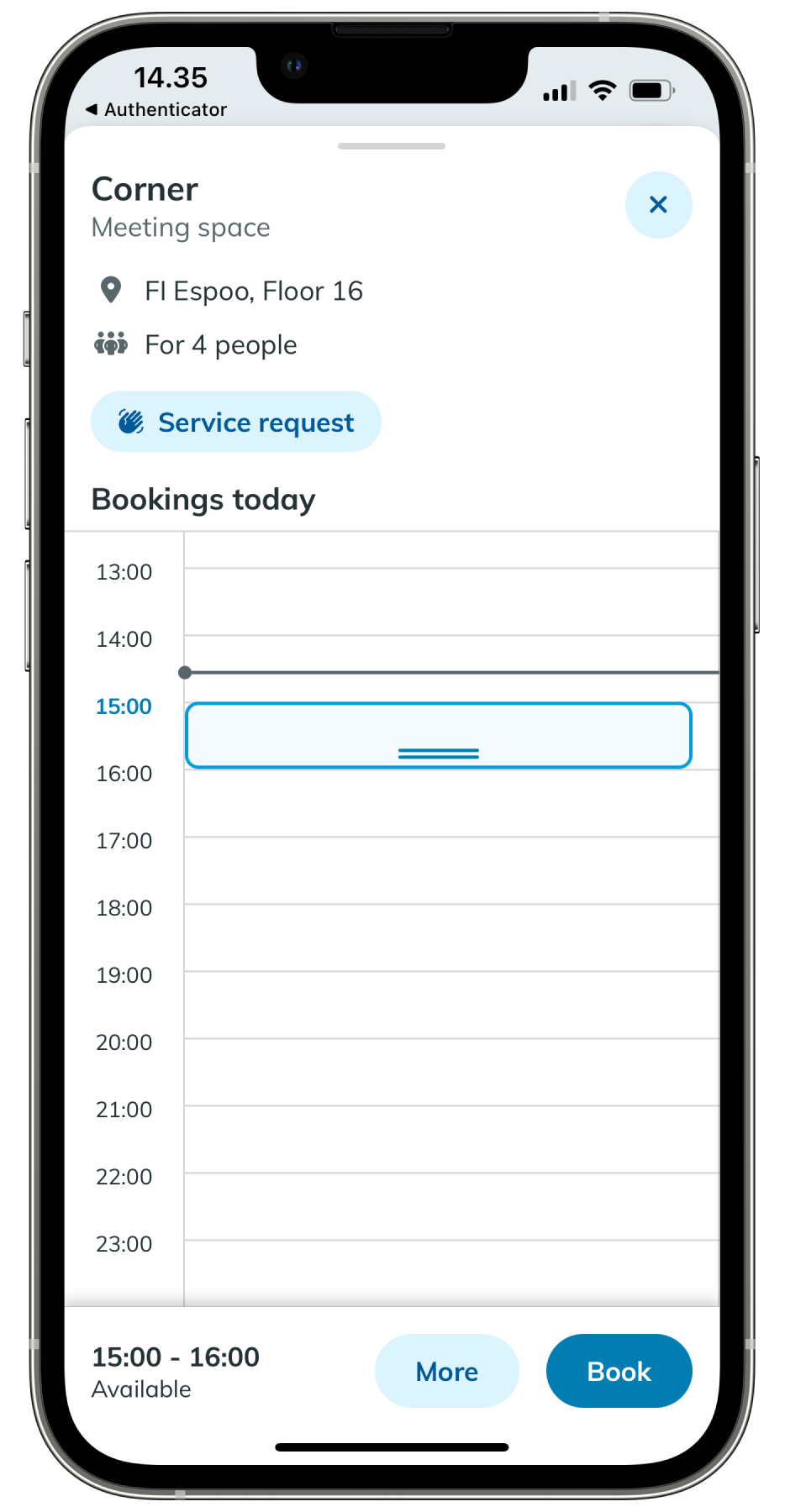
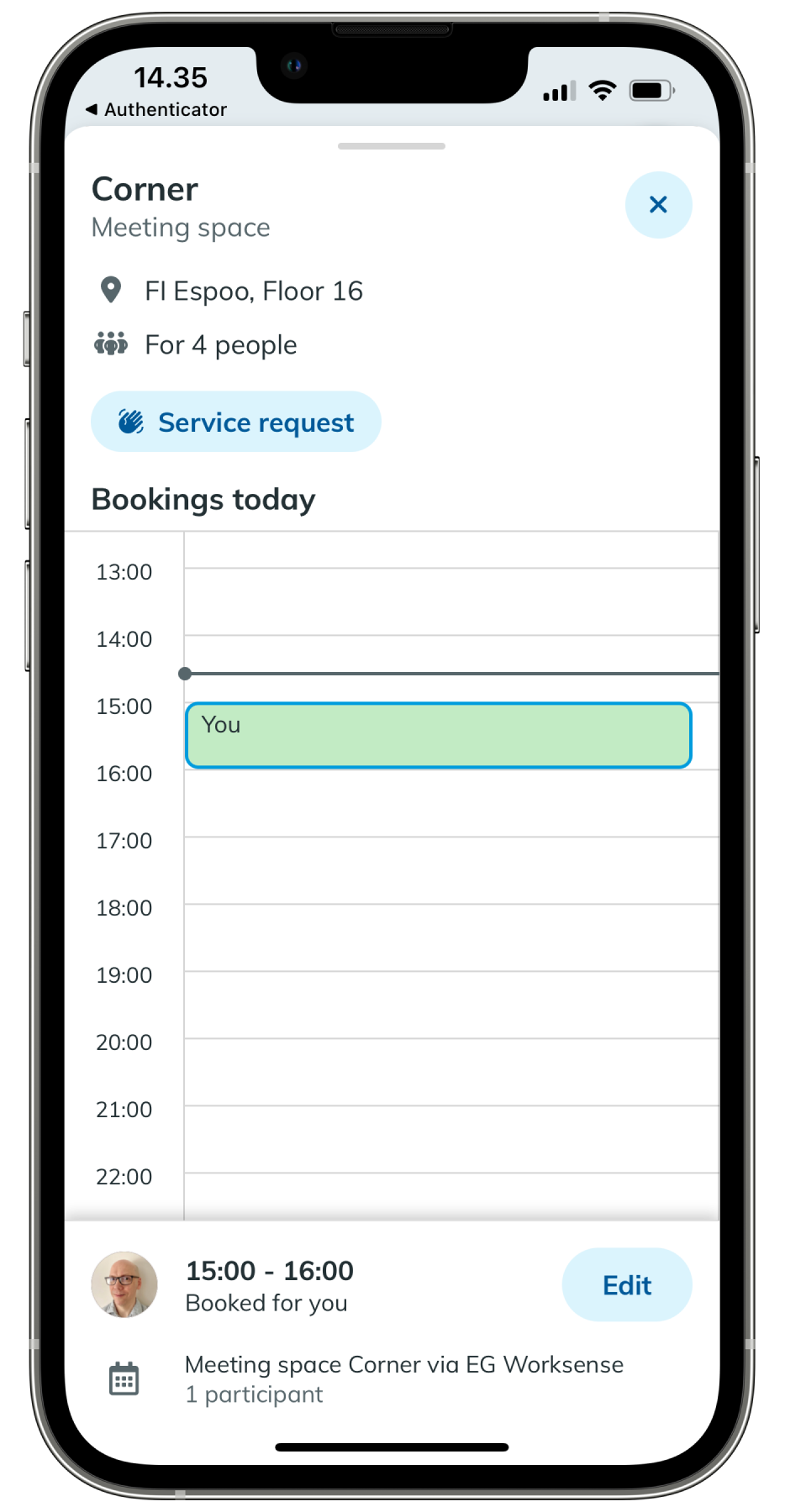
- Tap the resource you want to book, such as a workstation or a meeting space, on the floor plan to see its details. They may include the name of the resource, the type of the resource, occupancy status, capacity (how many people a room fits), and existing bookings.
- If the resource is available, the time interval will be shown as Available for booking. If you want to adjust the booking start time and duration, you can drag the selection vertically on the calendar view or tap More and change the start and end time.
- Tap Book to make your booking.
7. Make a service request
- Tap the resource that needs attention, such as workstation or a meeting space, on the floor plan, then tap
 Service request.
- If the issue is not related to a specific resource, tap the icon in the top right corner of the floor plan. Then tap the approximate location on the floor plan where the issue is.
- If the issue is not related to a specific resource, tap the
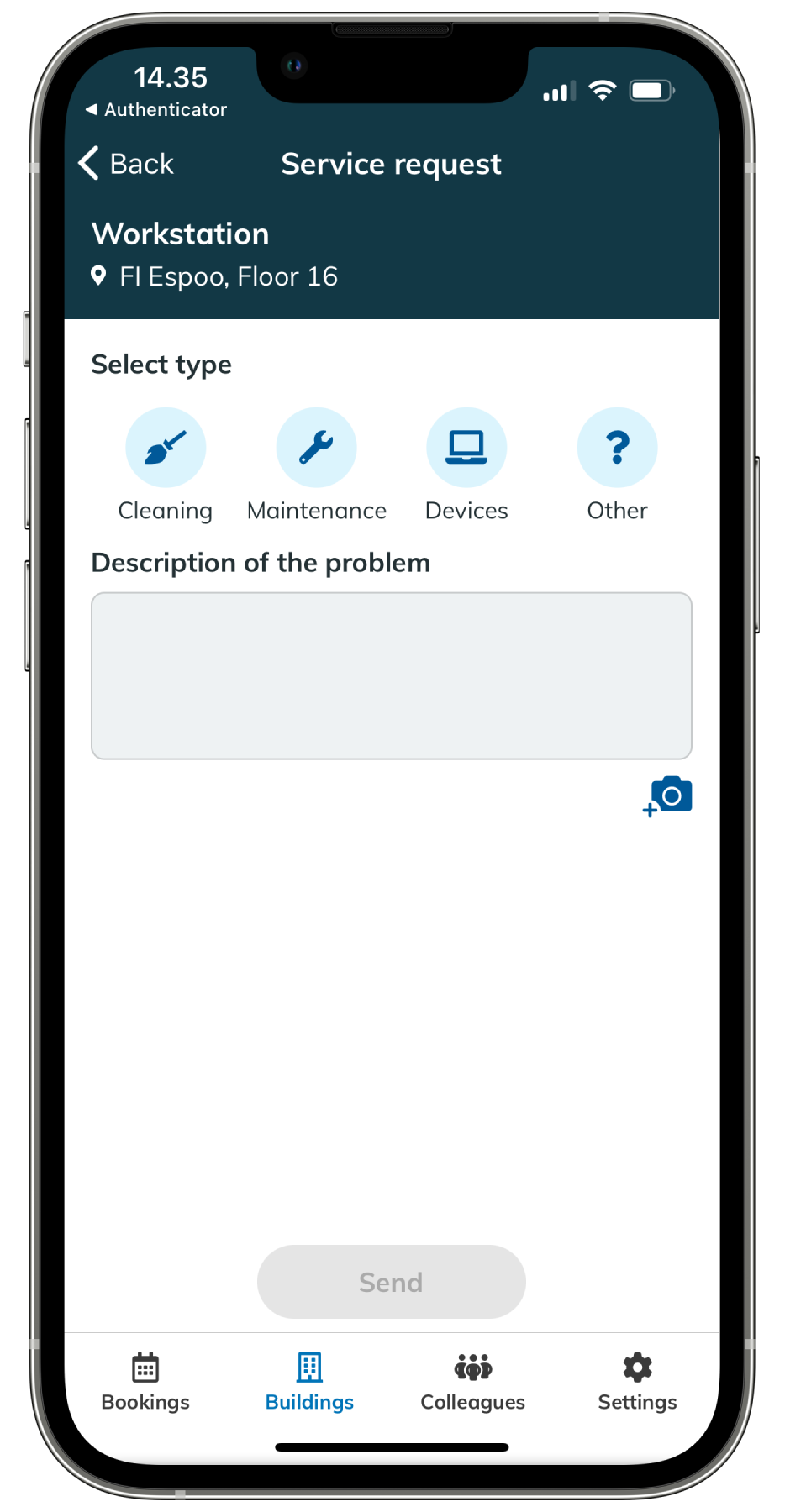
- Select the type of the request, write a description and attach an optional photo.
Tap Send and your request will be handled by your organization’s help desk.
8. Find where you colleague has booked a resource
- In the Bookings page, tap Who else is coming on the day you are interested in.
- Planned visits page opens, showing the list of people who have made bookings on that day.
- Tap the name of the person you are interested in.
- The location of the booking the person has made will be shown on the floor plan.
To show your favourite colleagues at the top of the Planned visits page, go to the Colleagues tab and tap the  icon the make them a favourite. icon the make them a favourite. |
9. Customize your Worksense experience
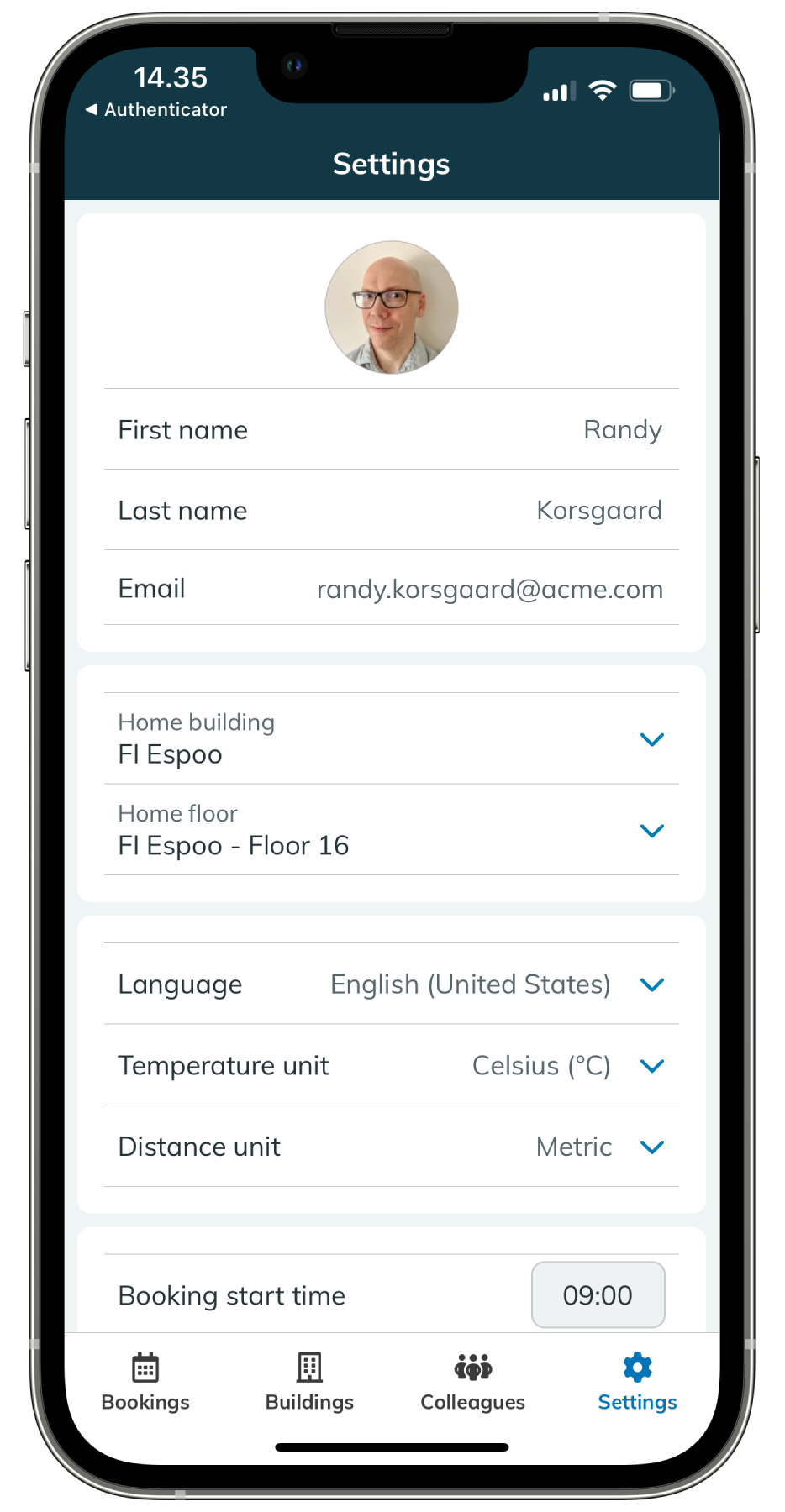
Tap Settings to change:
Your home building and floor
- The default booking start time
Language of the app
Temperature unit
Distance unit
Use color-blind optimized colors
Give feedback and more