Start filling out the lease agreement form by selecting an agreement template.
Your organization might have many agreement templates, which you can download here. Ask your administrator, what template is used in different situations in your organization.
Please note that organization-specific agreement templates might have different headers than the ones described here.
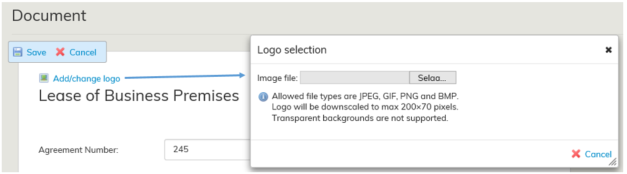
You can add your organization’s logo to the lease agreement. On the left-hand corner of the agreement, you can see the Add/change logo tool. When you click it, a window opens. In this window, you can browse logos in your computer and select the one you want. Allowed file types are listed in the window that opens. This logo selection affects only the agreement that is being created.
Optimaze gives the agreements a running, database-specific number automatically. If you want, you can overwrite the agreement number with another number.
The information in the lease agreement should be saved for the first time by clicking the Save button. When you return to edit the draft agreement, any changes made to the agreement are automatically saved.
If the agreement has already been saved and it is now being edited, all changes are saved automatically. Once you have entered all option information, click Back. If the agreement being edited is a new one, save your changes before closing.
The lease agreement form should be saved for the first time by clicking the Save button. Subsequent changes to the agreement are saved automatically.
When you have saved the lease agreement form for the first time, you can edit it with the Edit function on the agreement summary page.
A saved agreement shows in Optimaze as a draft, until it is accepted. Once the agreement is accepted, its status changes to Accepted agreement.
The status of an agreement determines, for example, if the agreement is displayed on reports.
For a detailed description of the status of an agreement, see the instructions under Finalizing agreement.