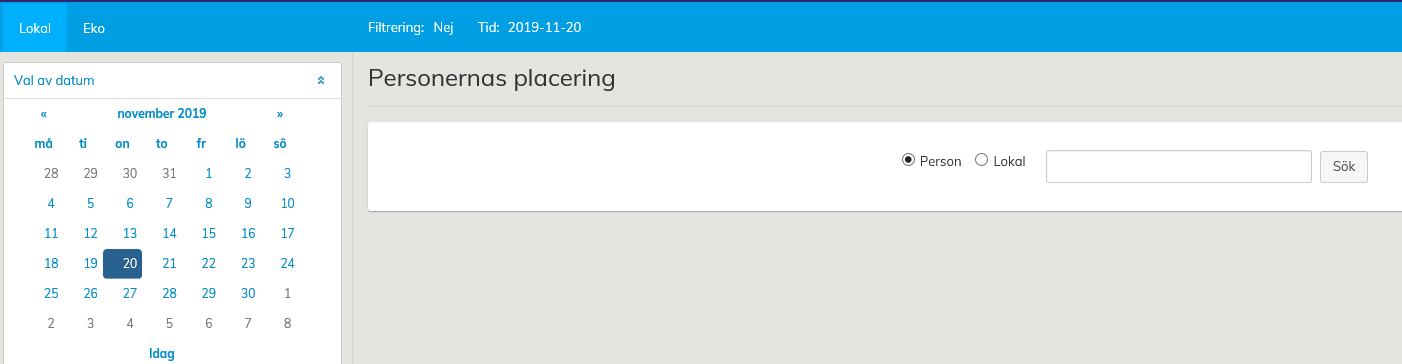
Personen kan placeras i planritningen samt i register som har en separat funktion för placering av personer.
Här förklaras hur du använder verktyget Placering av personer som finns i registren.
Börja med att i kalendern välja den dag då ifrågavarande person läggs till i lokalen.
Kontrollera att det valda datumet också syns i den övre balkens punkt Tid.
Gå därefter till Register och klicka på texten Placering av personer.
Mata in Personnamn, en bokstav i namnet eller personens ID i sökfältet. Exempelvis om du söker en person med ’aro’ i sitt namn, letar applikationen fram alla personer i databasen som har ett för- eller efternamn med bokstäverna ’aro’.
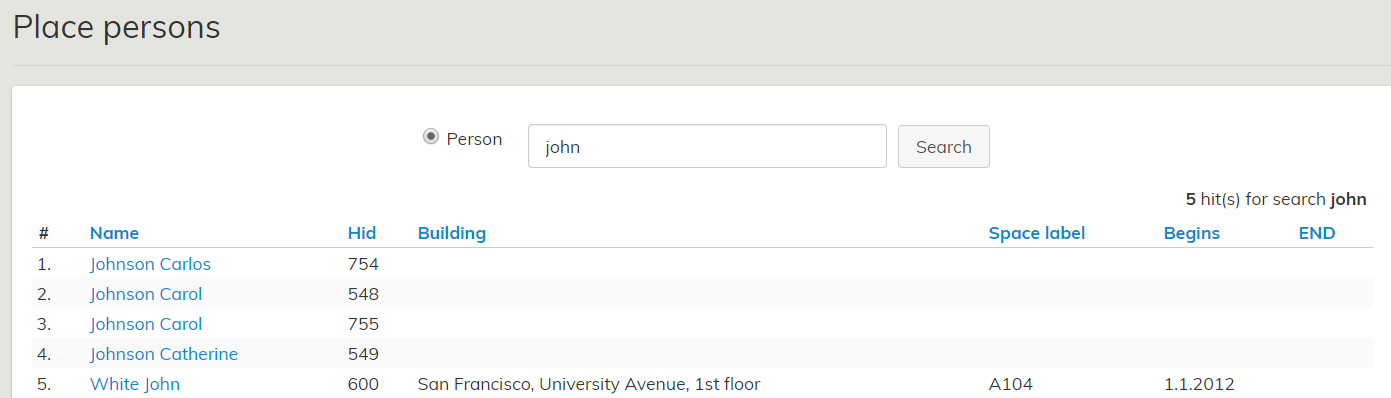
Select the person by clicking their name, and his/her personal space data will open up in the workspace.

Next, search for the space where you want to place the selected person.
The search word can be the name, a part of the name or the label of the space or building.
In this example, we are searching for a space with the label 1124. All the spaces in the database containing this label will be listed.
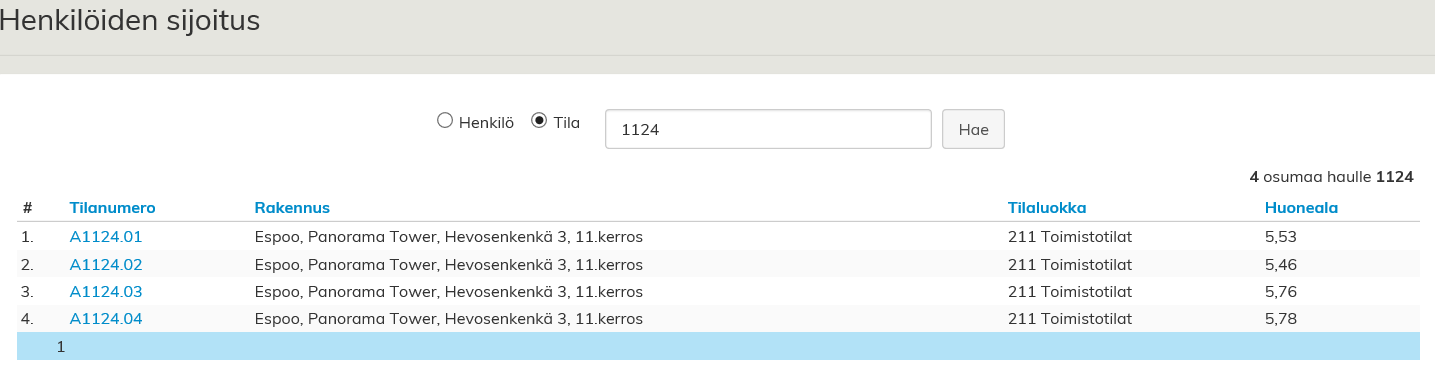
Select the correct space by clicking the space label, after which the space data is opened in the workspace. A menu appears in the window, and from there you can place the selected person to the selected space.
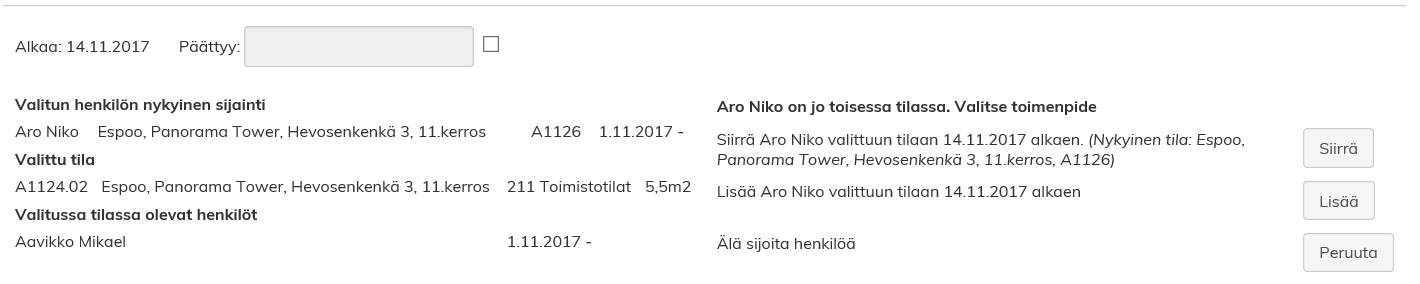
Move command moves Niko Aro to a new space and deletes him from the old space.
Add command adds Niko Aro to a new space but does not delete him from the old space. In this case, the person appears under two different spaces in the Optimaze.
Cancel command will cancel the transfer, and Niko Aro stays in the old space.
If the field Ends is not selected, the person will be placed in the space for now. If want to determine an end date, you need to tick the box and select the date from the calendar that will be open up.
The persons already placed in the selected space are shown under Persons currently in the selected space. If the space is empty, this is not visible.
If you are placing someone in a space that already has another user, the software asks you to select an action.

End command will end other persons in the space. Thus, Mikael Aavikko will not be a user of this space any more.
Create command will create a multi-user space and move Niko Aro in the same space with currently placed persons.
Cancel command will cancel the transfer, and Niko Aro will remain in the old space.
In this example, we chose to create a multi-user space. The result looks like this:
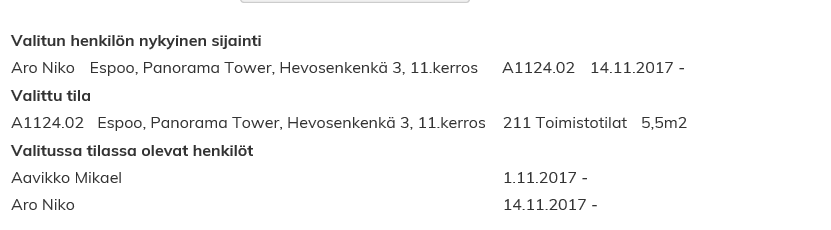
Niko Aro and Mikael Aavikko are sharing this workstation, and they both are the users of the space from 14 November onward.