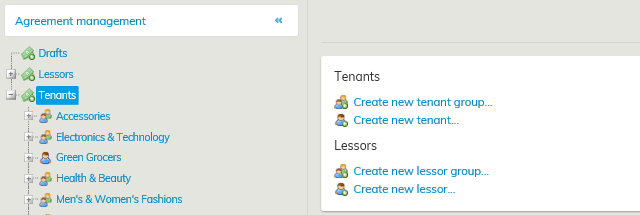
You can create a new tenant in the tenant register through Agreement management.
Select first Outrent or Inrent from the main menu and then click Agreement management.
A tree-like list of tenants will open up in the workspace.
Select the highest level in the list, and you can see the following options on the right in the workspace
Select Create new tenant...
A form for entering the basic tenant information will open up. Mandatory fields are marked with an asterisk (*). Other fields are for additional information that can be added, if requested. You can also leave these blank.
Select the tenant type from the pull-down menu (e.g. Is the tenant a person or a company/community).
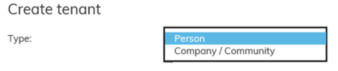
Mandatory fields will change according to the type selected. If you check the box Invoicing address is the same as postal address, the tenant’s address information is automatically copied under the invoicing information.
If the tenant’s address or invoicing address changes, new information should be updated in both fields.
The tenant’s invoicing address is included in the invoicing information.
Enter the tenant’s ID in the Invoicing id field for identifying the tenant via an interface in the SAP system, for example.
At the end of the form, you get to choose where the rent review notification will be sent to. As a default, the tenant’s address will be printed on the rent increase letter.
If a representative, for example, is handling the tenant’s affairs and the notification should be sent to that representative, you can choose the option Send the rent review notification to the invoicing address.
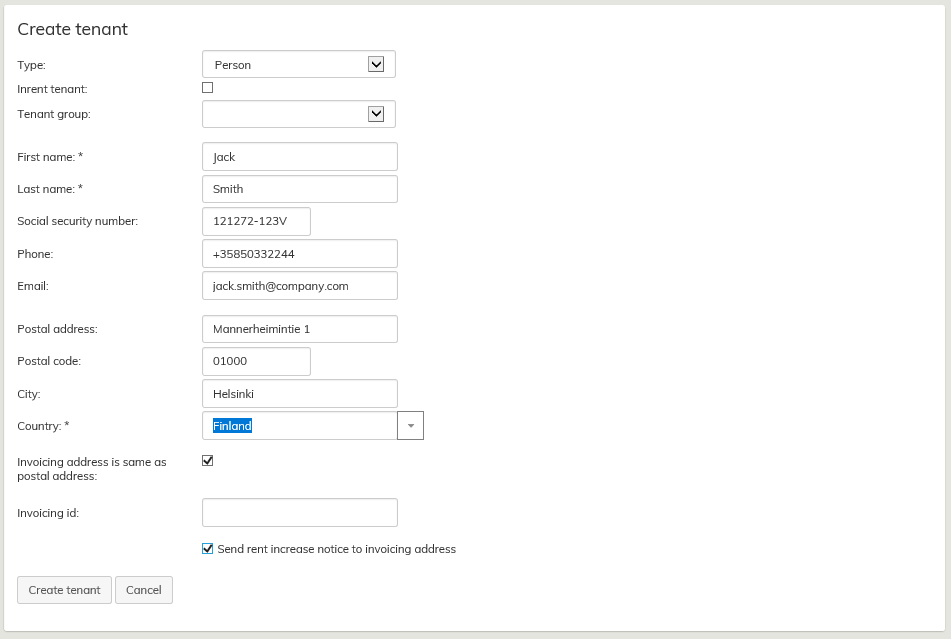
When you have filled in the necessary fields, select Create tenant.
Tenants can be grouped by a tenant group. You can create a new tenant group as described under Creating a new tenant group.
When you want to edit information for an existing tenant, select Outrent or Inrent from the main menu and click Agreement management. From the tree-like list of tenants, select the tenant whose information you want to edit. The basic information on the tenant, as well as the tenant’s invoicing information, will open up in a separate tab on the workspace.
From the right side of the workspace, select Edit tenant information...
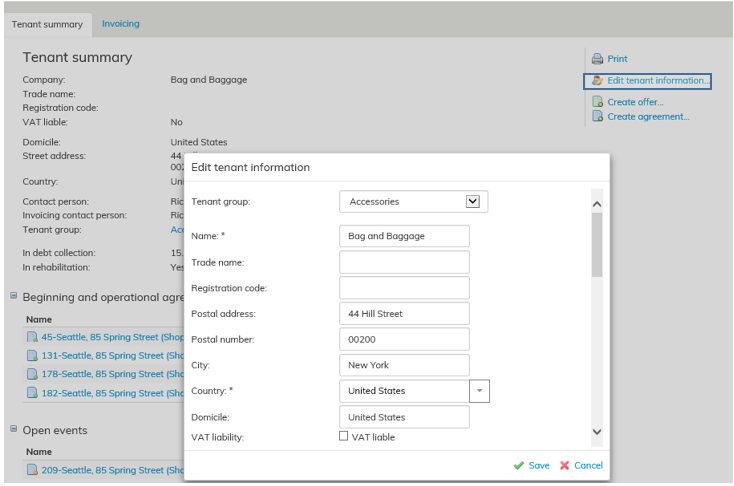
Edit or add the desired information and select Save.
You can add contact persons and invoicing contact persons for the tenant with Add contact person and Add invoicing contact person buttons.
While creating the agreement, you can select a contact person for each agreement.
You can only remove those customers from the agreement party register, for whom no agreements, offers or other documents are created.
If it is possible to remove a customer, the option Remove tenant will appear on the right in the customer summary page.
When you select this function, you will be asked if you are sure you want to remove the customer.