Floor plan orders can be used to order a change to an existing floor plan or to order floor plans for an entirely new floor.
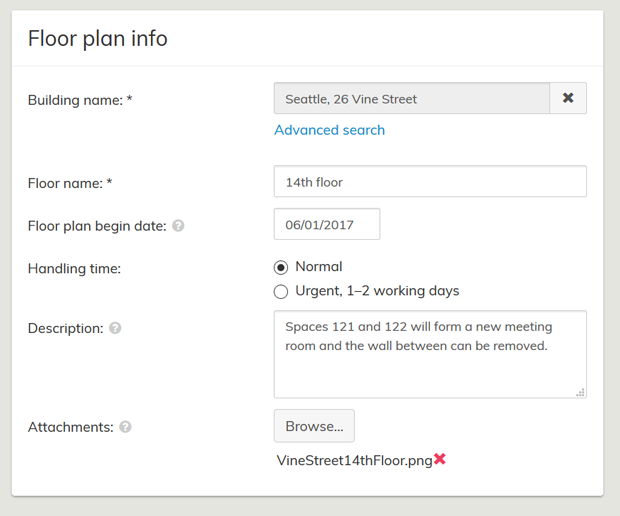
To create a new order select New floor plan order... and fill in the necessary details on the form. To order a change to an already existing floor plan start typing the name or the code of the building and select the correct building from the listing. The address details, if existing, will automatically be filled in. If the building does not yet exist, simply type in the wanted name and address for the building. Enter the name for the floor in question.
Figure 1. The necessary details filled out.
If an existing building cannot be found, you can use the Advanced search. Besides the building name and code, all levels of the building hierarchy can be used to find the correct building. You can simultaneously use several search terms to search, for example a level in the building hierarchy and building name. Select the wanted building by clicking on the name and the details of that building will be transferred to the form.
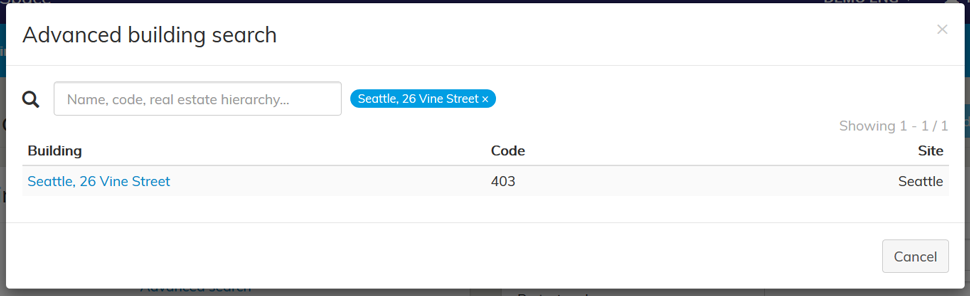
Figure 2. Advanced search
The selected Floor plan begin date determines what date onwards will the drawing be active.
The Description and Attachments should describe what the new floor plan will entail. Mark or describe clearly which spaces are new or being changed and what space category (office, corridor, storage, etc) do they belong to. Also add labels for the spaces, if known, and clearly mark elevators, technical service spaces, service shafts and high ceiling spaces. Also mark clearly any structures that need to be removed. The attached files should be less than 25 Mb.
NOTE! If the attachments aren’t in DWG format, dimensions need to be added to the pictures.
Additional information, like the possible Project name and code, can be added on the Basic info–card. Additional emails are any email addresses you want the order process updates to be sent to besides your own.
Once you have added all the necessary details select Send.
Sent orders are shown on the Floor plan orders list. Here you can see whether the order has been Sent, is In Progress or Completed. The details of each order can be viewed by clicking on the Id.

Figure 3. Ordered floor plans list