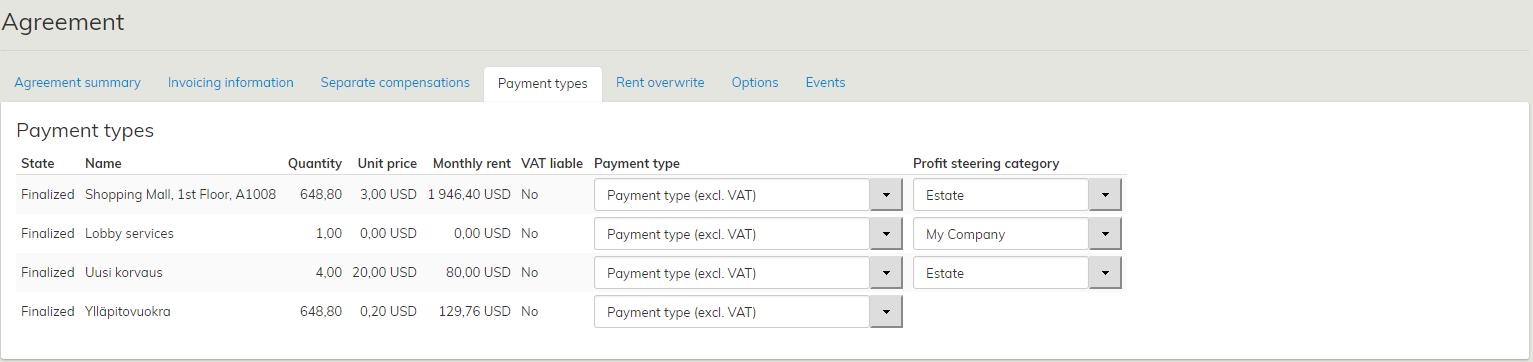
To determine a payment type for an agreement, go to the Payment types tab on the Agreement summary page. A separate payment type may be chosen for each rent item.
The payment types displayed are those specified on the lessor or tenant summary page.
Also the payment types of a draft agreement can be edited in the Payment types tab.
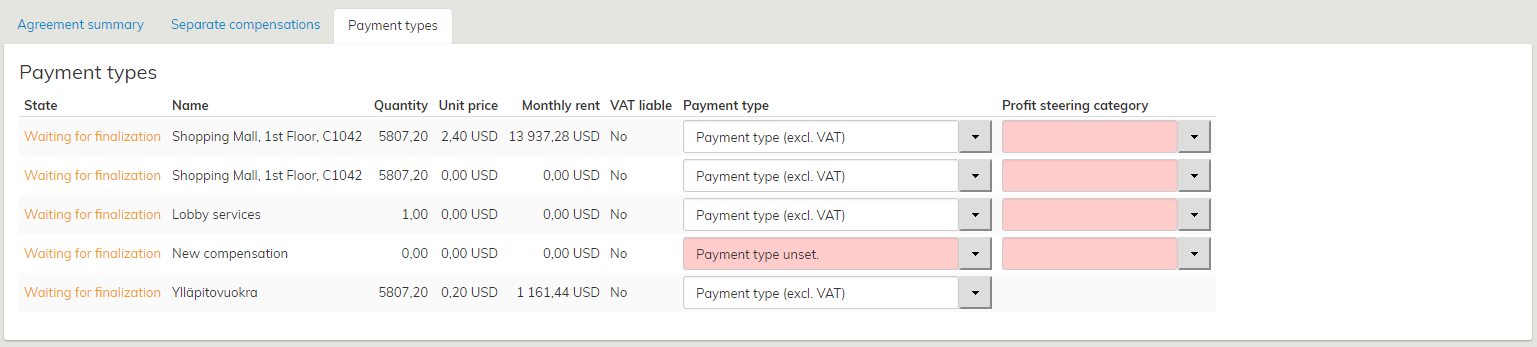
In the Payment types tab of a draft agreement, the user is notified that the agreement is not yet operational.
Thus, the payment type information will not yet be included in the invoicing integration, if such system is used in your organization.
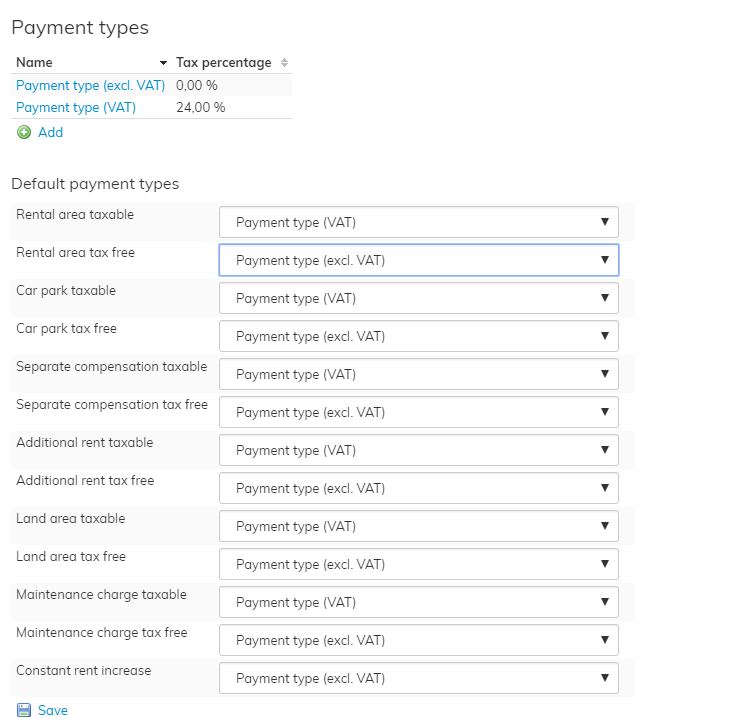
Select a payment type for each rental area and separate compensation added to the agreement. The purpose of determining payment types is to ensure that the income is allocated correctly in the organization’s accounts payable and receivable.
The payment type is determined under the party information – under tenant information in case of inrent, and under lessor information in case of outrent. However, the payment type can be changed whenever a new agreement is drawn up.
Start creating a new payment type by selecting the Payment types tab in the Managing tenant/lessor information section. Add a new payment type by clicking on Add under Payment types.
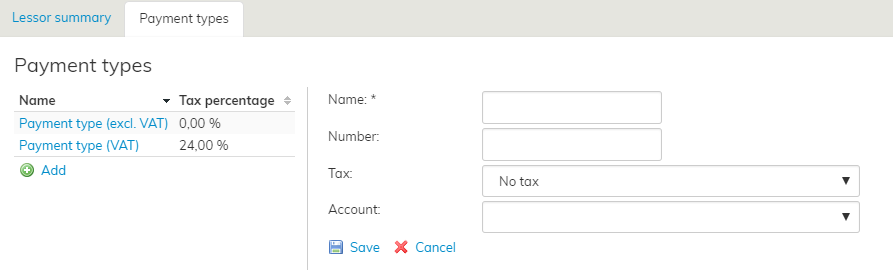
Olemassa olevien maksulajien viereen avautuu täytettäviä kenttiä, joihin maksulajiin liittyvät tiedot päivitetään. Tarvittavat tiedot Nimi, Numero, ALV-prosentti sekä Tili.
Kun olet täyttänyt kaikki kentät, valitse Tallenna.
Olemassa olevaa maksulajia voi muokata valitsemalla maksulaji listasta ja muokkaamalla kenttiä. Valitse lopuksi .
Jos haluat poistaa koko maksulajin, valitse
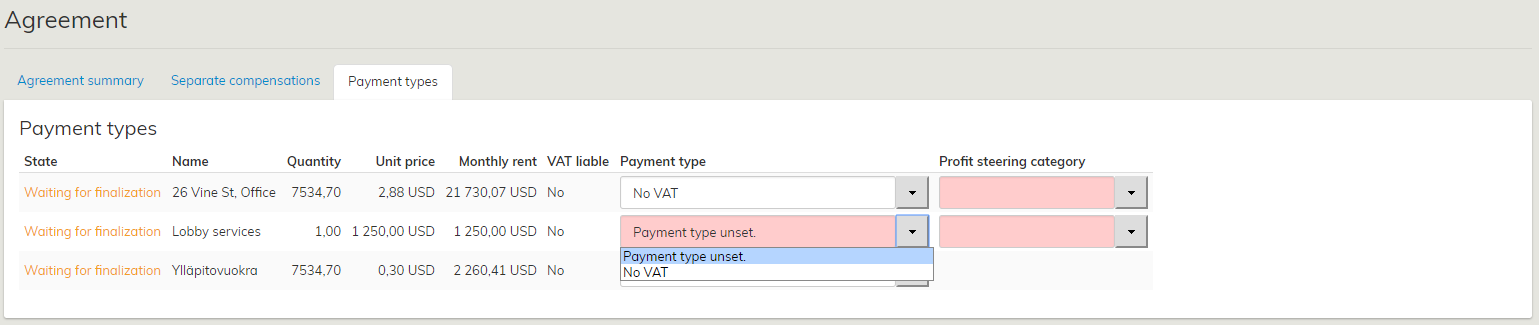
Kun uusi verokanta on syötetty järjestelmään, tulee se liittää haluttuun maksulajiin.
Valittavissa olevien maksulajien ylläpito tapahtuu vuokrauksenhallinnan ylläpidon kohdassa Verokannat
.
Vuokrauksen hallinnassa valitaan vuokralainen tai vuokranantaja, jonka maksulajeja halutaan muokata. Vuokralaisen tiedoissa valitaan Maksulajit-välilehti.
Muutettuja maksulajien verokantoja voi tarkastella sopimusten maksulajit välilehdellä.