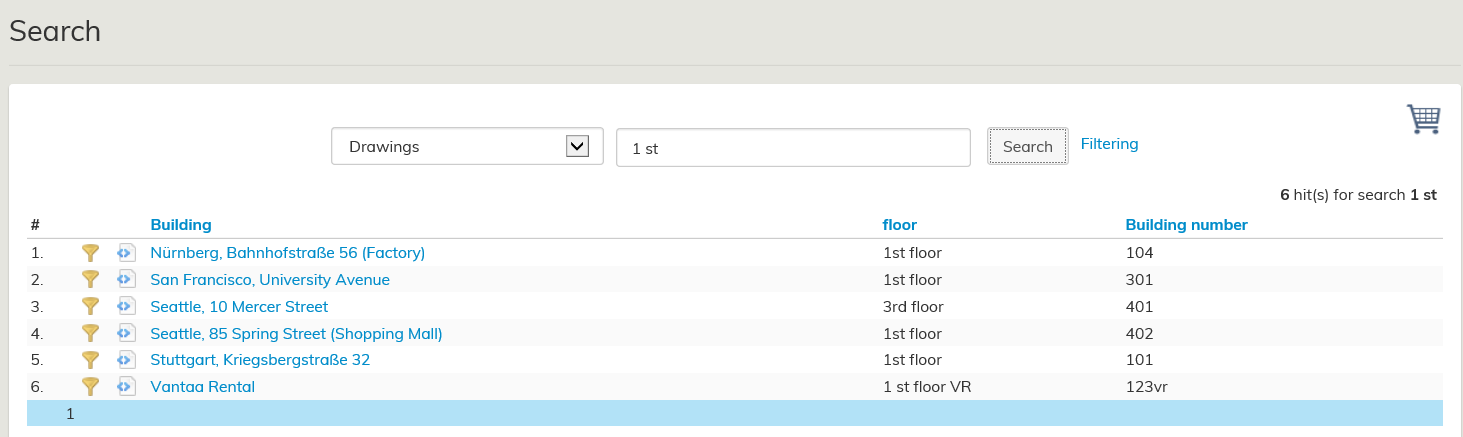
The Search function can be found in the main menu under Search and Filtering.
You can search for drawings, DWG image files, organizations, employees, devices, spaces by space number, rental areas or existing agreements.
When you type 1st floor in the search field and click Search, A list of spaces filtered by your search criteria will open up in the workspace.
Choose the building and floor you are looking for, and the application will open up a floor plan browser window, where you can view and edit the drawing data.
You can read more about the image processing in the Drawings sections.
Search results can be arranged by name or by additional information. This is selected by clicking the desired keyword in the header
(e.g., if you want to arrange the results by building, click on Building).
Default settings show 10 buildings per page and divide the results across several pages. If you want to change the settings, you can do it from Tools / Settings.
Drawings Search will give locations as a result, and they are processed in the Space view. Access rights can be used to limit the locations each employee can view and edit.
Agreement Search can help you to search lease agreements that are stored in the database.
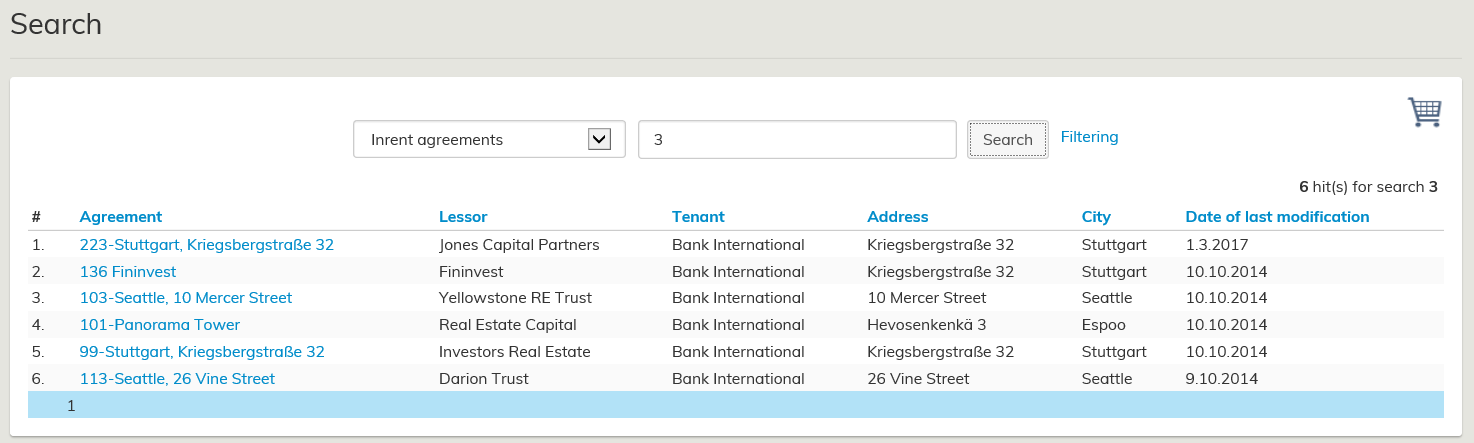
You can search agreements by tenant, building or agreement number, for example.
The search result is a list of agreements, filtered by the search criteria and filtering.
By selecting the appropriate agreement, the agreement information will open up in the workspace.
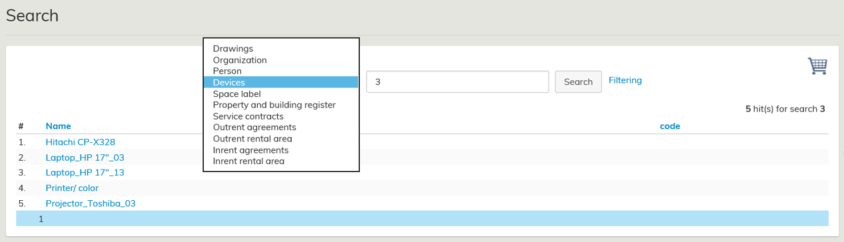
Similarly, you can search with any other searches available to you, and then start working on the requested function straight away by clicking the search result.
| Note! |
|---|
The searches available to you depend on the functions used in your organization and your access rights. For example, if your organization is not using outrent in Optimaze, any searches relating to outrenting will not be available to you. |