By using the Filtering function, you can filter the information shown in Optimaze. This will then give you a simpler overview of the reviewed data.
You can activate the filtering by selecting Search and Filtering in the main menu. Filtering options vary by customer and by selected view.
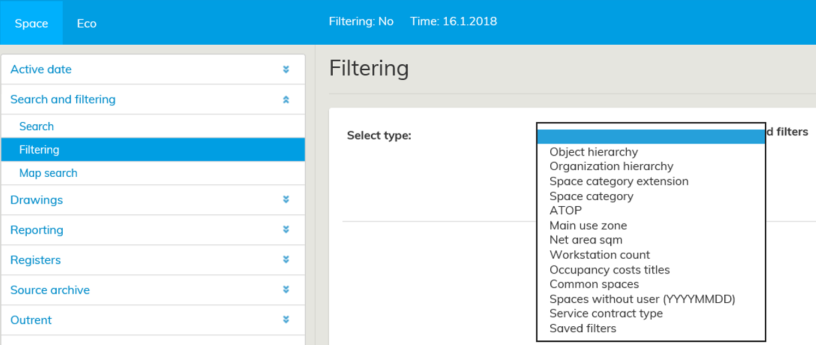
Below, you can see some commonly used filtering options in both the Space view and the Eco view.
Filtering options in Space view
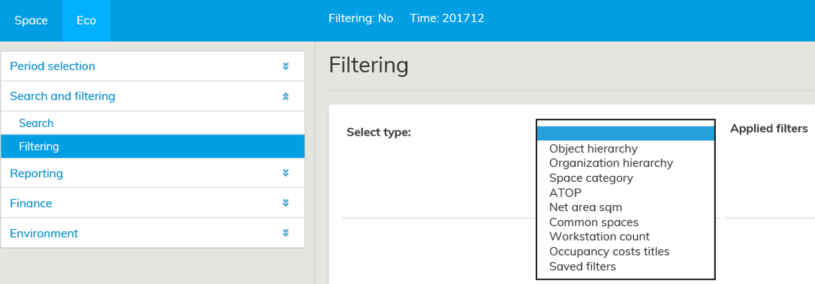
Filtering options in Eco view
When you have selected a filtering type, a list of filtering options will open up in a tree-like structure.
If you select Object hierarcy (Real estate hierarchy), for example, as your filtering criteria, the real estates will be listed in a tree-like structure, from where you can select the real estates you wish to view.
You can search the filtering criteria also with the Search function. Once you have selected the data to be filtered, select Add filter and then Execute filters.
When the filtering is activated, the text next to the date in the top bar will be highlighted in yellow.
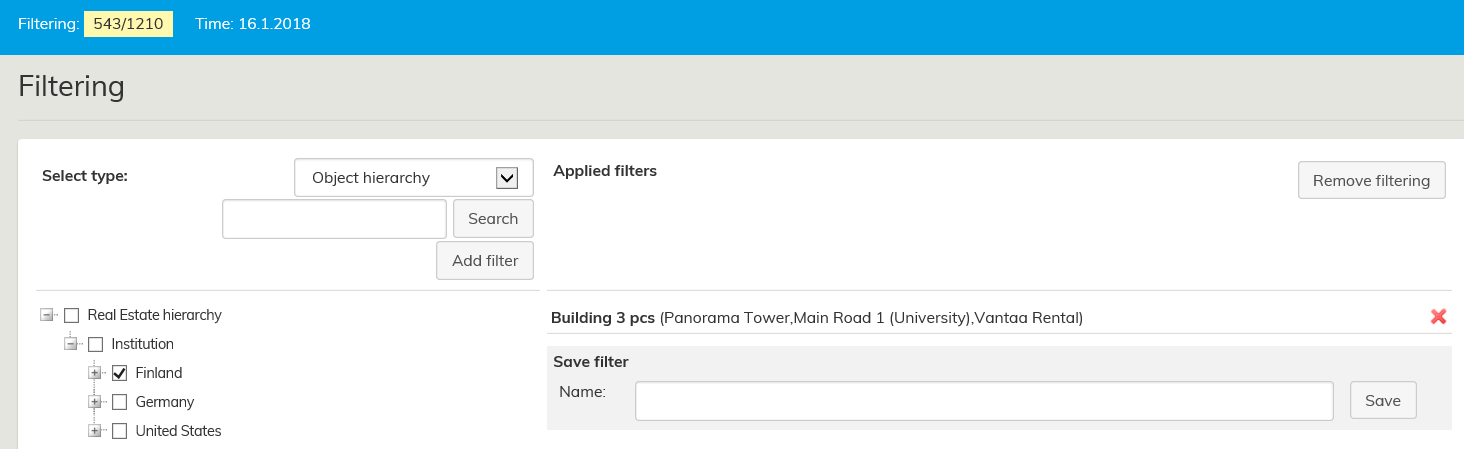
The text shows, how many spaces in the Optimaze database matches with the selected filtering criteria.
In the above figure, all the real estates in Southern Finland have been filtered from the real estate hierarchy.
There are 543 spaces out of 1,210 spaces in Optimaze located in Southern Finland.

You can also negate the filtering, and the selected parameter will be left out. You can activate negative filtering by selecting the little red icon  , once the filter has been selected, and click Execute filters. When you want to restore the filtering back to normal, select the little green icon
  , and click Execute filters.
You can filter the results by using multiple filters. Occasionally, it might be convenient to filter the spaces of a certain organization in a certain area or buildings. In this case, select filtering criteria for both the organization and the real estate hierarchy as described above. If you want to delete a single filter, select the red cross  .
.
You may save your current filtering options for later: enter a name for your filter and click Save. Once your filter is saved, you can re-select this filter by selecting Saved filters as the filtering type and selecting the filter you have previously saved. Saved filters are user-specific.
| Tip |
|---|
With the filter Spaces without users, you can easily check the spaces without users for ensuring prior to finance processing, for example, that the costs are allocated correctly. You can complement the Spaces without users filter with real estate hierarchy filter, for example, if you wish to limit the search to certain buildings or areas. |