The FacilityTaskExchaneApi is the link between the SonWIn Installation Management Electricity Service and the PartnerPortal.
It serves as the accesspoint for the SonWIn application to send data to the portal.
The service is hosted in Azure and transfers incomming data to teh integration api, which handles the further communication with the backend.
In order to configure the service, use teh guide for viewing and editing a file (Found in this document) and open the file named Config.Json
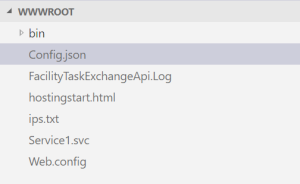
In the left view you can see the content of the file and edit it if you need to do so.
BE AWARE THAT THE APPLICATION SAVES YOUR CHANGES AUTOMATICLY, DONT CHANGE ANYTHING WITHOUT BEING SURE.
The configuration file have the following elements :
| Key | Values | Description | Comment |
|---|---|---|---|
| LogState | On, Off | Toggle for logging | |
| LogType | FILE | Type of logging |  |
| LogLevel | ALL | What kind of information to log | |
| FullXmlLog | TRUE/FALSE | If true, then logs the full xml reveived to the log file. (Helpfull for debugging but takes a log of space in the log file) | |
| IpWhiteListing | TRUE/FALSE | If the service runs whitelisting (This is done in azure for now) | |
| IpWhitelistingCooldown | n | When to retrieve valid ip adresses for the whitelisting | |
| InputValidation | TRUE/FALSE | Validate the input comming from SonWin | |
| ApiCommunicationType | PRODUCTION/DEBUG | Send data to the integration api for production. (Adding to the database etc, DEBUG is only used when developing) | |
| ApiCommunication | TRUE/FALSE | Not used | |
| ApiBaseAdress | URL | The adresse of the endpoint to communicate to (Integration Api) | |
| ApiExceptionHandling | TRUE/FALSE | If true then the service will throw an exception to the client if anything goes wrong, causing the client to try to resend the message. |
Comments:
-Will be removed as the log types available for this application ended up being just this pone type.
-Will be removed as teh whitelisting is handled at the hosting environment anyway
-WIll be removed as teh communication is always on
After having made a change to the configuration, it will be a good idea to restart the service.
Restarting the service is done by clicking the Menu point Overview and then clicking the menu point in the ribbon named Restart
A restart normally takes app 10 seconds MAX.
If logging have been enabled in the configuration file, the service will log to a file located in the hosting environment named FacilityTaskExchangeApi.Log.
To view the logfile, use the App Service Editor and click the file in teh root view: 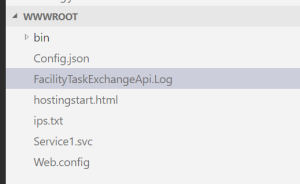
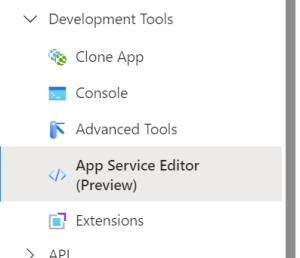
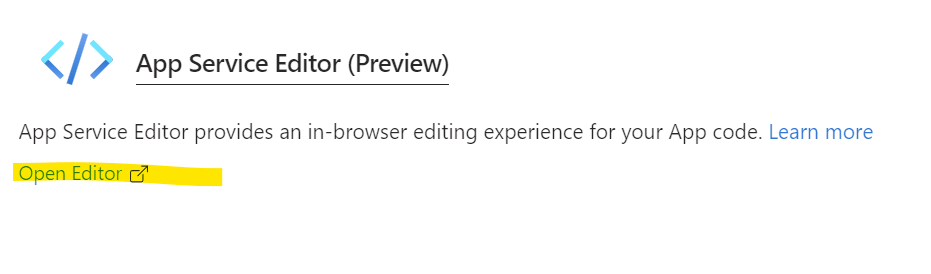
In order to view and edit files on the server, one can use the App Service Editor.
It is found in the following way:
To view the content of a file, please navigate to it by following this procedure:

The services have different names regarding what environment they are hosted in.
Here is a list of the names:
| Hosting | Service name |
|---|---|
| PROD | FacilityTaskExchangeApiPROD |
| TEST | FacilityTaskExchangeApiTEST |
| STAGING | FacilityTaskExchangeApiSTAG |
| DEV | FacilityTaskExchangeApiDEV |