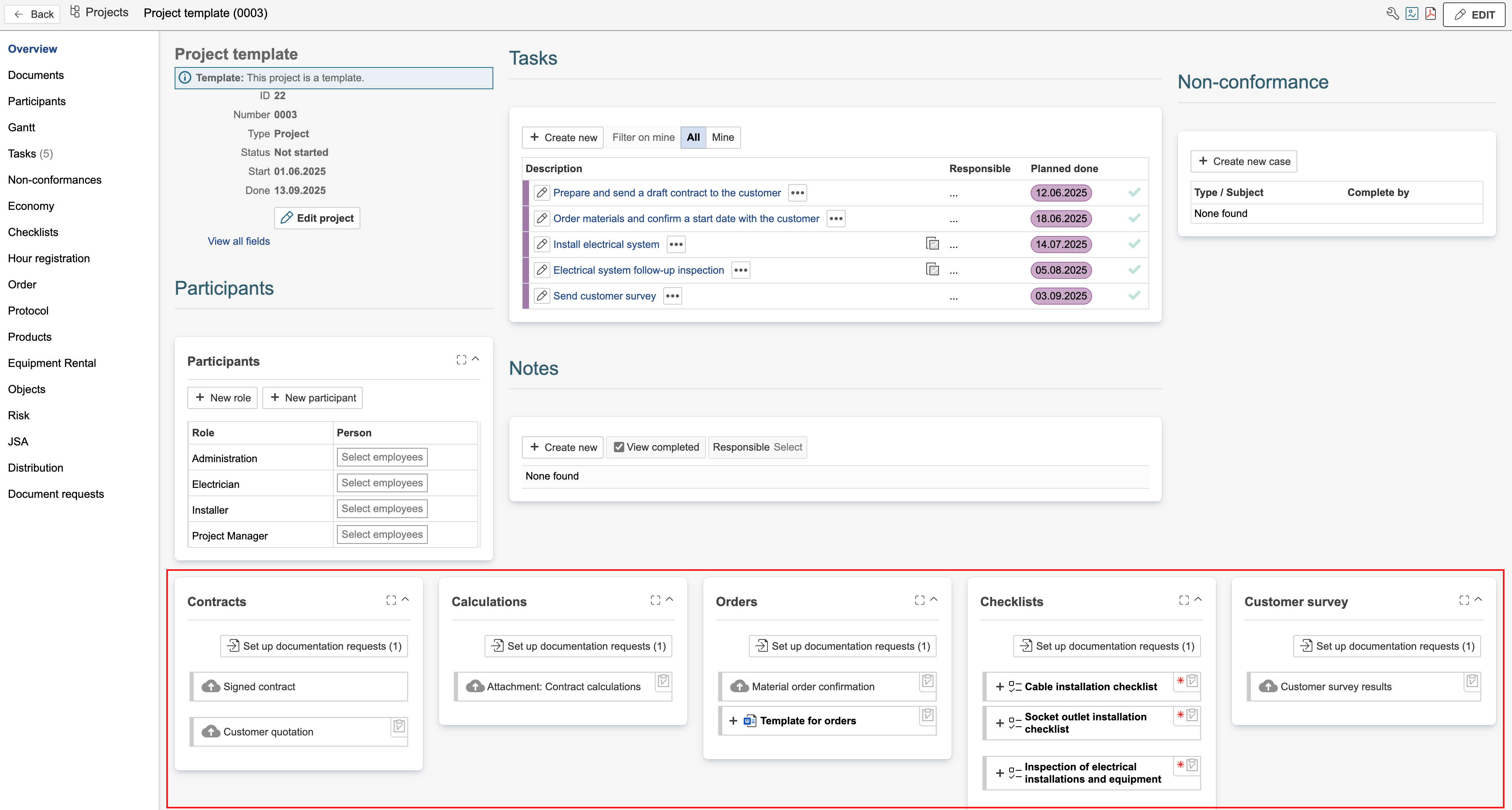
Document requests can be sorted on a dashboard in a dedicated section or in the project overview. The example on this page explains how it’s done in a dedicated section. Start by creating a new section.
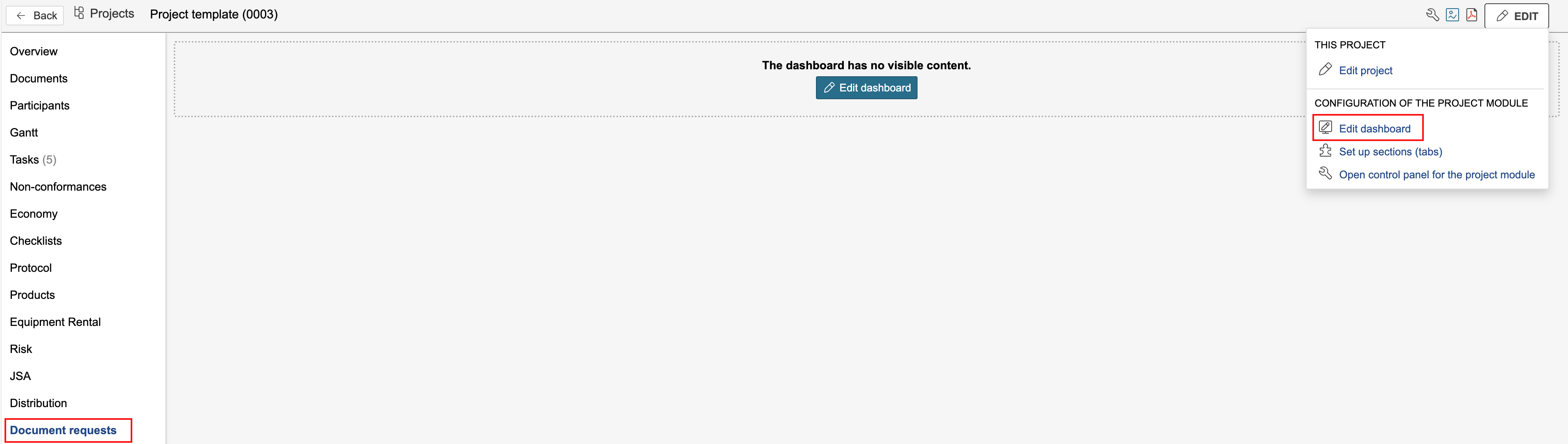
1. To edit the dashboard linked to the section, go to the section you created, hover the mouse pointer over Edit on the right side of the page, and click Edit dashboard.
Tip: If the dashboard doesn't have any visible content, you can click the blue Edit dashboard button to start editing. |
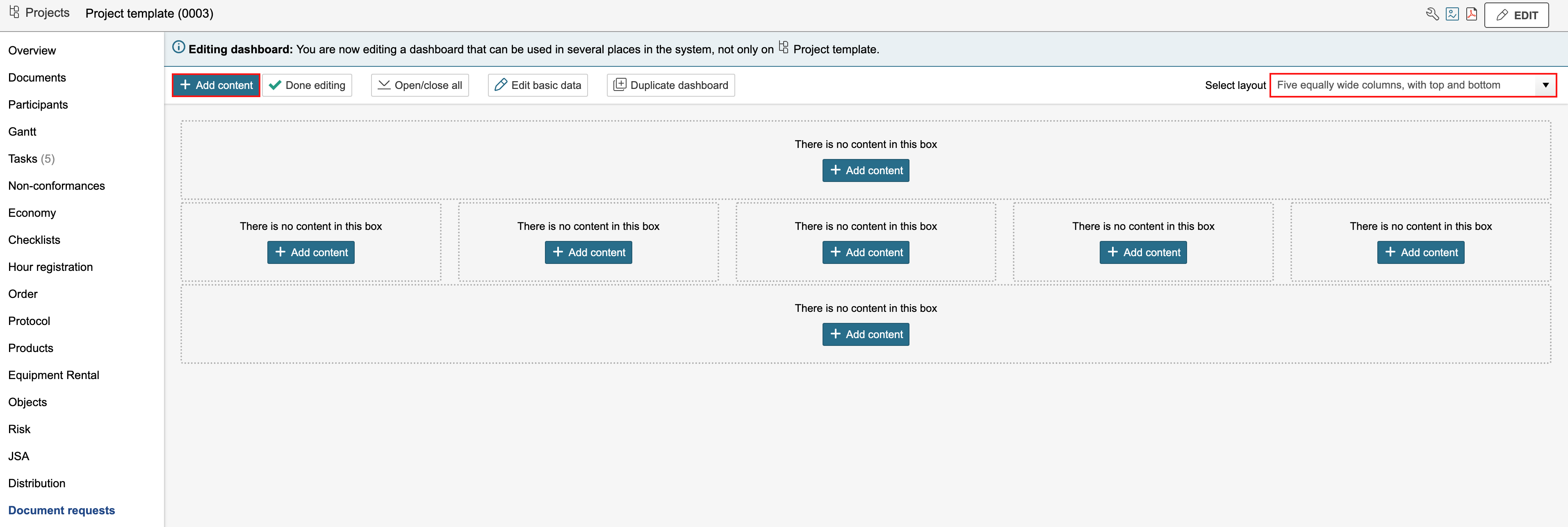
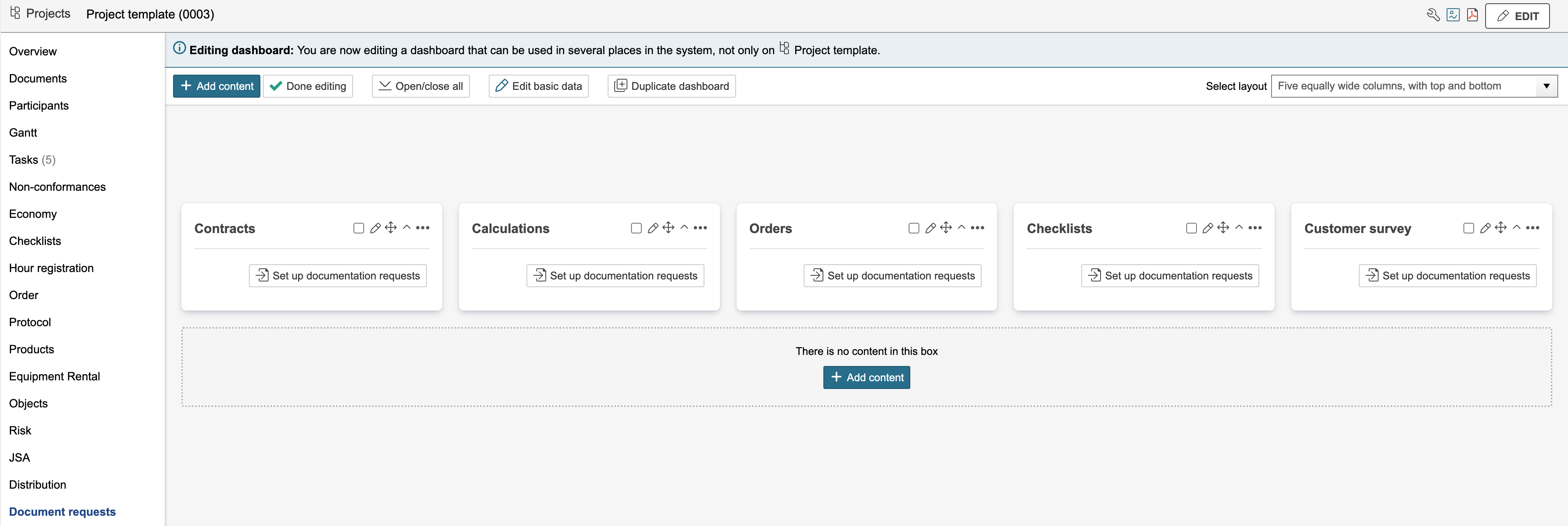
2. You can customise the layout of the dashboard. In the example on this page, the layout is changed to five equal columns with a top and bottom section. To add a gadget, click Add content.
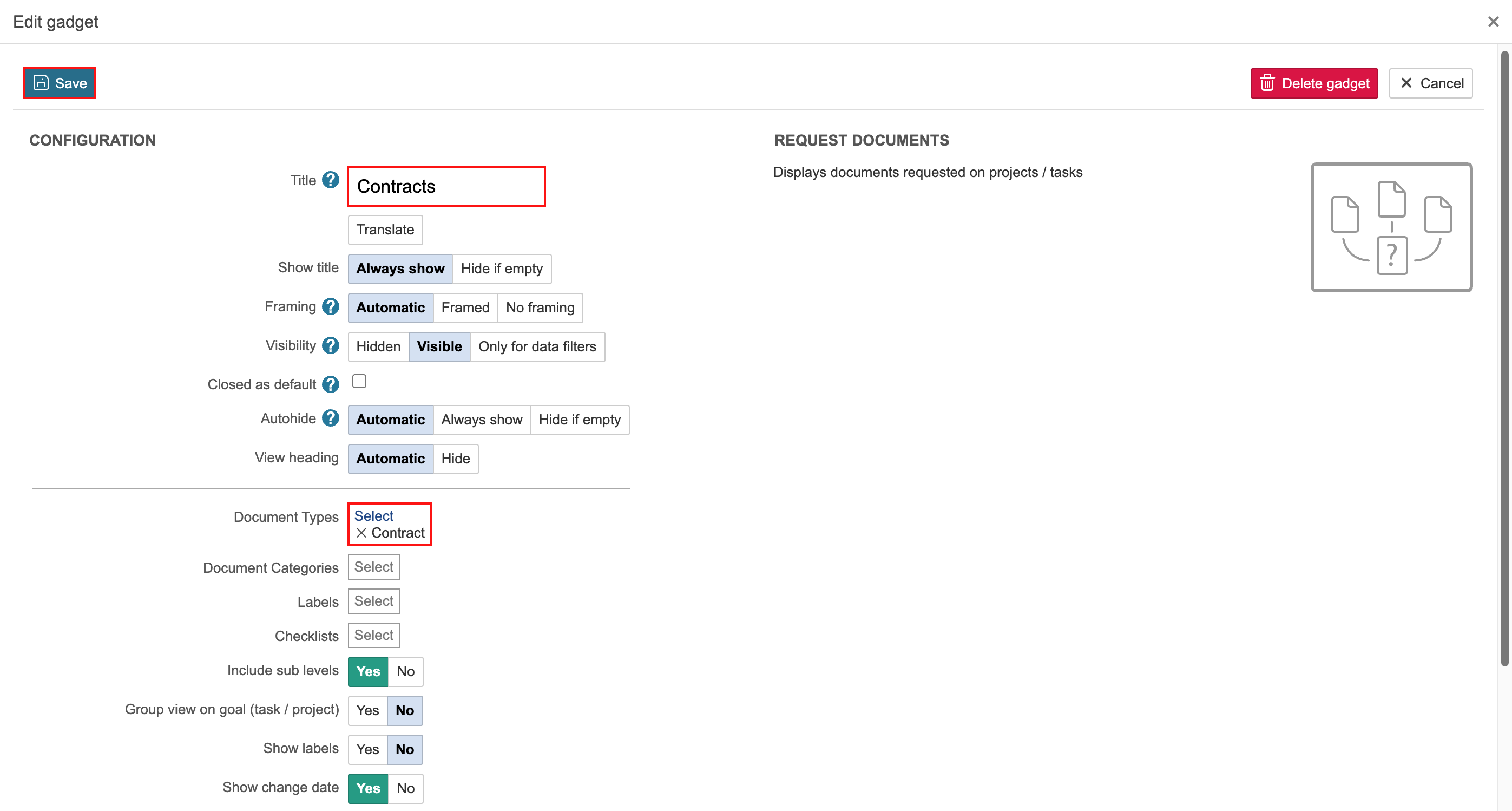
3. Select the Request documents gadget. You can find it by using the search field or by opening the tab called Misc.

To sort document requests, you can use document types, categories, or labels. To select which document requests are displayed in each gadget, you can filter by basic data such as document types, categories, or labels. The placement of each request is defined in the document request itself.
4. You can filter by selecting a document type, category, or label to be displayed in the gadget. Use the title field to indicate the filter criteria applied to the gadget. Click Save when finished.
Once all gadgets and filters have been added, the dashboard may appear as displayed below.
| Tip: If you want the document request dashboard to be part of the project overview, you can add it as a sub-dashboard. The advantage of using a sub-dashboard instead of placing it directly in the project overview is that you can choose a different layout and more easily create a structured view of the document requests. |