The signature in the JSA serves as confirmation that all involved parties consider the content valid and that they have read and understood it.
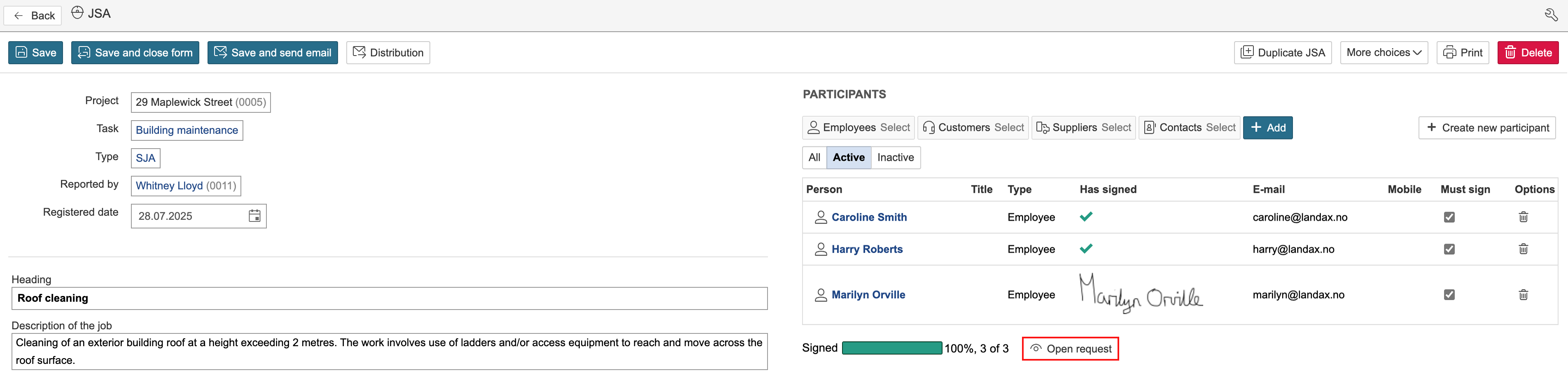
The signing request is created the first time the 'Must sign' option is selected for a participant. Once the request has been created, additional participants can be added by selecting 'Must sign' for each of them. A signing request can be created in two ways: when adding participants or after they have been added.
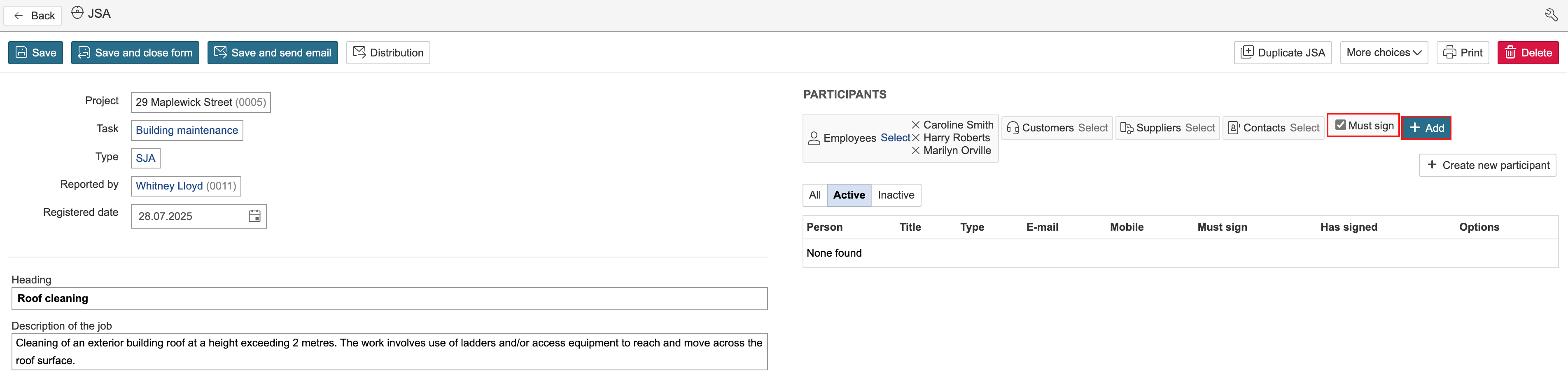
a. To create a signing request while adding participants, tick the box in the 'Must sign' field and click Add.
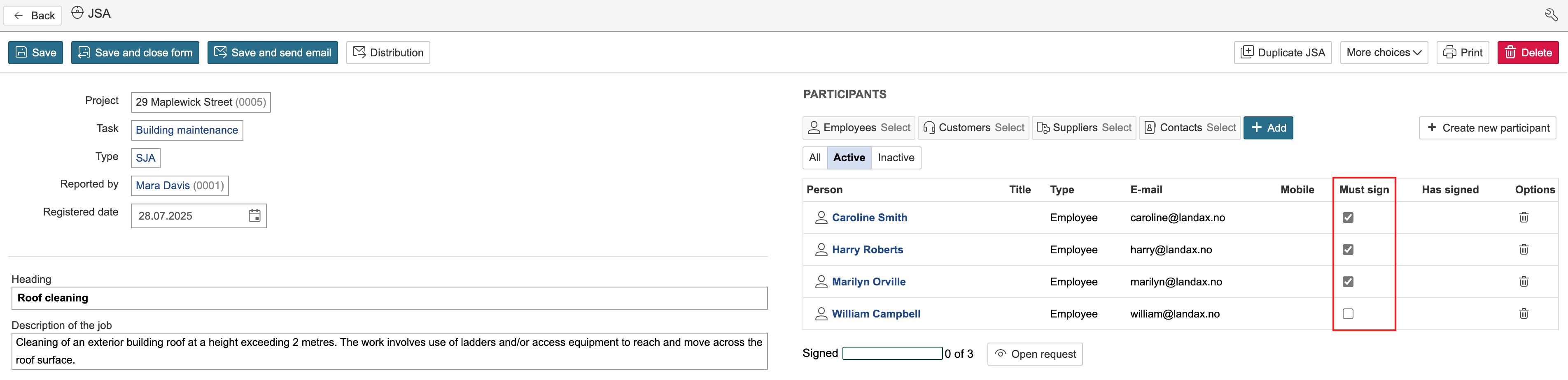
b. To request signing from participants who have already been added, tick the boxes in the 'Must sign' column for those who are required to sign.
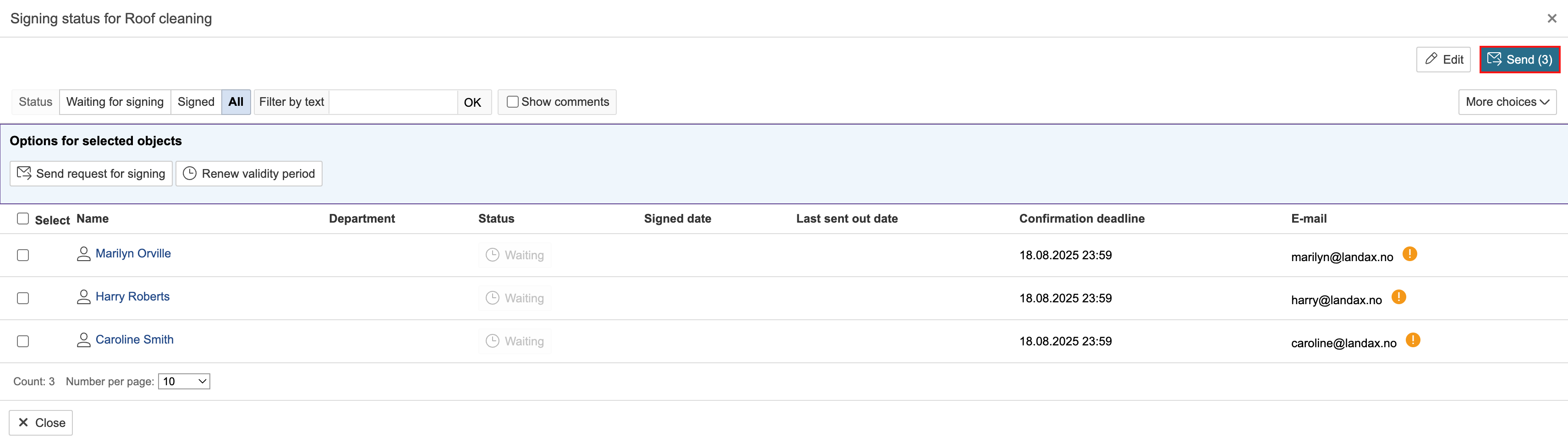
Participants are not automatically notified about signing requests. To send an email to participants who are required to sign, click Open request and then Send.
Note: Customers, suppliers, and contact persons cannot log in and digitally sign using their own accounts. However, they can provide a touchscreen signature within the app when assisted by a logged-in user. |
1. To view more information about and edit the request, click Open request.
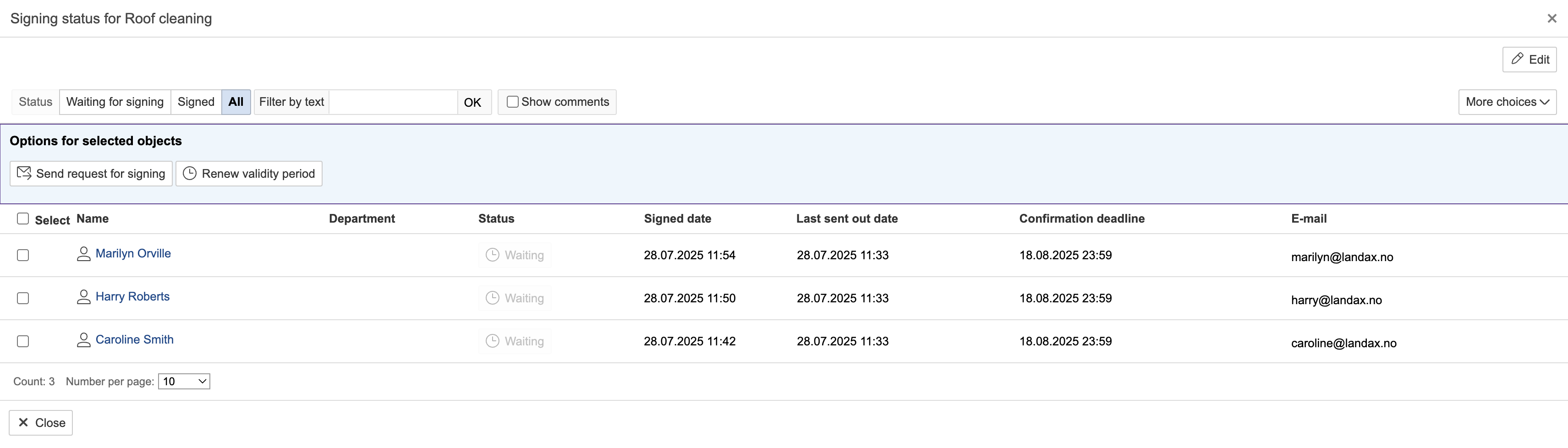
2. The request's deadline, who has signed, and the date of each signature are displayed. The validity period can be renewed if needed. To edit the request, click Edit.