This article will show you how to use Postmark. Postmark is used for sending emails mainly to our salon users and consumers.
This is an internal article for CuHa’s, Sales, and to anyone who wants to see if the customer or the salon has received the confirmation email or not.
If the customer has not received the confirmation email we recommend you check these things:
If you have checked all the previous steps and the customer still has not gotten the confirmation emails, we can check the status from our email servers in Postmark.
The website is: https://account.postmarkapp.com/login
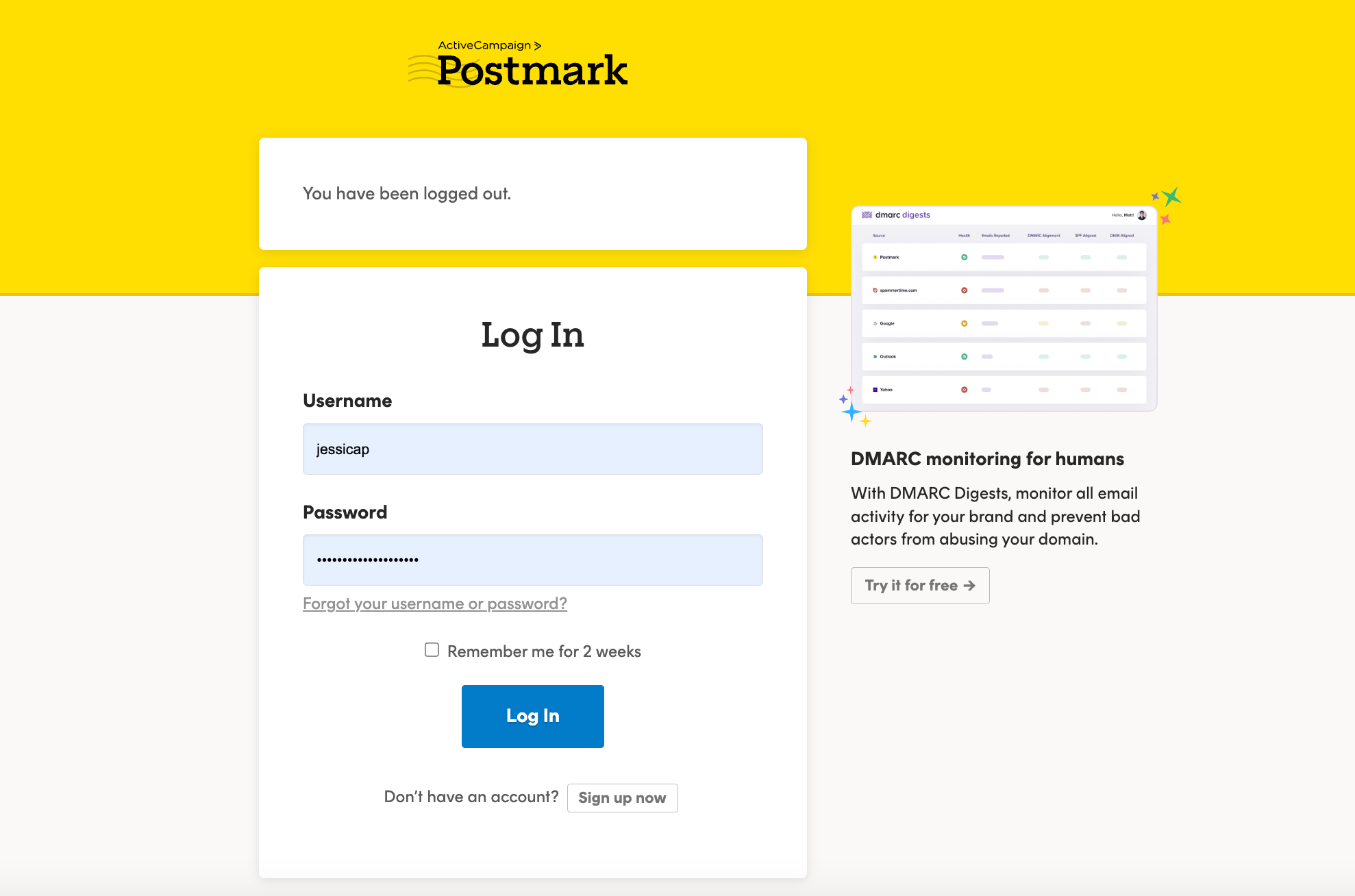
Postmark looks like this:
All the CuHa’s at least should have their own credentials to the system. If you don’t have your own credentials, please ask them from your team lead.
Note! 2FA is required to use in Postmark as well (like in all sites and apps we use).
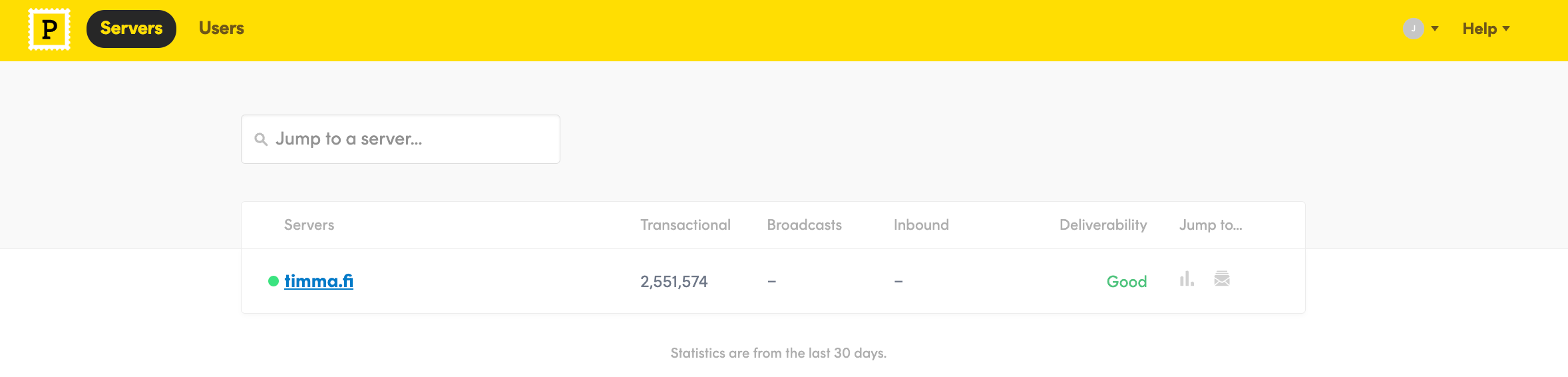
Go to Servers > timma.fi
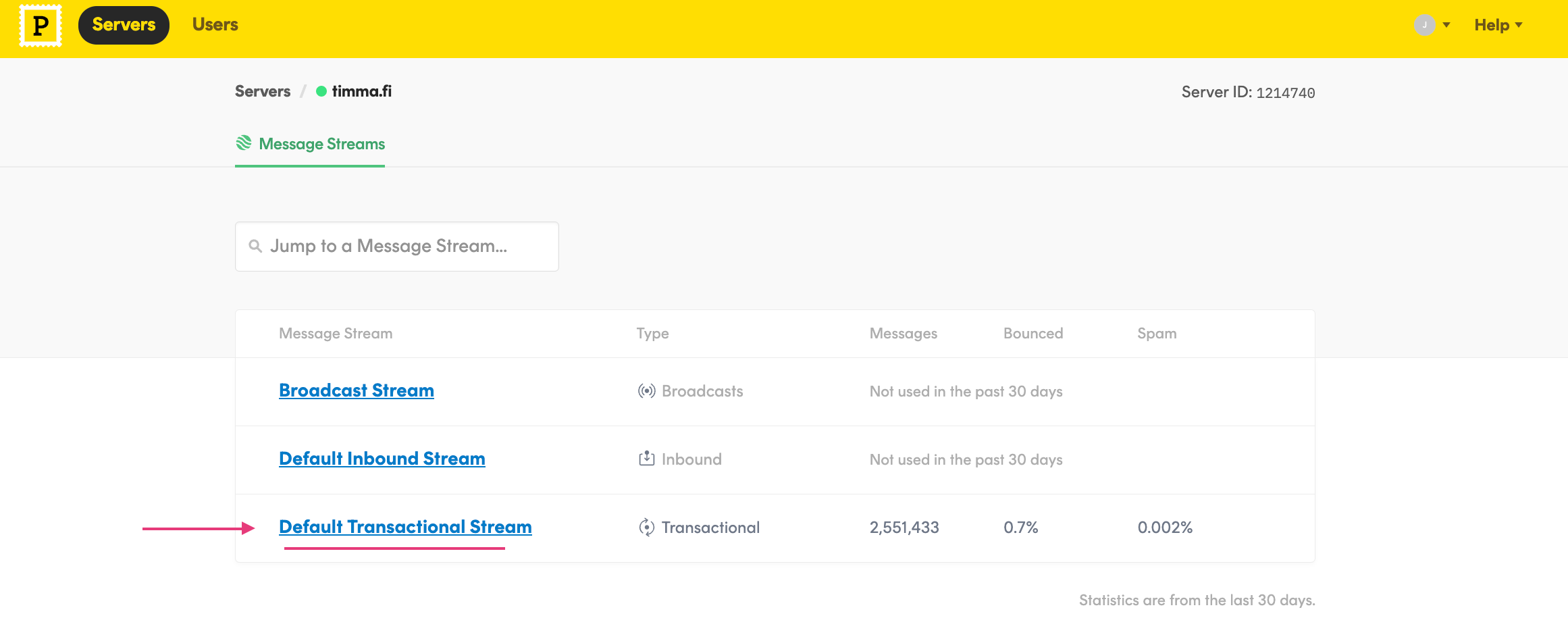
Go to Default Transactional Stream
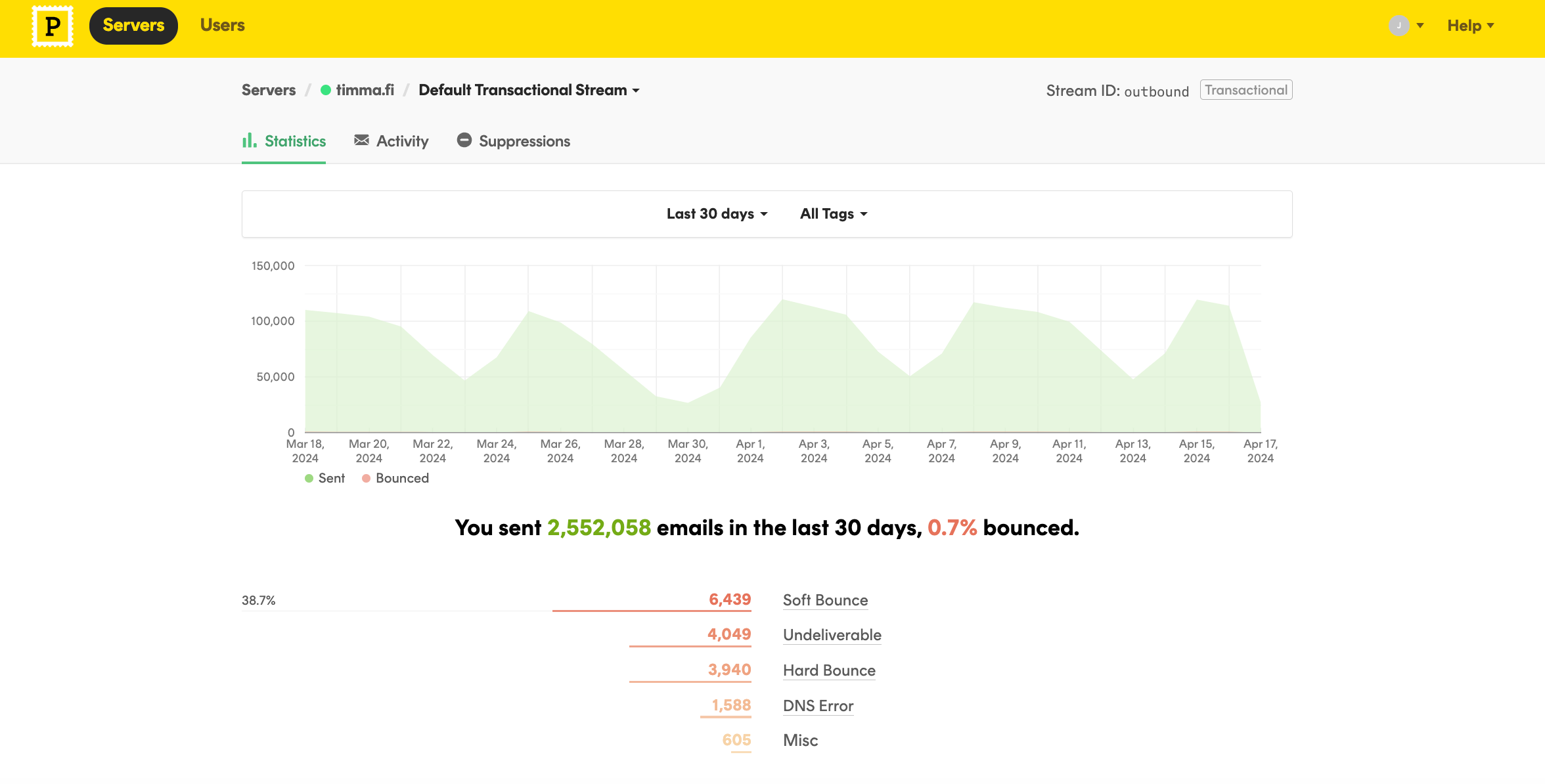
There you will see the options Statistics, Activity, Suppressions.
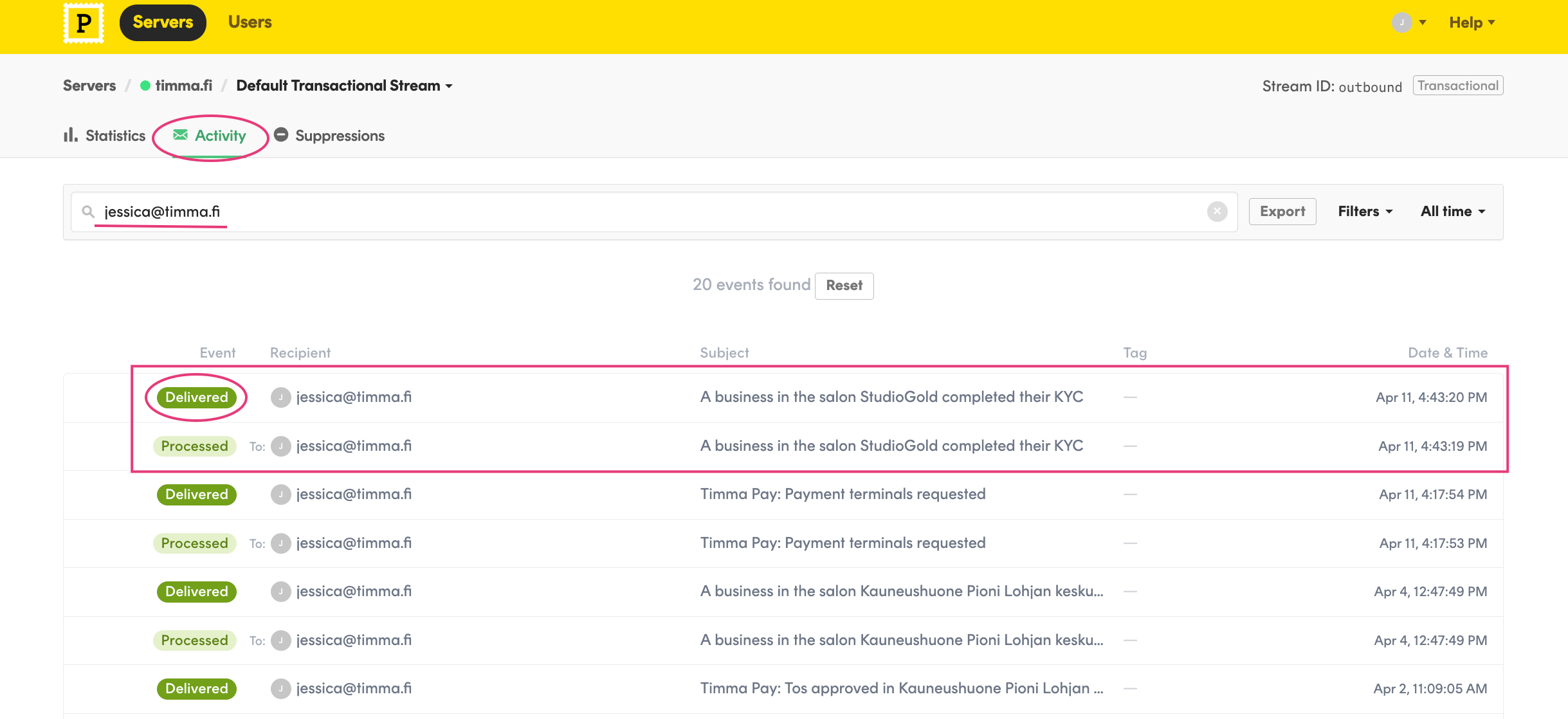
If you want to check whether the recipient has received the email or not, go to Activity. Type in the email address and press enter. Postmark shows all the emails double, one that is processed and one that is actually delivered or not delivered.
This one has been delivered successfully.
If the status says “hard bounce” or “soft bounce” the email has not been successfully sent to the recipient. These types of errors can mean different things; mailbox is full, recipient’s email is not found, the address is spelled wrong or there is some kind of other restriction or spam complaint.
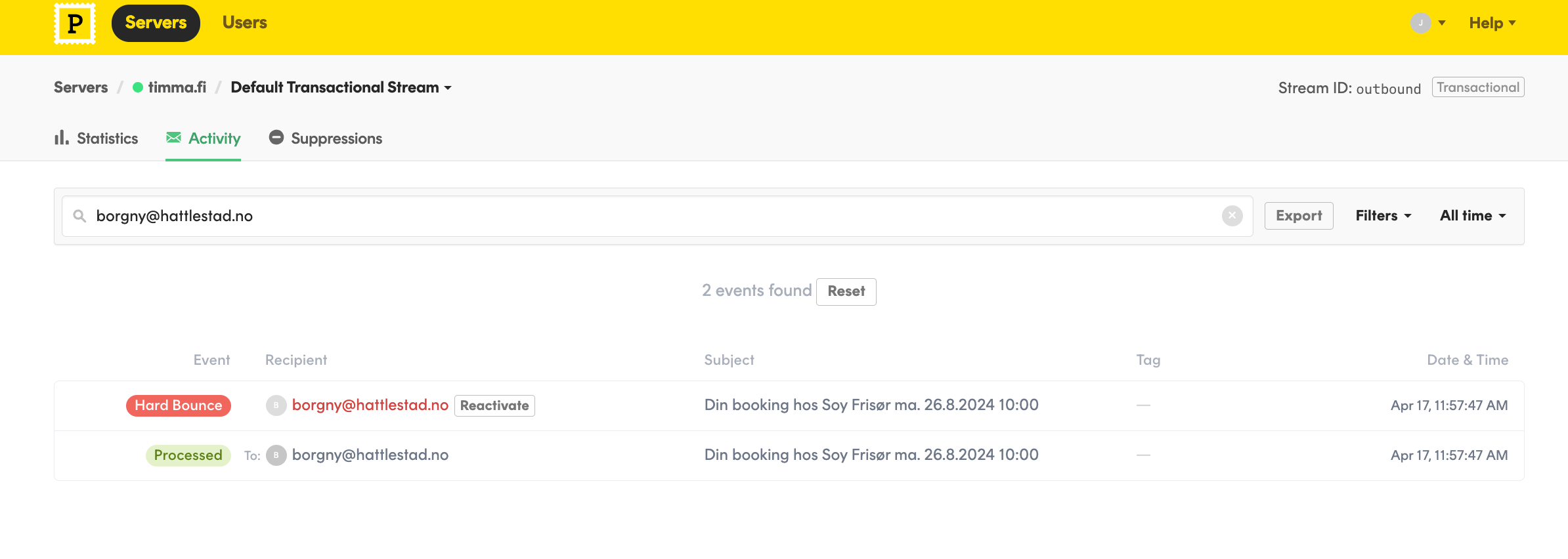
What we can do in this situation is to click “Reactivate”. This will be the cure in most of the cases if the email address actually exists and the mailbox is found.
This email was not sent to the recipient due to a “hard bounce” status. Opening up the message can give you some hint what might be wrong there.
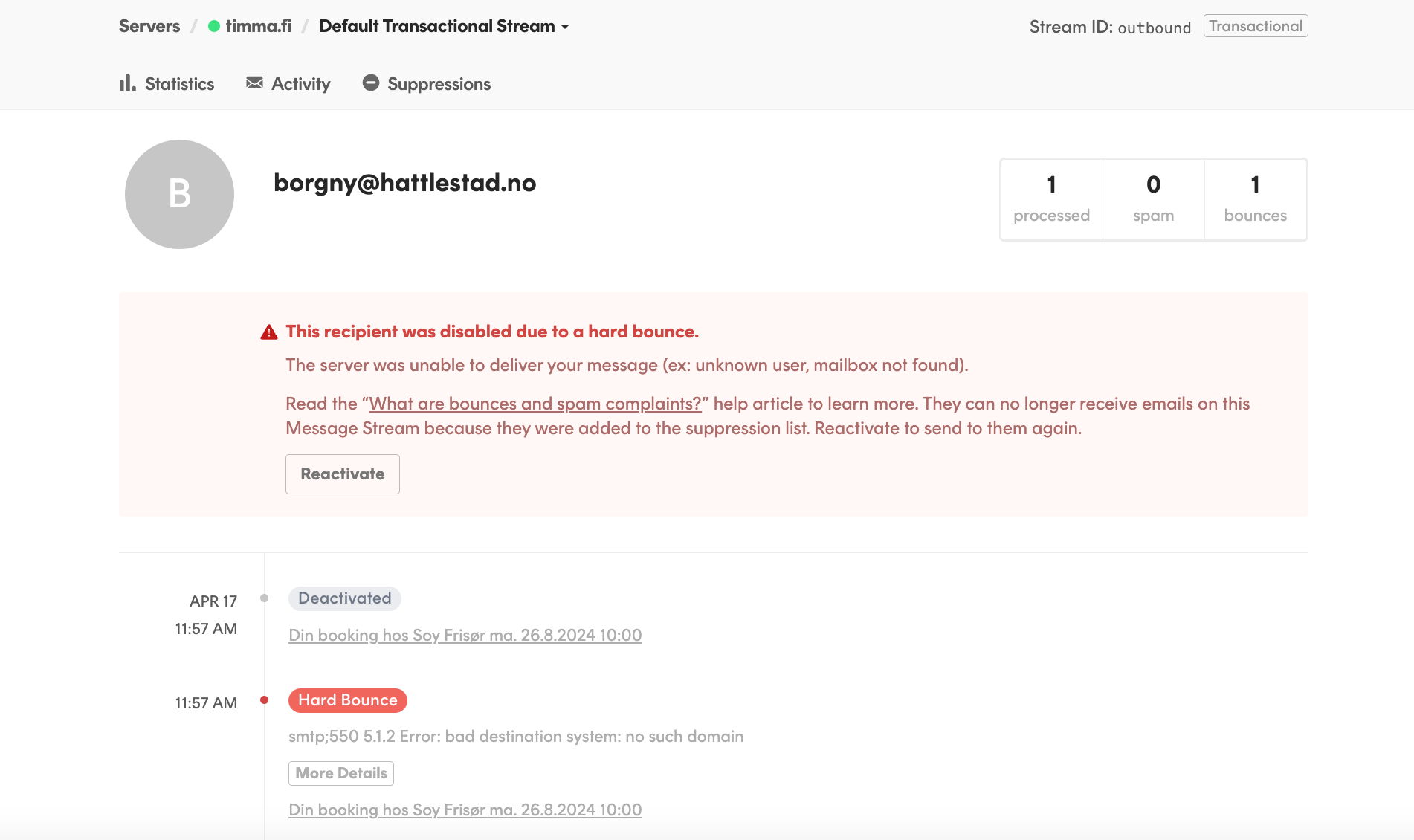
After clicking the “reactivate” button you can test to send something to the customer and see if they gets it or not. Also you can ask the customer to get back if the problem still occurs.
If you search from the “Activity” and nothing is shown there, it usually means two things:
Darn! No matches found. 🤠
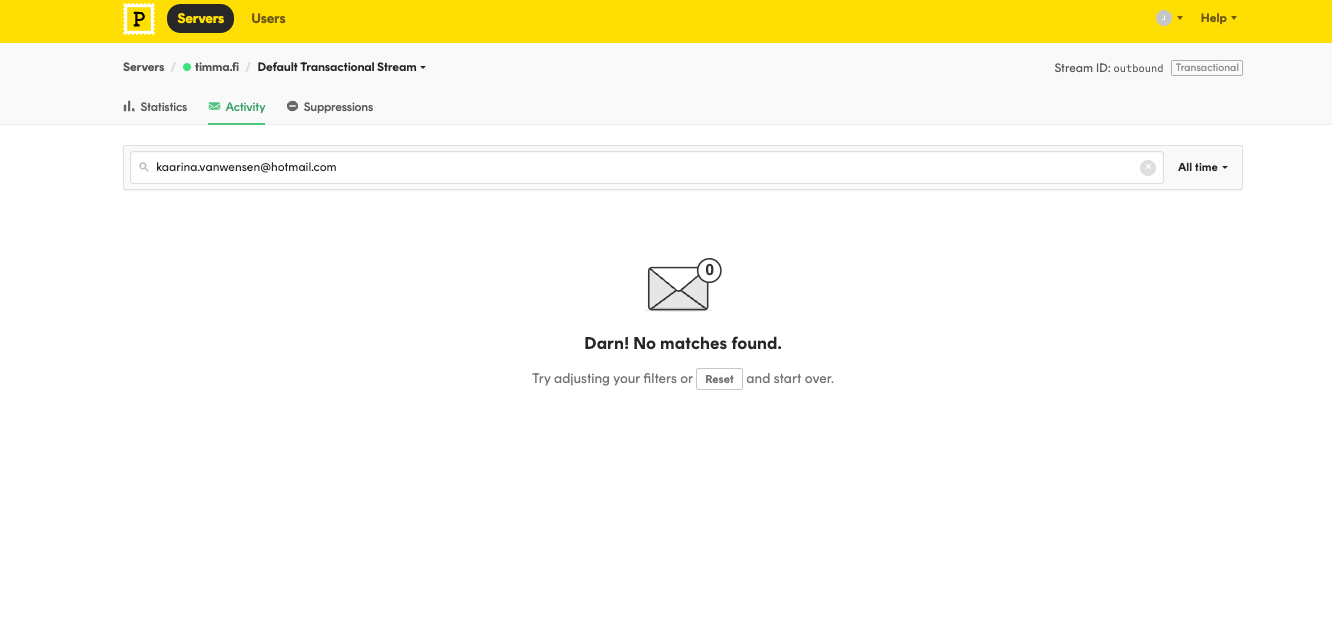
In this case the address was found under the “Suppressions”.
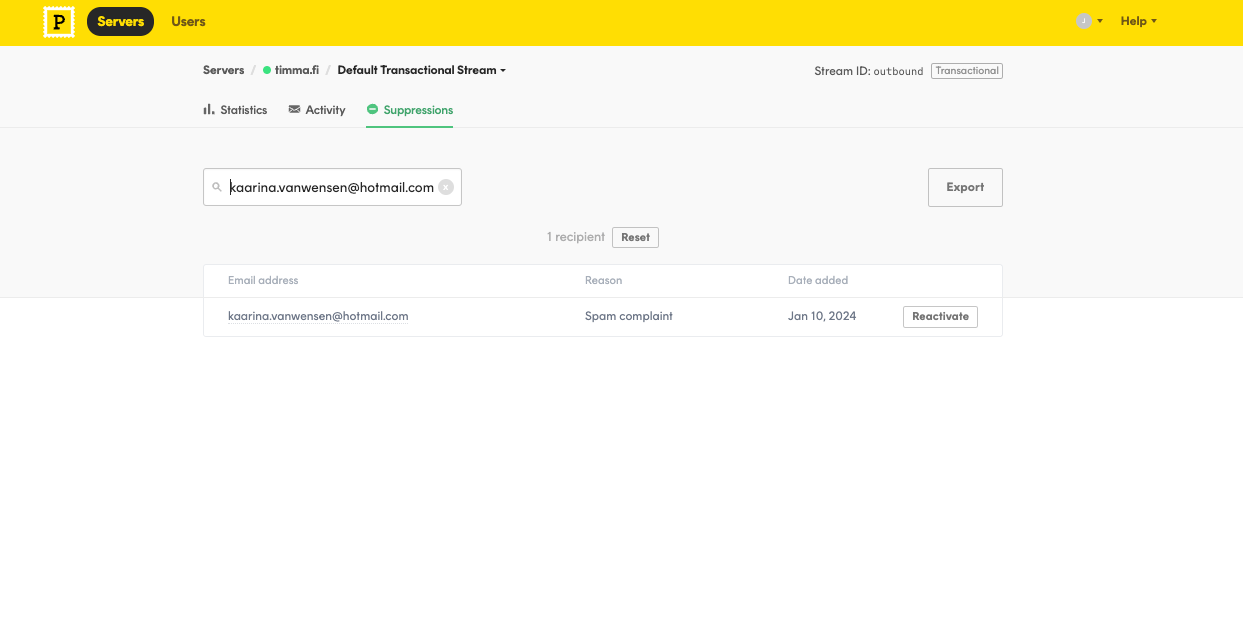
The reason says “Spam complaint” which usually means the customer themselves has clicked it as a spam. Also the email provider can do this type of sorting by its own. You can now reactivate the address and try sending something to that address.
Note! There is not any type of queue or anything so the emails that have bounced are not sent again automatically. So the email must be sent again manually. This is very important in case of a gift card for example.
45 Days of Email Activity and Content Previews
| You may also want to use visual panels to communicate related information, tips or things users need to be aware of. |
Related articles appear here based on the labels you select. Click to edit the macro and add or change labels.
|