Local Development Environment Setup Guide
Visual Studio Installation
Prerequisites and Installation Steps
- Download Visual Studio
- Install Visual Studio from the Visual Studio Marketplace.
- Obtain Professional License Access
- Ensure you have access to the Professional version of Visual Studio:
- Submit an access request through the Service Desk portal
- Notify your manager to approve the license request
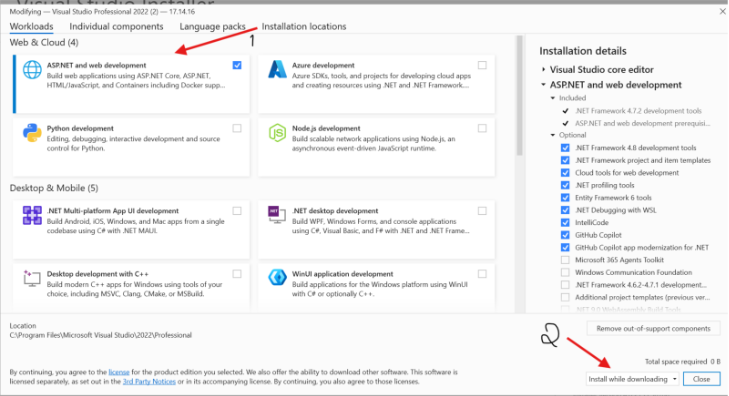
- Configure Installation Components
- During the Visual Studio installation process:
- When prompted, select the installation components screen
- Check the ASP.NET and web development workload
- This will automatically download all required dependencies and packages for EG-Flow development
- Click Install to begin the installation
- Complete Installation
- The installer will now set up Visual Studio on your local machine.
Check the image below.
Project Setup and Configuration
Cloning the EG-Flow Repository
- Access the Repository
- Navigate to the EG-Flow repository on GitHub: EG-FLOW Repository
- If you don't have repository access, request it through your manager
- Copy either the HTTPS or SSH clone URL
- Clone Using Visual Studio
- Follow these steps to clone the repository:
- On the start screen, select Clone from GitHub
- In the dialog that appears, paste the copied URL or browse repositories using the UI
- Click Clone to download the project
- Explore the Project Structure
- After cloning completes:
- Open the Solution Explorer
- You'll see the complete project structure
- For detailed information about the project architecture, refer to the Project Structure Documentation
- Configure Startup Project
- Set the correct startup project:
- In Solution Explorer, right-click EGU.Flow.AppHost
- Select Set as Startup Project

- Run the Application
- Start the application:
- Click the Start button (or press F5)
- A browser window will launch displaying the Aspire default dashboard
Note: Aspire is configured as the orchestrator for all projects in this solution
Azure Storage Explorer Setup
Azure Storage Explorer is a standalone application that allows you to manage Azure Storage resources (Blobs, Queues, and Tables) locally, eliminating the need to access the Azure Portal for routine operations.
Installation
- Download Azure Storage Explorer from the official download page
- Run the installer and follow the on-screen instructions to complete the setup
Azurite Local Emulator
Azurite is a local Azure Storage emulator that simulates Azure Storage services (Blobs, Queues, and Tables) in your development environment. It functions similarly to Docker containers, providing a local runtime environment for storage-dependent code.
Installation and Setup
- Install Node.js
- Ensure you have Node.js installed (version 18 or higher) Installer Link
- Install Azurite
- Open a terminal and run:
- Start the Emulator
- In your terminal, execute:
- Verify Operation
- You should see log messages indicating that Azurite is running and listening on specific ports
Connecting Azure Storage Explorer to Azurite
Configuration Steps
- Verify Azurite is Running
- Ensure the Azurite emulator is active in your terminal
- Connect in Azure Storage Explorer
- Configure the connection:
- Open Azure Storage Explorer
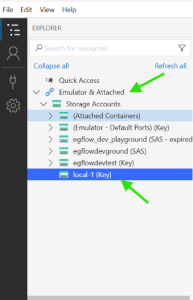
- Navigate to Emulator & Attached in the left panel
- Expand Local (Key) to view your local storage accounts
- You can now browse and manage Blobs, Queues, and Tables locally
Check the image below-
Important: Keep Azurite running in the background whenever you're working on the EG-Flow project to ensure proper functionality of storage-dependent features.