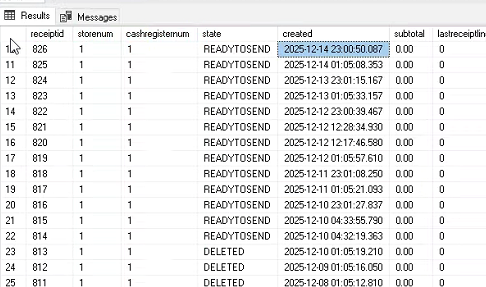
The following updates have proven to cause problems with receipts not appearing in the receipt journal.
December 2025 Windows security update (KB5071546, KB5071544, KB5071543)
ATTENTION! Completing the uninstallation of a KB update can in some cases take a very long time at reboot; over an hour. So if the store only has one cash register, do the uninstallation outside opening hours.
We've hade cases on windows 10 where it took over one hour at the startup after rebooting windows to finish the uninstallation of the KB.
The initial uninstallation in the "Uninstall windows updates" before reboot takes only around 5 minutes.
If a customer reports an issue in EGPOS related to:
Receipts are not sent from the local POS to the central environment.
Receipts cannot be parked because they are not transferred to the master register (StoreCentral) for further processing.
Sales data is not transferred centrally, which means that reports are not updated.
End-of-day reports are not submitted.
How the issue presents in Lindbak POS Local.dbo.poslog:
The state on the lastest receipts created says READYTOSEND.
How the issue presents in LRSlog:
The LRSlog will say 'Unable to write POSLOG XML to MSMQ' this is an indication that MSMQ is effected by the windows update.
Example SE:
18.12.2025 11.44.09.678 Error 99 Exception occured: 'Unable to write POSLOG XML to MSMQ', System.Messaging.MessageQueueException: 'Det finns inte tillräckligt med resurser för att utföra åtgärden.'
Stack:
vid System.Messaging.MessageQueue.SendInternal(Object obj, MessageQueueTransaction internalTransaction, MessageQueueTransactionType transactionType)
vid System.Messaging.MessageQueue.Send(Object obj, String label, MessageQueueTransaction transaction, MessageQueueTransactionType transactionType)
vid System.Messaging.MessageQueue.Send(Object obj, String label, MessageQueueTransactionType transactionType)
vid Lindbak.Kasse.DataLayer.ServiceAgents.Services.KasseJournalSA.MSMQJournal.SendMessageOnMSMQ(Message message, String label)
vid Lindbak.Kasse.DataLayer.ServiceAgents.Services.KasseJournalSA.MSMQJournal.SaveJournal(String xml, Int64 receiptid, POSLogStatus status, Int32 version, String retailStoreId, String retailStoreIdLocal, Byte[] receiptAsPdf, List`1 signatures)
Example EN:
13.12.2025 00.00.23.669 Error 38 Exception occured: 'Unable to write POSLOG XML to MSMQ', System.Messaging.MessageQueueException: 'Insufficient resources to perform operation.'
Stack:
at System.Messaging.MessageQueue.SendInternal(Object obj, MessageQueueTransaction internalTransaction, MessageQueueTransactionType transactionType)
at System.Messaging.MessageQueue.Send(Object obj, String label, MessageQueueTransaction transaction, MessageQueueTransactionType transactionType)
at System.Messaging.MessageQueue.Send(Object obj, String label, MessageQueueTransactionType transactionType)
at Lindbak.Kasse.DataLayer.ServiceAgents.Services.KasseJournalSA.MSMQJournal.SendMessageOnMSMQ(Message message, String label)
at Lindbak.Kasse.DataLayer.ServiceAgents.Services.KasseJournalSA.MSMQJournal.SaveJournal(String xml, Int64 receiptid, POSLogStatus status, Int32 version, String retailStoreId, String retailStoreIdLocal, Byte[] receiptAsPdf, List`1 signatures, Nullable`1 isSendingPOSLogBatchEnabled)
wmic qfe | findstr "KB5071546 KB5071544 KB5071543"
Windows Updates must remain paused on all affected registers until a confirmed workaround or fix is in place.
If updates are re-enabled, the issue may return, causing:
Receipts not being sent
Sales data not updating centrally
End-of-day reports failing
Always pause Windows Updates again when the pause period expires if no workaround or fix has been implemented.
This is how you can uninstall the security update from the cash register.
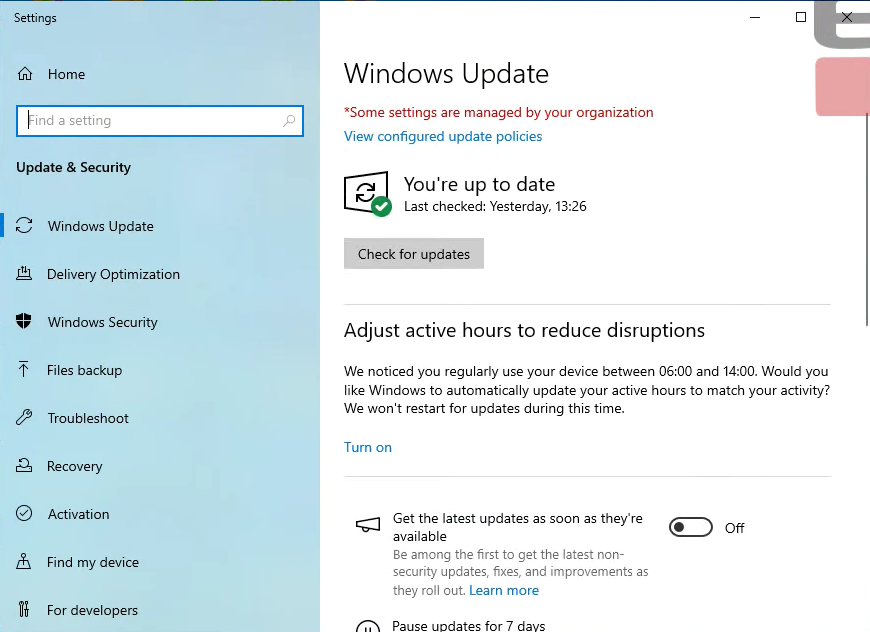
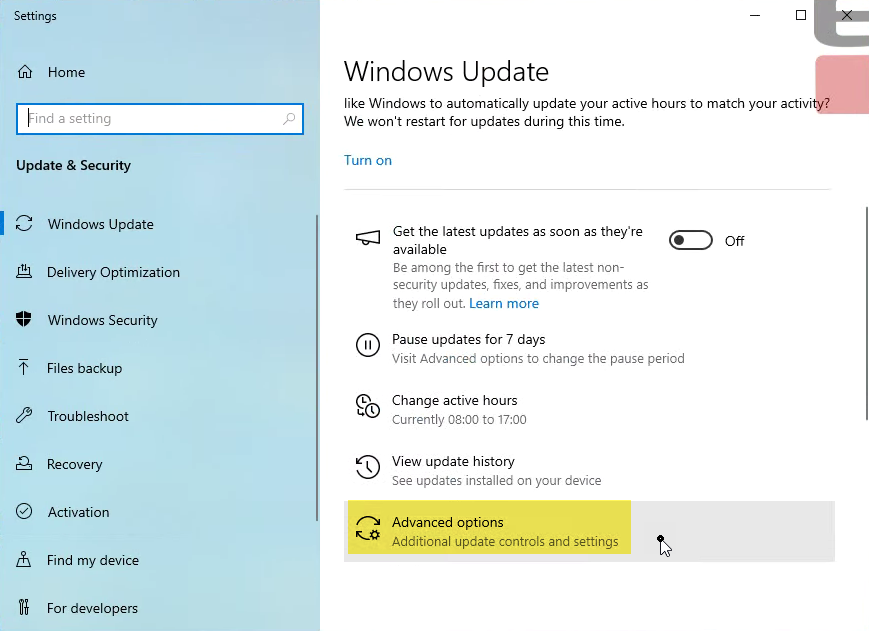
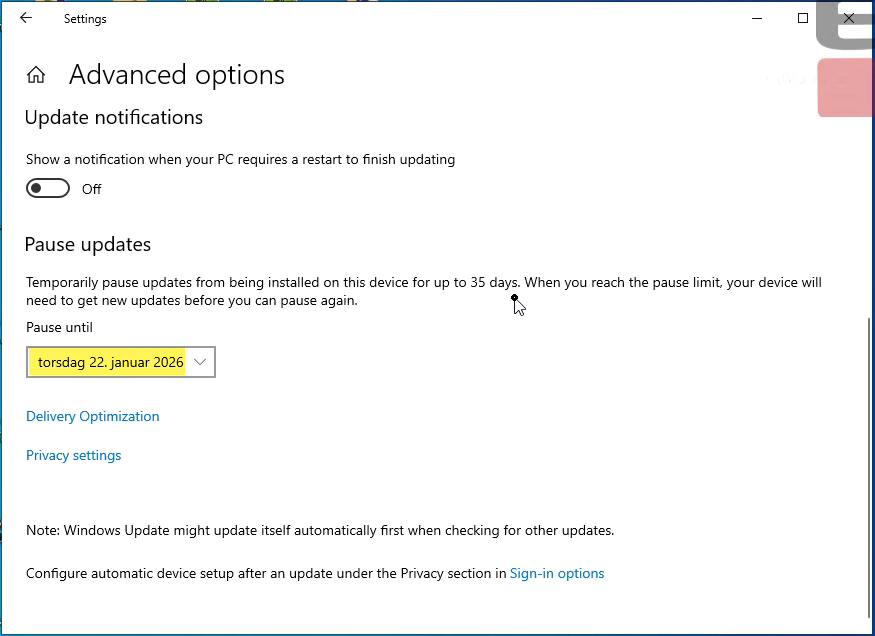
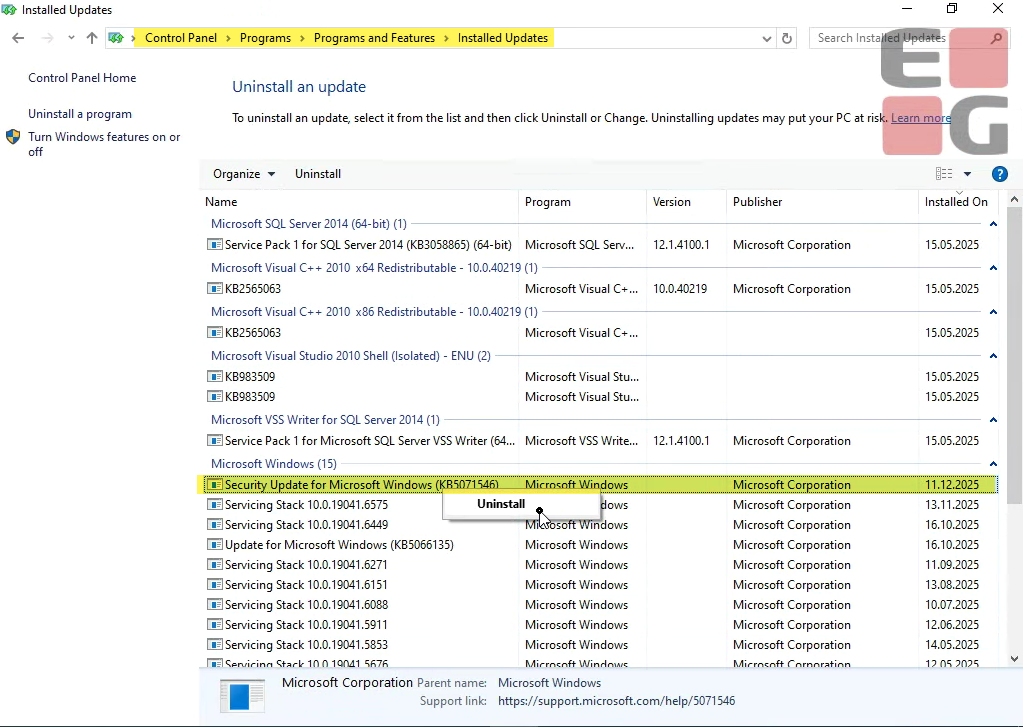
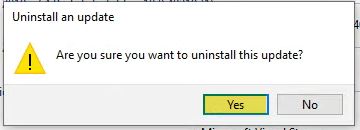
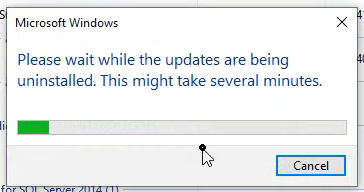
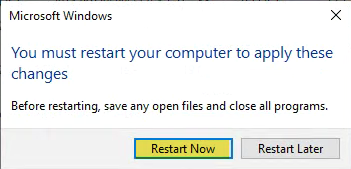
In some windows 10 environments the postponing 35 days option is not shown in the Update & Security Advanced options.
Then Group Policy editor can be used to disable the updates. If this is used, the updates must be turned back on manually at a later time.
To disable windows update in group policy editor: