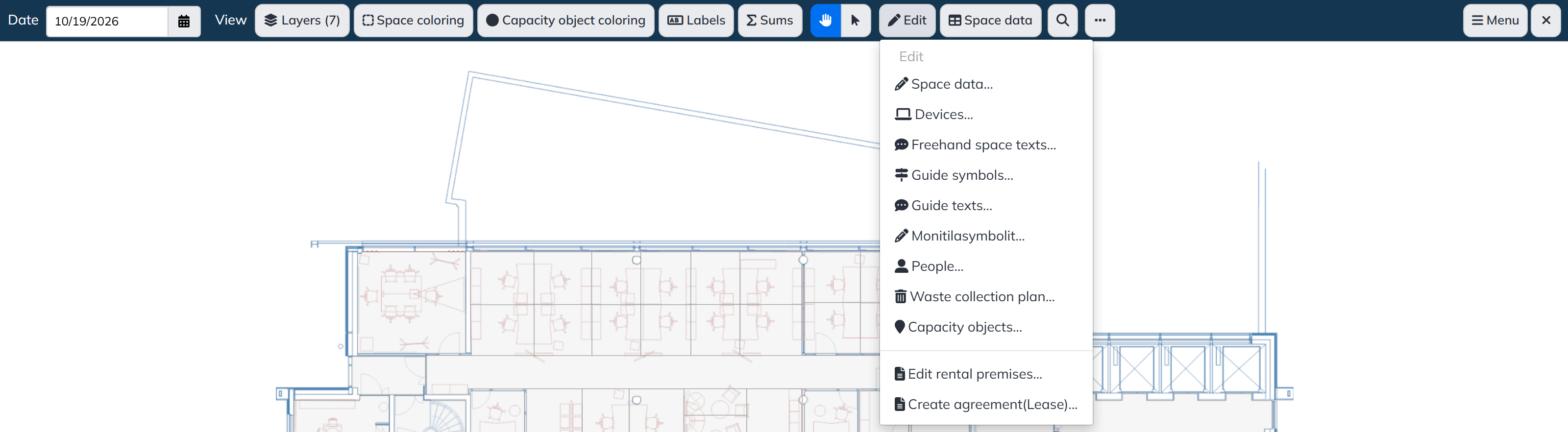
You can place objects and people in the floor plan. The functions are shown in the Edit menu only if you have the required permissions and your organization has the required license. The object types shown in the menu vary by organization.
Objects include, for example, devices, freehand space texts, guide symbols, guide texts, Monitila symbols and the waste collection plan. Each object type has its own row in the Edit menu and its own layer in the Layers menu. Objects are text or image (symbol) objects, and they can be linked to spaces. An object that is linked to a space can only be placed inside the boundaries of the spaces of the floor.
Image objects include, for example, devices and guide symbols.
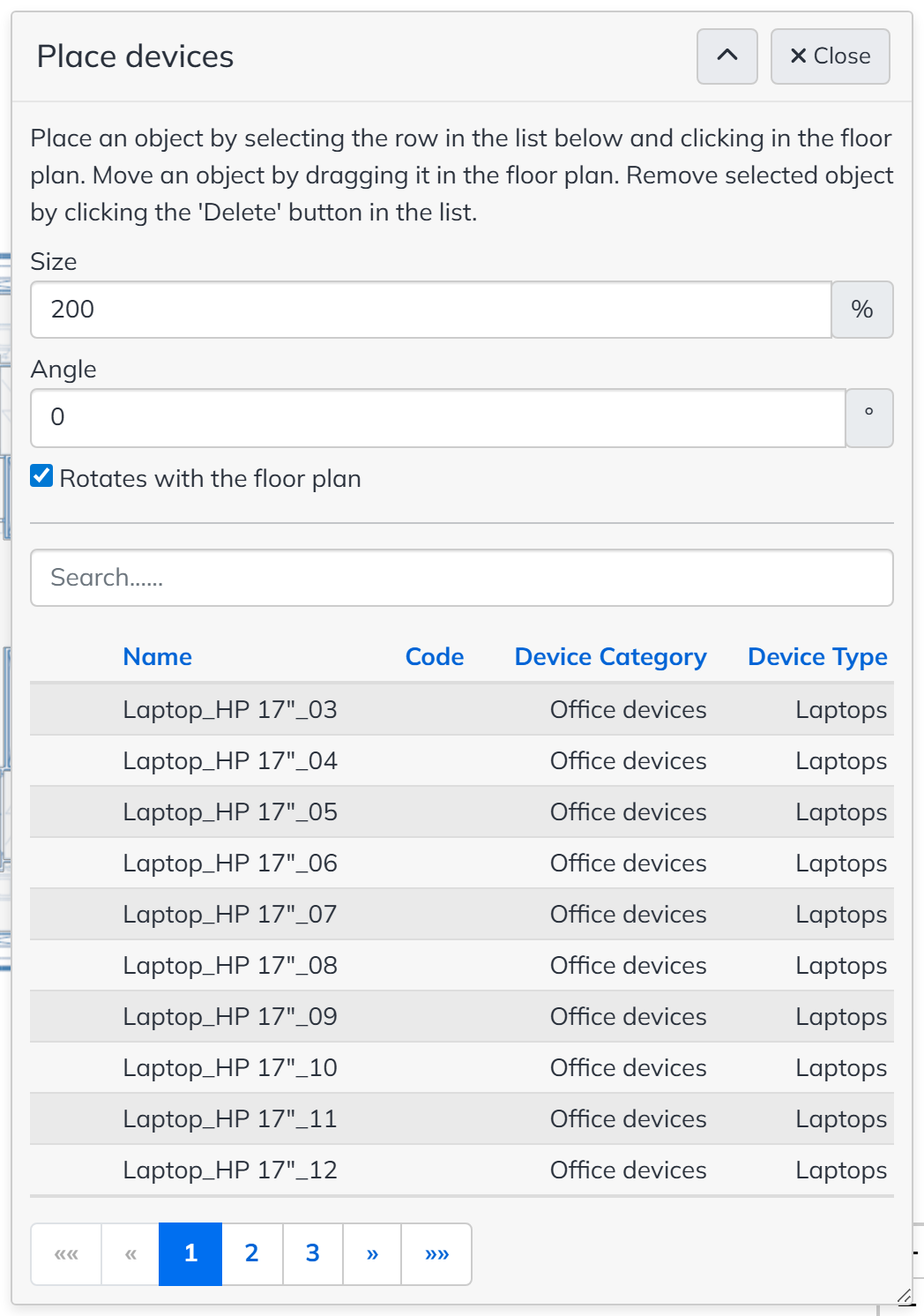
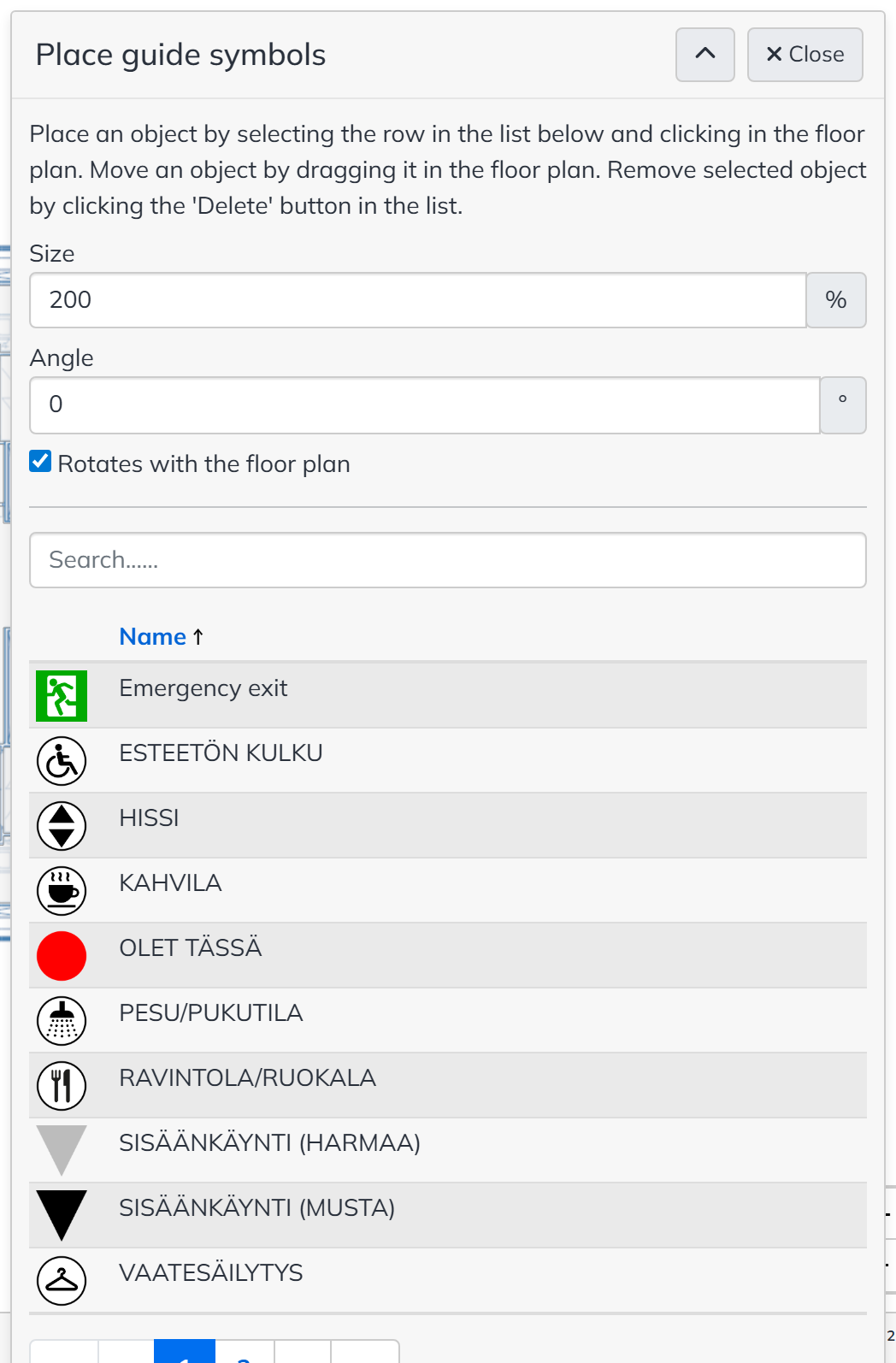
Select the object type you want from the Edit menu (e.g. Devices... or Guide symbols...).
Edit the additional options of the object if needed (depending on the object type):
Begin and end dates
Size
Angle
Select the object from the list.
Click the place in the floor plan where the object is to be placed.
Text objects include, for example, freehand space texts and guide texts.
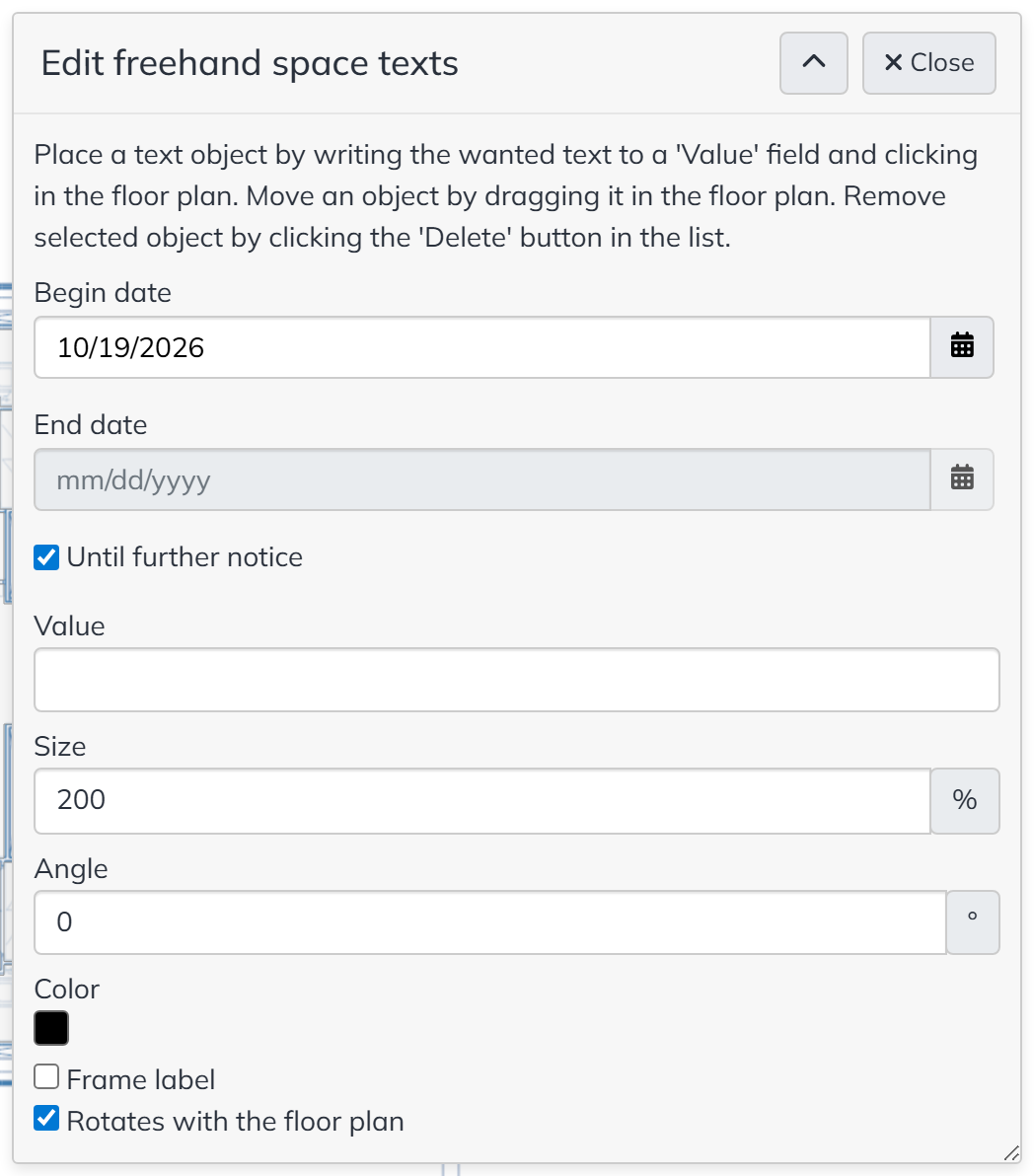
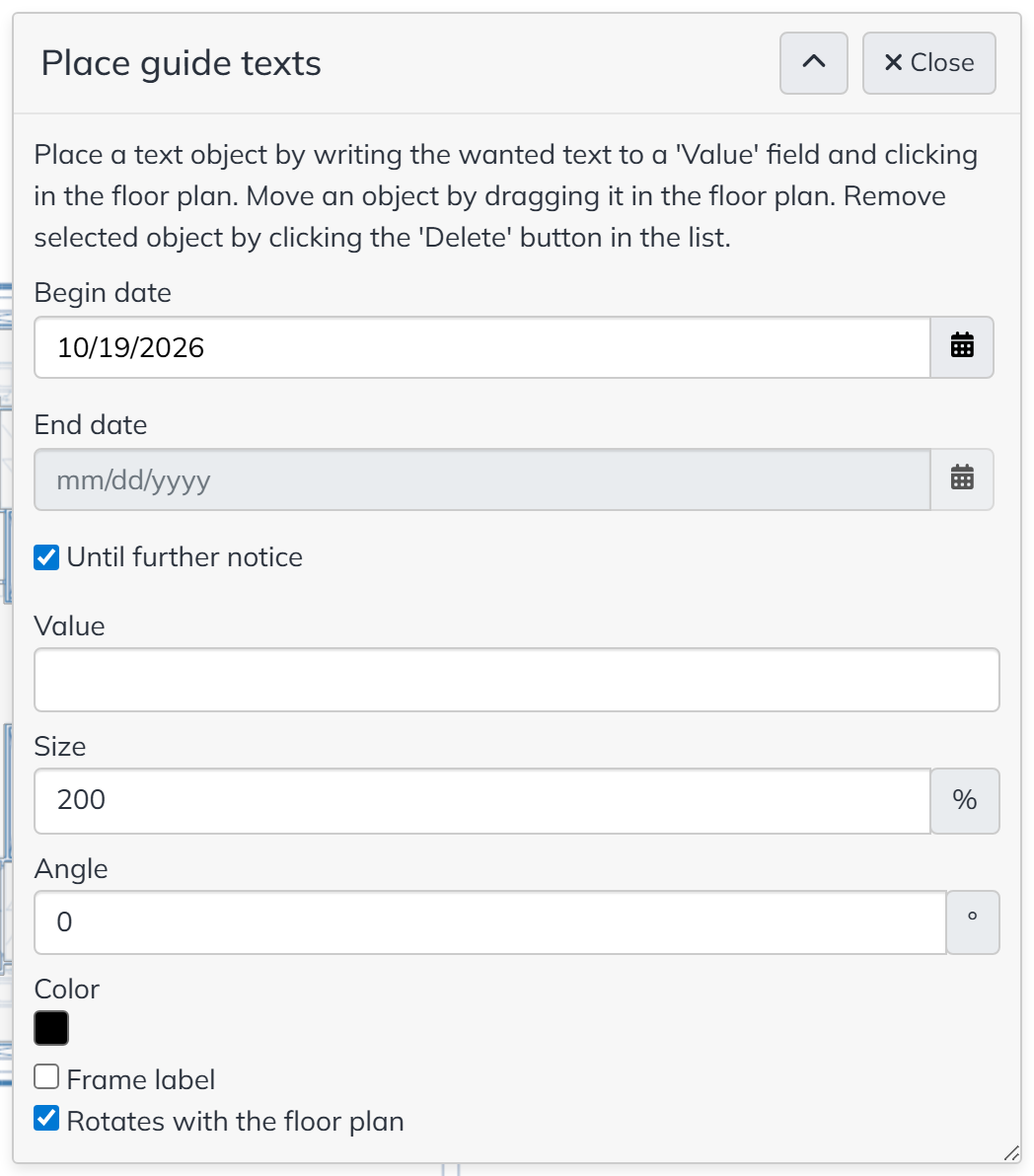
Select the object type you want from the Edit menu (e.g. Freehand space texts... or Guide texts...).
Enter the text you want in the Value field.
Edit the additional options of the object if needed (depending on the object type):
Begin and end dates
Size
Angle
Color
Frame label
Click the place in the floor plan where the object is to be placed.
Select the object type from the Edit menu.
Click the object in the floor plan to select it.
Select Delete in the list and confirm the removal.
You can change the position of an object by dragging it in the floor plan. If you drag an object that is linked to a space outside the spaces of the floor, the object is removed.
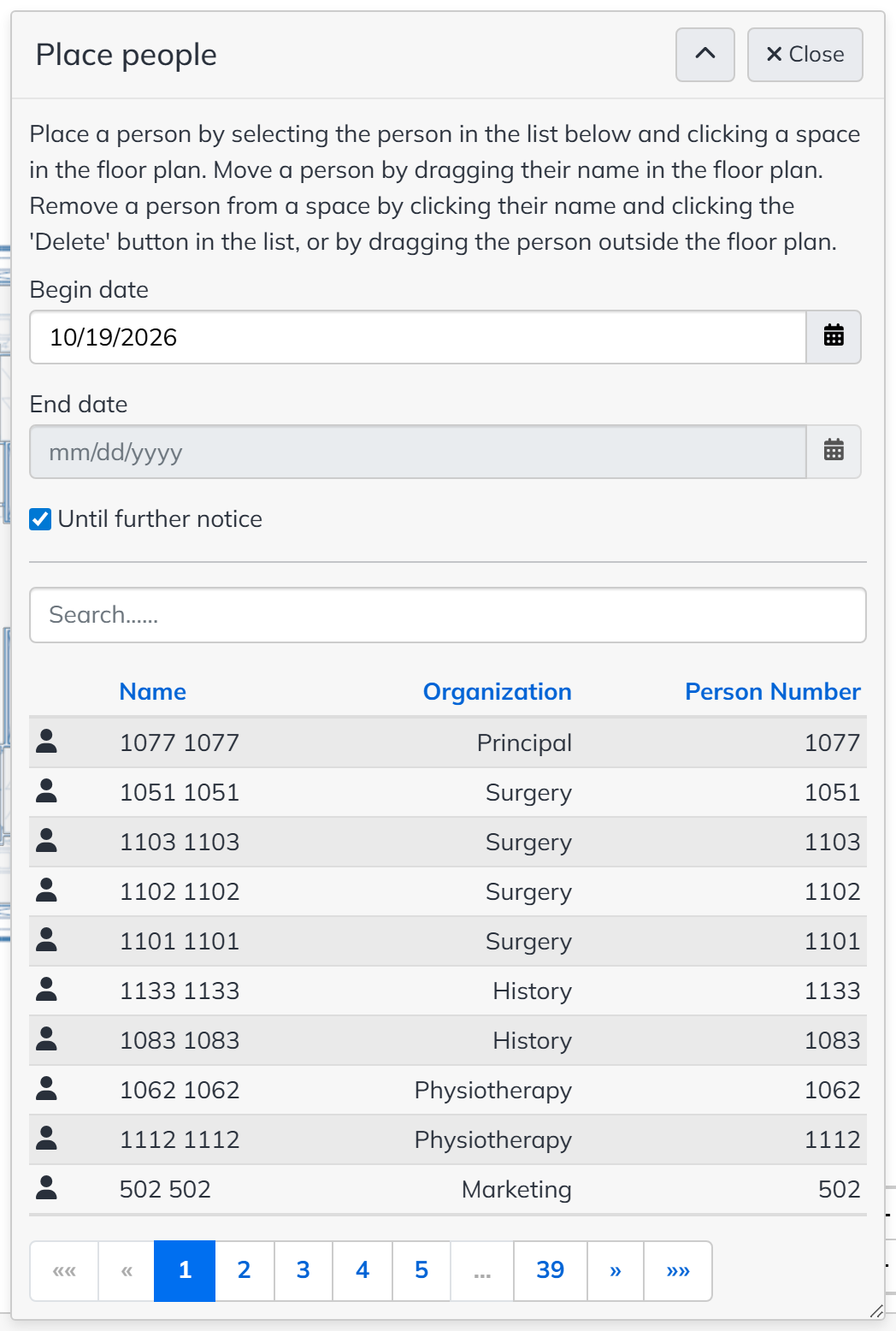
Select Edit > People.... The Place people panel opens.
Edit the begin and end dates if needed.
Select the person from the list.
Select the space in the floor plan where the person is to be placed.
Confirm the placement. If applicable, answer the confirmation questions about how existing person placements are changed.
Select Edit > People....
Click the person's name in the floor plan to select the person.
Select Delete in the list and confirm the removal.
You can also change a person's placement by dragging the person's name in the floor plan from one space to another. You can remove a person from a space by dragging the name outside the floor plan.