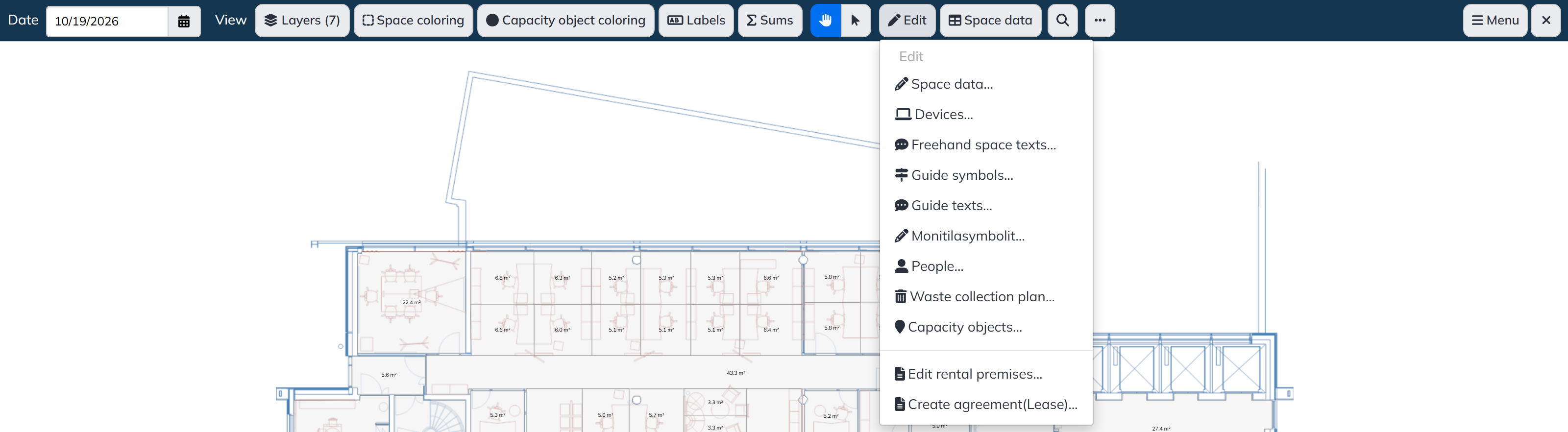
The Edit menu lists the data that you can edit in the floor plan viewer. What you can edit depends on your permissions, your licenses and your organization's settings, and it can be defined per customer. The menu only shows the functions that are available to you.
You can edit properties linked to spaces (for example space category, space label and organization data) when one or more spaces are selected. The types you can choose from vary according to your permissions. Types include, for example, Space label, Main use zone, Common space code, Building block, Organization level 6, Info sign, Space name, Allocation factor, Rental area and Space extra info.
Select the space or spaces whose data you want to edit.
Select Edit > Space data.... The Edit space data panel opens.
In the Select type to edit list, select which data you want to edit (e.g. space category).
Enter or select the new value.
Enter or select any other data: Begin date and End date (or Until further notice).
Save.
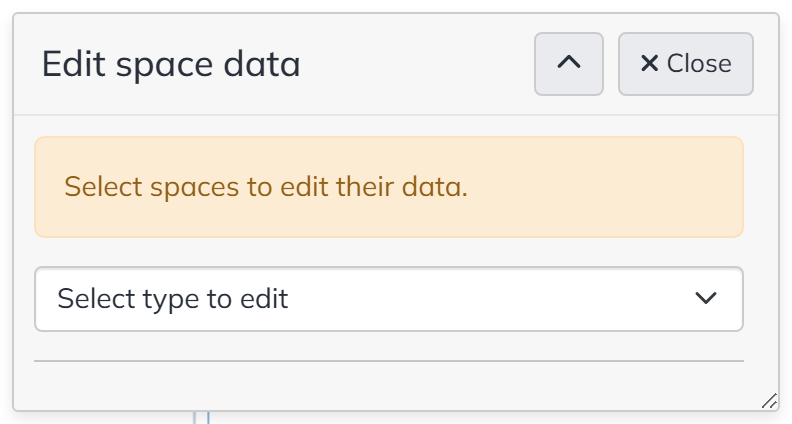
When you have selected several spaces, the panel shows a note that the change affects all the selected spaces.
You can change the space label for only one space at a time, and the label can be at most 50 characters long. If the label is already in use on the same floor, the application asks whether you are sure you want to update the space label.
When you edit organization data, you can place several organizations in a space by selecting Multi-user space. Each organization is given a Share. Shares are given as parts, not as percentages.
If the selected spaces already have several organizations and Multi-user space is not selected, the panel shows a warning that the data will be overwritten.
When you save, the application confirms that you want to overwrite the multi-user data in the selected spaces.
An organization cannot be placed in an outrent area.
Your organization may have blocked editing space data before a certain date. If the data cannot be edited for the date you have selected, the application tells you from which date editing is possible.
Editing space extra info is described on its own page: Floor plan viewer – space extra info.